Edit Performance Tile Views

Performance tile views focus on a single piece of aggregate data. They use color, labels, and limited styles to show status and use conditional formatting of the background color or measure value to make the tile visually prominent.

By default, the first measure in the analysis on the Criteria tab is selected as the performance tile measure. To ensure the correct measure value is displayed in the tile, set up aggregation and filters on the Criteria tab. To include additional performance tile views for each measure in an analysis, add a separate view for each measure.

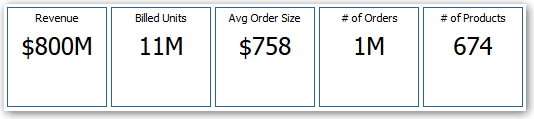
For example, you might want to edit a performance tile view to use Revenue as the measure. You can specify that the values and labels utilize the available space. This example shows performance tiles on a dashboard page.
  1. Open the analysis for editing.
  2. Click the Results tab.
  3. Click View Properties. You can set the following properties:
    • The size of the tile — You can select predefined options Small, Medium, or Large, or you can select Custom and then set the height and weight in pixels. Other options allow you to autofit the tile to the value that is displayed.

    • The position of the tile — Options include Fixed Position, which sets (or “fixes”) the positions of the labels, meaning the label text is displayed in fixed positions (recommended for layouts with multiple performance tiles of the same size in a row) and Utilize available space, which evenly spaces the label text on the performance tile vertically. The label text utilizes all available space on the performance tile. Note that when you have multiple tiles placed beside each other, the labels might be displayed at different heights and look uneven based on the varying label content.

    • The use of abbreviated values — A performance tile can show a value using its measure's default formatting or the value can be abbreviated to the nearest thousand, million, and so on. For example, using abbreviated values, the default formatting of “123,456.50” would be displayed as “123K”. Select the Abbreviate in formatted Excel option if you want to display abbreviated values when you export analysis results to a formatted Excel spreadsheet.

    • The appearance of the tile, such as the background and border colors — Click the Edit Conditional Formatting link to apply conditional formatting to the tile.

  4. Click OK.
  5. Click Edit View to display the Performance Tile editor.
  6. In the Styles pane, change the tile size to Small, Medium, or Large.
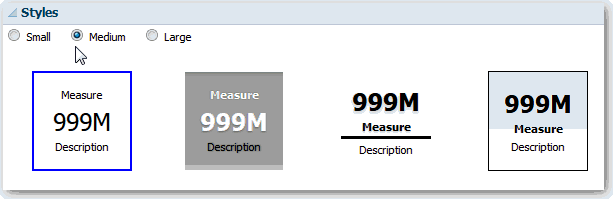
  7. Select a themed (or stylized) tile located below the Tile Size option buttons to change the theme for the performance tile.
  8. Click Done.