Edit Treemap Views
Treemaps organize hierarchical data by grouping the data into rectangles (known as tiles). Treemaps display tiles based on the size of one measure and the color of the second measure.
The following figure shows an example of a treemap view. The country names are grouped by region and area. This treemap shows the correlation of revenue for a country (based on average order size) across different regions for an area.
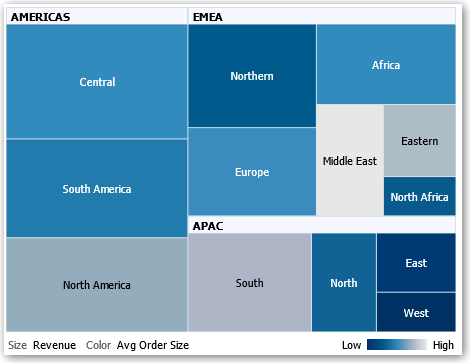
By default, the first measure of the analysis in the Criteria tab is selected as the Size By measure, and the second measure is selected as the Color By measure. If there is only one measure in the analysis, this measure is the default for both Size By and Color By options. Additionally, the Style element defaults to Percentile Binning with "quartile" as the value for the number of bins.
Treemaps have the following characteristics:
-
Tiles are colored by percentile bins or continuously.
-
First Group By dimension is displayed as the group (header) label.
-
The order of the Group By dimensions implies the nesting order within the treemap. The last dimension in the Group By is the lowest level and this dimension name is displayed as the tile label. If the label is too long to fit on the tile, then it’s truncated. Full values for the labels display in the tooltip.