Edit Table and Pivot Table Views
Tables and pivot tables are commonly used views, and you can edit them in similar ways to display data the way you want.
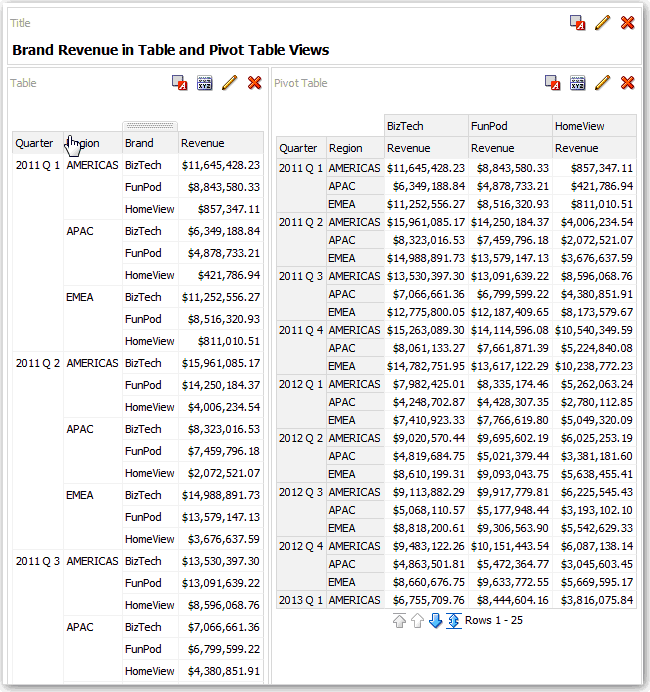
For example, you can edit a pivot table in an analysis by moving the Brand column to the row edge to display its corresponding Revenue data for each Quarter and Region. You could also display the same data in a more conventional way by adding a table next to the pivot table in a compound layout, as shown below.