Edit Trellis Views

A trellis view is a type of graph view that displays a grid of multiple graphs, one in each data cell.

A trellis view can be simple or advanced. A simple trellis displays a core inner graph multiplied across row sets and column sets, displaying many small multiples that are ideal for comparing and contrasting. An advanced trellis displays a grid of small spark graphs that are ideal for monitoring trends and spotting patterns in a dataset.

The following figure shows a simple trellis view:
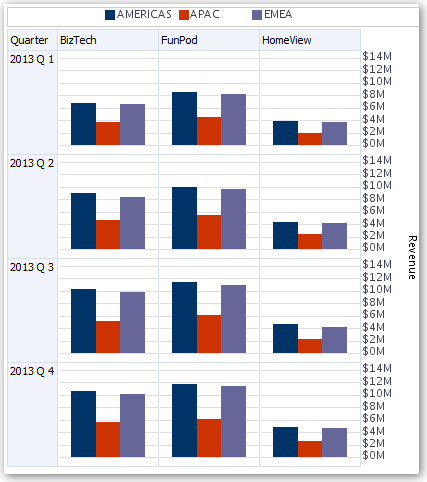
The trellis view ( also referred to as a trellis graph) is similar to a pivot table except that the data cells within the trellis contain graphs. Whereas a standalone graph type such as a single bar graph or a single scatter graph works on its own, the trellis graph works only by displaying a grid of nested graphs, known as inner graphs. So a bar graph trellis view is actually comprised of multiple bar graphs.

  1. Open the analysis for editing.
  2. Click the Results tab.
  3. Click View Properties to edit properties.

    You can set the following kinds of properties:

    • Related to the grid canvas, such as legend location (simple trellis views only).
    • Related to graph size for the visualizations that are included in the trellis.
    • That specify the method to be used to browse data — either scrolling or paging controls.
    • That control the appearance of the trellis's grid and its visualizations, such as various style choices and the way that legends are displayed.
    • That control the type of scale and the appearance of scale markers for each of the trellis's visualizations (simple trellis views only).
    • That control the display of titles and labels (simple trellis views only).
  4. Click OK.
  5. Click Edit View to display the Trellis editor.
  6. In the Layout pane:
    1. Drag and drop columns into the Columns and Rows fields to specify how data is arranged in the trellis.
    2. Select the type of graph you want to display for each of the cells in the trellis.
    3. Drag and drop columns to indicate how to color the graphs.
  7. Right-click a view heading, and click Sort Column to specify how values are sorted in the view.
  8. Click Done.