Enable and Configure Adding Columns for Tables and Pivots
Enable adding columns for a table or pivot visualization and specify which columns are available for consumers to add to the visualization.
Consumers can select which columns they want to add to or remove from the table or pivot.
To enable column swapping for a table or pivot legend, see Enable and Configure Column Swapping for a Visualization.
You specify which columns are available to add to the visualization by adding them to the Related Columns section of the Grammar pane. Related Columns also holds columns that you want to use for Contextual Insights. For more information, see Enable and Configure Contextual Insights for a Visualization.
If you don't want these columns to be available to add, you can select the column in the Related Columns section and deselect the Use in Add Columns option from the menu. The column's Treat As icon appears gray when the column isn't available to add. 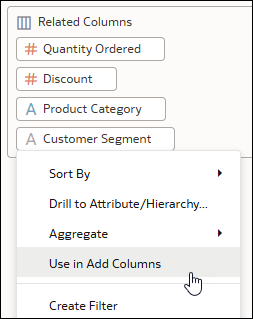
Description of the illustration add_column_deselect.png
- On your home page, hover over a workbook, click Actions, and select Open.
- Select a table or pivot visualization.
- Click Properties and then click Advanced
 .
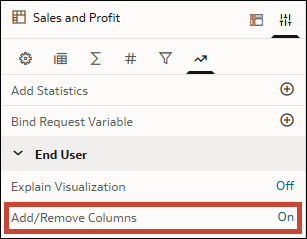
. - Under End User, in the Add/Remove Columns row, click Off to turn it to On.
- Click Grammar.
- From the Data pane, drag the columns to be available for adding to the Related Columns section of the Grammar pane.
- Click Save.