FAQs General Questions
This topic provides answers to frequently asked questions (FAQs) about managing your data and machine learning artifacts in the Oracle Analytics Catalog.
How do I move existing Data and Machine Learning items to the catalog?
Navigate to the Catalog pane, and drag and drop items from sub-folders in Data or Machine Learning to My Folders or Shared Folders.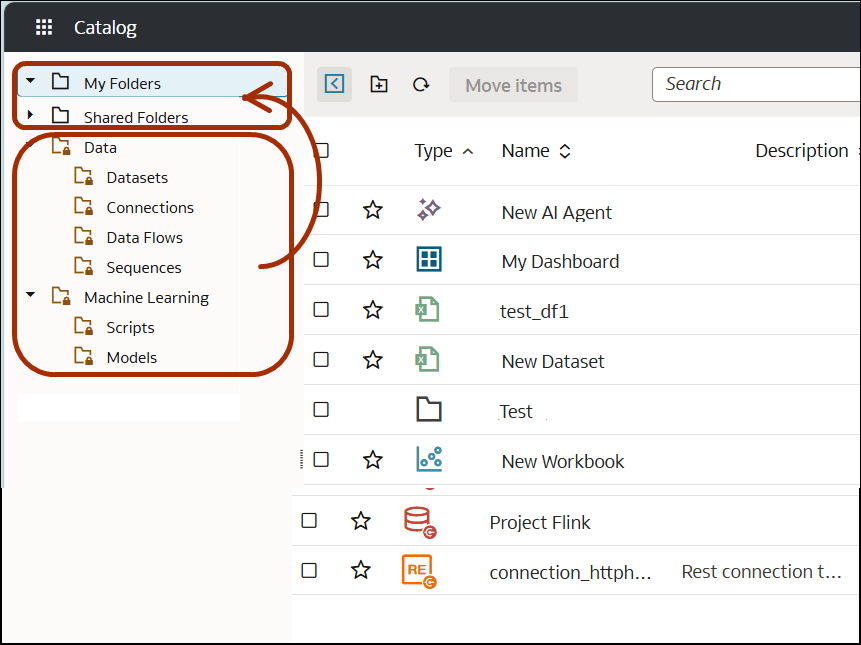
Description of the illustration onecat-migrate-content.png
What happens if I don't move existing Data and Machine Learning items to the catalog?
They remain in the legacy Data or Machine Learning folders. If you open an existing item located in the Data or Machine Learning folders and save it, it remains in its original location. If you open an existing item located in the Data or Machine Learning folders and choose the Save As option, you have to save it in a folders in the catalog.
Are there differences between Catalog and Classic Catalog?
Generally, no. Classic Catalog enables you to manage all items in the same way.
Exceptions in Classic Catalog are Archive and Unarchive for folders,
which don't include connections, datasets, data flows, sequences, models, and
scripts. They only include Classic items such as dashboards, analyses, briefing
books, deliveries, and so on.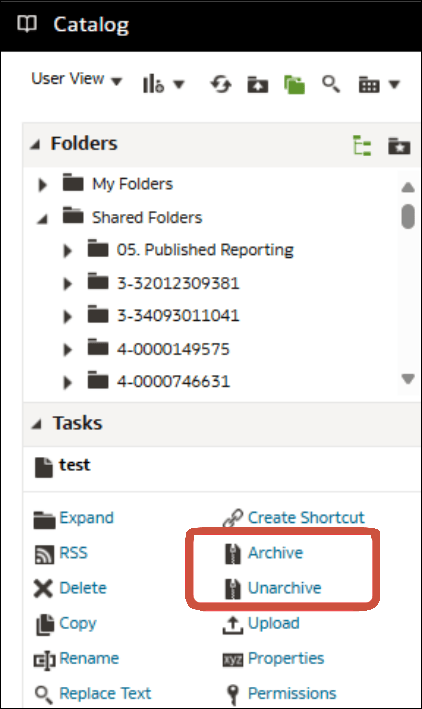
Description of the illustration onecat-classic-exceptions.png
If I move existing Data and Machine Learning items around in the catalog, will this affect my workbooks, connections, data flows, and so on?
No. Everything will continue to work as normal.
If you see a warning message when you try to move other Catalog items, follow the guidance in the message.
If I create a snapshot in Oracle Analytics Console, can I include Data and Machine Learning items in Shared Folders and User Folders?
Yes. In the Create Snapshot dialog you can select which catalog items to include in your snapshot. 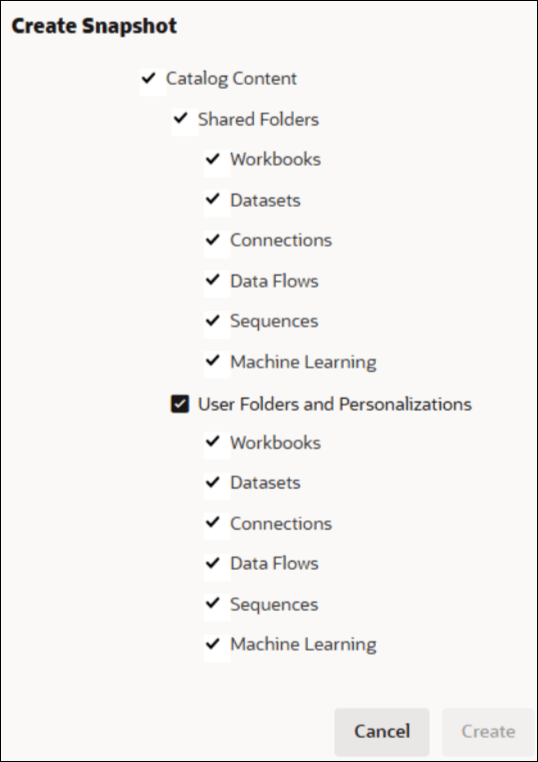
Description of the illustration create-snapshot-select-catalog-items.png
Can I recreate old data or machine learning items that've been lost or deleted?
Yes. First recreate the item, for example a dataset. Then, use the Inspect dialog to display the Aliases page and add the old item ID as an alias.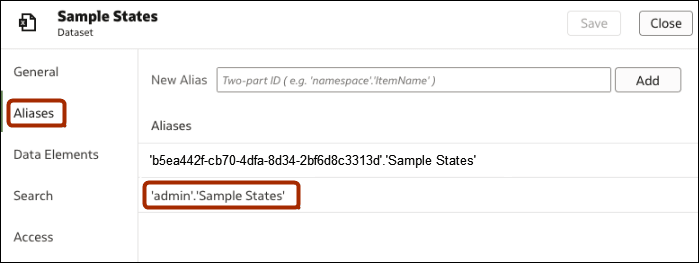
Description of the illustration alias-example.png