Format Gridlines in Tables and Pivots
You can format the gridlines in table and pivot visualizations to increase visibility.
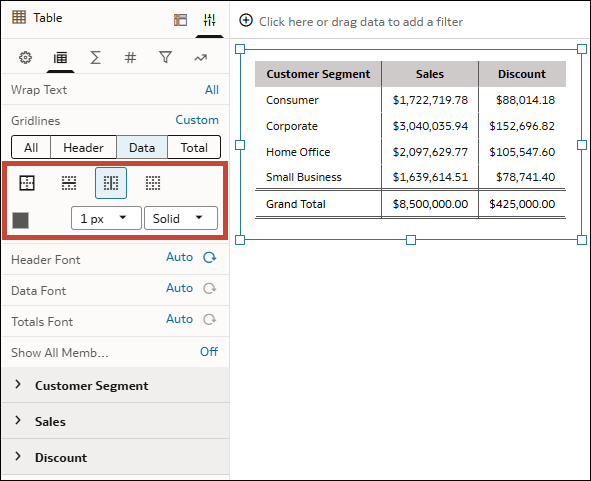
In the Edge Labels tab of the Properties pane, use the Custom option for the Gridlines row to format specific gridlines in the visualization. First you choose which gridlines you want to target:
- All – Lets you format all the gridlines in the visualization.
- Header – Lets you format the gridlines around the header cells.
- Data – Lets you format the gridlines around the data cells.
- Total – Lets you format the gridlines around any grand total or subtotal cells.
Then you can configure the formatting specifically for those gridlines:
- Lines to display
- All Outer
- Horizontal
- Vertical
- None
- Line color
- Line thickness
- 1px
- 2px
- Line style
- Solid
- Dotted
- Dashed
- Double
- On your home page, hover over a workbook, click Actions, and select Open.
- Select your table or pivot visualization.
- Click Properties, then click Edge Labels
 .
. - In the Gridlines row, click Auto, then click Custom.
- In Gridlines, click a gridline range, for example, All or Data.
- Select which lines to display, then use the formatting options to configure their color, thickness, and style.
- Click Save.