Add Data Bars to Tables and Pivots
In Oracle Analytics, you can add data bars to cells in table and pivot visualizations to provide a visual representation of measure column values.
A data bar represents the numeric values using a horizontal bar where the length corresponds to the value.
For example, to make a table visualization showing the sales numbers for product categories and subcategories more impactful, you can add data bars to the cells displaying the sales values.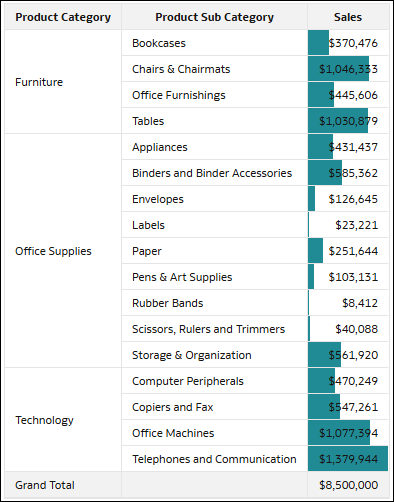
Description of the illustration data_bars_table_example.png
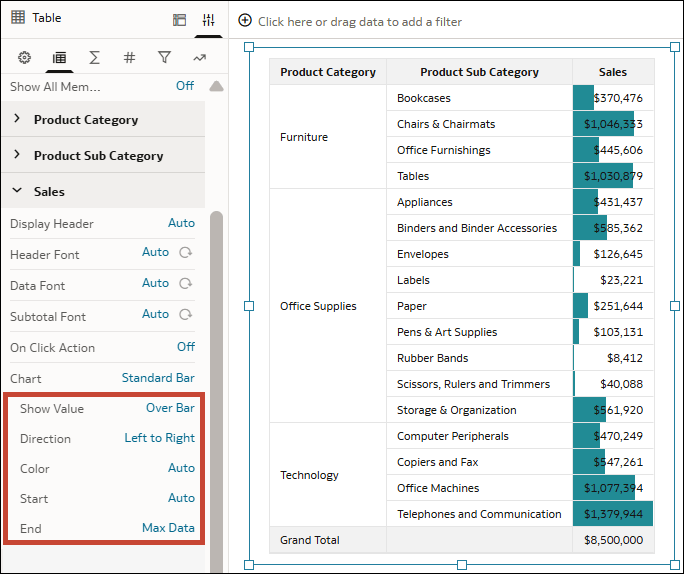
You can configure the following properties for data bars:
- Show Value
- Over Bar: Displays the numeric values in the cells on top of the bar.
- None: Doesn’t display the numeric value, only the bar.
- Direction
- Left to Right
- Right to Left
- Color
- Auto: Uses a default color based on the workbook theme.
- Custom: Lets you specify a color and the transparency.
- Start
- Auto: Starts the data bar at 0 or the minimum value when the values are negative.
- Min Data: Starts the data bar at the minimum value in the data for the measure.
- Custom: Lets you specify the starting value.
- End
- Max Data: Ends the data bar at the maximum value in the data for the measure.
- Custom: Lets you specify the ending value.
This tutorial shows you how to add data bars to tables and pivots.  Tutorial
- On your home page, hover over a workbook, click Actions, and select Open.
- Select your table or pivot visualization.
- Click Properties, then click Edge Labels
 .
. - Expand the measure column you want to add data bars to.
- In the Chart row, click None, then click Standard Bar.
- Use the Chart property options to configure the appearance of the data bars and specify the start and end values.
- Click Save.