How Canvas Changes Sync in Auto and Manual Modes
By default a canvas in the consumer view matches its corresponding canvas in the workbook editor. In Manual Mode, changes to a canvas can cause it to no longer match the corresponding canvas in the workbook editor.
See About Auto and Manual Modes.
On the presentation settings page, a canvas that is out of sync with the workbook editor displays an asterisk that you can click to reset the consumer view of the canvas to match the workbook editor canvas. 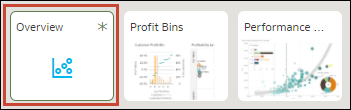
Your consumer view of the canvas becomes out of sync when you're working in Manual Mode and:
- You change filter values in the consumer view of the canvas.
- You edit a visualization on a canvas that is already out of sync with its base canvas in the workbook editor.
Use the information in these tables to understand how the canvases in the workbook editor and canvases in the consumer view sync, and how Auto Mode or Manual Mode determines how canvases sync.
This table explains how canvases sync between the workbook editor and the consumer view.
| Workbook Editor Update | Auto Mode | Manual Mode |
|---|---|---|
| Add canvas | Canvas is added to the presentation and is visible to the consumer. | Canvas is added to the presentation as hidden. The canvas isn't visible to the consumer. |
| Duplicate canvas | Canvas is added to the presentation and visible to the consumer. | Canvas is added to the presentation as hidden. The canvas isn't visible to the consumer. |
| Delete canvas | Canvas is deleted. | Canvas is deleted. |
This table explains how visualizations sync between the workbook editor and the consumer view.
| Workbook Editor Update | Auto Mode | Manual Mode |
|---|---|---|
| Add visualization | Visualization is added to the canvas | Visualization isn't added to the canvas if the canvas is out of sync with the workbook editor canvas. Canvas displays an asterisk if its out of sync. |
| Duplicate visualization | Visualization is duplicated to the canvas | Visualization isn't duplicated to the canvas if the canvas is out of sync with the workbook editor canvas. Canvas displays an asterisk if its out of sync. |
| Delete visualization | Visualization is deleted. | Visualization isn't deleted from the canvas if the canvas is out of sync with the workbook editor canvas. Canvas displays an asterisk if its out of sync. |
This table explains how workbook filters behave between the workbook editor and the consumer view.
| Workbook Editor Update | Auto Mode | Manual Mode |
|---|---|---|
| Add workbook filters | Filters are added as read-only. | Filters are added. You can change filter values, which makes the canvas out of sync with the workbook editor canvas. |
| Delete workbook filters | Filters are deleted. | Filters are deleted if the filter values aren't modified in the consumer view of the canvas. Filters aren't deleted if the filter values are modified. |