Remove a Duplicate Canvas in Present
When working on the presentation flow in manual mode, you can delete any duplicate canvases from the presentation flow.
The Delete Canvas option is only available for canvases that you
duplicated. You can hide but not delete any other canvases in
Present.
Any changes that you make to the canvas display in the presentation
flow are saved to Present and not to the workbook design in
Visualize.
- On your home page, hover over a workbook, click Actions, and select Open.
- Click Present.
- Go to the bottom of the Present page and locate the Canvases panel.
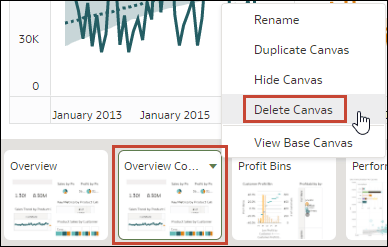
- In the Canvases panel, hover over a canvas, click the down arrow icon, and
select Delete Canvas.
- Click Save.