Reset a Canvas for Consumers
When configuring presentation settings using manual mode, you can use the Reset Adjustments canvas option to sync the canvas in the consumer view with its base canvas in the workbook editor.
You can reset any canvas that displays an asterisk. The asterisk indicates that the canvas' layout adjustments or filter settings are out of sync with its base canvas in the workbook editor.
The canvas' Layout property in the workbook editor determines if your canvas contains white spaces and overlaps when you reset the canvas. See About Moving or Hiding Visualizations on a Canvas Using Presentation Settings.
- On your home page, hover over a workbook, click Actions, and select Open.
- From the Preview menu
 , select Configure Presentation.
 - Go to the bottom of the page and locate the Canvases panel.
- In the Canvases panel, hover over a canvas displaying an
asterisk.
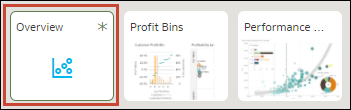
- Click the down arrow icon, and select Reset Adjustments to reset the canvas layout properties, or select Reset Filters to reset the filter values to match the canvas in the workbook editor.
- Click Save.