Reuse a Group or Calculated Item in an Analysis
You can add a group or calculated item to the same column on which it was created in another analysis. The group or calculated item can be either a list of members or a set of selection steps.
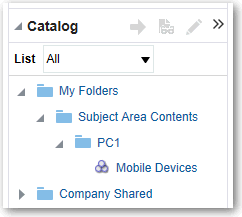
For example, you can display the Brand Revenue analysis and add the group members from the Mobile Devices group. The members of the Mobile Devices group are included as an "Add" step in the Selection Steps pane.
- In the Catalog pane, select the group or calculated item.
Reuse a group or calculated item from the Edit Member Step dialog:
- On the Results tab, display an analysis containing the same column to which you want to apply the selections from a group or calculated item.
- Display the Selection Steps pane.
- In the entry for the column you want, click the pencil icon.
- From the Action menu, select Start with Group or Calculated Item.
- Move the saved group or calculated item from the Available area to the Selected area.
- Click OK.
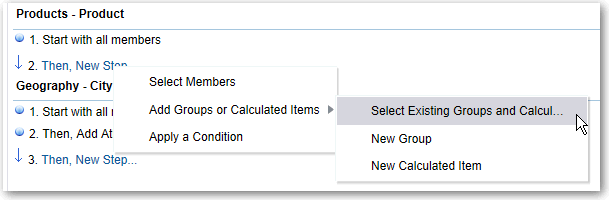
Reuse a group or calculated item from the Selection Steps pane:
- On the Results tab, display an analysis containing the same column to which you want to apply the selections from a group or calculated item.
- On the Selection Steps pane select Then, New Step for the appropriate column.
- Select Add Groups or Calculated Items.
- Select Select Existing Groups and Calculated Items.
- On the resulting dialog, select the group or calculated item from the Available area and move it to the Selected area.
- Click OK.