About Sankey Visualizations
In Oracle Analytics, you can use Sankey charts to visualize how data flows between different categories. For example, you can use a Sankey chart to represent business processes, financial allocations like cashflows, and inventory movements.
Sankey charts display attribute columns as nodes connected by pathways. The pathways use color or size proportional to the value of the measure they represent.
You might use a Sankey chart to visualize the business flow for shipping products to customers. You use the Product Category, Product Container, and Ship Mode columns as nodes so you can see the connections between them. You use the Profit column to specify the color of the pathways and Quantity Ordered to specify the size of the pathways.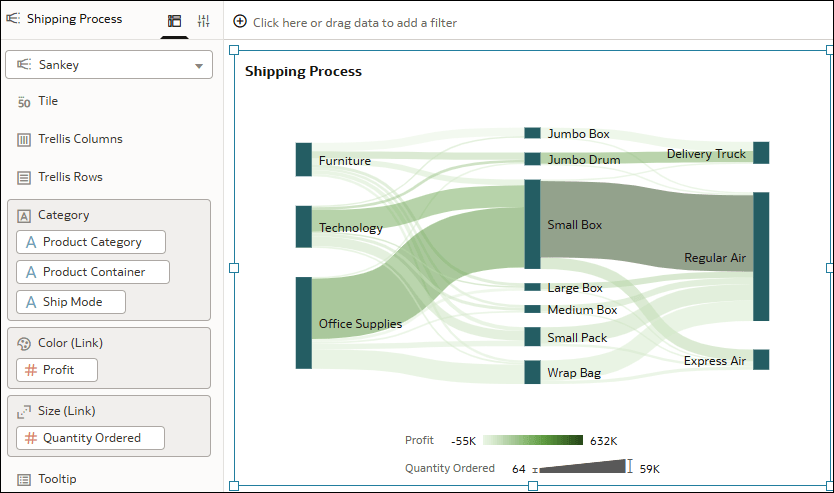
Description of the illustration sankey_example.png
This tutorial shows you how to create a Sankey chart using source and target columns.  Tutorial
Sankey Visualization Properties
- Node Height: Specifies the vertical thickness of the nodes. The thickness of the pathways corresponds to the node height.
- Stretch: Uses more vertical canvas space and reduces gaps between the nodes. This is the default.
- Condense: Compresses the nodes into a more compact, narrow layout.
- Node Width: Specifies the horizontal width of the node bars.
- Auto: Sets the width to 16 pixels.
- Custom: Lets you specify a width.
- Node Gap: Specifies the vertical distance between the nodes.
- Auto: Sets the gap at 40%.
- Custom: Lets you specify a gap amount.
- Line Transparency: Specifies how transparent the pathways are.
- Group By: Controls how the nodes are combined.
- Value: Creates one node for each unique attribute column value. This is the default.
- Column: Splits the chart into separate nodes and pathways for each attribute column value.
- Sort Within Data: Specifies the order of the nodes within categories.
- Auto: Sorts nodes based on the sort order or hierarchy defined in the dataset or subject area.
- A to Z: Sorts nodes alphabetically.
- Z to A: Sorts nodes in reverse alphabetical order.
- A to Z Nested: This option is retained for backward compatibility. Oracle recommends using the other sort options.
- Data Labels: Located in the Values tab of the Properties pane. Controls whether data labels are displayed on Sankey nodes.
- Values: Specifies the information to display in data labels. Select one or more of the following options:
- Percent: Displays the percentage value.
- Value: Displays the aggregated measure value for the node.
- Label: Displays the node label based on the column.
- Position: Specifies the location of the data labels
- Font: Specifies the font formatting for the data labels, including font, size, style, and color.
- Values: Specifies the information to display in data labels. Select one or more of the following options: