Selection Steps Member Search Reference
When you create or use a selection step, you can use the selection step member search to quickly find the members you want instead of manually navigating through the entire hierarchy. This is especially useful for large or complex hierarchies.
Search Criteria
In the Selection Steps dialog, when you use any operator that isn’t Levels or Nulls, a Search Options icon  displays in the Values drop-down and provides search functionality. You can enter text in the Values selection field to search for members and click Search Options to configure search criteria to narrow the search results.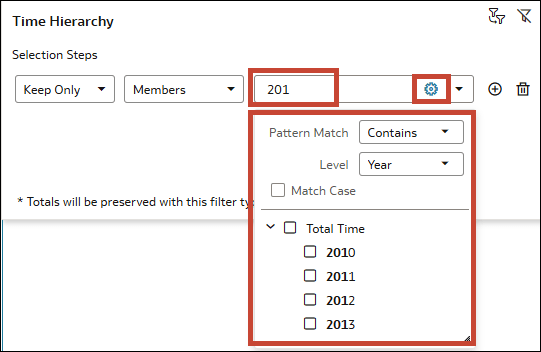
Description of the illustration selection_steps_member_search.png
- Search Pattern
- Begins: Narrows the results to members starting with the text you search for. For example, entering
Eastfinds members such asEast,Eastern, orEast Region. - Contains: Narrows the results to members containing the text you search for. This is the default. For example, entering
astfinds members such asEastandNortheast. - End: Narrows the results to members ending with the text you search for. For example, entering
Coastfinds members such asEast CoastandWest Coast. - Pattern Match: Narrows the results to members that match the text you search for when it includes wildcards that follow Apache Lucene syntax. Use this option when you want more flexible matching patterns. For example,
East*finds member names that begin withEast,*Coastfinds member names that end withCoast, andE?stfinds names that match a single-character variation such asEast.
- Begins: Narrows the results to members starting with the text you search for. For example, entering
- Search Against: Specifies whether to search for display values or key values to match the text you enter. This is useful when you have double columns which contain a data descriptor value (display value) displayed to the consumer and an identifier (key value) that isn’t.
- Display Value: Searches only against member display values. This is the default option.
- Key Value: Searches only against member key values.
- All: Searches against both display values and key values.
- Descendants Of: Limits the search scope to descendants of a selected hierarchy member. Use this option for large hierarchies to first select a hierarchy member and then search only within that member's descendants. For example, if a hierarchy contains multiple members named Finance in different parts of the hierarchy, you can select a parent member in Descendants Of and then search only within that branch to locate the required Finance member.
- Level: Only available for level-based hierarchies. Lets you select one or more levels to focus the search within.
- Match Case: Makes the search case-sensitive and narrows the results based on the letter case you use in your search text.
Note:
To support large hierarchies, Oracle Analytics retrieves up to 500 child members when you expand a member in a selection step. If a member has more than 500 child members, only the first 500 are displayed. You can use the member search to find a member that isn’t displayed; however, if a search matches more than 500 members, up to 500 matching members are returned.
Viewing Selected Members
For any operators other than Levels and Nulls, after you make your selections, a highlighted number displays in the Values drop-down. You can click this to see a list of the exact members selected. For parent-child hierarchies, the hierarchy path for each selected member is also displayed for context. 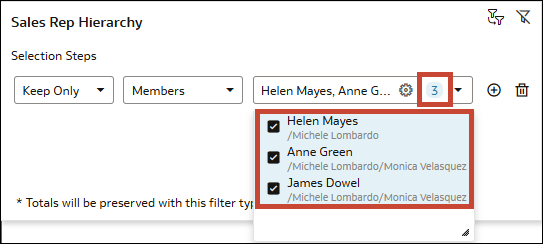
Description of the illustration selection_steps_dialog_parent-child_selections.png