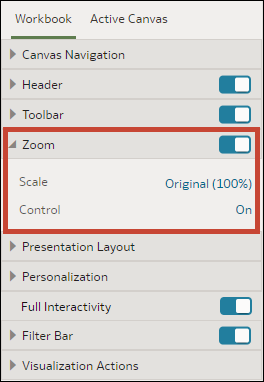
Specify Workbook Zoom Control Options
When you configure the presentation settings for a workbook, you can choose the default zoom setting used when consumers view a canvas.
The Zoom/Layout controls button allows consumers to zoom in
and out of the whole active canvas to best fit their screen. Although you
set the control for the workbook, the zoom control is displayed only for
canvases with the Layout canvas property set to
Freeform.
The zoom control properties that you set on the Workbook tab are carried over to the Active Canvas tab zoom properties. You can override the Workbook tab's zoom properties on any individual canvas.
The Zoom section's toggle must be set to On before
you can update the Scale property.
- From the Preview menu
 , select Configure Presentation.
 - In the presentation settings panel, click the Workbook tab.