Turn On or Off All Workbook and Canvas Actions
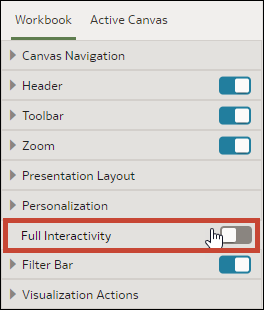
When you configure the presentation settings for a workbook, all filter bar and visualization actions are on by default for the consumer. You can turn off and on actions individually, or use the Full Interactivity option to turn off or on all actions for the workbook's canvases.
Examples of filter actions are add filters, remove filters,
and change filter value selections. Examples of visualization actions are
drill, export, and sort by.
To turn off all filter and visualization actions that the consumer can perform on all canvases, set Full Interactivity field to Off.
Setting the Full Interactivity field to
On allows you to set individual filter and
visualization actions to specify how you want the user to interact with the
workbook and canvases.
- On your home page, hover over a workbook, click Actions, and select Open.
- From the Preview menu
 , select Configure Presentation.
 - In the presentation settings panel, click the Workbook tab.
- In the Interactivity section, go to the Full Interactivity field.
- Select Off to disable all filter and visualization actions on all canvases.
- Select On to enable all filter and visualization actions on all canvases.
- Click Save.