Use a Button Bar to Pass Parameter Values
Use these steps to create a button bar that lets consumers set the value of a parameter in a workbook on click of a button.
To create a button bar that passes parameter values, you need to use a Set Parameter data action for the buttons. The Set Parameter data action uses a parameter that you define for your use case. You use this parameter anywhere on the canvas where you want it to be updated when a consumer clicks the buttons in the button bar. For information on how you can use parameters on a canvas, see Use Parameters in Workbooks.
Before you begin, you need to create a parameter and then create a Set Parameter data action.
- To create a parameter, follow the steps in Create a Parameter.
- To create a Set Parameter data action, follow the steps in Create a Set Parameter Data Action for a Button Bar.
- On your home page, hover over a workbook, click Actions, and select Open.
- In the Data pane, click Visualizations, go to Dashboard Controls, and drag Button Bar
 to the canvas.
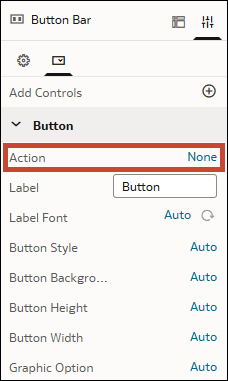
 - In the Properties pane, in the Controls tab, go to the Action row and click None.
- Select the Set Parameter data action from the list of available data actions.
- In the Action row, beside the data action name you just selected, click the pencil icon
 .
. - In the Set Action Value dialog, select the parameter value you want to assign to the button. Click Set.
- In the Label row, give your button a meaningful name that consumers will understand.
- To add additional buttons, click Add Controls
 .
. - Click Save.