Use an iframe Visualization to Embed a Website in a Canvas
Create an iframe visualization and use a URL to embed a website in a canvas.
For example, use the URL for your organization's website so consumers can explore the website from within the workbook.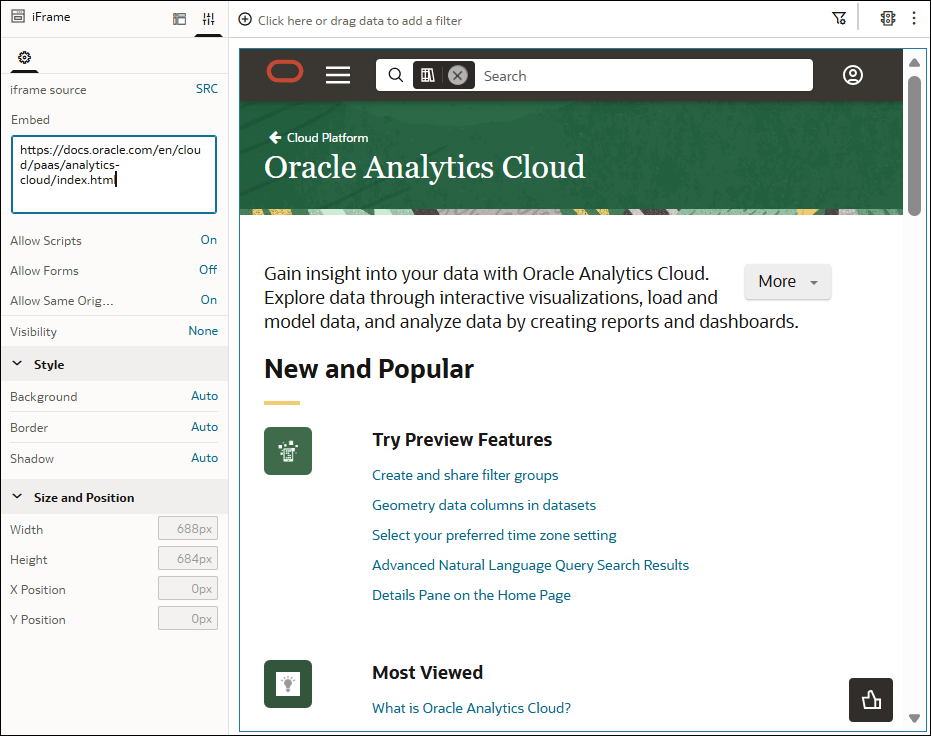
Description of the illustration iframe_url_example.png
Before you can embed external content into a canvas using a URL, your administrator must register the domain as safe in the list that they maintain. Ask your administrator to add the domain to the Safe Domains list with the options Allow Frames and Embedding. See Register Safe Domains.
- On your home page, hover over a workbook, click Actions, and select Open.
- In the Data pane, click Visualizations, go to Dashboard Controls, and drag iFrame
 to the canvas.
 - Click Properties.
- In the iframe source row, keep SRC selected.
- In the Embed field, paste your URL.
- Use the following properties to restrict or enable the embedded content:
- Allow Scripts
- Allow Forms
- Allow Same Origin
- Click Save.