Manage Oracle APEX AI Application Generator (APEX Service)
Learn about managing Oracle APEX AI Application Generator (APEX Service), including stopping, starting, restarting, terminating, and moving to another compartment.
- Stop APEX Service
Stop APEX Service by stopping the underlying Autonomous AI Database instance. - Start APEX Service
Start APEX Service by starting the underlying Autonomous AI Database instance. - Restart APEX Service
Restart APEX Service by restarting the underlying Autonomous AI Database instance. - About Auto Scaling
When you create an Autonomous AI Database instance, by default compute auto scaling is enabled and storage auto scaling is disabled. You can manage auto scaling from the Oracle Cloud Infrastructure Console to enable or disable compute auto scaling or storage auto scaling. - Modify CPU Count, Storage Resources, or Auto Scaling
Scale your Autonomous AI Database on demand by modifying ECPU count (or OCPU count), storage, or manage auto scaling. - Terminate APEX Service
Terminate APEX Service by terminating the underlying Autonomous AI Database instance. - Move Resource to a Different Compartment
Move an APEX Service to a different compartment from either the APEX Instances page or APEX Instance Details page. - Update to ECPU Billing Model for APEX Service
Learn about updating an existing APEX Service instance to the ECPU compute model.
Parent topic: Manage Your Service
Stop APEX Service
Stop APEX Service by stopping the underlying Autonomous AI Database instance.
You can stop APEX Service from either the APEX Instances Details page or the Autonomous AI Database Details page.
To stop APEX Service and the underlying Autonomous AI Database instance:
- Next to the Oracle Cloud logo, click the Navigation menu
(
 ) and select Developer Services and then
APEX Instances.
) and select Developer Services and then
APEX Instances.
Note:
When an Autonomous AI Database instance is stopped:
-
Tools are no longer able to connect to a stopped instance.
-
Autonomous AI Database in-flight transactions and queries are stopped.
-
APEX Service CPU billing is halted.
Start APEX Service
Start APEX Service by starting the underlying Autonomous AI Database instance.
You can start APEX Service from either the APEX Instances Details page or the Autonomous AI Database Details page. Start only displays for a stopped instance.
To start APEX Service and the underlying Autonomous AI Database instance:
- Next to the Oracle Cloud logo, click the Navigation menu
() and select Developer Services and then
APEX Instances.
Note:
When an Autonomous AI Database instance is started, APEX Service CPU billing is initiated, billed by the second with a minimum usage period of one minute.
Restart APEX Service
Restart APEX Service by restarting the underlying Autonomous AI Database instance.
You can restart APEX Service from either the APEX Instances Details page or the Autonomous AI DatabaseDetails page.
To restart APEX Service and the underlying Autonomous AI Database instance:
- Next to the Oracle Cloud logo, click the Navigation menu
() and select Developer Services and then
APEX Instances.
Note:
When an Autonomous AI Database instance is restarted, APEX Service CPU billing is initiated, billed by the second with a minimum usage period of one minute.About Auto Scaling
When you create an Autonomous AI Database instance, by default compute auto scaling is enabled and storage auto scaling is disabled. You can manage auto scaling from the Oracle Cloud Infrastructure Console to enable or disable compute auto scaling or storage auto scaling.
With compute auto scaling enabled the database can use up to three times more CPU and IO resources than specified by the number of ECPUs (OCPUs if your database uses OCPUs) as shown in the ECPU count or OCPU count field on the Oracle Cloud Infrastructure Console.
When you create an Autonomous AI Database instance, by default Storage auto scaling is disabled. When Storage auto scaling is enabled, the database can expand to use up to three times the reserved base storage, as specified by the storage shown in the Storage field on the Oracle Cloud Infrastructure Console. If you need additional storage, the database automatically uses the reserved storage without any manual intervention required.
To learn more, see Use Auto Scaling in Using Oracle Autonomous AI Database Serverless.
Tip:
View historical CPU utilization for a service on the CPU utilization (%) chart on the Database Monitor, Overview tab in Database Actions. To learn more, see Database Dashboard Page in Using Oracle AI Database Actions.
Modify CPU Count, Storage Resources, or Auto Scaling
Scale your Autonomous AI Database on demand by modifying ECPU count (or OCPU count), storage, or manage auto scaling.
To scale your database, modify ECPU count (or OCPU count), storage, or enable/disable auto scaling:
- Next to the Oracle Cloud logo, click the Navigation menu
() and select Developer Services and then
APEX Instances.
- You can access the Scale dialog in two ways:
-
On the APEX Instance Details page:
-
On the APEX Instance Details page, click Actions and select Scale.
The Scale dialog appears.
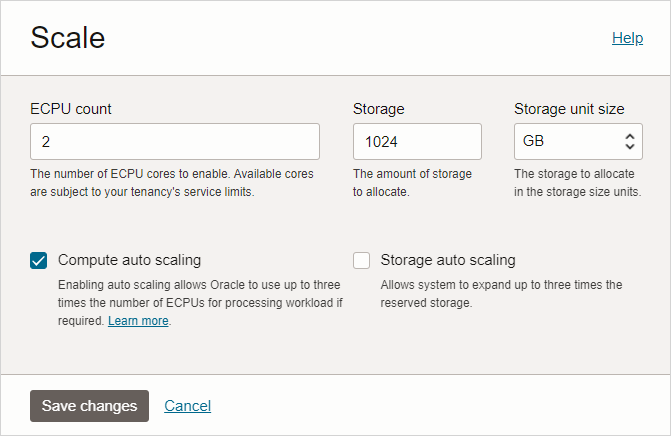
Description of the illustration scale.png -
ECPU count - The number of ECPUs (or OCPUs if your service uses OCPUs) to enable. The default is no change.
-
Storage - Specify the amount of storage you wish to make available to your database. The default is no change.
-
Storage unit size - Specify the storage to allocate in storage size units (GB or TB).
-
Compute auto scaling - Enabling Compute auto scaling allows the system to use up to three times the number of ECPUs (OCPUs if your database uses OCPUs) for processing workload if required.
-
Storage auto scaling - Allows the system to expand up to three times the reserved storage.
-
Click Update.
-
-
Navigate to the Autonomous AI Database details page:
-
Under Instance details, click the database NAME.
-
On the Autonomous AI Database details page, click More actions and select Manage resource allocation.
The Manage resource allocation dialog appears.
-
ECPU count - The number of ECPUs (or OCPUs if your service uses OCPUs) to enable. The default is no change.
-
Compute auto scaling - Enabling Compute auto scaling allows the system to use up to three times the number of ECPUs (OCPUs if your database uses OCPUs) for processing workload if required.
-
Storage - Specify the amount of storage you wish to make available to your database. The default is no change.
-
Storage unit size - Specify the storage to allocate in storage size units (GB or TB).
-
Storage auto scaling - Allows the system to expand up to three times the reserved storage.
-
Allocated storage - Displays the current allocated storage.
-
Shrink - Shrinks storage manually. Use after deletion of a significant amount of data. See Shrink Storage in Using Oracle Autonomous AI Database Serverless.
-
Click Apply.
-
-
Changing ECPU count (OCPU count if your service uses OCPUs), Storage, or enabling or disabling auto scaling options, changes the Lifecycle State to Scaling in Progress. After the Lifecycle State changes to Available the changes apply immediately.
Note:
If auto scaling is disabled while more CPUs are in use than the specified ECPU count (or OCPU count), then Autonomous AI Database scales the number in use down to the ECPU count (or OCPU count) number.Terminate APEX Service
Terminate APEX Service by terminating the underlying Autonomous AI Database instance.
You can terminate APEX Service from either the APEX Instances Details page or the Autonomous AI Database details page:
- Next to the Oracle Cloud logo, click the Navigation menu
() and select Developer Services and then
APEX Instances.
Move Resource to a Different Compartment
Move an APEX Service to a different compartment from either the APEX Instances page or APEX Instance Details page.
Compartments help you organize resources to make it easier to control access to them. Moving an APEX Service instance to another compartment also moves the underlying database resource. See Understanding Compartments for information on using and managing compartments.
Note:
To move a database you must have the right to manage Autonomous AI Database in the database's current compartment and in the compartment you are moving it to.
As soon as you move a database to a different compartment, the policies that govern the new compartment apply immediately and affect access to the database. Therefore, your access to the database may change, depending on the policies governing your Oracle Cloud user account's access to resources.
To move an APEX Service to a different compartment:
- Next to the Oracle Cloud logo, click the Navigation menu
() and select Developer Services and then
APEX Instances.
- You can move a resource to a different compartment in two ways:
-
On the APEX Instances page:
-
Find your APEX Service instance.
-
Click the three dots
 (or Actions menu) and select Move
resource.
(or Actions menu) and select Move
resource.
-
-
On the APEX Instance Details page:
-
On the APEX Instances page, find and select your APEX Service.
-
From Actions, select, select Move resource.
-
The Move resource dialog appears.
-
Update to ECPU Billing Model for APEX Service
Learn about updating an existing APEX Service instance to the ECPU compute model.
APEX Service previously offered two compute models when you create a new instance: ECPU and OCPU. OCPU is a legacy billing metric and is no longer available when provisioning a new instance. OCPU will be retired for APEX Service at some point in the future.
Note:
If you update your instance to the ECPU compute model, you cannot revert back to the OCPU compute model. To learn more, see Compute Models in Autonomous AI Database and Update to ECPU Billing Model on Autonomous AI Database in Using Oracle Autonomous AI Database Serverless.To update from a OCPU billing model to a ECPU billing model:
- Next to the Oracle Cloud logo, click the Navigation menu
() and select Developer Services and then
APEX Instances.