Editing
Business Objects with the Page Designer in Oracle Visual Builder Cloud
Service
Before You Begin
This 15 minute tutorial shows you how to edit your
application's business objects using the page designer.
This is the first tutorial in the Working with business
objects module. Read the tutorials sequentially.
Background
Oracle Visual Builder Cloud Service is a visual development
tool for creating web and mobile applications by simply dragging
and dropping user interface (UI) components onto a page. You can
create business objects with the click of a button, and you can
add data by importing CSV files or XLS spreadsheets to your
application. You don't need any programming experience to
develop an application.
In this series of tutorials, you will work with business
objects in the Human Resources (HR) application that you created
in the Create your first application module.
The images in this tutorial sequence show the standalone
version of Oracle Visual Builder Cloud Service. If you are using
the Oracle Integration Cloud version, you will see an additional
menu at the top of each page that lets you switch between Visual
Builder and Integration Cloud.
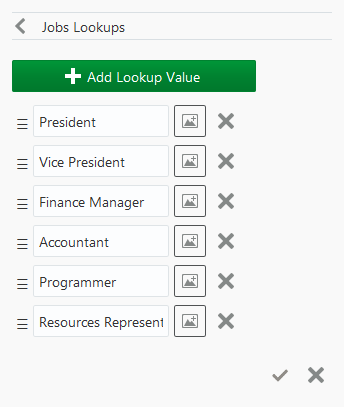
Click + Add Lookup Value six times and
enter the following values one by one:
President
Vice President
Finance Manager
Accountant
Programmer
Resources Representative
Description of the
illustration vbcsebo_t1_s8.png
If you make a mistake, you can click the icon in
the row to remove the value, or drag the icon to
change the order. Once a lookup value is added and saved, it
cannot be deleted. However, you can use the Data Designer to
add more fields or make a field inactive.
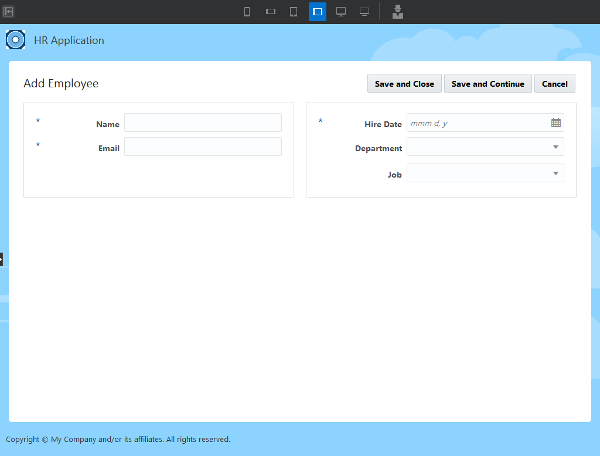
After adding the Job field to the Employee
business object, add the field to the Employee business object
pages.
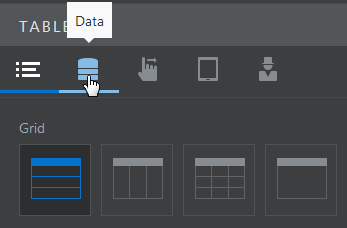
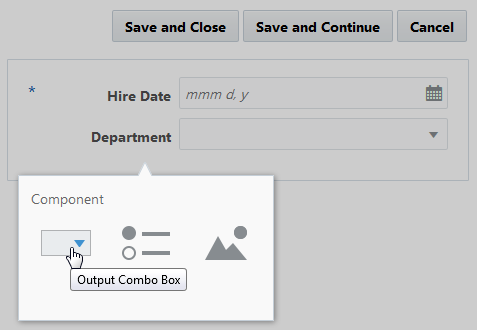
When you add a field to a business object page, you can drag
and drop the field from the Data palette onto the page and
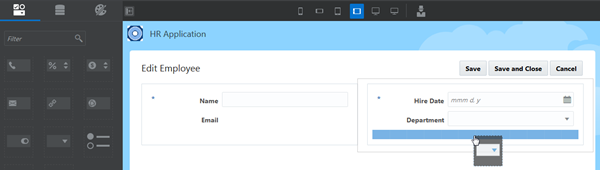
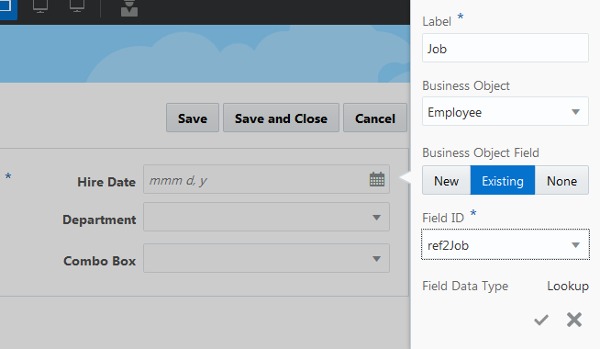
choose the component type. Alternatively, you can drag and drop
a component from the Components palette onto the page and then
choose the business object field name.
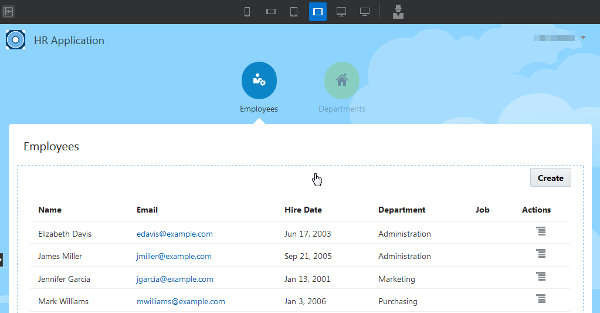
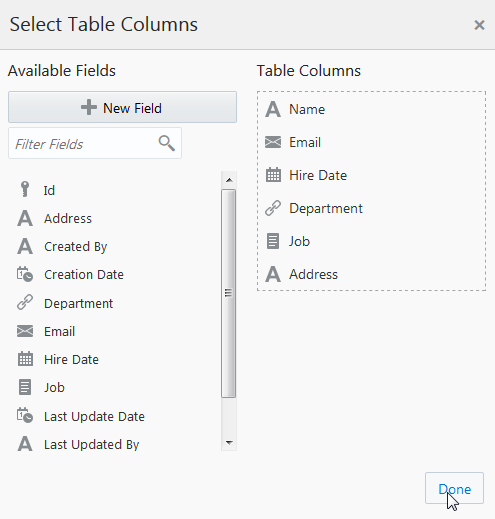
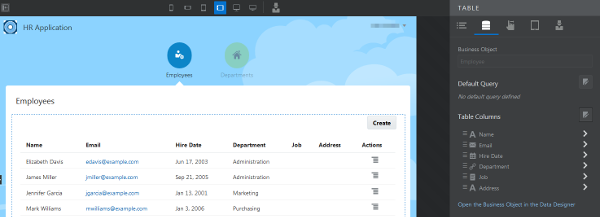
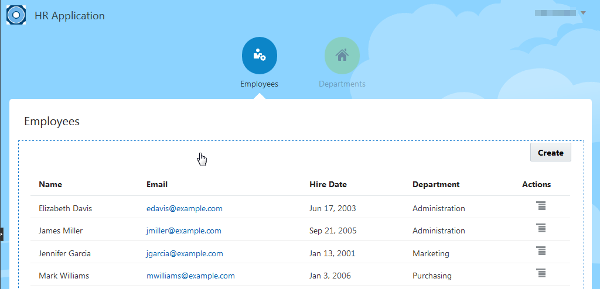
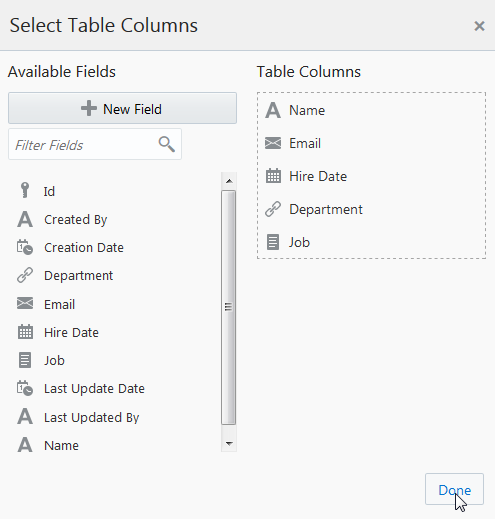
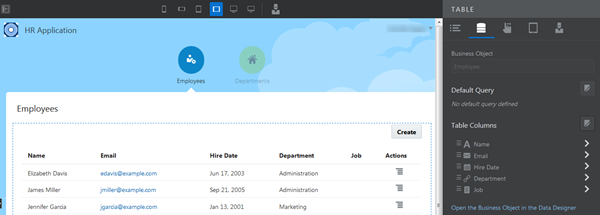
Verify that the Job column has been
added to the Employees table.
Description
of the illustration vbcsebo_t2_s12.png
As there is no data for the Job field, the column is empty.
Don't enter any data now. You'll import data from CSV files in
the next tutorial.
Add A
Field Using Drag And Drop
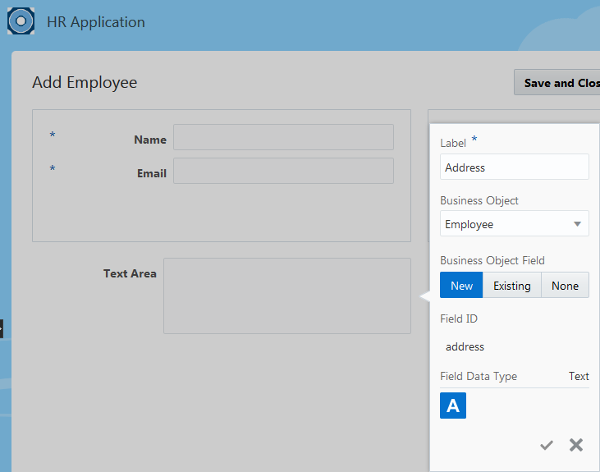
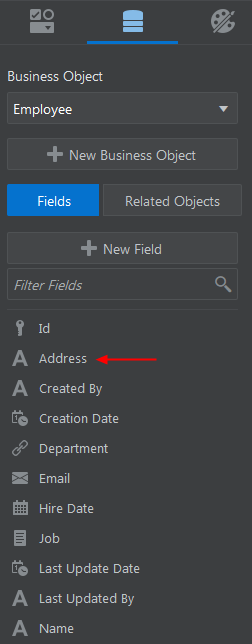
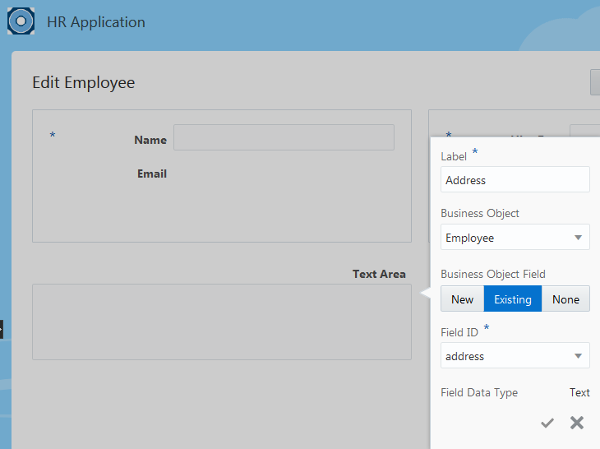
In this section, you'll create the Address field
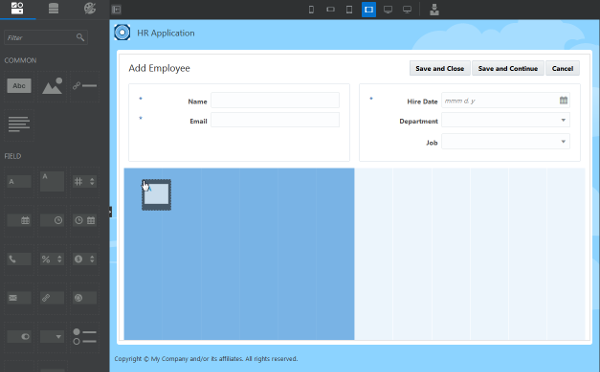
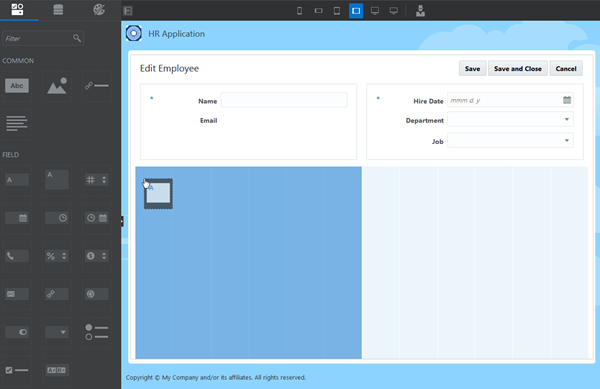
in the Employee business object. Instead of using the Datapalette to create a field, you'll drag and drop a Text
Area component from the Components palette onto the Create
Employee and Edit Employee pages.
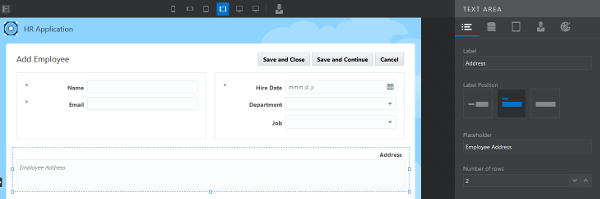
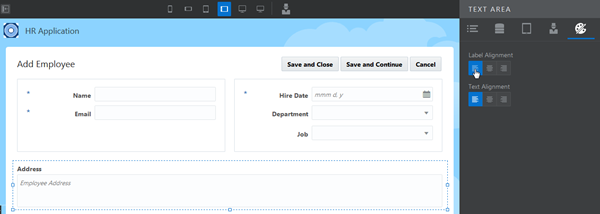
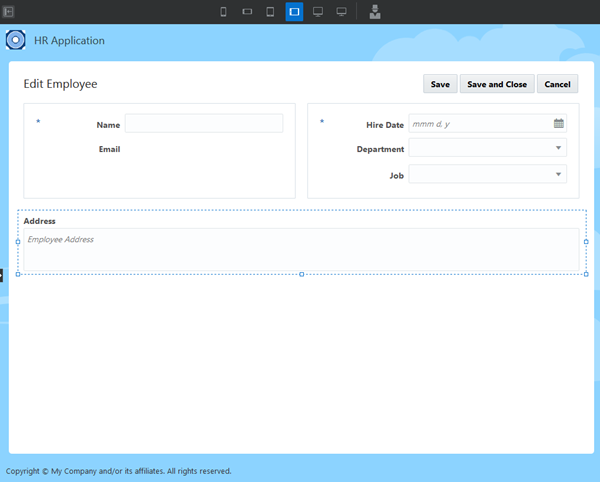
Click the Properties tab and edit the
Text Area properties (Label Position, Placeholder,
and Number of Rows) as you did in the Add
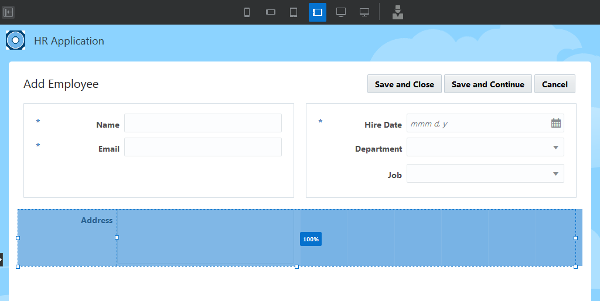
Employee page. Drag the left and right widths of the text area
field, as needed, to adjust it to 100%. Click
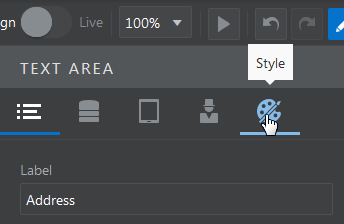
the Style tab and set the Label Alignment to
Left. The Edit Employee page should look like
this.
Description of the
illustration vbcsebo_t3_s12.png

 Editing
Business Objects with the Page Designer in Oracle Visual Builder Cloud
Service
Editing
Business Objects with the Page Designer in Oracle Visual Builder Cloud
Service Before You Begin
 Add a
Field to a Business Object
Add a
Field to a Business Object
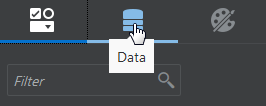
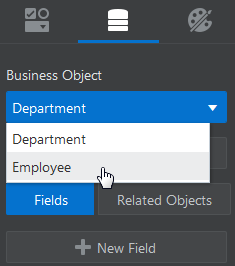
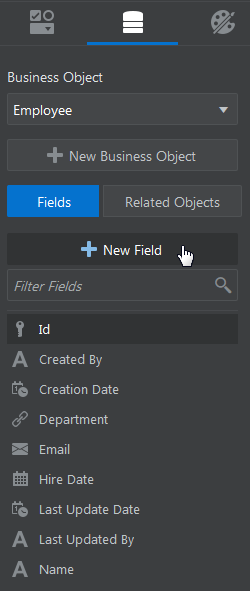
 Lookup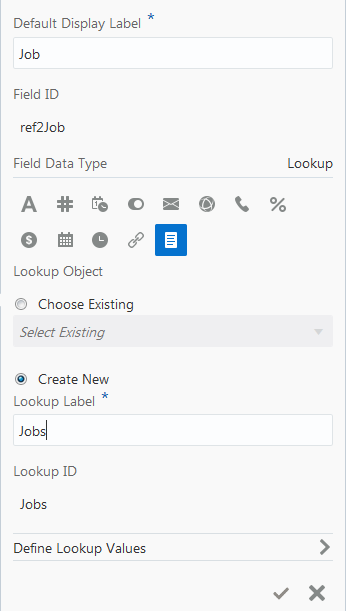
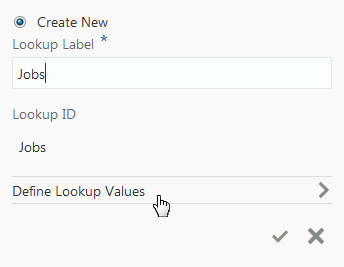
 icon in
the row to remove the value, or drag the
icon in
the row to remove the value, or drag the  icon to
change the order. Once a lookup value is added and saved, it
cannot be deleted. However, you can use the Data Designer to
add more fields or make a field inactive.
icon to
change the order. Once a lookup value is added and saved, it
cannot be deleted. However, you can use the Data Designer to
add more fields or make a field inactive.  icon. The Data palette shows the new Job field.
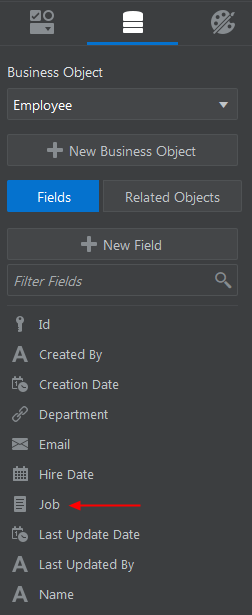
 Use
The New Field On A Page
Use
The New Field On A Page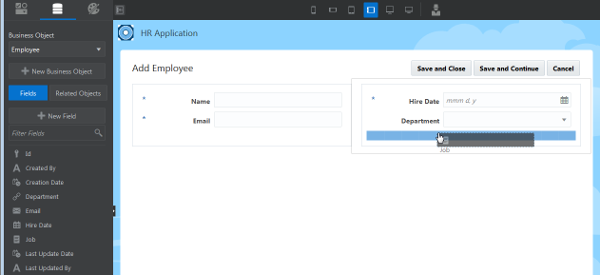
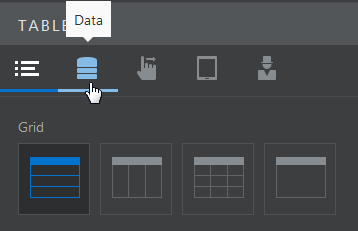
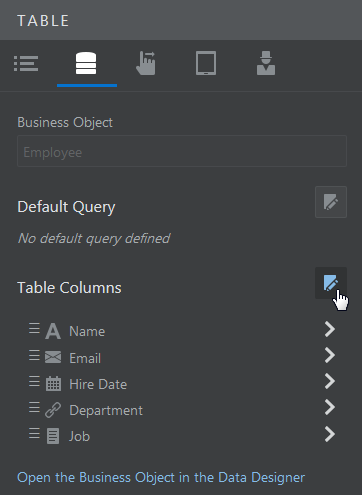
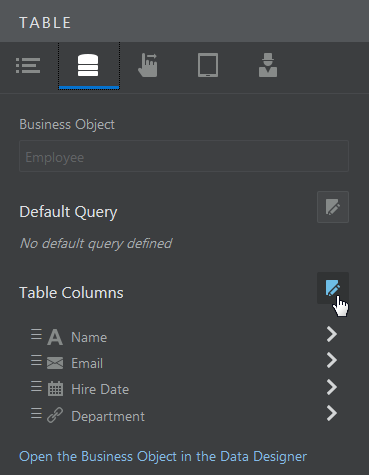
 icon next to Table Columns.
 Add A
Field Using Drag And Drop
Add A
Field Using Drag And Drop