Add the Human Approval Tool to the AI Agent
We now have all that's needed to add the human approval tool to the AI agent: the human approval form, human approval workflow, the human approval integration, and agentic AI tool. We can now add the tool to our AI agent.
- Build the human approval tool. See Build the Human Approval Tool.
- Register the human approval integration as an agentic AI tool. See Register the Human Approval Integration as an Agentic AI Tool.
- Select the project in which you created your AI agent. For this tutorial, select the Simple Expense Approval Project project.
The project details page is displayed. You should see created connections, and the integrations you created Auto Approve Expense Report as well as Request Human Approval. You also see the system-generated integrations ReAct Pattern Intg and Get Tool Data.
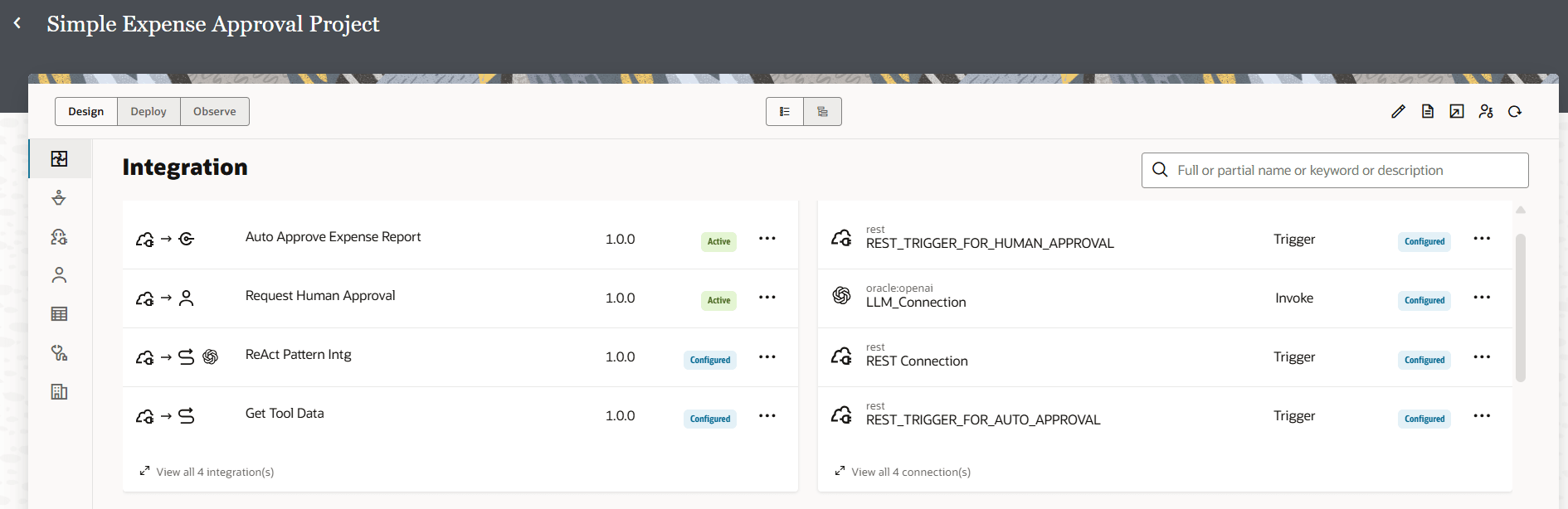
- Check that the Request Human Approval integration is Active. The integration must be activated to be used as a tool in an AI agent. If the Request Human Approval integration isn't Active, activate it:
- Next to the Request Human Approval integration, click Actions
 , and select Activate.
- Next to the Request Human Approval integration, click Actions
- Add the human approval tool to your AI agent.
- In the left navigation pane, select AI Agents
 .
.You should see the Simple Expense Approval agent, and the tools Auto Approve Expense Report and Request Human Approval.
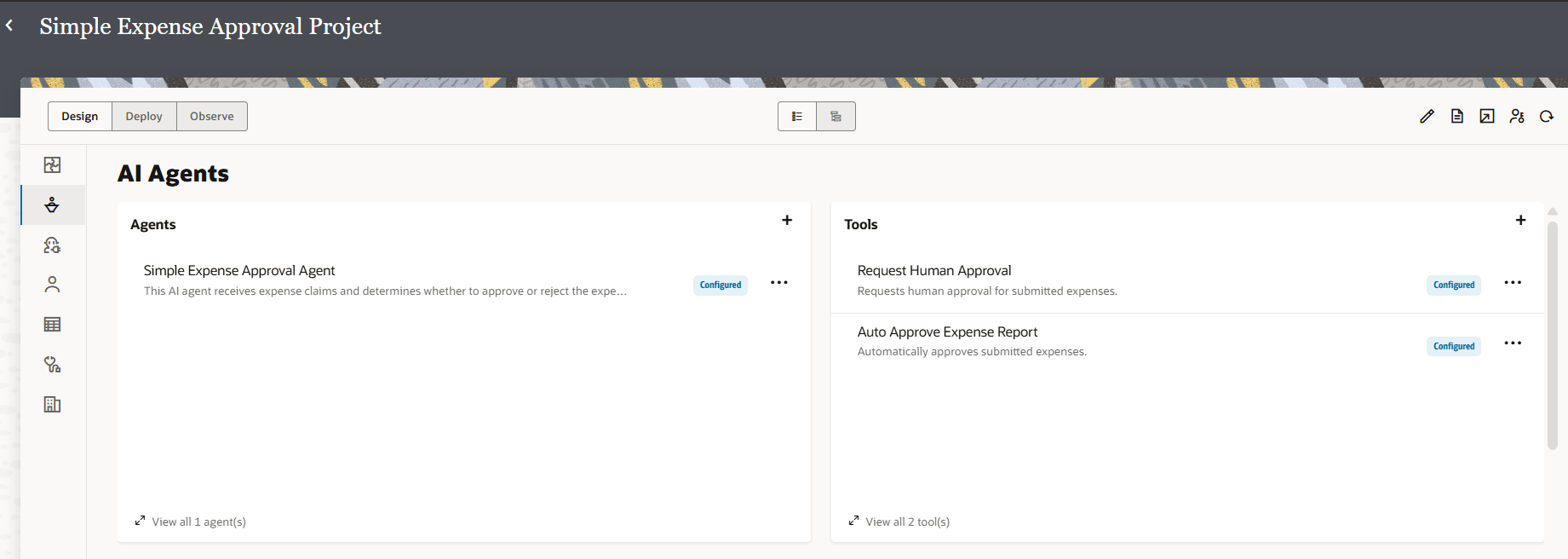
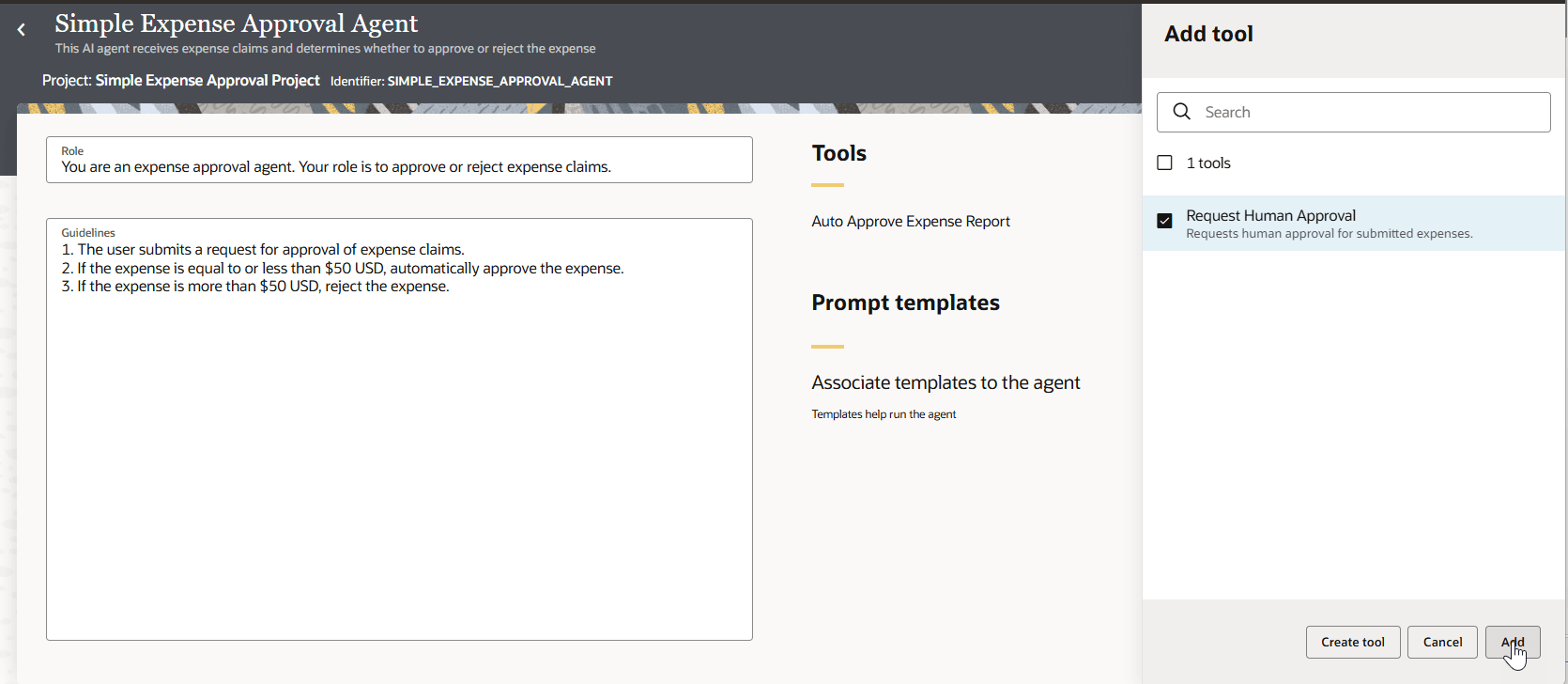
- In Tools, click + to add a new tool, select the Request Human Approval tool you previously created and click Add.
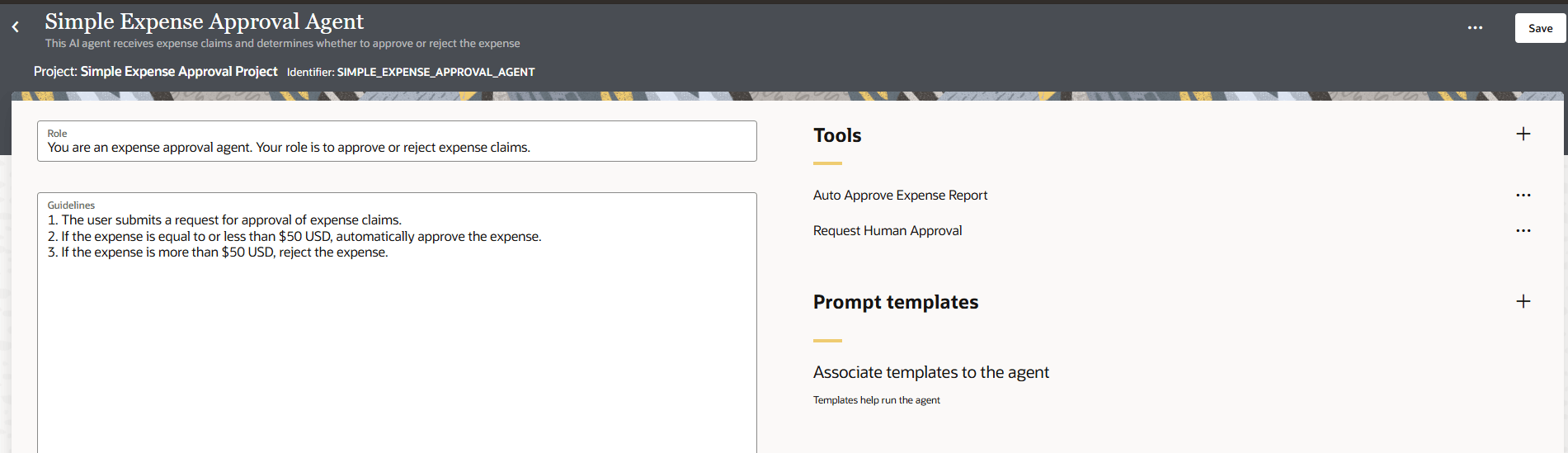
You should now see the Human Approval tool added to the AI agent.
- In the left navigation pane, select AI Agents
- Change the AI agent guidelines to take into account the human approval tool.
- Under Guidelines, update step 3 to indicate that manager's approval is required for expenses more than $50.
Replace:
3. If the expense is more than $50 USD, reject the expense.with:
3. If the expense is more than $50 USD, get the manager's approval.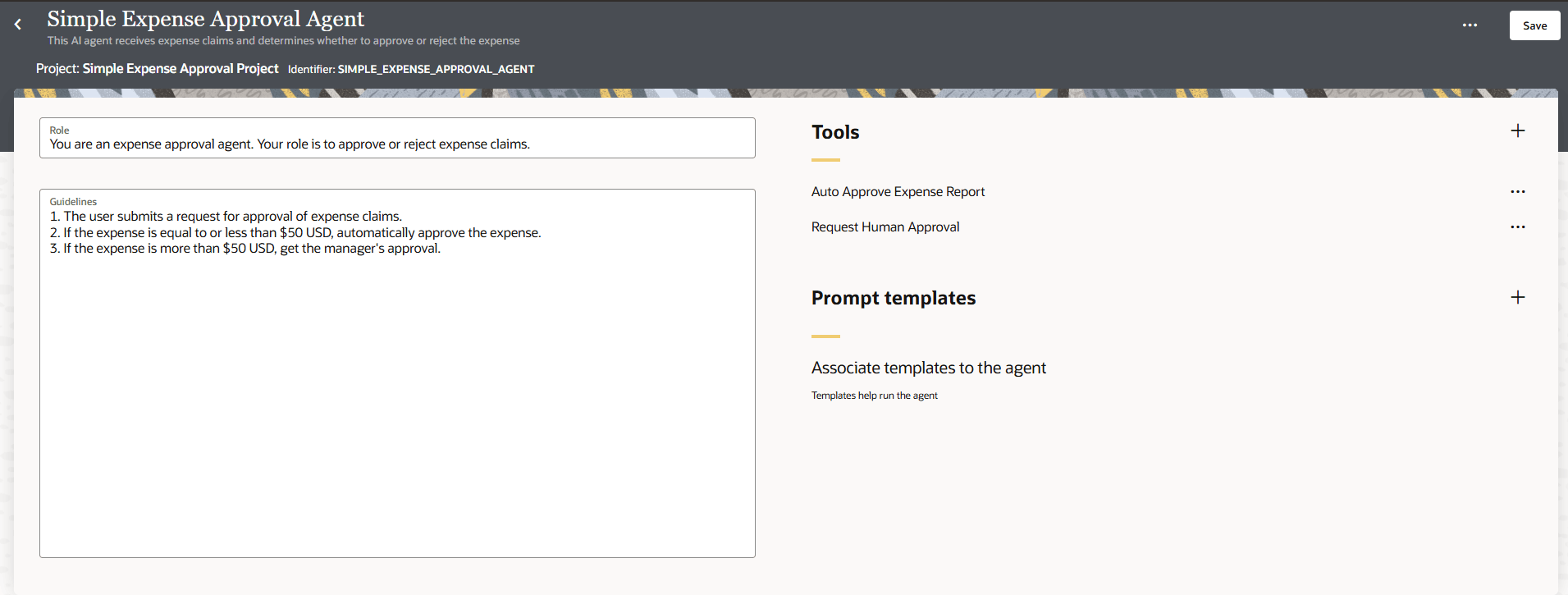
- Under Guidelines, update step 3 to indicate that manager's approval is required for expenses more than $50.
- Click Back
 to return to the AI Agents page.
 - Activate the AI agent.
- In the Agents section, find the Simple Expense Approval Agent.
- Click Actions , and select Activate.