Run and Test Human Approval in the AI Agent
Now that we have added the human approval tool to the AI agent, we can run and test the agent with the new tool.
Prerequisites: Add the Human Approval Tool to the AI Agent
- In the navigation pane, select Projects.
- Select the project in which you created your AI agent. For this tutorial, select the Simple Expense Approval Project.
- In the left navigation pane, select AI Agents
 .
. - Run the agent.
- Click Actions
 , and select Run.
The Test Agent page is displayed.
- Click Actions
- Test the agent.
- In the Test Agent page, enter a natural language prompt to test the AI agent.
Our AI agent is an expense approval agent and we're testing the agent requesting human approval. Enter an expense for more than $50 USD and click Run
 .
.
For example:
I bought a lamp for $65.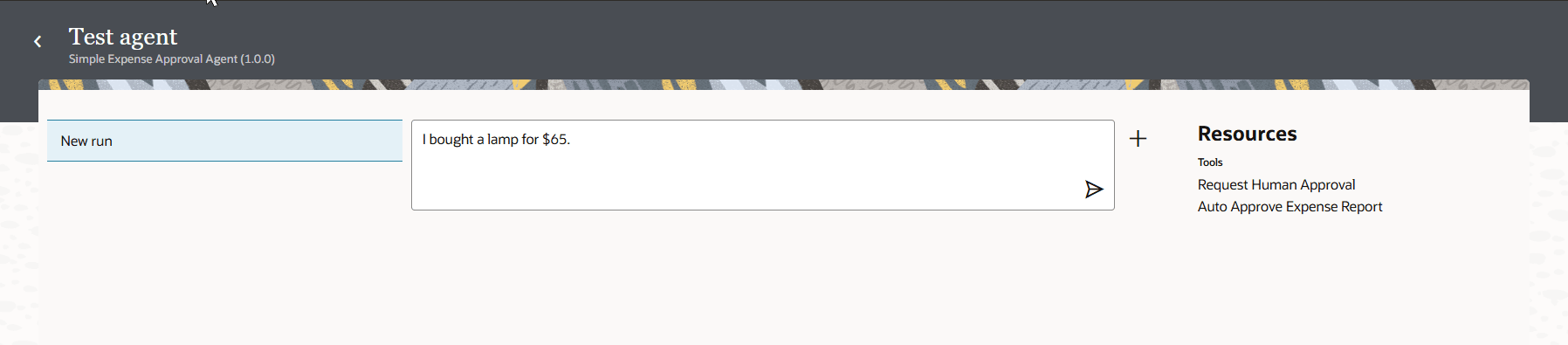
The progress bar displays and then you see agent actions.
- Look at the agent actions.
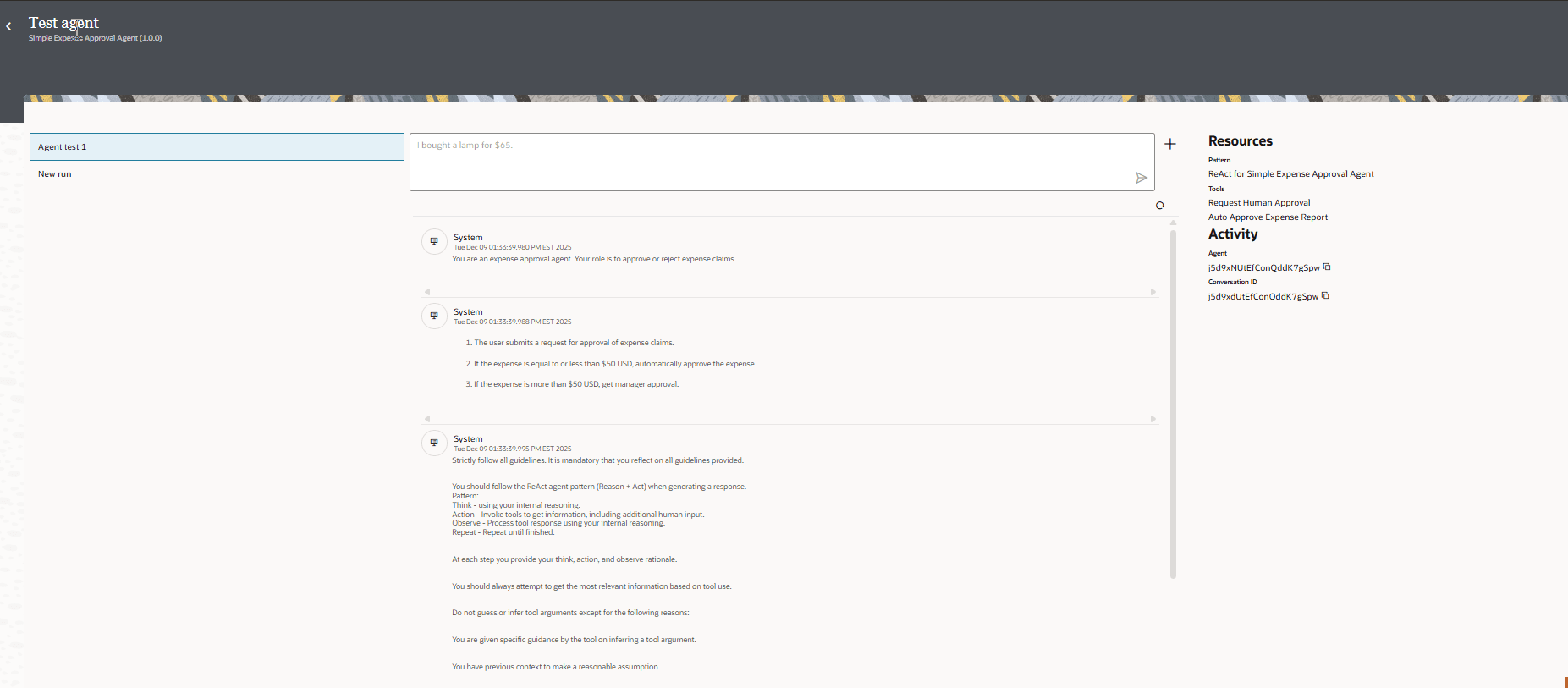
- System: indicates what you sent to the LLM in the system prompt. This includes the agent role, the agent guidelines, the AI agent pattern guidelines.
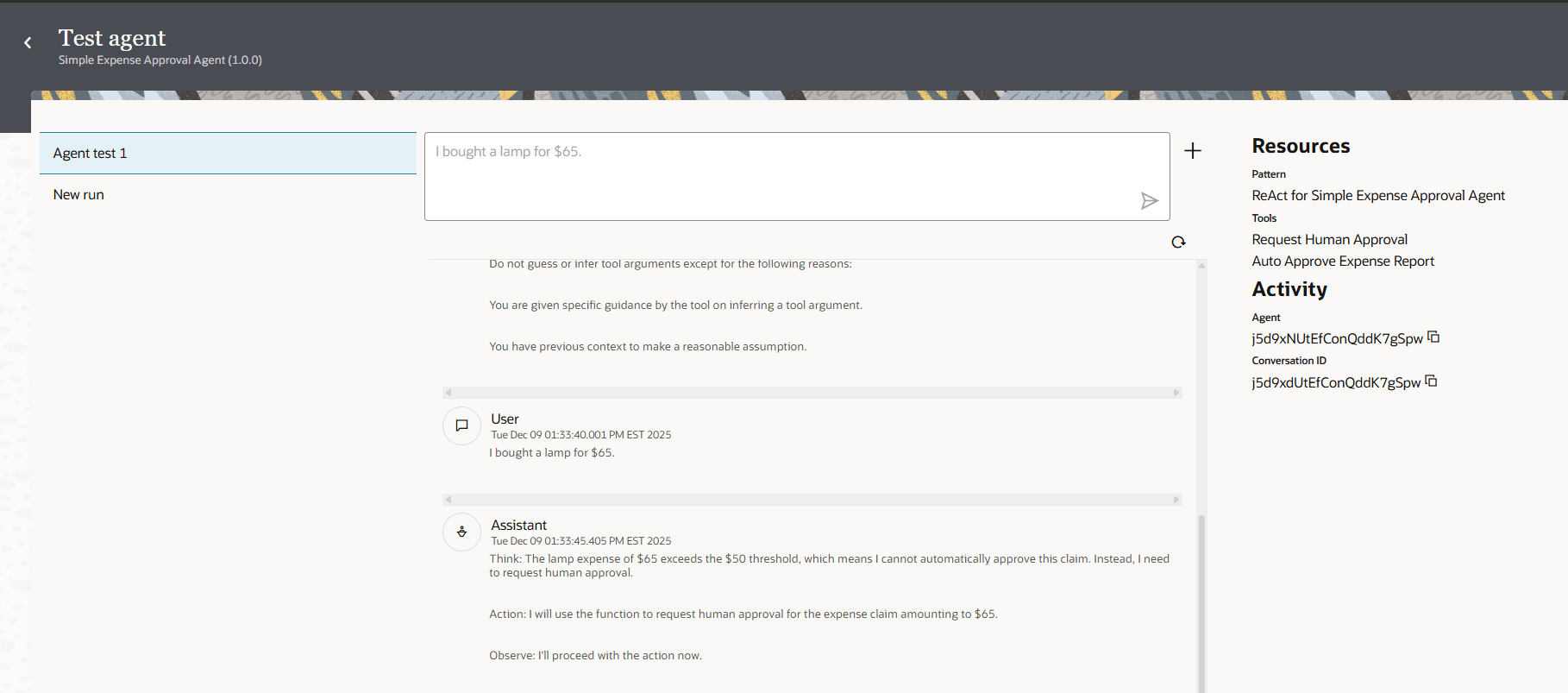
- User: user indicates what you entered to send to the LLM.
- Assistant: shows the agent reasoning. You should see in the reasoning that the agent is going to request human approval.
System is what you sent to the LLM:
Assistant displays that the AI agent is going to invoke the human approval tool. The human approval tool is the integration that runs the approval workflow. The AI agent cannot go any further. It needs to wait for human approval. You need to manually approve or reject the expense.
- In the Test Agent page, enter a natural language prompt to test the AI agent.
- Approve the expense.
- From the Test Agent page, click Back
 to return to the AI Agents page.
 - In the left toolbar of your project, click Human in the Loop
 .
.You'll see workflow instances.
- Hover over the Simple Human Approval Workflow that was invoked by the AI agent and click View audit
 .
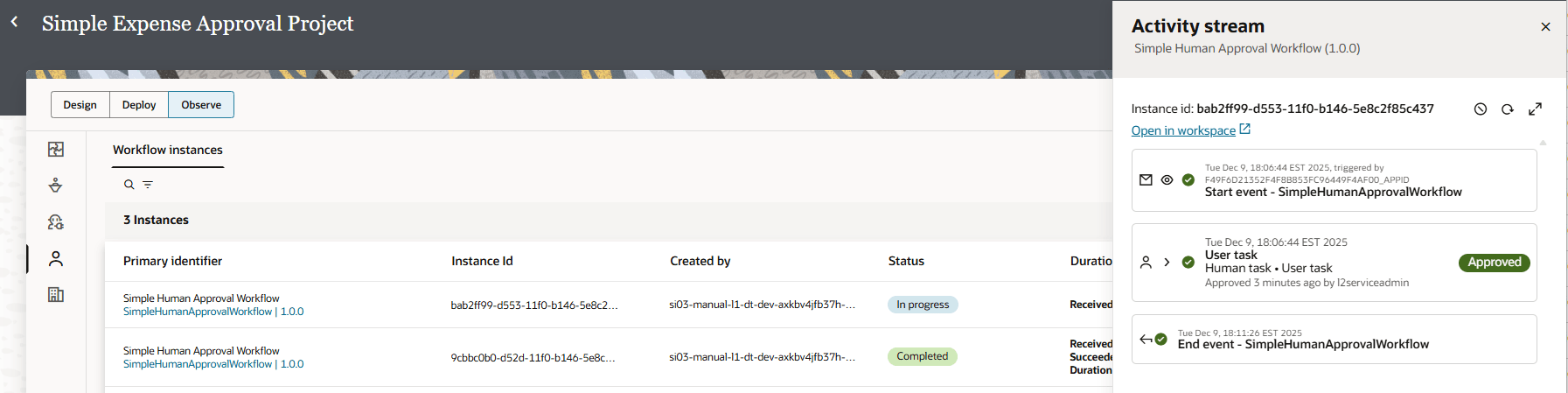
.The Activity stream panel opens. The start event indicates that the workflow was started. The user task's status shows In progress indicating that the user hasn't completed the task.
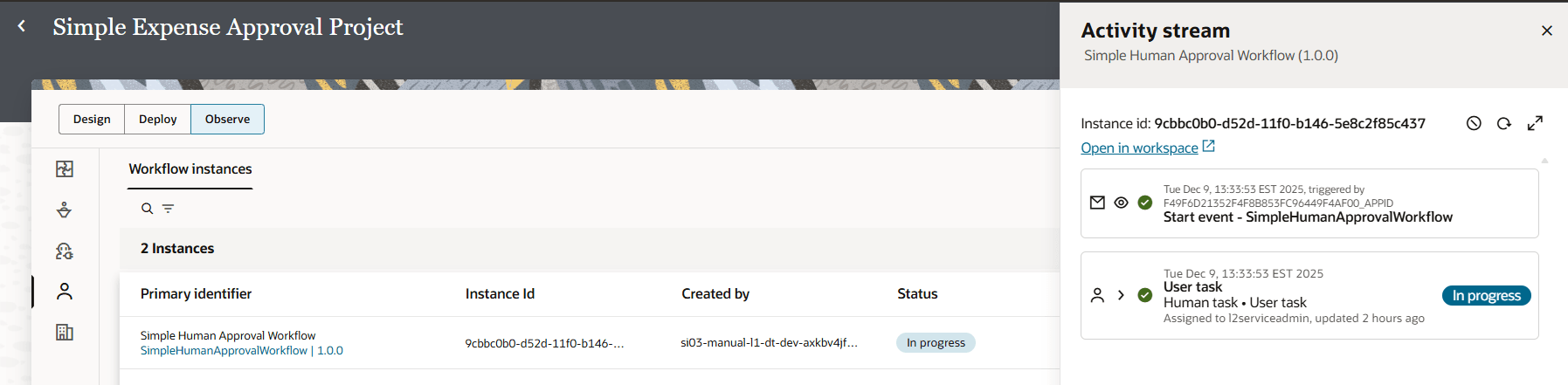
- Click the Open in workspace link.
The Process Automation Workspace opens in another browser tab.
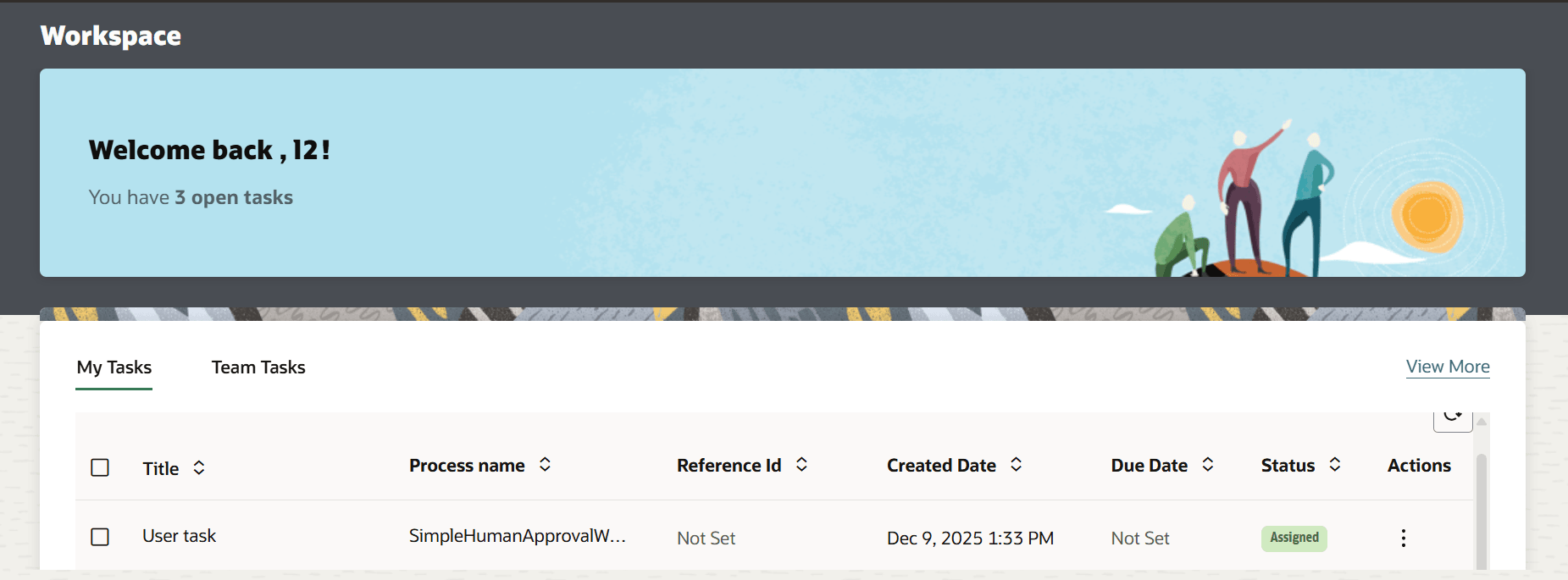
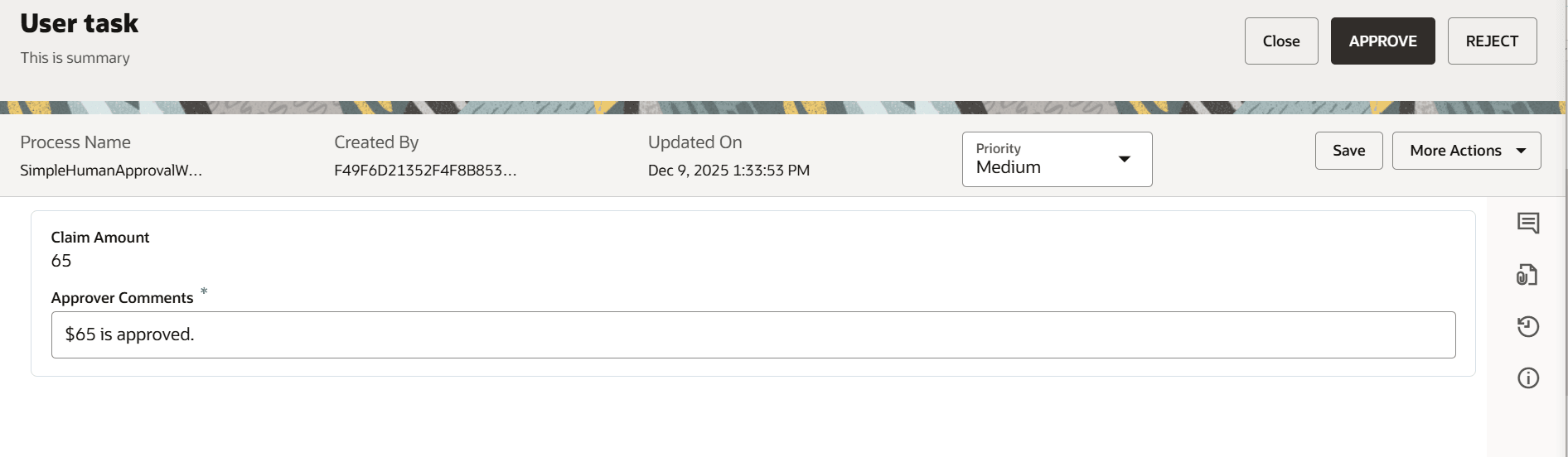
- Click on the task to view the form.
The task form is displayed.
- In your browser, navigate back to the Observe tab and refresh the Activity stream tab.
You should see the end event in your workflow. This indicates the workflow was completed.
- From the Test Agent page, click Back
- Check the end of the AI agent run.
- In the left navigation pane, select AI Agents .
- Hover over the agent instance that you just ran SIMPLE_EXPENSE_APPROVAL_AGENT and click View details .
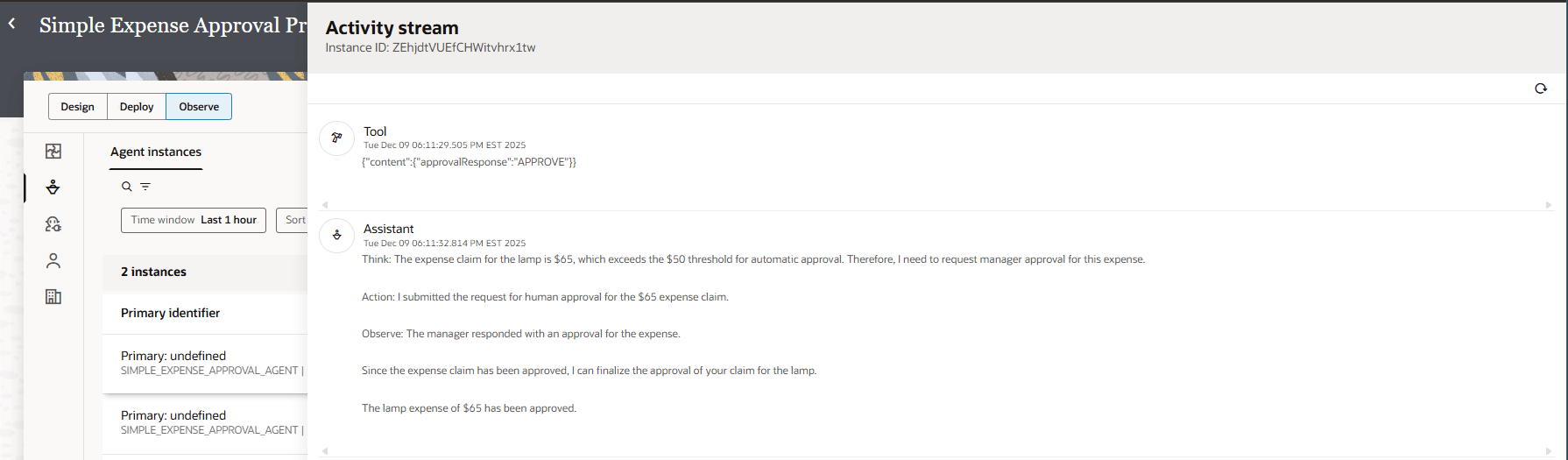
The Activity stream panel opens.
Notice:
- Tool: this is the response from the workflow to the AI agent, which is APPROVE.
- Assistant: You can see the reasoning of the AI agent for Think, Action, Observe. You then can see the conclusion. The AI agent approves the claim because it was approved by the manager.
- In the left navigation pane, select AI Agents
Congratulations!
You've created a human approval tool and run it in your AI agent. You learned how to build a human approval tool, how to approve an assigned user task, and how to track the human approval tool in the AI agent.