Configure and Activate the ObjectStoreKnowledgeBaseIngestion Integration

Configure the ObjectStoreKnowledgeBaseIngestion integration to specify your OCI Object Storage bucket and knowledge base. When run, this integration takes documents from the specified OCI Object Storage bucket and uploads them into the specified OCI Search with OpenSearch knowledge base.

Configure the Ingestion Integration

Configuration summary:
  • OCI Object Storage action, ListDocumentsinBucket: Configure the OCI Object Storage compartment and bucket
  • OCI Object Storage action, GetDocumentContent:
    • Configure the OCI Object Storage compartment and bucket
    • Add the custom headers:
      x-oracle-ics-target-url
      opc-meta-document-context
  • RAG ingest action IngestSingleDocument: specify the knowledge base and document ingestion strategy
  1. Open the project.
    1. In the navigation pane, select Projects.
    2. Select the recipe Build and Search Your Knowledge Base.
  2. In your project, in the left toolbar, select Integration Integrations icon.
  3. In the Integrations section, next to the ObjectStoreKnowledgeBaseIngestion integration, click Actions Actions icon, then select Edit to configure it.

    The integration canvas is displayed.

  4. Configure the OCI Object storage ListDocumentsinBucket action to specify the OCI Object storage compartment and bucket for listing documents.
    1. In the ListDocumentsinBucket OCI Object storage action, click Actions Actions icon, then select Edit.


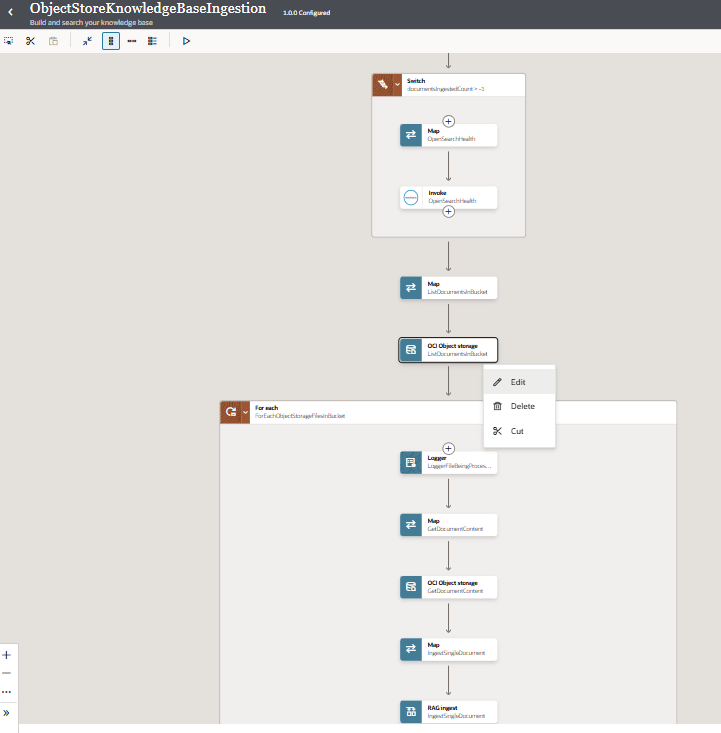
      The … menu of the Map icon is clicked to display options for Edit (selected), Delete, Cut. The OCI Object Storage action is selected.

      The Edit object storage panel is displayed.

    2. In the Select compartment field, select the OCI Object Storage compartment that contains the bucket in which the documents that you want to ingest into your knowledge base are located.
    3. In the Select bucket field, select the OCI Object Storage bucket in which your documents are located.
    4. Click Continue, then Finish.
  5. Configure the OCI Object storage GetDocumentContent action to specify the OCI Object storage compartment and bucket.
    1. In the GetDocumentContent OCI Object storage action, click Actions Actions icon, then select Edit.

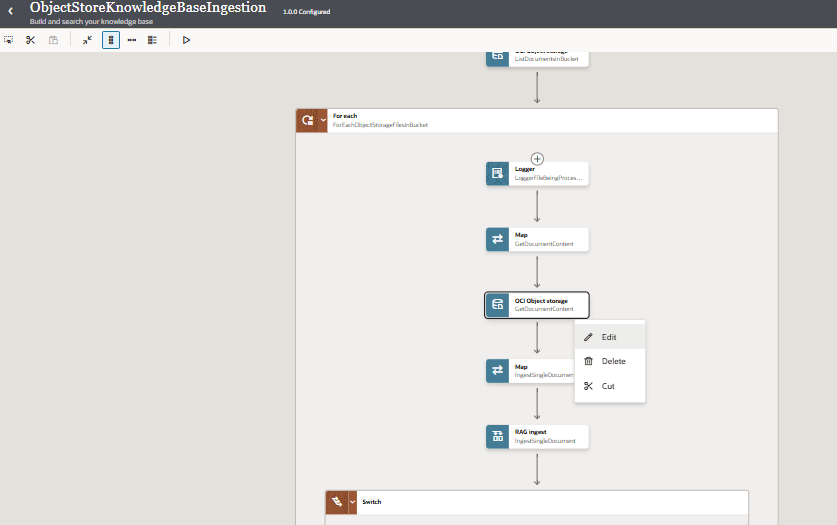
      The … menu of the Map icon is clicked to display options for Edit (selected), Delete, Cut. The OCI Object Storage action is selected.

      The Edit object storage panel is displayed.

    2. In the Select compartment field, select the OCI Object Storage compartment that contains the bucket in which the documents that you want to ingest into your knowledge base are located.
    3. In the Select bucket field, select the OCI Object Storage bucket in which your documents are located.
    4. In Configure Response Headers? make sure Custom has a checkmark, and click Continue.
    5. Add the following headers and make sure they have a checkmark next to them:
      • x-oracle-ics-target-url: provides the URL associated with a document.
      • opc-meta-document-context: provides extra information about a document. When you ingest a document, you can specify extra context about a document. For example, this document is the financial report for the third quarter.
    6. Click Continue, then Finish.
  6. Configure the Rag Ingest IngestSingleDocument action to specify the knowledge base.
    1. In the IngestSingleDocument Rag Ingest action, click Actions Actions icon, then select Edit.

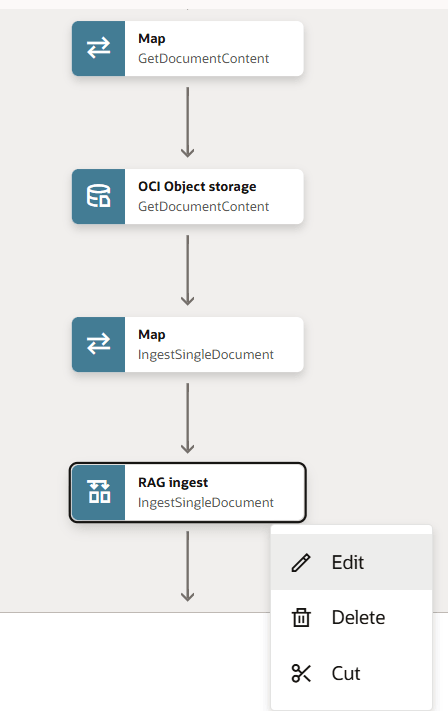
      Integration steps. Visible are the GetDocumentContent map that leads to OCI Object Storage GetDocumentContent that leads to the Map IngestSingleDocument that leads to Rag ingest IngestSingleDocument action (selected) and edit option is selected from the menu.

      The Configure RAG ingest panel is displayed.

    2. In the Choose a knowledge base field, select the OCI Search with OpenSearch knowledge base you created.
    3. In the Document ingestion strategy field, select whether documents are updated in the knowledge base. The default is Replace.

      Here's what the values mean:

      • Replace: This is the default behavior. Only new or changed documents in the OCI Object Storage bucket are ingested. If a document has already been ingested, it is not ingested again unless it has been updated. If the document has been updated, it's replaced in OCI Search with OpenSearch.

        Tip:

        A simple way to manage versions is to add the version number to the document file name such as mydocument_v1, mydocument_v2. This allows you to easily have multiple versions of a document in the knowledge base.
      • Append: This strategy is primarily designed for documents pushed through a REST trigger such as incident reports sent with attachments instead of documents from OCI Object Storage. Every time the integration runs, the documents are ingested as new entries. If this strategy is used with OCI Object Storage, every file in the bucket is ingested every time the integration runs. This means that if a file remains in the bucket, it will be re-ingested repeatedly, resulting in duplicate entries with the same name within the OCI Search with OpenSearch knowledge base.

      • Replace versioned: Requires the document version to be mapped in the RAG ingest action of the ObjectStoreKnowledgeBaseIngestion integration.
        • If no version is provided for a document, same behavior as Replace.
        • If a version is provided for a document:
          • If the document name, version, and hash values are the same as that of a document in the knowledge base, do not ingest the document.
          • If the document name and version are the same but the hash values are different, delete the existing document from the knowledge base and ingest the new document.
          • If the document name is the same but the specified version is different, ingest the new document into the knowledge base. This allows for multiple versions of the same document to be ingested.
        • If no version was provided for a document when it was ingested, but then a version is provided for the same document, this is considered as two different documents.
    4. Click Save.
  7. Click Save. If prompted, click Save again.
  8. To return to the project workspace, click Go back Back icon.
  9. Activate the integration.
    1. In the Integrations section, find the ObjectStoreKnowledgeBaseIngestion integration.
    2. Click Actions Actions icon, and select Activate.

      The Activate integration panel opens. For additional details on activation, see Activate an integration.