Run the ObjectStoreKnowledgeBaseIngestion Integration
Upload documents to the OCI Object Storage bucket that you specified in the integration. Then, manually run the ObjectStoreKnowledgeBaseIngestion integration to ingest documents from OCI Object Storage into OCI Search with OpenSearch.
Prerequisites:
- Prerequisites for Knowledge Base
- Configure and Activate the ObjectStoreKnowledgeBaseIngestion Integration
- Upload documents into your OCI Object Storage bucket
Run the ObjectStoreKnowledgeBaseIngestion Integration to Ingest Documents into Your Knowledge Base
- In your project, in the left toolbar, select Integration
 .
. - In your project, in the Integrations section, next to the ObjectStoreKnowledgeBaseIngestion integration, click Actions
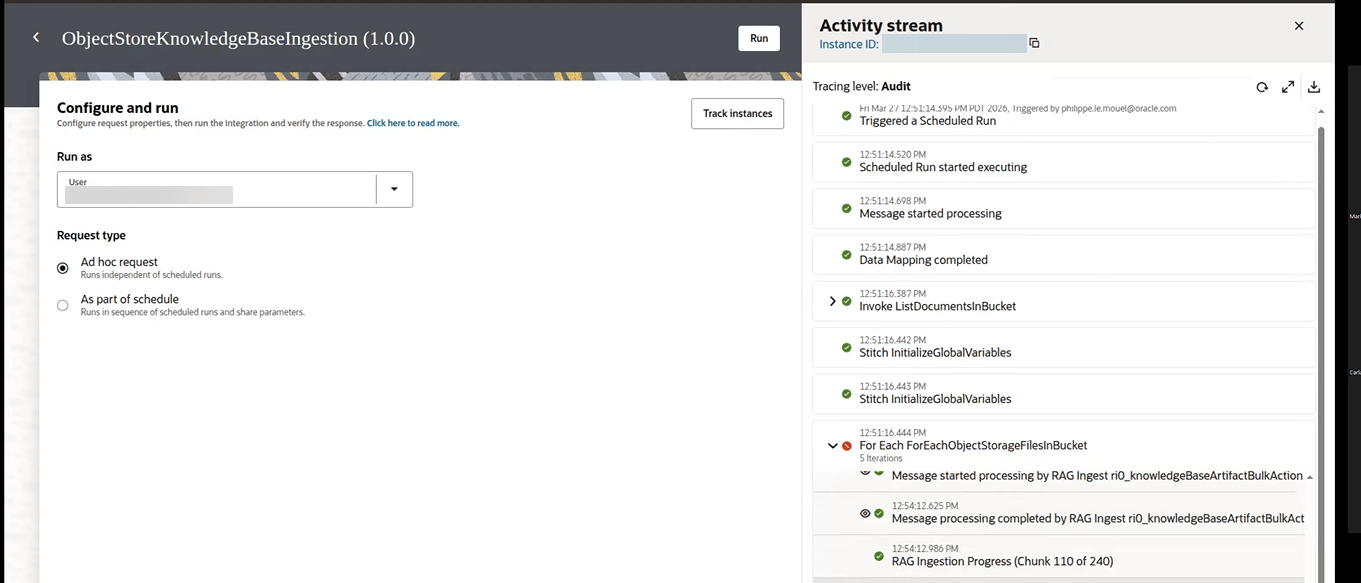
 , then select Run.The Configure and run page is displayed.
 - Click Run.
The Activity Stream panel opens on the right to show the progress of the run. You'll be able to see the progress of documents being ingested into OpenSearch.
For each document, you'll be able to see the number of chunks that are being processed as well as the total number of chunks. When the integration completes, ingestion is complete.
Note:
The first time you run the integration, you'll see an error because the model needs to be loaded. When Oracle Integration makes a call to OCI Search with OpenSearch, a 404 is received and the model is not found. You can safely ignore this error as Oracle Integration handles the error and ingestion proceeds.
Next step: Once ingestion completes, you can see the documents in the knowledge base. See View Documents in the Knowledge Base.