View Documents in the Knowledge Base
You can view the documents that are located in the knowledge base.
- In the left navigation pane, select Knowledge Base
 .
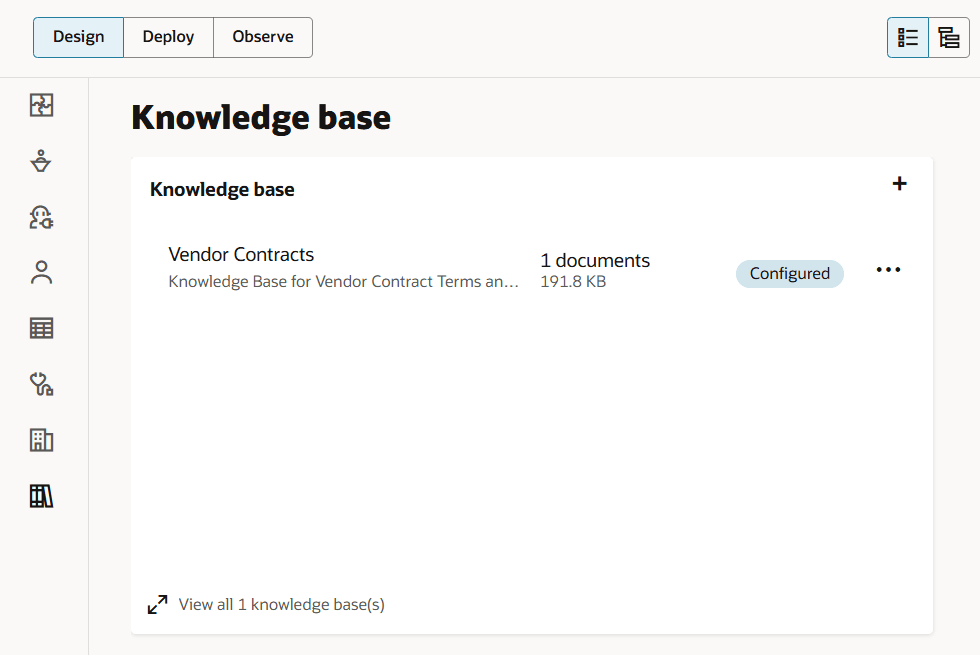
. - In the Knowledge Base section, select the knowledge base for which you want to see documents.
You can see how many documents each knowledge base has as well as the storage space that is occupied in OCI Search with OpenSearch.
- Select the knowledge base name to view all the individual files in the knowledge base.
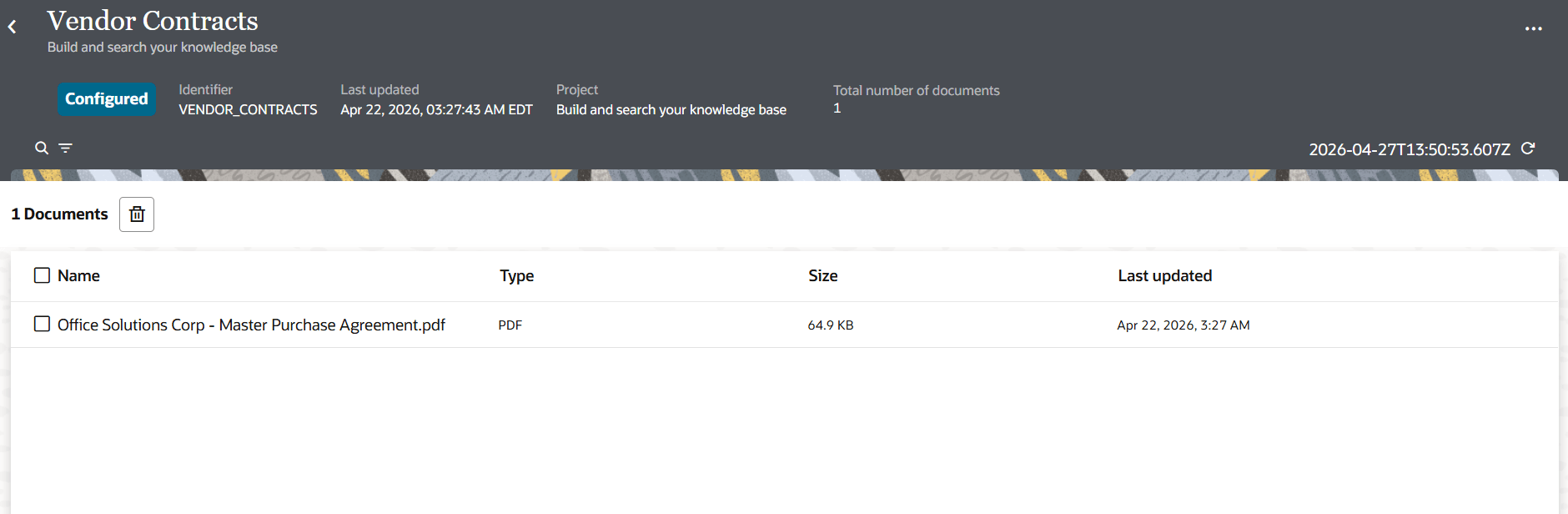
The Knowledge base details page is displayed with all documents currently in the knowledge base with the size and last updated time.
Note:
The size that is displayed is the size of the data resulting from the ingestion of the document: the document itself, the text associated with every chunk, the vector, and all the metadata.
The original size of the document is not necessarily the size of the document in the knowledge base. For example, if you have a PDF that has a lot of images, the document could be very large but the ingested size is smaller because images are not ingested, only text.
If you have a document that is rich in text, the document will be ingested into something much larger. The text is extracted and vectorized, but not images.
Tables that contain text are extracted.