Create and Activate the Human Approval Form
Let's create the web form for managers to approve the expense. This is a very simple form with two text fields: Claim Amount and Approver Comments.
- Open the project.
- In the navigation pane, select Projects.
- Select Simple Expense Approval Project.
- Create the web form.
- In the left toolbar, select Human in the loop
 .
. - Complete the fields for the form:
Field Description Name Enter a name for the form. For our tutorial, enter: Simple Approval Form.Identifier Leave this field as is. This field is automatically populated with a unique identifier based on the name value. Version Leave this field as is. Use the default value. Description Enter the description for the form: Form to approve expenses.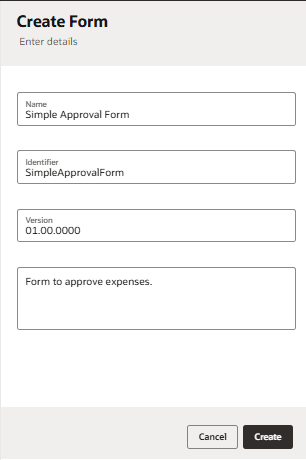
- In the left toolbar, select Human in the loop
- Add the text fields to your form. We're going to create two simple input text fields: Claim Amount and Approver Comments.
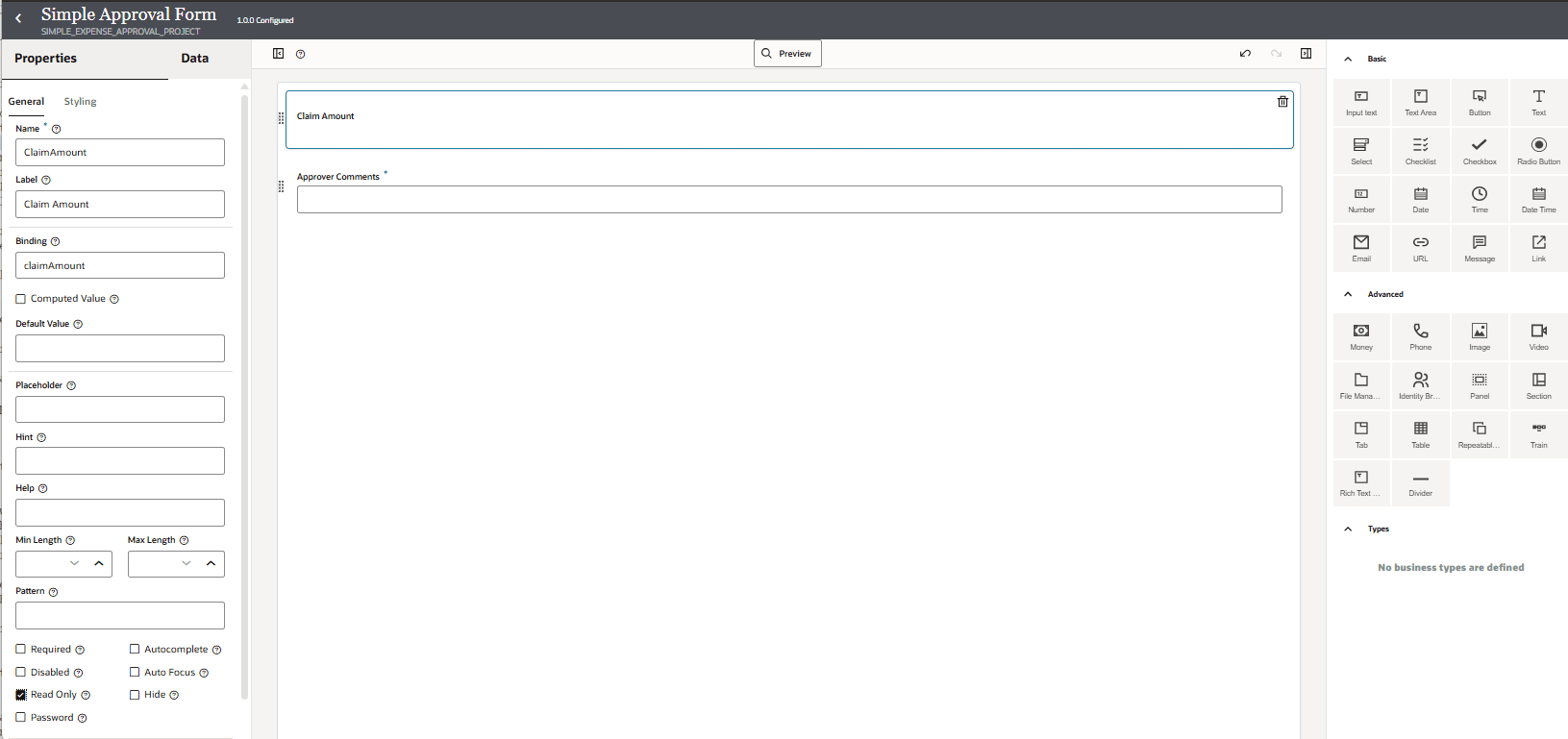
- Double-click on the first input text field to display the General tab, and in the Properties pane for the first input text field configure the following:
- Name: Enter
ClaimAmount. - Label: Enter
Claim Amountto display to the user of the form. - Read only: Make sure this is checked. The amount claimed is received as input. The approver of the expense cannot change this.
- Name: Enter
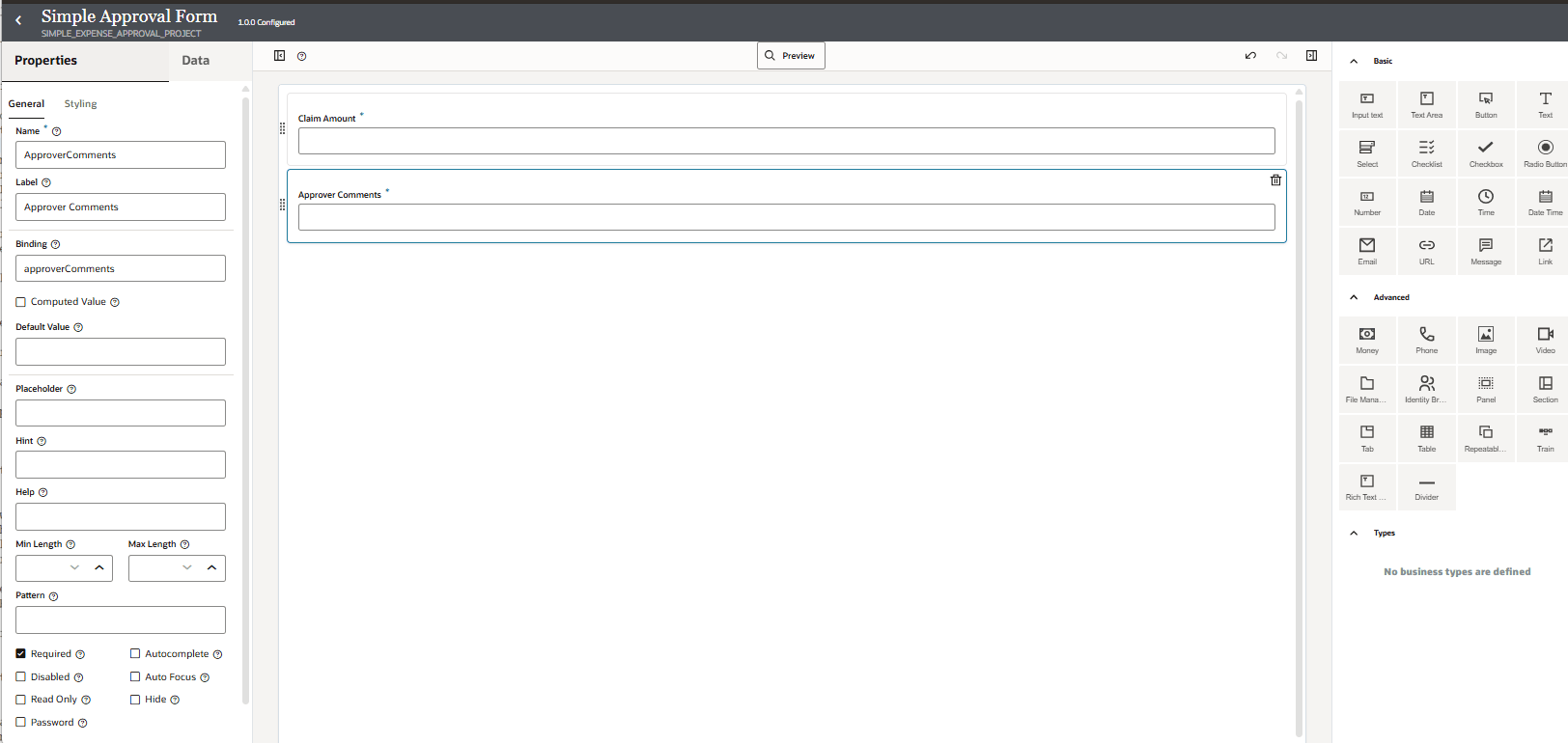
- Configure the second field. Click on InputtText1, and in the Properties pane:
- Name: Enter
ApproverComments. - Label: Enter
Approver Commentsto display to the user of the form. - Required: Make sure this is checked. The approver must provide comments before submitting the form.
- Name: Enter
- Click Back
 to return to the Human in the loop main page.
- Double-click on the first input text field to display the General tab, and in the Properties pane for the first input text field configure the following:
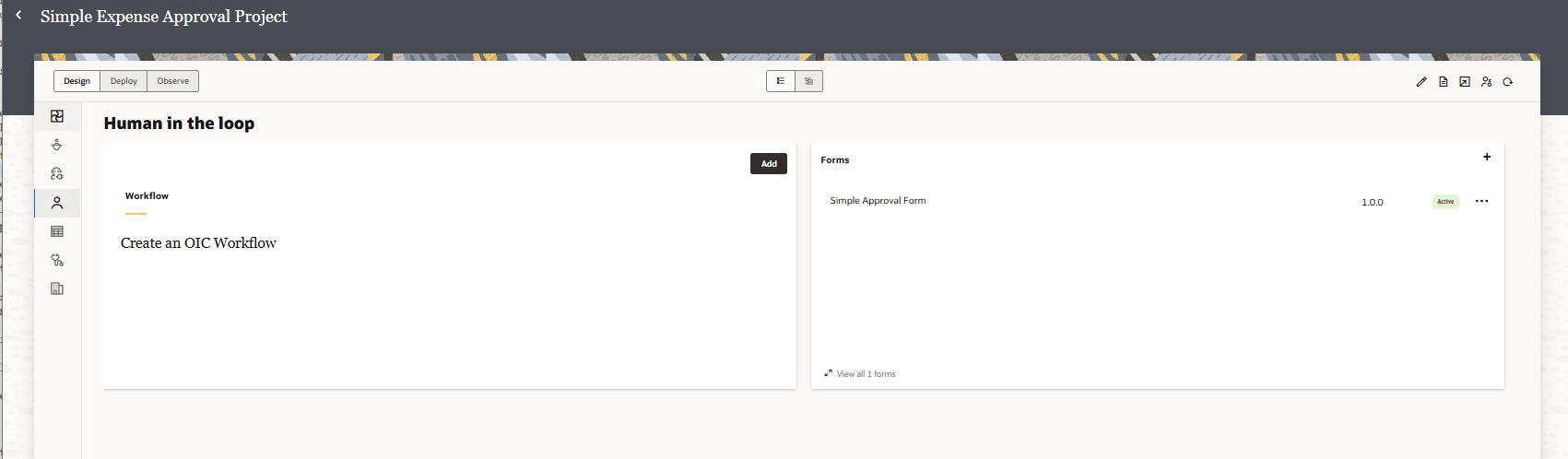
- Activate the form.
- Click Actions
 , and select Activate.
The form is now ready for use.
- Click Actions
Next step: Create and Activate the Human Approval Workflow.