Create and Activate the Human Approval Workflow

Now that you've created the human approval form and activated it, you can create the human approval workflow.

  1. Open the project.
    1. In the navigation pane, select Projects.
    2. Select Simple Expense Approval Project.
  2. In the left toolbar, select Human in the loop Human in the loop icon.
  3. Create the workflow.
    1. In the Workflows section, click Add.
    2. Complete the fields for the workflow:
      Field Description

      Name

      Enter a name for the workflow. For the tutorial, enter: Simple Human Approval Workflow.

      Identifier

      Leave this field as is. This field is automatically populated with a unique identifier based on the name value.

      Version

      Leave this field as is. Use the default value.

      Description

      Enter the description for the workflow: Simple workflow to request human approval.
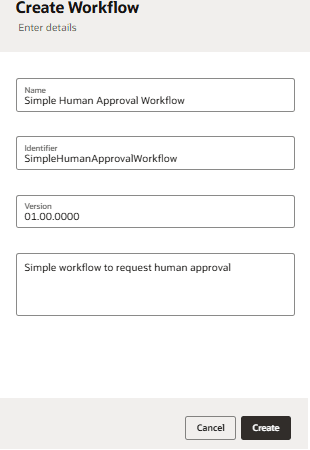

      Create Workflow page showing fields for Name, Identifier, Version, and Description, with example entries for a Simple Human Approval Workflow. Cancel and Create buttons are displayed at the bottom.

    3. Click Create.

      A workflow with a start and end event is displayed in the canvas.

      A start event specifies arguments that trigger the workflow. A workflow contains a single start event.

      An end event marks the completion of a workflow. The end event can be configured to define the callback request and specify the output argument.
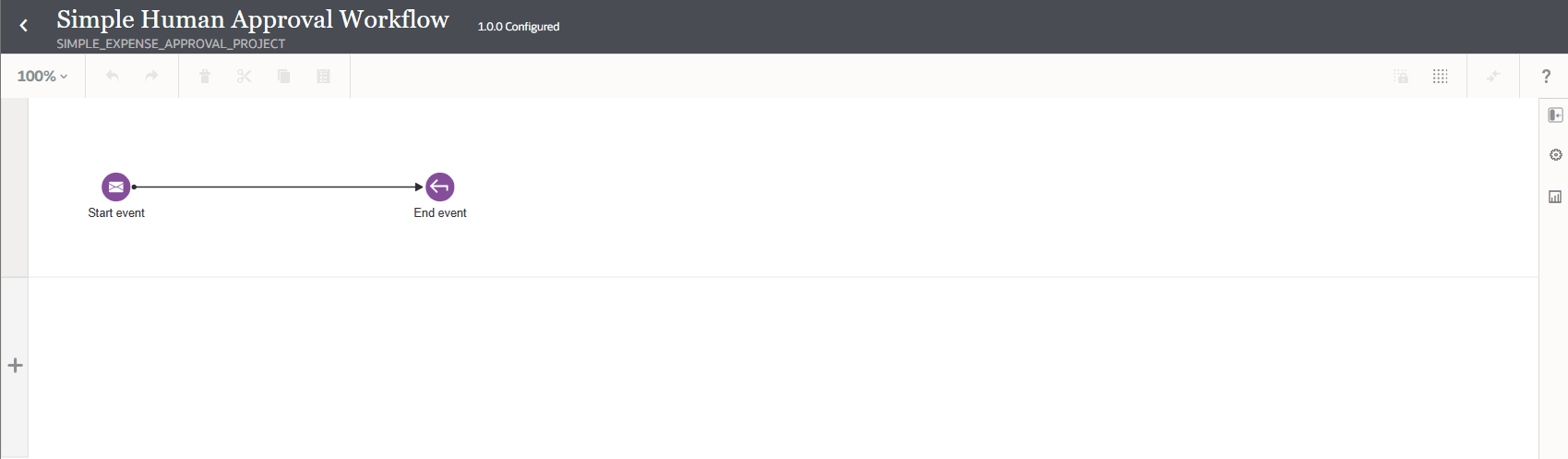

      Workflow diagram for “Simple Human Approval Workflow” in the SIMPLE_EXPENSE_APPROVAL_PROJECT, version 1.0.0. The canvas shows a simple workflow with two nodes connected by a single arrow: a Start event (envelope icon) on the left, labeled “Start event,” and an End event (circular arrow icon) on the right, labeled “End event.” The interface includes a top bar with the workflow name and toolbar options, and a vertical sidebar with additional design tools on the right. The workspace is otherwise empty, highlighting the basic structure of the workflow.

  4. Configure the Start event.
    1. Select Start event, click More More icon, then select Open Properties.
      The Properties panel is displayed.
    2. In the Input Payload Definition section, click <<<inline>>> and enter the following JSON input:
      {"claimedAmount":""}
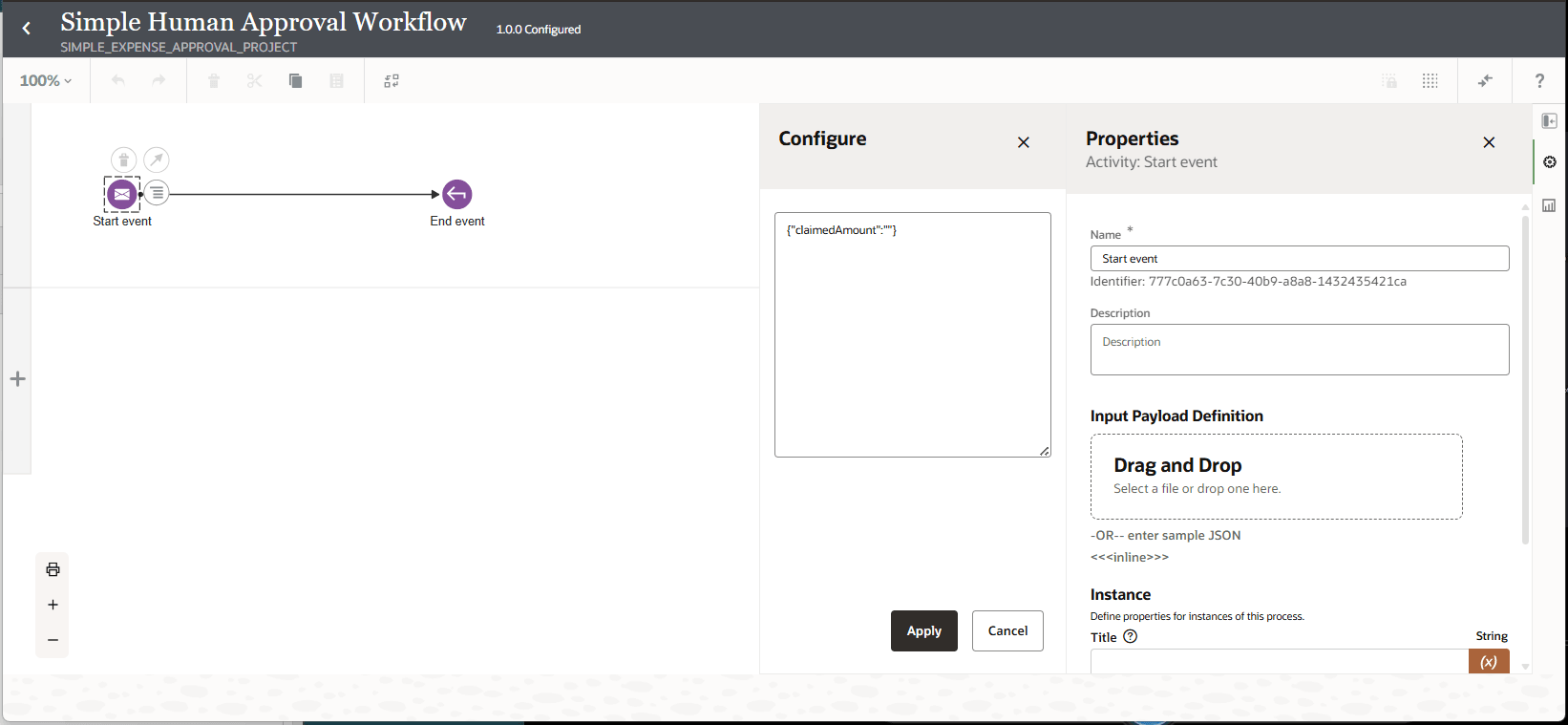
      Canvas displaying the “Simple Human Approval Workflow.” The main canvas shows a start event (envelope icon) labeled “Start event,” connected by an arrow to an end event (circular arrow icon) labeled “End event.” The Start event is selected, indicated by a dashed border and context buttons. On the right, the Configure and Properties panel shows fields to edit the start event's name, description, and input payload definition. The payload includes a JSON object with “claimedAmount,” and users can drag and drop a file or manually enter sample JSON. The top bar contains navigation and toolbar options.

    3. Click Apply to save the changes.
  5. Configure the End event.
    1. Select End event, click More More icon, then select Open Properties.
      The Properties panel is displayed.
    2. In the End Event Properties, click <<<inline>>> and enter the following JSON:
      {"approvalResponse":""}
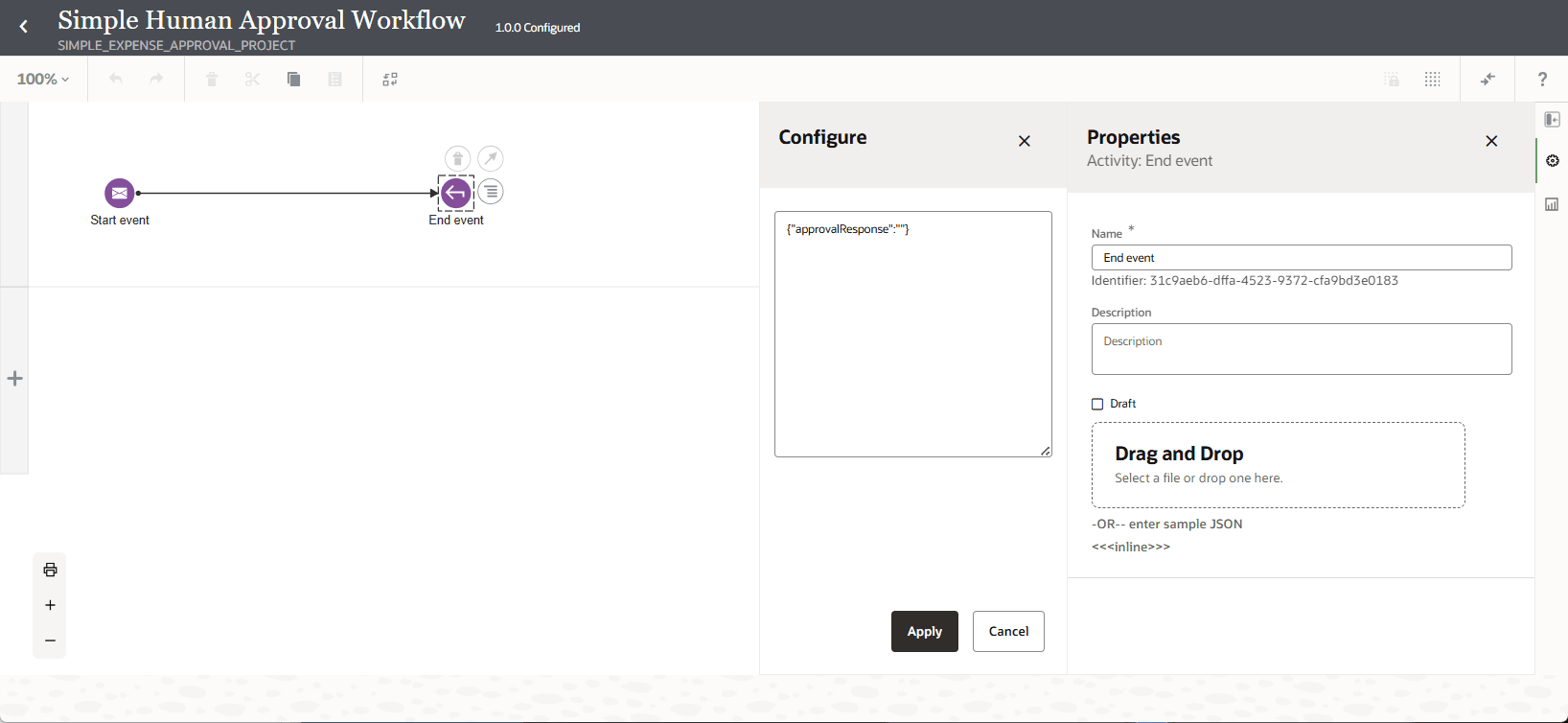
      Canvas displaying the “Simple Human Approval Workflow.” The main canvas shows a start event (envelope icon) labeled “Start event,” connected by an arrow to an end event (circular arrow icon) labeled “End event.” The End event is selected, indicated by a dashed border and context buttons. On the right, the Configure and Properties panel shows fields to edit the end event's name, description, and output payload definition. The payload includes a JSON object with

    3. Click Apply to save the changes.
    4. Close the Properties panel for the End event.
  6. Add and configure the user task.
    1. Click Show/Hide palette to display the user task activity.
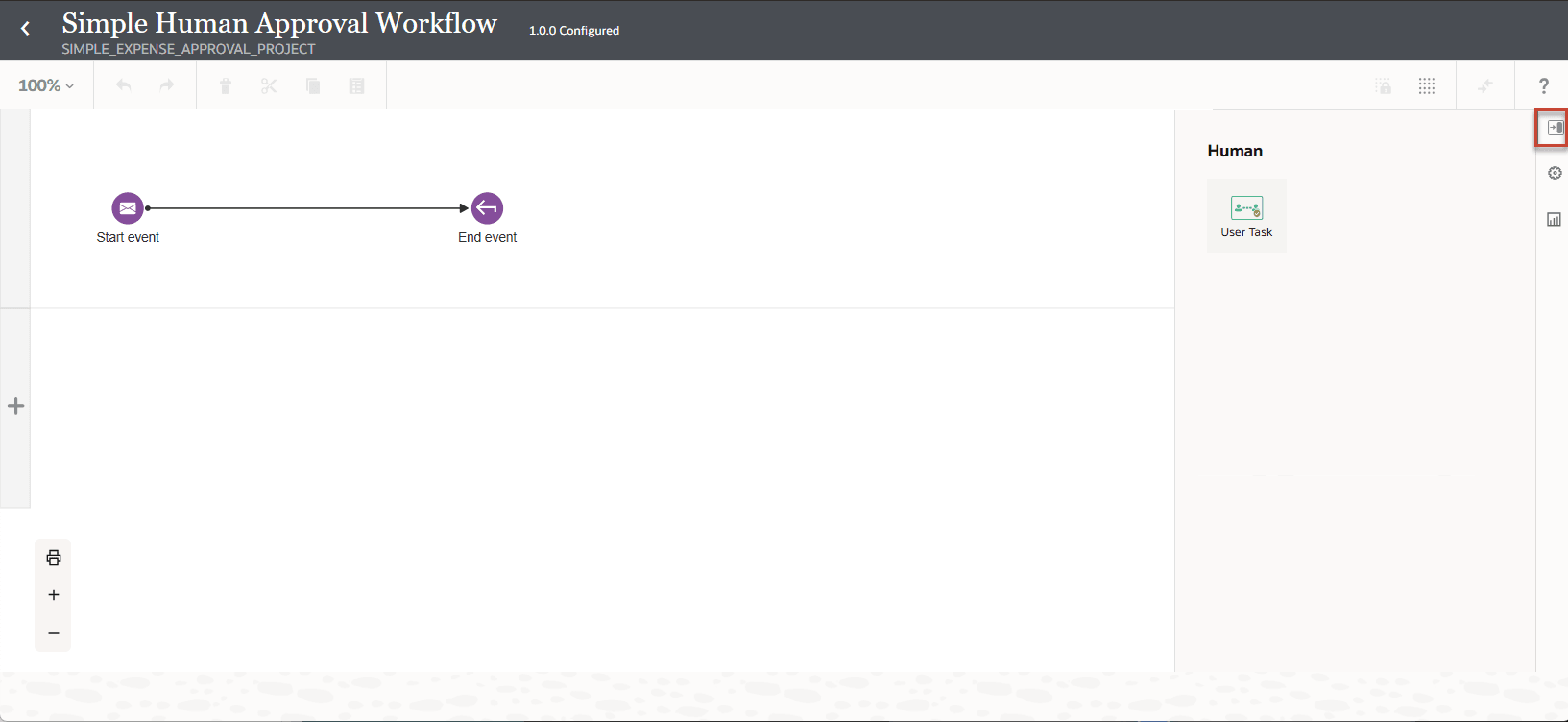
      The main canvas shows a simple sequence with a start event (envelope icon) labeled “Start event” connected by a straight arrow to an end event (circular arrow icon) labeled “End event.” On the right, the palette panel is open, showing options to add workflow elements: under "Human" is “User Task”, The top bar displays the workflow name, project, and version. The interface includes standard toolbar controls above the canvas and a vertical sidebar with icons for additional configuration on the right.

    2. In the right pane, under Human, select the User Task and drop the user task on to the workflow canvas between the Start and End events..
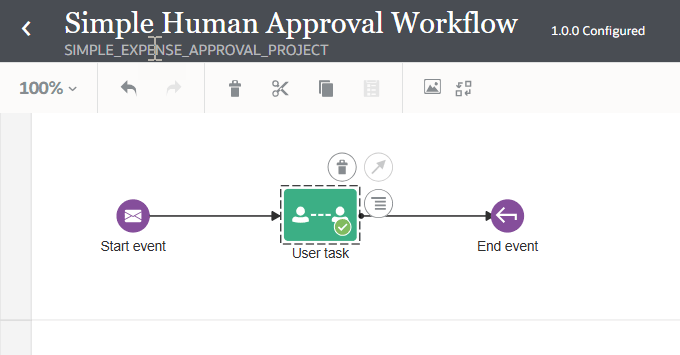
      Canvas displaying the “Simple Human Approval Workflow.” The diagram shows a sequence with a start event (envelope icon) on the left, connected to a selected “User task” (green rectangle with person icon) in the center, and an end event (circular arrow icon) on the right. The User task is highlighted with a dashed border and contextual action buttons above it. The top bar displays the workflow name, project, and version.

    3. Select the user task, click More More icon, then select Open Properties.
      The Properties pane is displayed.
    4. In the Properties pane, in the Assignees section, click Assign to Assign to and select the user account with which you are logged in. This is the user that will see the task to approve or reject the amount claimed.
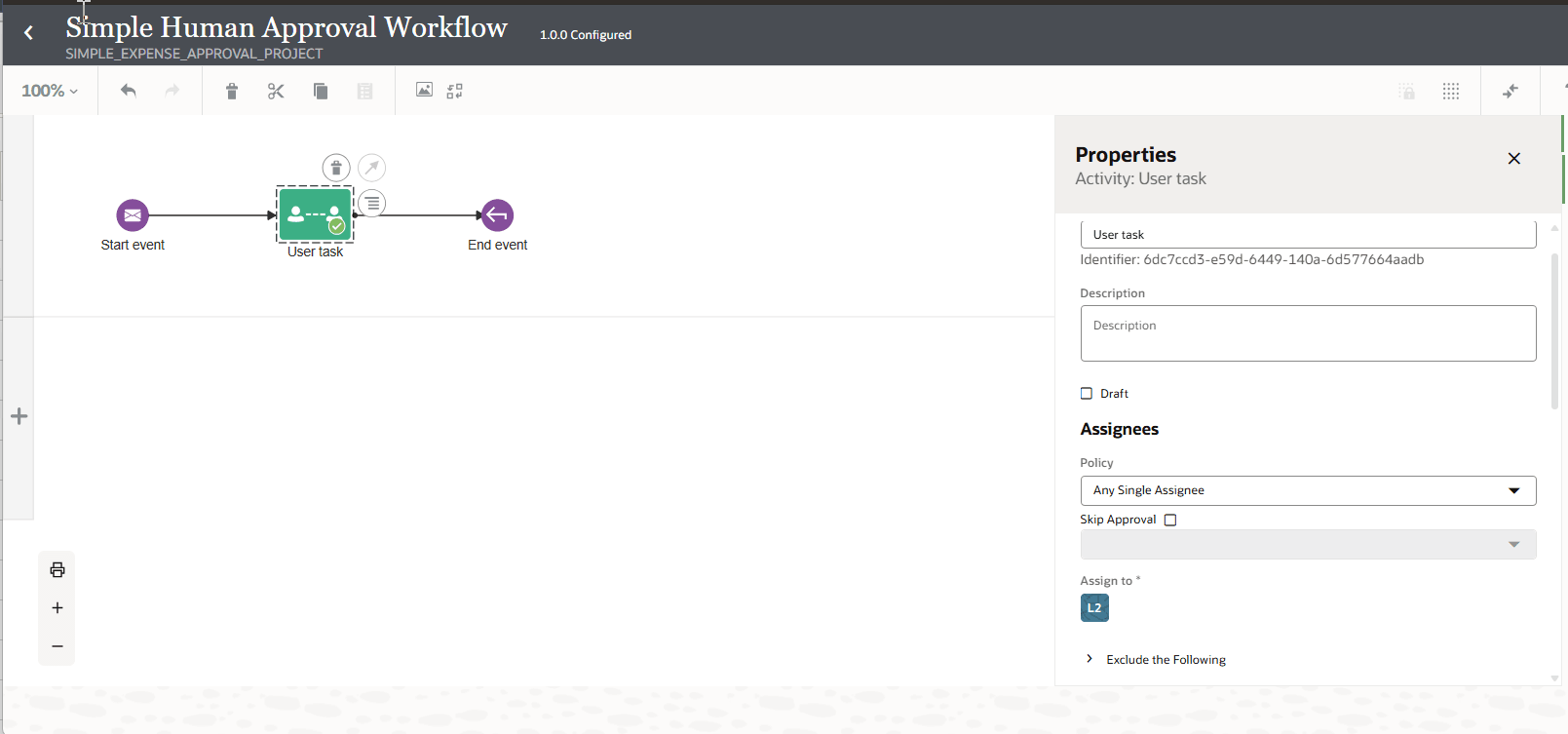
      Canvas shows the “Simple Human Approval Workflow” consisting of a start event, a selected user task, and an end event. The user task in the center is highlighted with a dashed border and context buttons. On the right, the Properties panel for the user task is open, displaying fields for name, identifier, description, draft status, and assignees. The assignees section includes a policy dropdown set to “Any Single Assignee,” and an “Assign to” field set to “L2.” The interface header includes the workflow name, project, and version.

    5. In the Properties pane, scroll down to the UI section, and from the dropdown select the Simple Approval Form you created and activated.
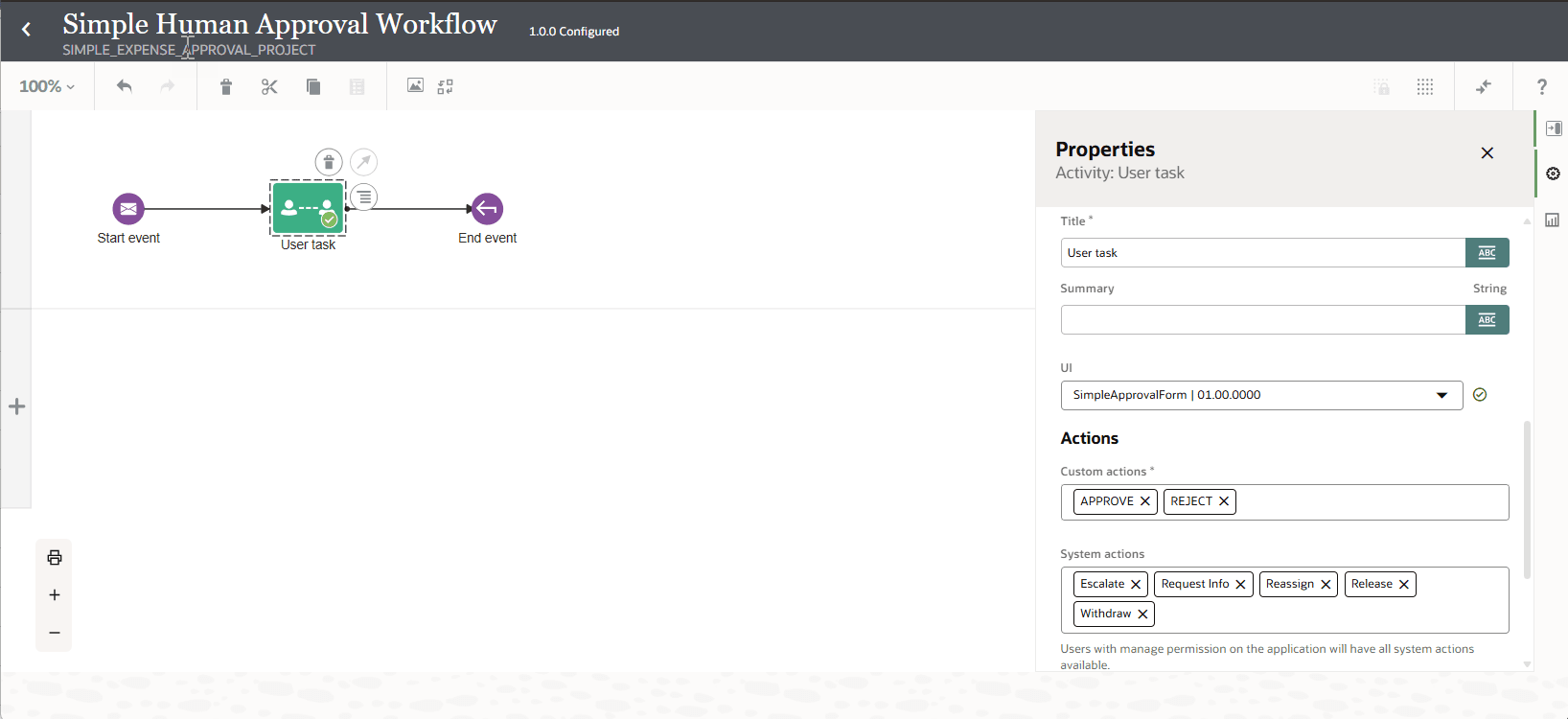
      Canvas shows the “Simple Human Approval Workflow” consisting of a start event, a selected user task, and an end event. The user task in the center is highlighted with a dashed border and context buttons. On the right, the Properties panel for the user task is open, displaying fields for Title, Summary, Actions. The UI field is set to “SimpleApprovalForm”. The interface header includes the workflow name, project, and version.

    6. Leave all other fields as is and close the panel.
  7. Configure data associations for the workflow input.

    A user task needs both input and output data association.

    1. Select the user task, click More More icon, then select Open Data Association.

      The data association editor is displayed.

    2. Define data input for the user task.

      You're going to assign the value received from the start event to the claimedAmount field in the form.

      1. In the data association editor, on the left pane, click the Input tab to define data input for the user task.
      2. In Data Objects, expand Input and drag claimedAmount to New Association in the center pane.
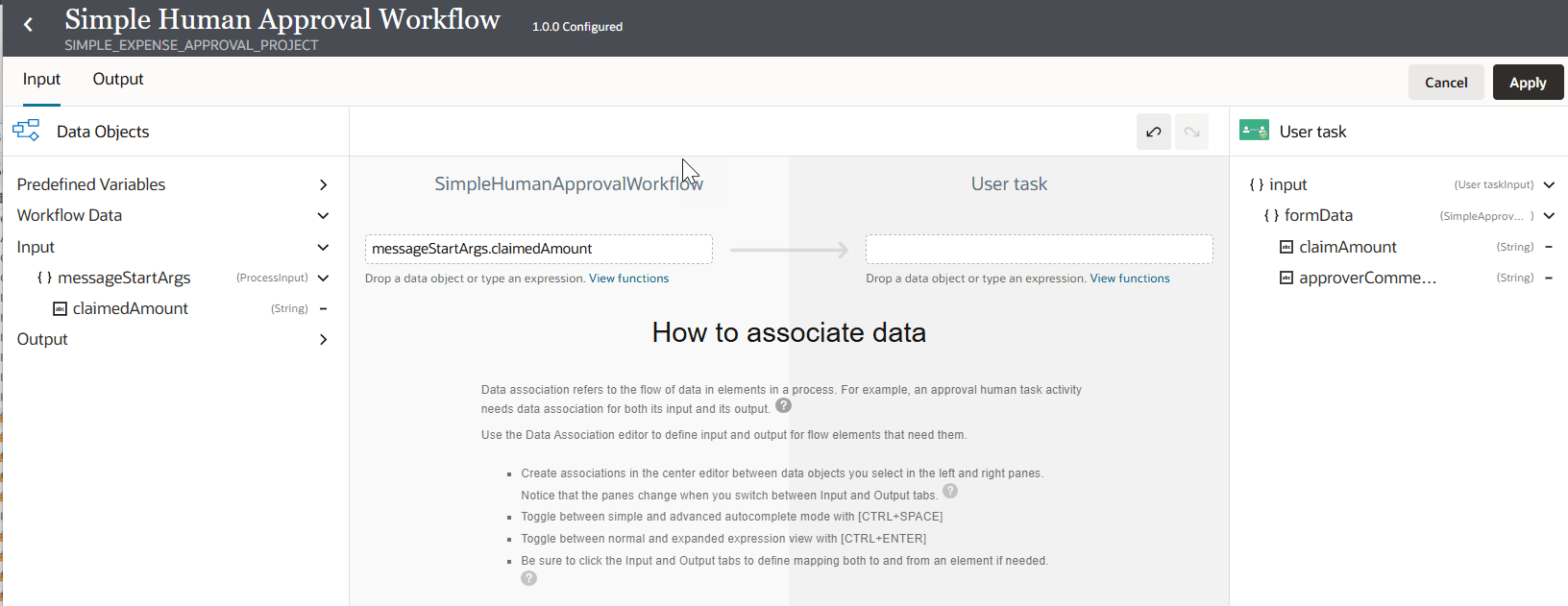

        Input mapping view for the user task. On the left, the Data Objects panel displays predefined variables and workflow data, including an input variable “messageStartArgs” and its string property “claimedAmount.” The center area shows a mapping editor where “messageStartArgs.claimedAmount” from the workflow is ready to be mapped to a field in the user task, but not yet associated. . On the right, the panel shows the user task input structure, including form data fields “claimAmount” and “approverComments.” At the top, there are Input/Output tabs and Apply/Cancel buttons.

      3. On the right pane, in User task, expand Input, then formData and drag claimAmount to the empty field in the center pane to complete the data association.
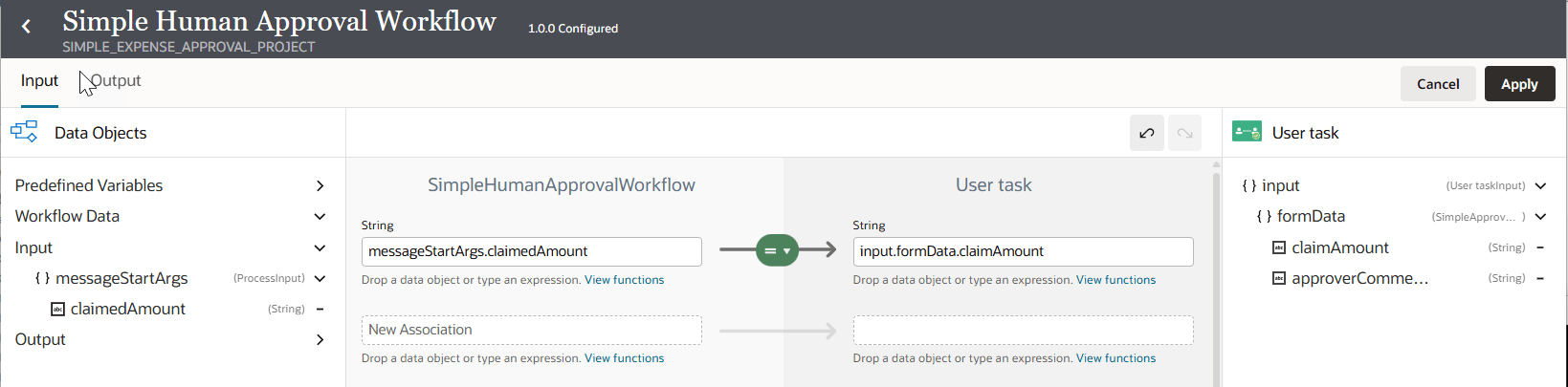

        Input mapping view for the user task. On the left, the Data Objects panel displays predefined variables and workflow data, including an input variable “messageStartArgs” and its string property “claimedAmount.” In the center, there is a mapping association where “messageStartArgs.claimedAmount” is mapped to “input.formData.claimAmount” for the user task, both indicated as string types. On the right, the panel shows the user task input structure, including form data fields “claimAmount” and “approverComments.” At the top, there are Input/Output tabs and Apply/Cancel buttons.

      4. Click Apply.
  8. Define data association for the output.

    Once the user enters information in the form for the Approver Comments, we want to send that information as a response back to the integration that is calling the workflow.

    1. Select the user task, click More More icon, then select Open Data Association.

      The data association editor is displayed.

    2. In the data association editor, on the left pane, click the Output tab to define data output for the user task.
    3. Under User Task, expand Output and drag taskOutcome to New Association.
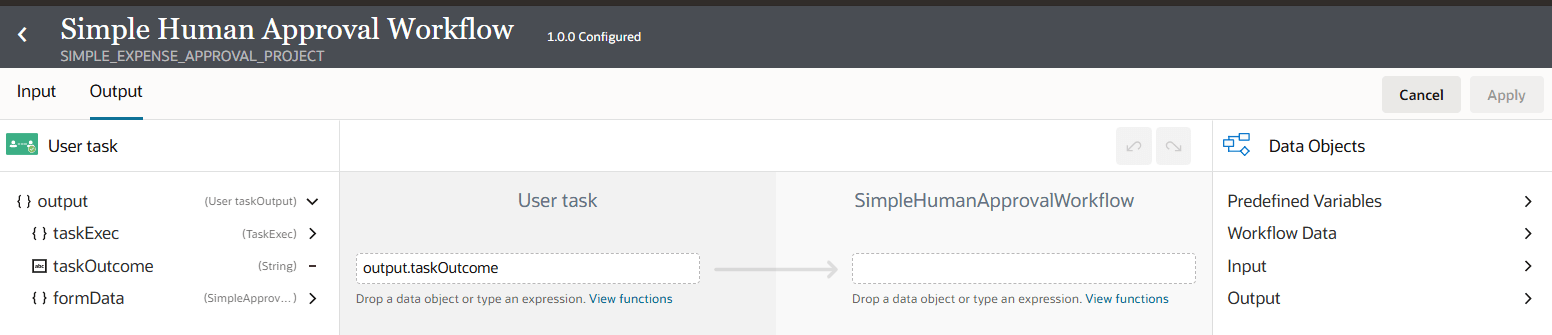
      Data association screen for the “Simple Human Approval Workflow,” showing the Output mapping tab. The left panel lists user task output variables, including “output,” “taskExec,” “taskOutcome,” and “formData.” The central mapping editor displays “output.taskOutcome” from the User task ready to be mapped to a field in the workflow, but no association has yet been set. The right panel allows access to additional data objects, with links for Predefined Variables, Workflow Data, Input, and Output. “Cancel” and “Apply” buttons appear in the upper right.

    4. On the center pane, in the empty field, type CallbackEndArgs, select it, and select ApprovalResponse.
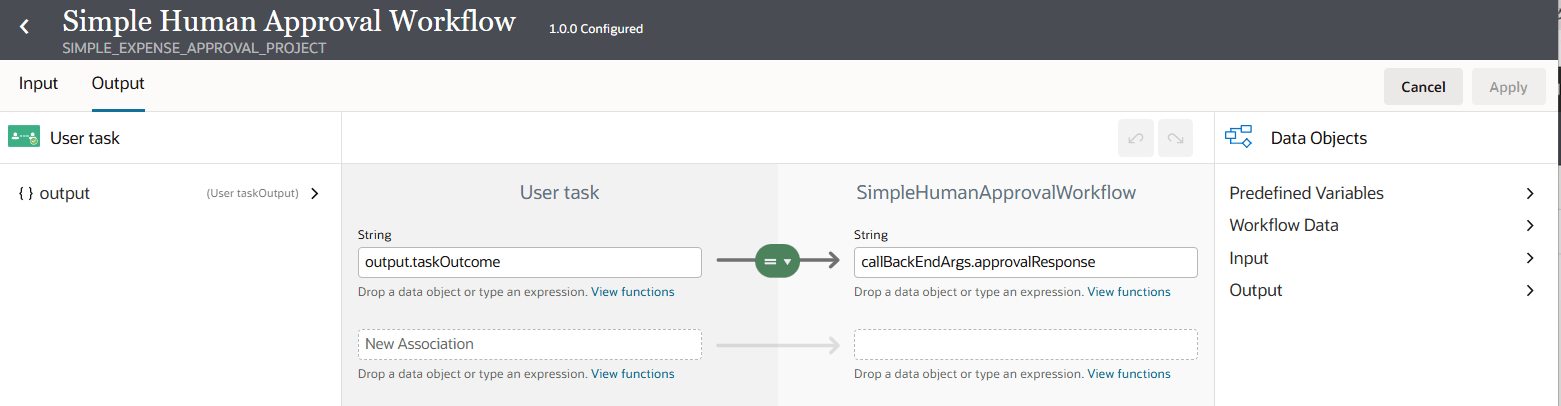
      Data mapping screen for the “Simple Human Approval Workflow.” The left panel shows the user task output variable “output.taskOutcome.” In the center, a mapping is set where “output.taskOutcome” from the user task is mapped to “callBackEndArgs.approvalResponse” both shown as string fields. The right panel lists data object categories: Predefined Variables, Workflow Data, Input, and Output. Apply and Cancel buttons are in the upper right.

    5. Click Apply.
      You have finished configuring the workflow.
    6. Click Back Back icon to return to the Human in the loop main page.
  9. Activate the workflow.
    1. Next to the workflow Simple Human Approval Workflow, click Actions icon, and then select Activate.

      The workflow is now ready for use.