Create the Trigger Connection for the Human Approval Integration

Before you can create the integration, you need to create the connections. We only have one connection in the human approval integration: the trigger connection.

  1. In your project, in the left toolbar, select Integration Integrations icon.
  2. In the Connections section, click +.

    The Create Connection panel opens.

  3. Enter REST in the search field and select REST as the adapter connection to use.
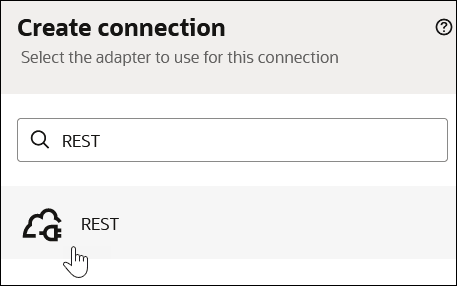

    The Create connection dialog shows REST being selected.

    The Create Connection panel for configuring the REST Adapter connection opens.

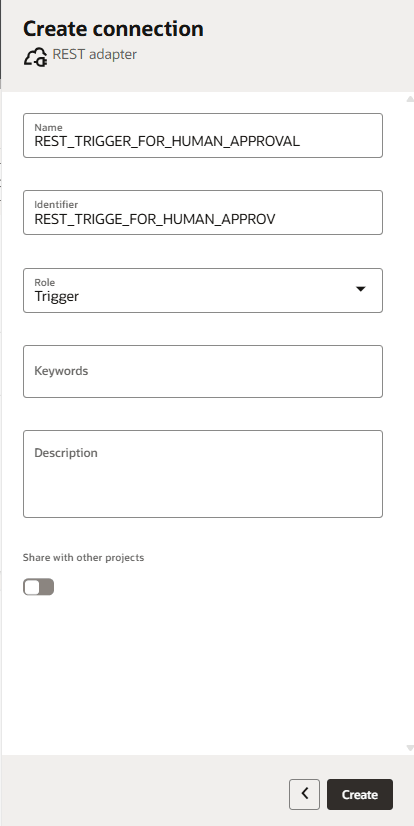
  4. In Create connection, configure the Name and Role fields, leave all other fields blank, and click Create.
    • Name: For the connection name, specify REST_TRIGGER_FOR_HUMAN_APPROVAL.
    • Role: Select Trigger so that an inbound application can run the integration.
    • Leave all other fields as is.

    The Create connection page for the REST adapter. Fields are Name, Identifier, Role, Keywords, Description, Share with other projects. At the bottom, there's a Create button.

    The page for configuring security and delivery methods for the REST Adapter is displayed.

  5. Configure connection security.
    • Security: From the list, select OAuth 2.0 Or Basic Authentication to secure incoming messages.
    • Access type: Ensure Public gateway is selected. This access type uses the public internet to receive messages.
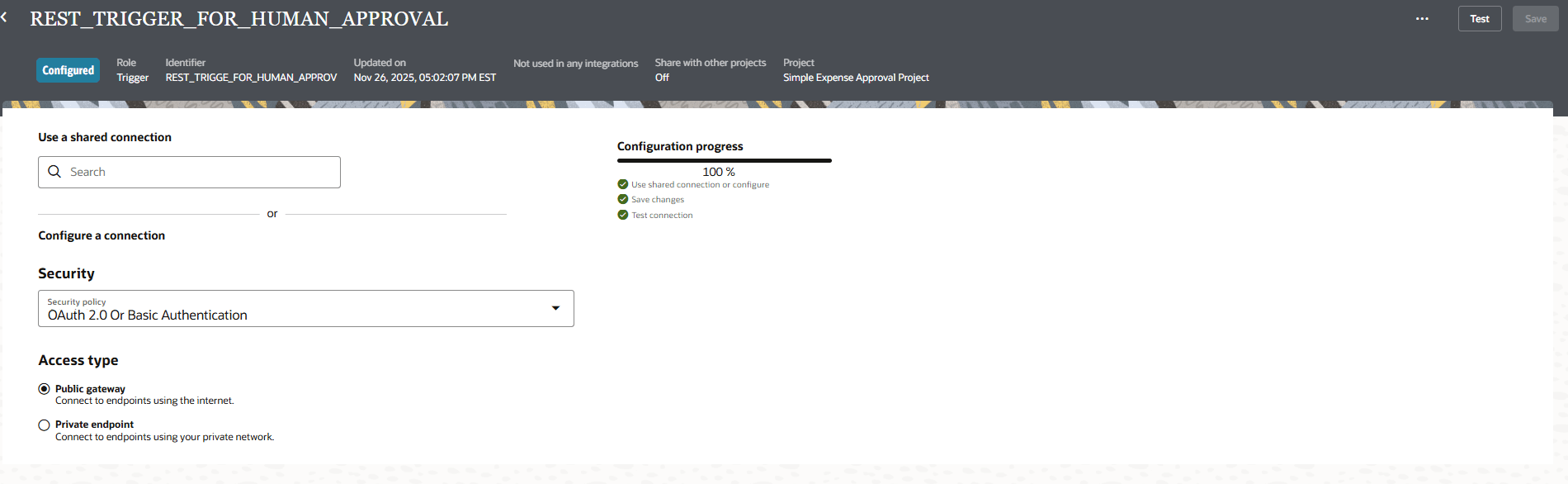

    REST Trigger connection details page with the fields Use a shared connection, Security (OAuth 2.0 or Basic Authentication selected), Access type Public gateway(selected), Access type Private endpoint. There is also a configuration progress bar at 100%

  6. Click Test to test the connection.
  7. Click Save.
  8. Click Back Back icon to return to the Integration section in the project.
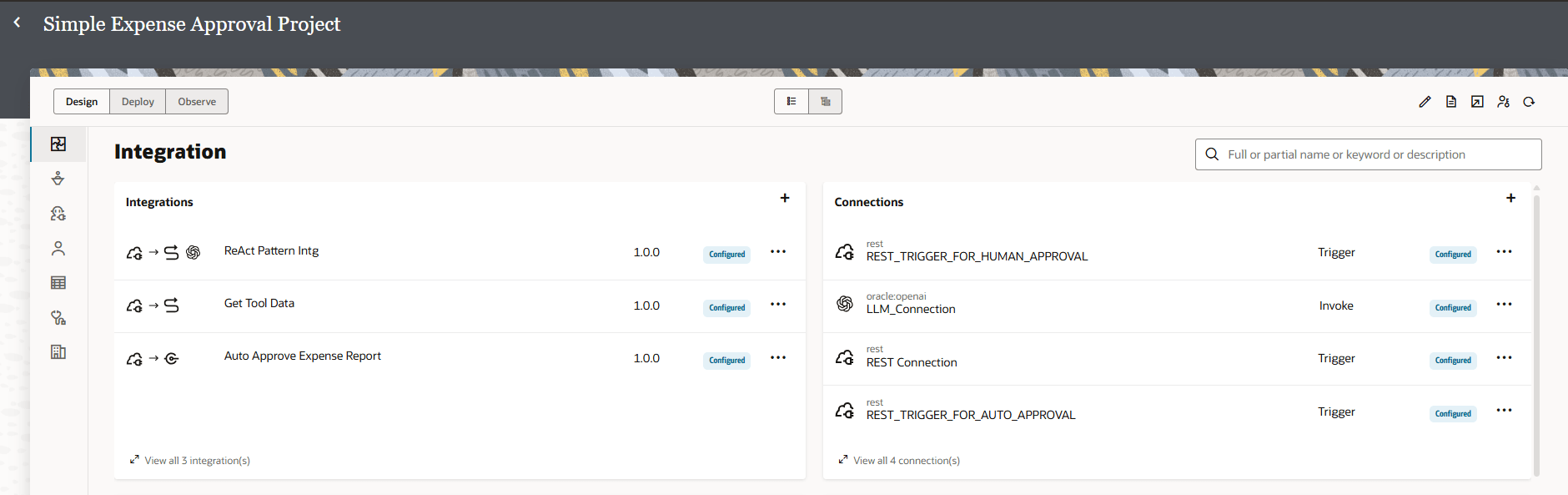
    Oracle Integration project workspace for “Simple Expense Approval Project,” showing the Integration section under the Design tab. The main area is split into two sections: Integrations on the left, listing three integrations ("ReAct Pattern Intg," "Get Tool Data," and "Auto Approve Expense Report") with their status as "Configured" and version 1.0.0; and Connections on the right, listing four connections ("REST_TRIGGER_FOR_HUMAN_APPROVAL," "LLM_Connection," "REST Connection," and "REST_TRIGGER_FOR_AUTO_APPROVAL") with their types (Trigger or Invoke) and "Configured" status. The left sidebar shows project navigation icons, and the top includes project name, search bar, design/deploy/observe tabs, and action buttons for editing and viewing.

    You've finished creating the trigger connection for the integration. You can now create the integration.