Create and Activate the Human Approval Integration
Let's create the integration to request manager approval. The integration invokes the human workflow and passes the claimed amount to the workflow.
Prerequisites:
Before you create the human approval integration, keep in mind the following:
- The integration must be asynchronous. The integration's endpoint does not receive a response.
- The integration must always start with a REST trigger connection with the REST adapter.
- The REST trigger connection must have with the following:
- Trigger role
- OAuth 2.0 Or Basic Authentication as the security policy
- POST verb
- JSON request
- The trigger in the integration must be configured with the custom header x-agentic-callback-url. This is required for any integration that's calling human in the loop and must be stated with this name.
- Create the integration.
- In the left toolbar, select Integration
 .
. - Click Create, then select Application.
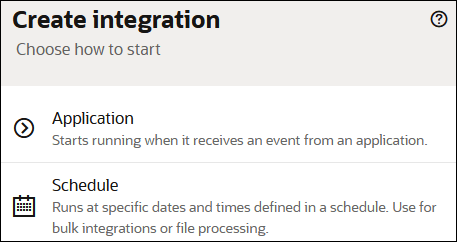
The integration canvas opens.
- In the Name field, enter
Request Human Approval, leave all other fields as they are, then click Create.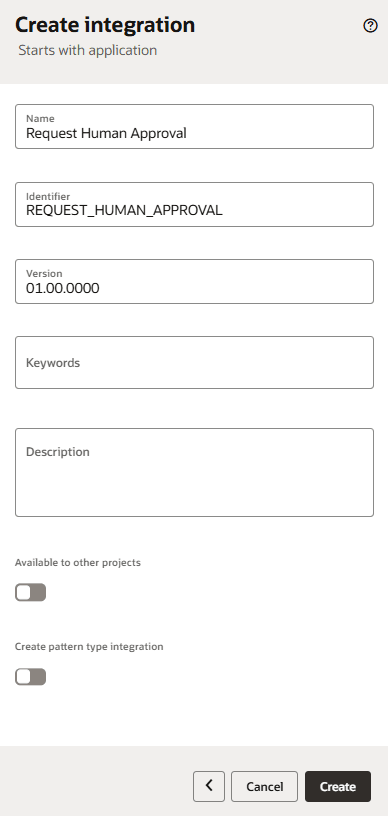
The integration canvas opens.
- In the left toolbar, select Integration
- Select the connection that you previously created REST_TRIGGER_FOR_HUMAN_APPROVAL.
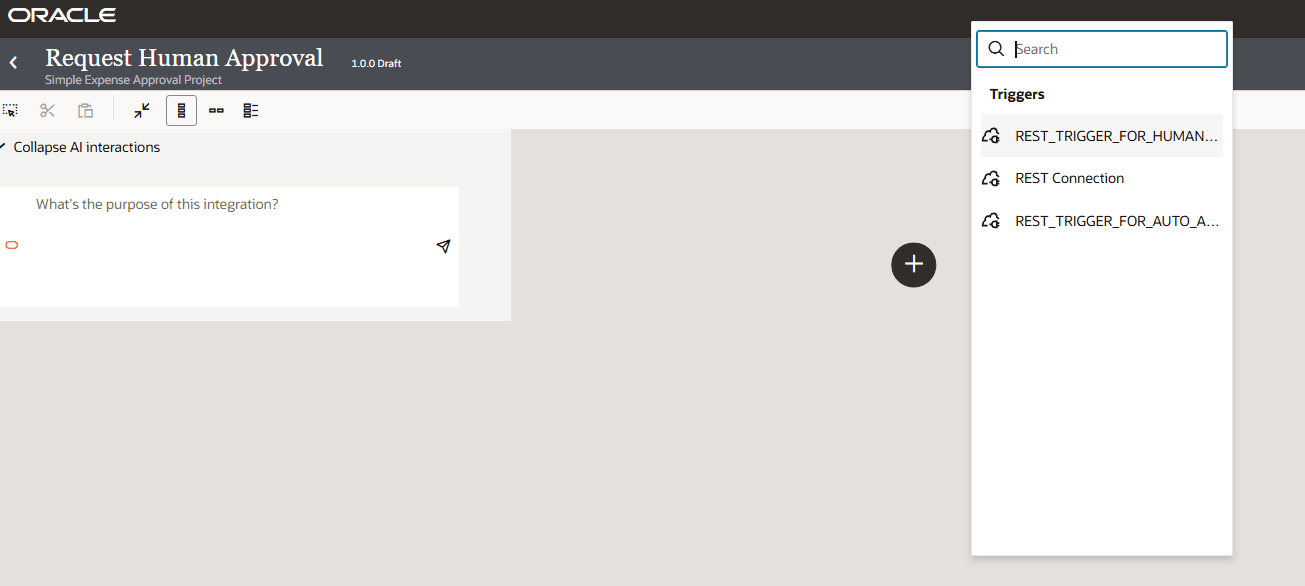
- Configure the trigger connection.
- In Configure Basic Info, in the field What do you want to call this endpoint enter
RequestHumanApprovaland click Continue.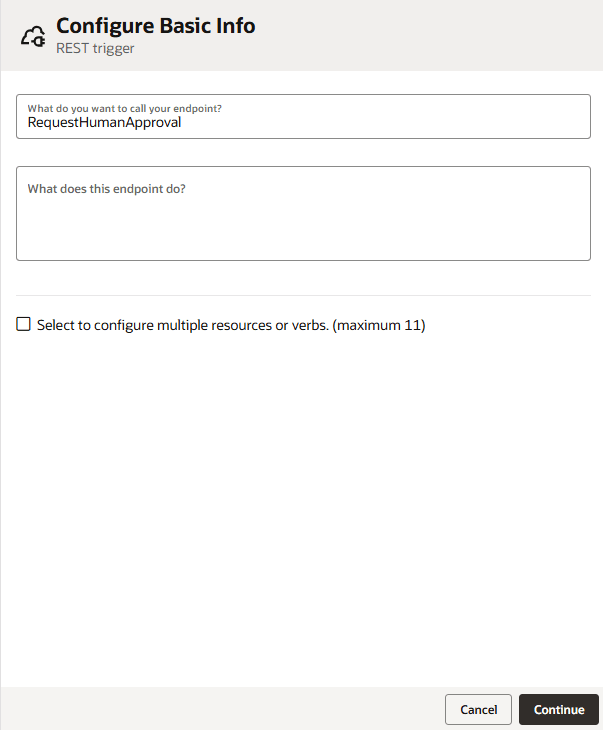
The Configure Resource Configuration page is displayed.
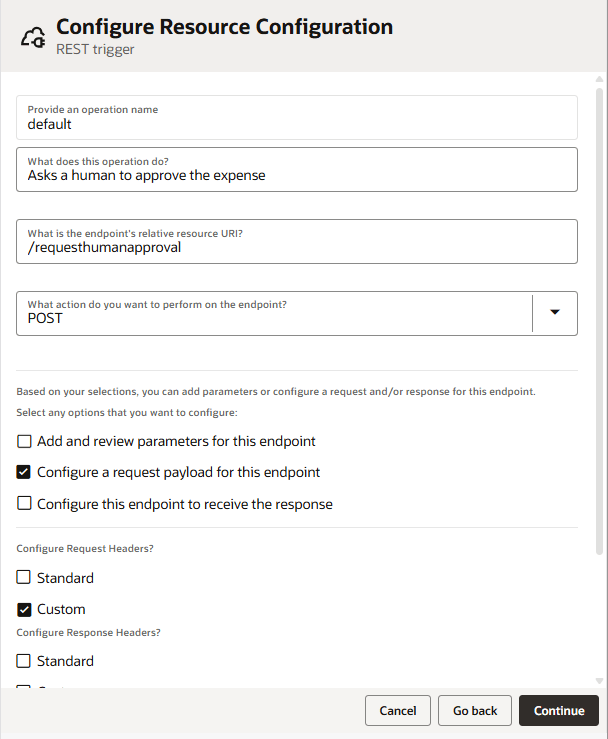
- In Configure Resource Configuration, complete the fields as indicated:
- What does this operation do?:
Asks a human to approve the expense. - What is the endpoint relative resource URI?:
/requesthumanapproval. - What action do you want to perform on this operation?:
POST.Tip:
An integration must have a REST trigger with a POST verb to be used as a tool in AI agents. - Configure a request payload for this endpoint: Make sure it has a checkmark.
- Configure request header?: Make sure Custom has a checkmark.
- What does this operation do?:
- In Configure Request, complete the fields as indicated, then click Continue.
The trigger connection must have JSON payload to be used as an agentic AI tool.
- Select the request payload format:
JSON Sample. - <<<inline>>>: Click and specify the following request format:
{ "claimAmount" : "" }
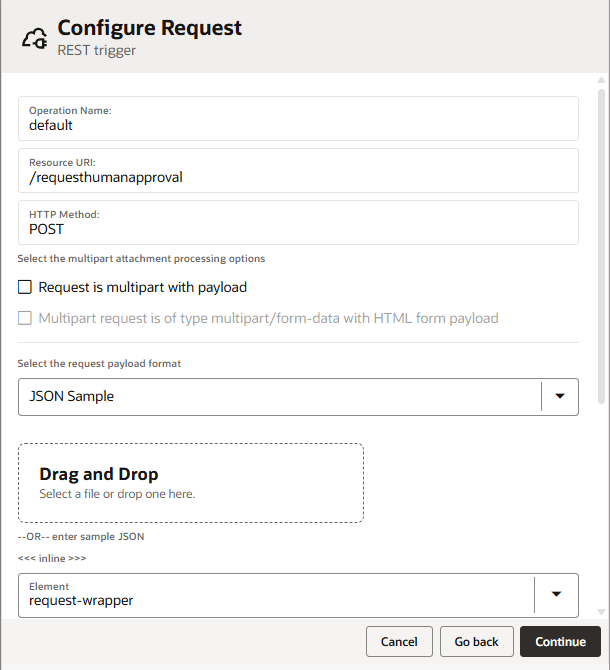
The Configure Request Header panel is displayed
- Select the request payload format:
- In Configure Request Headers, under Custom HTTP Headers, click Add and add the Custom Header Name:
x-agentic-callback-urland the Description:callback URL for AI agent.Tip:
The custom headerx-agentic-callback-urlmust be specified exactly as indicated and is required for all integrations calling human in the loop. This parameter specifies the callback URL used by the AI agent to get the response after the human approval task completes.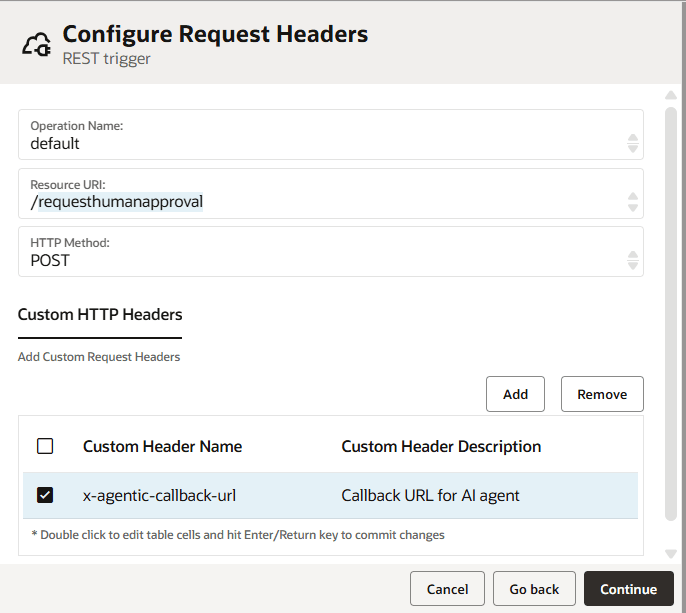
- In Configure Basic Info, in the field What do you want to call this endpoint enter
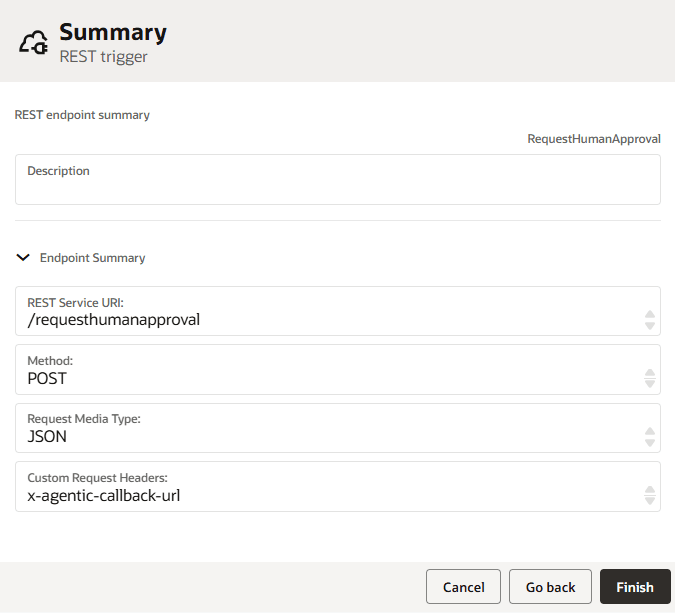
- In Summary, click Finish to complete the trigger connection configuration.
- Add a Human in the loop action to the integration to call the workflow.
- Hover over the connection arrow, click the
 sign that appears, type human in the search box, and select the Human in the loop action from the dialog box.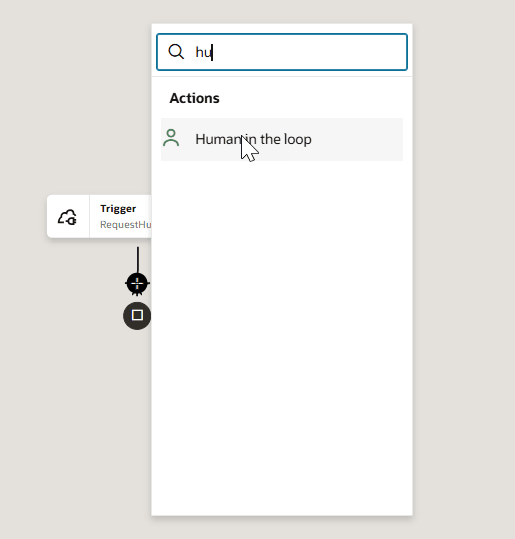
The Configure Basic Info panel is displayed.
- Configure the human in the loop action to call the workflow.
- On the Configure Basic Info page, provide a unique name and description in the following fields.
- What do you want to call your endpoint?: Enter a unique name such as
CallHumanApprovalWorklfow. - What does this endpoint do?: Provide the description
Calls the workflow that requests human approval.
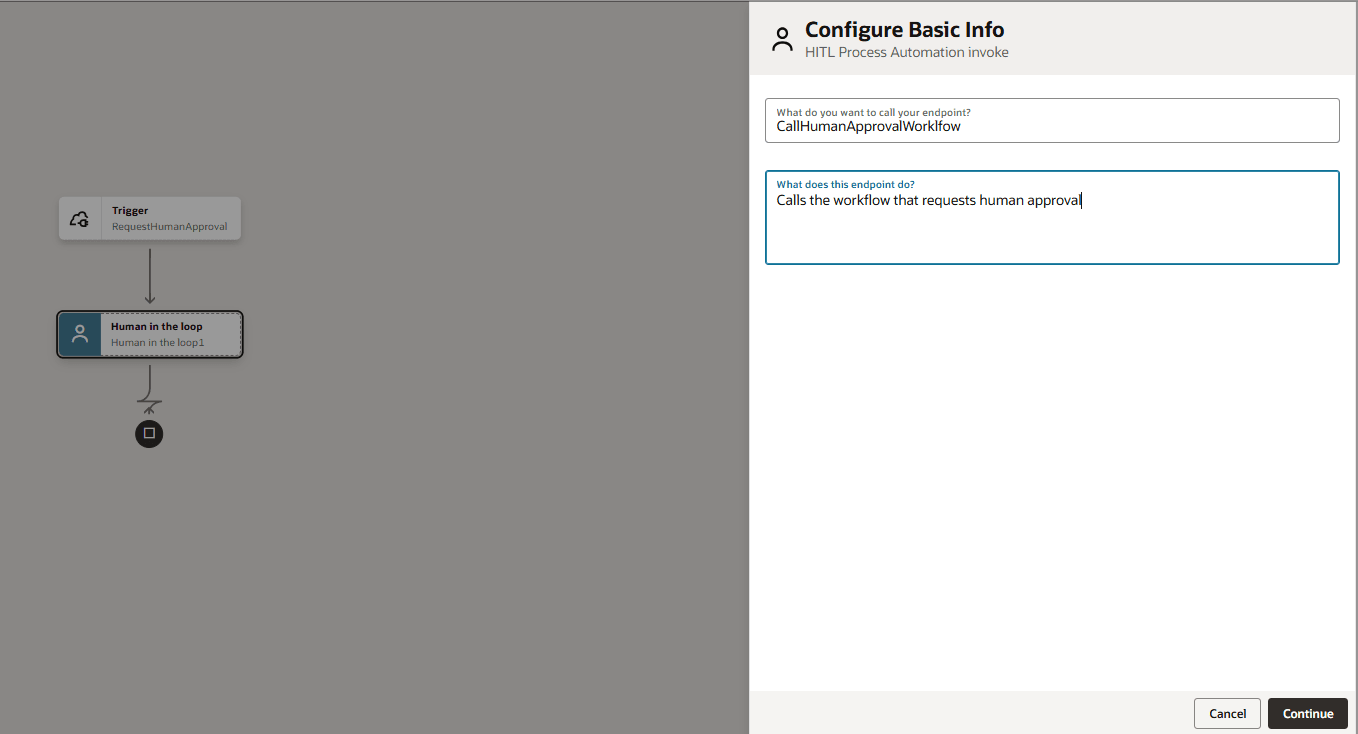
- What do you want to call your endpoint?: Enter a unique name such as
- Click Continue.
- On the Configuration page, complete the following.
From the Process drop-down, select the
SimpleHumanApprovalWorkflowyou created that the integration will call.Tip:
The workflow must have been activated for it to be visible in the drop-down.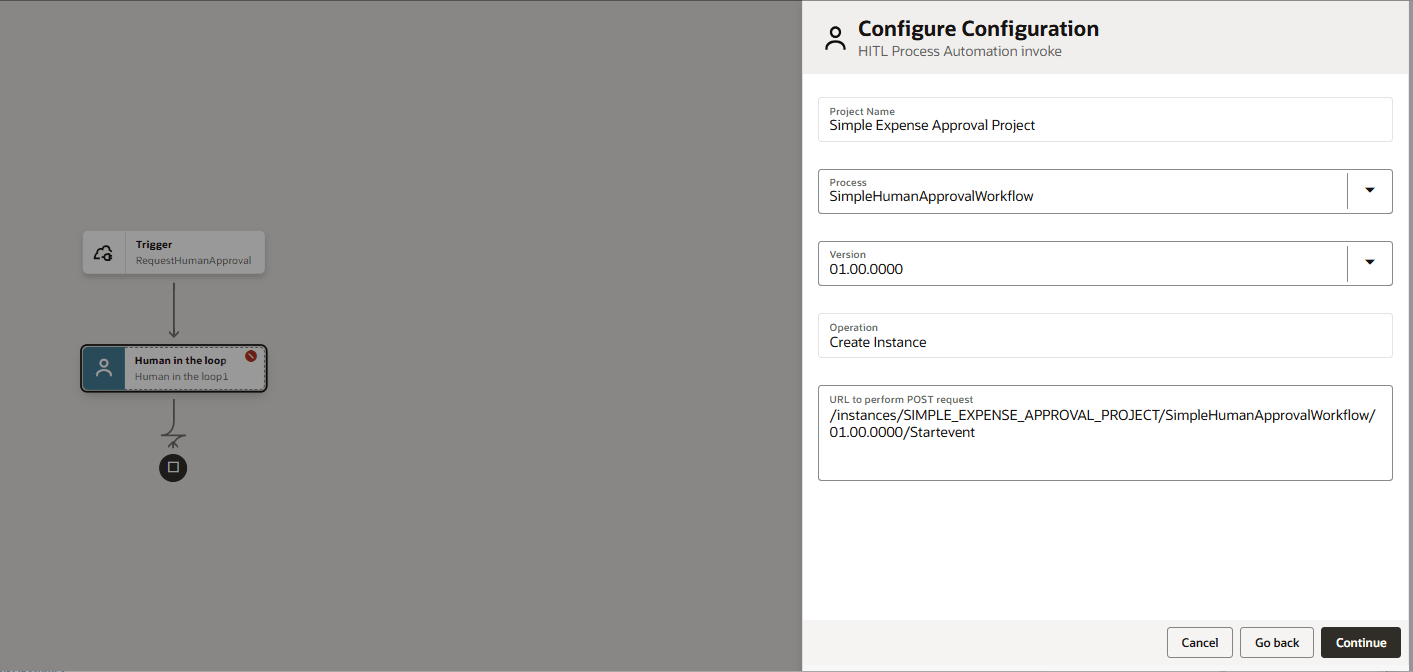
- Click Continue.
- On the Summary page, review the data and click Finish.
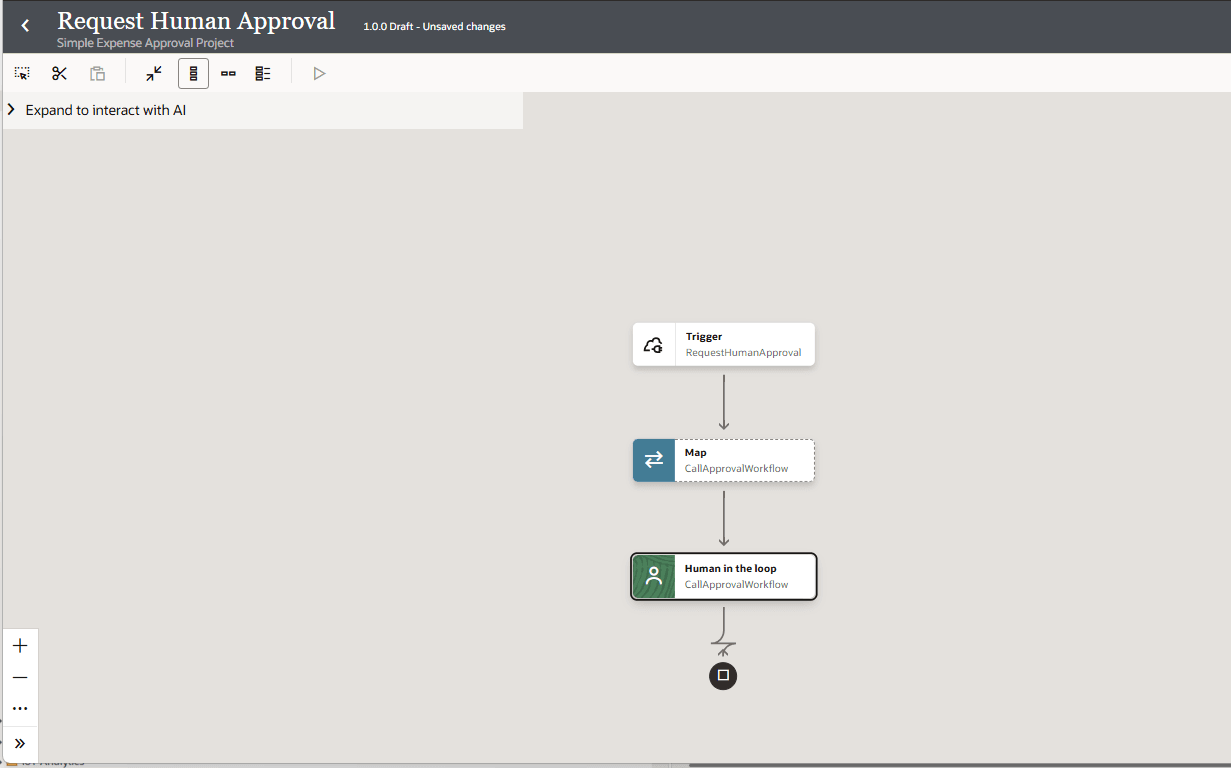
Your integration now looks like this:
- On the Configure Basic Info page, provide a unique name and description in the following fields.
- Hover over the connection arrow, click the
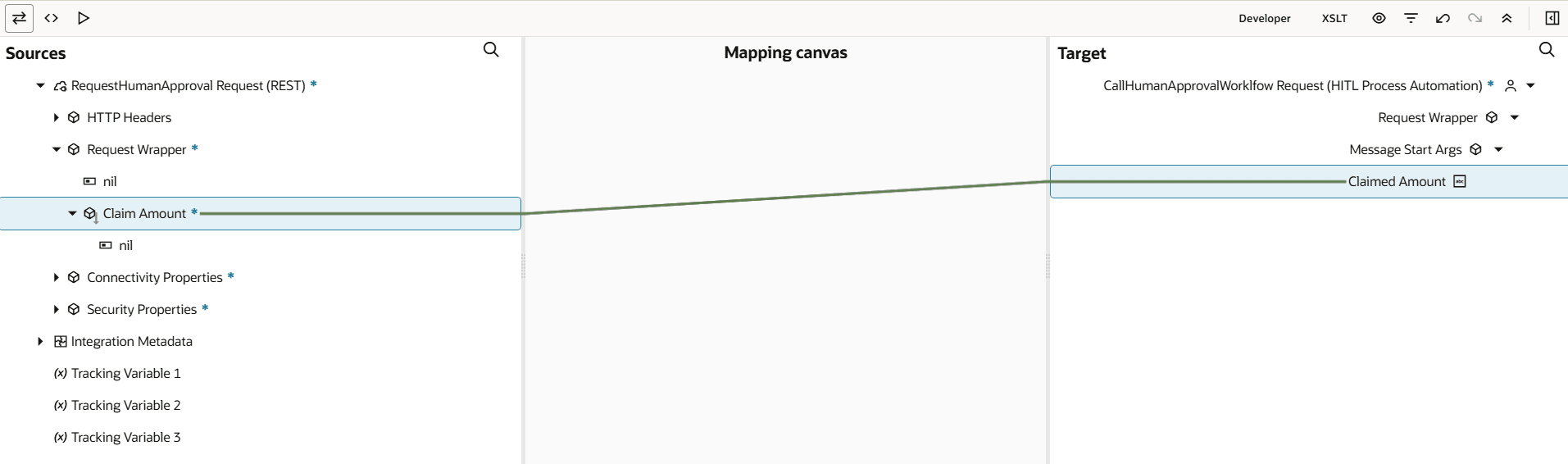
- Configure the mapper action to pass the Claim Amount that was received as input to the integration to the workflow as the Claimed Amount.
- In the map action, click Actions
 , then select Edit
  .
. - Under Sources, Request Wrapper, drag Claimamount to Target, Request Wrapper, Claimed Amount.
- In the map action, click Actions
- Click Back
 to return to the integration canvas.
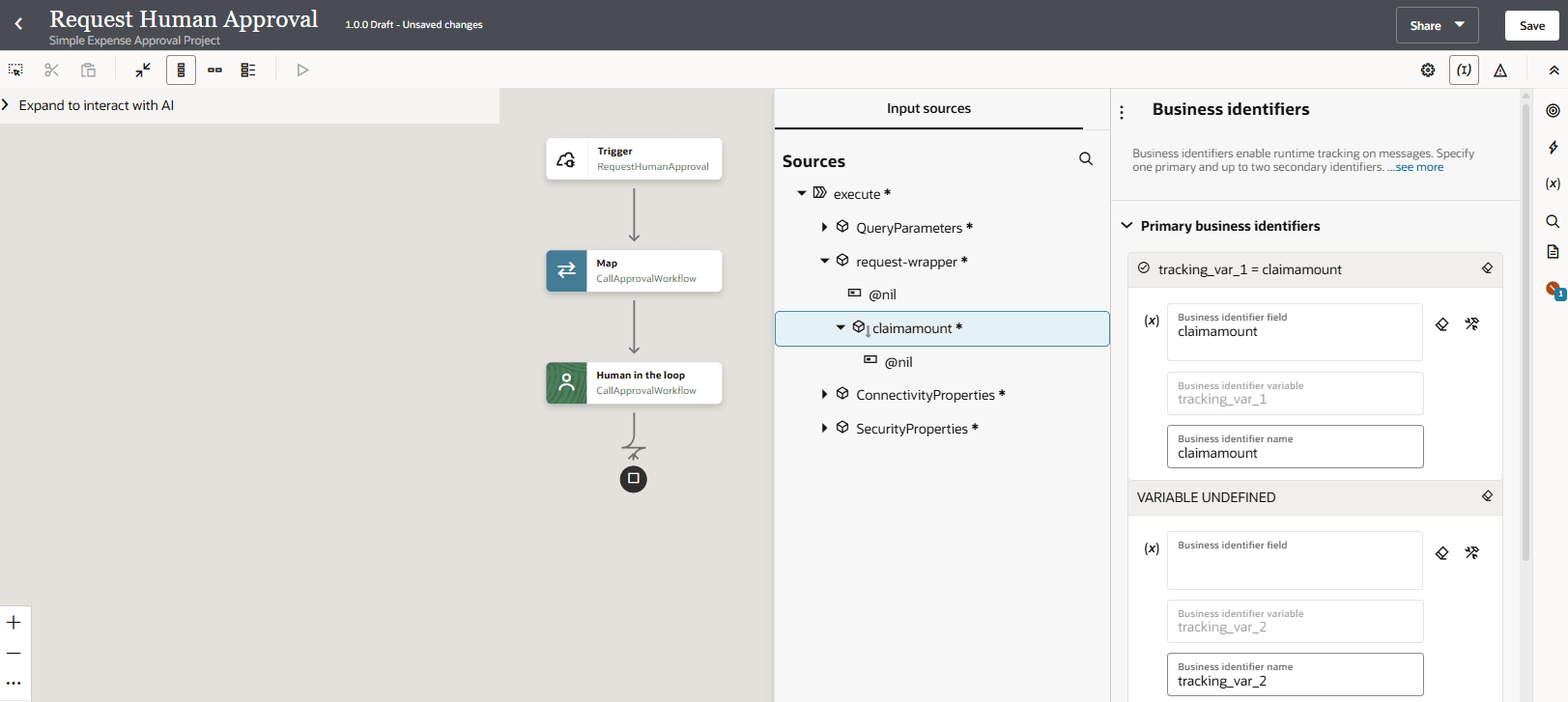
 - Assign a business identifier.
- Above the integration, click Business Identifier
 .
. - Under request-wrapper, drag claimamount as the primary business identifier.
- Above the integration, click Business Identifier
- Click Back to return to the Project page.
- Activate the integration. Only Active integrations can become agentic AI tools.
- In the Integrations section, next to the integration Request Human Approval, click Actions , and select Activate.
- In the Integrations section, next to the integration Request Human Approval, click Actions