Perform the Knowledge Base Search

Specify your knowledge base in the KnowledgeBaseSearch integration and run the integration to perform your search.

  1. In your project, in the Integrations section, next to the KnowledgeBaseSearch integration, click Actions Actions icon, then select Run.
    The Configure and run page is displayed.
  2. In Request, select Body and specify your search.

    The type of search is based on which parameters you specify:

    • Text search: simple text search for an exact keyword match. You could use this for finding order numbers for example.
      • SemanticSearchQuery: Leave this parameter blank
      • TextSearchQuery: Specify what to search for
      • maxResults: Specify the maximum number of results you want returned
      • augmentResponseWithSurroundingTextChunksCount: Specify how many additional chunks to retrieve as context. This parameter is useful when using AI agents so that the AI agent can make sense of a broader context, not just the matched text.
      Example:
      {
        "SemanticSearchQuery": "",
        "maxResults": 1,
        "TextSearchQuery": "Mr. Smith",
        "augmentResponseWithSurroundingTextChunksCount": 1
      }
    • Semantic search: searches based on meaning, not exact words.
      • SemanticSearchQuery: Specify the value to search for.
      • TextSearchQuery: Leave this parameter blank
      • maxResults: Specify the maximum number of results you want returned
      • augmentResponseWithSurroundingTextChunksCount: Specify how many additional chunks to retrieve as context. This parameter is useful when using AI agents so that the AI agent can make sense of a broader context, not just the matched text.
      Example:
      {
        "SemanticSearchQuery": "Story about 3 sundays in a single week",
        "maxResults": 1,
        "TextSearchQuery": "",
        "augmentResponseWithSurroundingTextChunksCount": 1
      }
    • Hybrid search: searches both exact match and meaning.
      • SemanticSearchQuery: Specify the value to search for.
      • TextSearchQuery: Specify the value to search for.
      • maxResults: Specify the maximum number of results you want returned
      • augmentResponseWithSurroundingTextChunksCount: Specify how many additional chunks to retrieve as context. This parameter is useful when using AI agents so that the AI agent can make sense of a broader context, not just the matched text.
      Example:
      {
        "SemanticSearchQuery": "Story about 3 sundays in a single week",
        "maxResults": 1,
        "TextSearchQuery": "Mr. Smith",
        "augmentResponseWithSurroundingTextChunksCount": 1
      }
  3. Click Run.

    The Activity Stream panel opens on the right to show the progress of the run and the Response provides the results based on your query.

    Tip:

    In the Response body metadata, document_link provides a link to the document in the OCI Object Storage bucket.
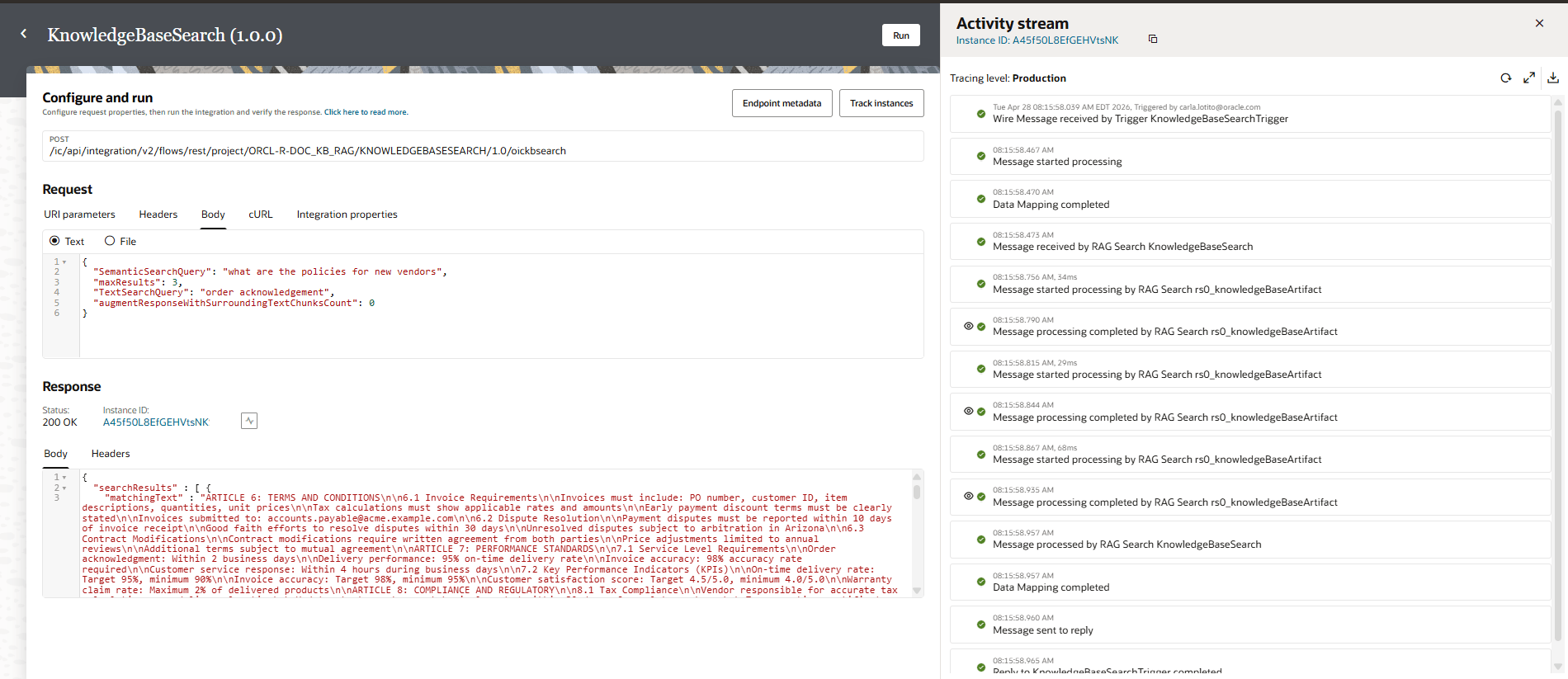

    KnowledgeBaseSearch integration run. The left panel shows a “Configure and run” section with a POST endpoint, request body in JSON (including a semantic search query about vendor policies), and a response section with status “200 OK” . The response body displays search results text. The right panel shows an “Activity stream” and a chronological list of processing steps: message received, data mapping completed, RAG search processing, with timestamps and green status indicators.