Dynamically Update Invoke Connections at Runtime
You can dynamically update the Oracle Autonomous AI Transaction Processing (ATP) Adapter invoke connection to use at runtime. This feature lets you use a single integration to send requests to multiple end systems or instances of the same application and eliminates the need to create a separate integration for each endpoint or multiple invoke connections configured in a switch action in a single integration.
Dynamic Connection Capabilities
Dynamic connections provide the following capabilities.
- Connections can be local to a project, shared between projects, or standalone (that is, available globally and not under the context of a project).
- Each connection can be defined with different
properties and security policies. Some examples include the
following:
- An invoke connection configured with the JDBC Basic Authentication security policy at design-time can be overridden at runtime by an invoke connection configured with the JDBC Over SSL security policy.
- Two invoke connections may use the same security policy, but each connection is registered with a different user account for accessing the endpoint application. One invoke connection with its unique user account can be overridden at runtime by an invoke connection configured with a different user account.
- A connection can be overridden with the connectivity agent. For example, an invoke connection configured without the connectivity agent at design-time can be overridden at runtime by an invoke connection configured with the connectivity agent.
- The runtime connection to use is defined by a property in the payload of the incoming message or through the result of a lookup table function.
- For any invoke connection, you can specify an XPath
expression or optionally a lookup table function result on
the source payload. Once evaluated against the actual data,
the value of the connection ID to use at runtime is provided
for that particular invoke connection.
Note:
Lookup table-based expressions are supported only in the design-time lookup wizard and not in the mapper at runtime. - The invoke connection used dynamically can be tracked and monitored in the activity stream at runtime.
Configure and Use a Dynamic Connection
Let's look at a high-level overview of how to create and use a dynamic connection. For this use case, Oracle ERP Cloud employee data is inserted into an Oracle Autonomous AI Transaction Processing (ATP) database.
- Create an application integration.
- Create your connections. For this example, the following are created:
- REST Adapter trigger connection.
- Oracle ERP Cloud Adapter invoke connection.
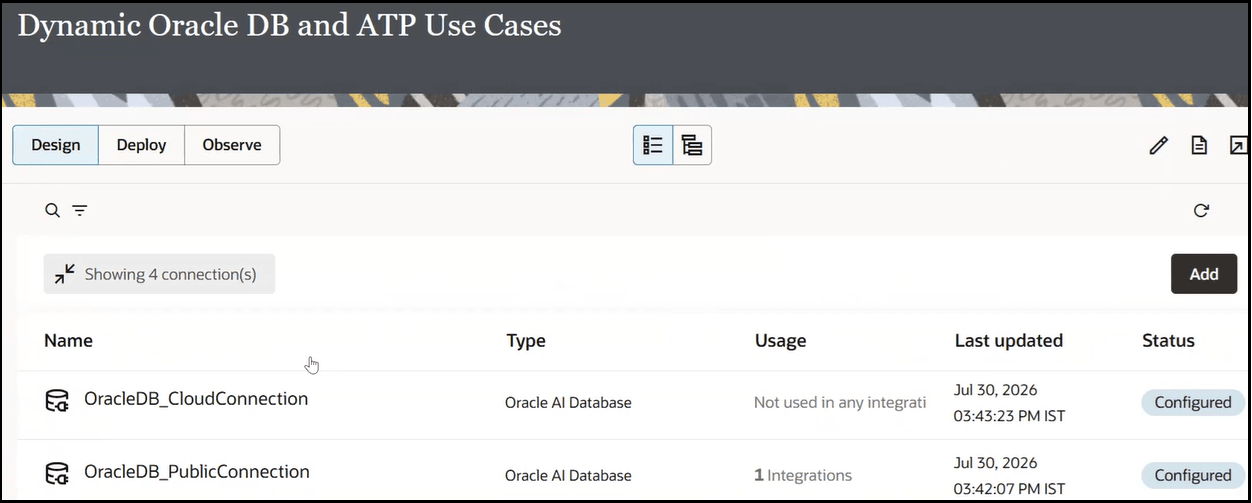
- Oracle Autonomous AI Transaction Processing (ATP) Adapter invoke connections. For this example, assume the following two connections are configured with different database user accounts:
- Name: OracleDB_CloudConnection
- This connection is not configured in any design-time integration.
- Name: OracleDB_PublicConnection
- This connection is configured in the design-time integration.
- Name: OracleDB_CloudConnection
- Drag the REST Adapter trigger connection and Oracle ERP Cloud Adapter invoke connection into the integration canvas.
- Configure both adapters and the associated map actions. Those activities are not shown in this use case. Instead, we focus on Oracle Autonomous AI Transaction Processing (ATP) Adapter configuration.
- Drag the OracleDB_PublicConnection Oracle Autonomous AI Transaction Processing (ATP) Adapter invoke connection into the integration canvas.
- On the Basic Info page, select Perform an Operation On a Table from the What operation do you want to perform list.
- Select Insert from the What operation do you want to perform on Table list.
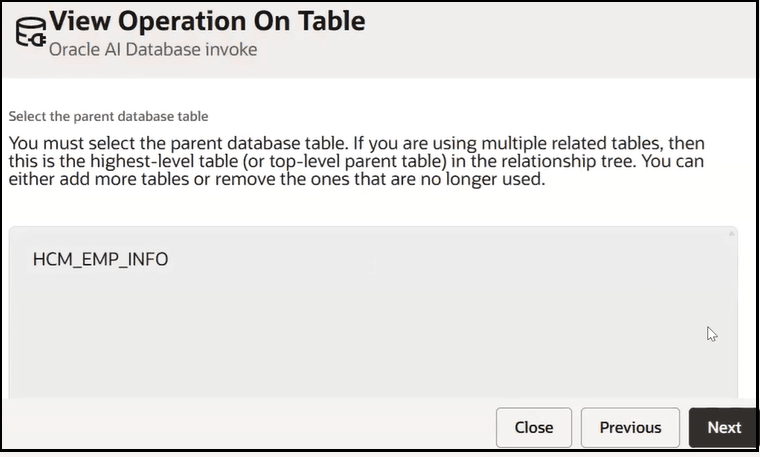
- On the Operation On Table page, select a table. For this example, the HCM_EMP_INFO table is selected for consuming the Oracle ERP cloud employee data.
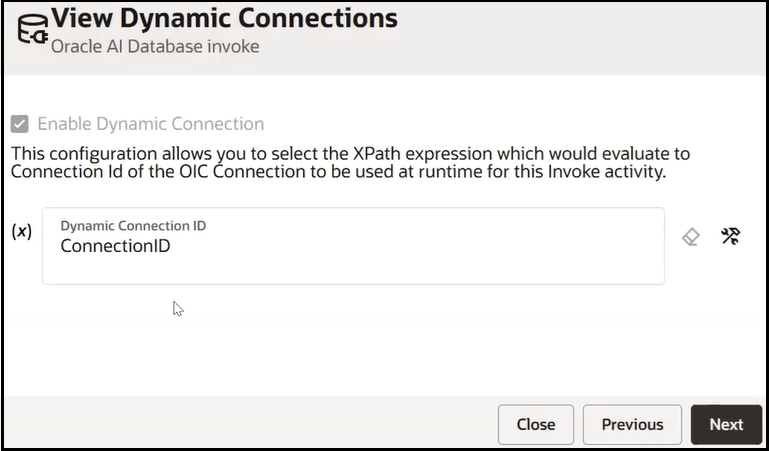
- On the Dynamic Connections page, select
Enable Dynamic Connection to
map the ID from the request body of the trigger
connection.
The Dynamic Connection ID field is displayed.
- Click Switch to Developer
View
 .
.
- Specify a dynamic connection ID in either
of two ways.
- Input sources: Click to pass the connection ID as an XPath expression with the ConnectionID query parameter. The XPath expression evaluates to the connection ID of the dynamic invoke connection used at runtime.
-
Functions: Click to use a lookup table function to pass different connection IDs representing the different regions.
For this example, the ConnectionID XPath expression is dragged from the Input sources tree to the field.
- Complete the remaining pages of the Adapter Endpoint Configuration Wizard.
- Complete integration design, then activate.

It's time to run the integration.
- Hover over the integration to run.
- From the Actions
 menu, select Run.
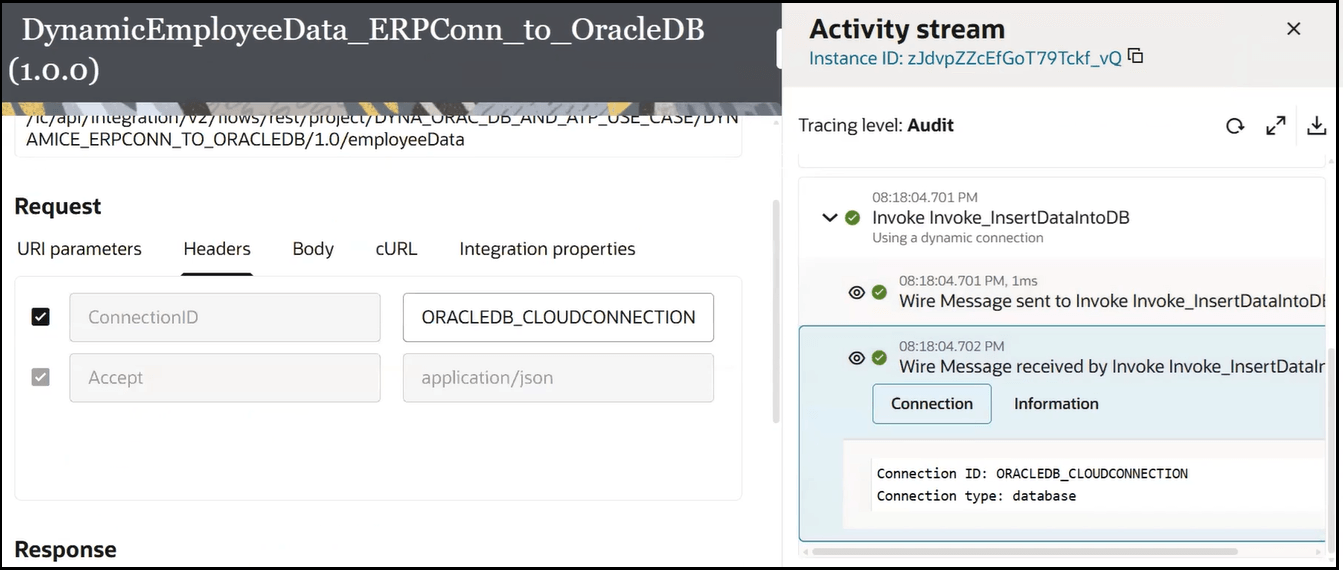
- In the Headers tab, specify a different invoke connection to use at runtime (for this example, OracleDB_CloudConnection). This invoke connection is configured with a different user account and overrides the OracleDB_PublicConnection invoke connection configured at design-time.
Note:
If you leave this field blank or specify only quotes, the OracleDB_PublicConnection design-time connection is used by default. - Click Run.
- Expand the connection in the activity stream.
A connection message indicates the dynamic invoke connection of OracleDB_CloudConnection was invoked instead of the OracleDB_PublicConnection design-time connection.