Monitor a Workflow
You can monitor a workflow to track its status, identify bottlenecks, and verify if it has completed successfully.
Monitor a Workflow
- Run an integration that calls the workflow.
To run a workflow, you have to run the integration that calls it. For details on how to test and run integrations, see Workflow for Testing Integrations and Test Integrations in Oracle Integration in Using Integrations in Oracle Integration 3.
Before you run the integration, you have to:- Activate the workflow. See Activate a Workflow.
If an integration tries to call a workflow that isn't active, the integration fails.
- Activate the integration. See Activate and Deactivate Integrations in Using Integrations in Oracle Integration 3.
- In the left toolbar, select Integrations
 .
. - Click
 and select Run.The Configure and run page opens.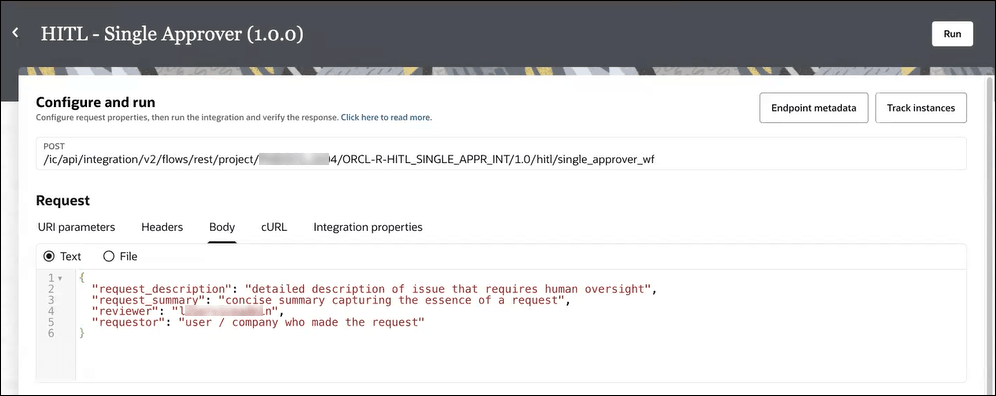
- Select Run.
The Activity Stream panel opens to show the progress of the run.
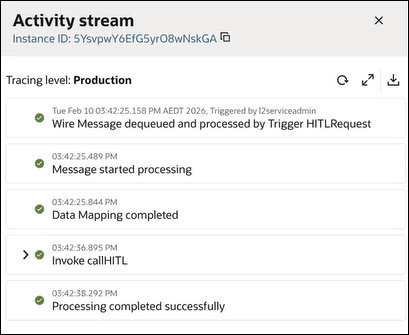
- Activate the workflow. See Activate a Workflow.
- In the left toolbar, select Human in the loop
 .The Workflow instances tab appears in the Observe page.
 - Select the workflow instance you want to monitor. Use either of the two ways to search for your workflow instance:
- Click the search icon
 and enter the name of the workflow in the search field that appears.
- Click the filter icon
 . In the resulting dialog, filter your search with the following criteria and click Apply.
- Status: Select the workflow's status. See Runtime Statuses of Workflow Instances.
- Created date: Enter a date range or select a time window.
- Created by: Enter the name of the user who created the workflow.
- Workflow name: Enter the name of the workflow.
- Title: Enter the title of the workflow.
- Click the search icon
- Point to the workflow and click View details
 .
.
The Activity stream panel opens.
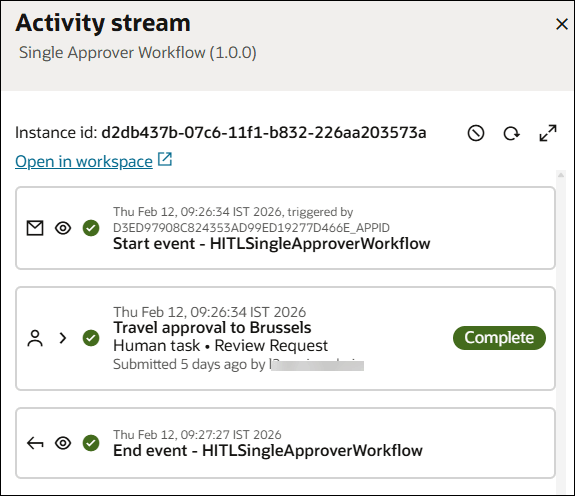
- Review the activity stream for the workflow.
- Activities that are triggered successfully are indicated by a green check mark.
- Activities that are triggered but are still running are indicated by an In progress label.
- Activities that are triggered and have completed successfully are indicated by a Complete label.
- Events that are triggered and ran successfully have a green check mark and a View details icon .
If a human approval task activity needs to be completed (indicated by the In progress status), you can click the Open in workspace link to access the task in Process Automation workspace and complete the assigned task. See Complete Assigned Task as a User.
- Check runtime details about an event or activity in the workflow.
-
Review details of a start or end event by clicking the View details icon
.
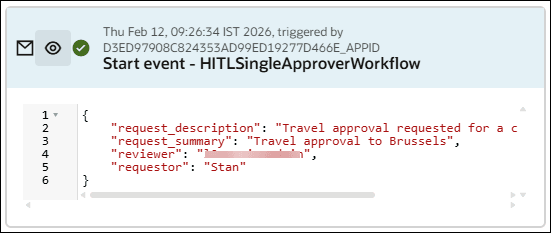
-
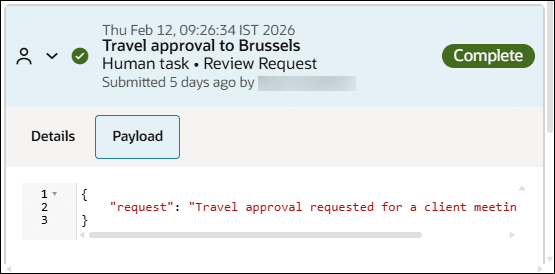
Review details of a human task activity by clicking the expand arrow. Click the Details tab to check the task's history. Click the Payload tab to view the payload associated with the task.
-