Review and Fix Errors in Workflows
Check for errors and warnings in your workflows, and resolve all issues before activating the workflow.
If a workflow contains errors or warnings, a Validations icon appears on the side of the canvas. The count on the icon indicates the total number of warnings and errors in the workflow.
To view and resolve errors and warnings in a workflow:
- Click the Validations icon
 on the side of the workflow canvas.
The Validations panel opens.
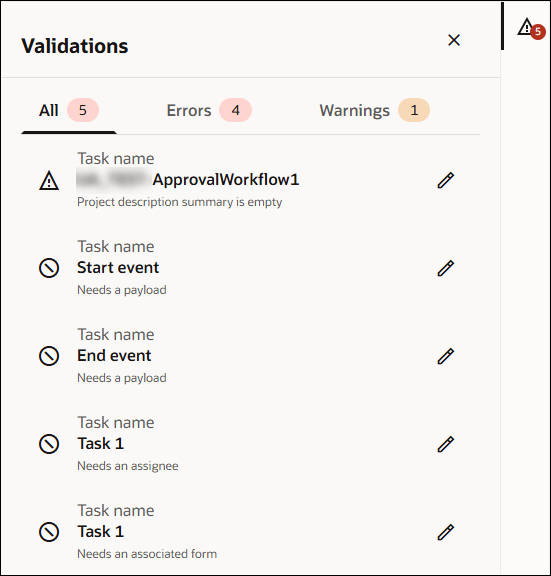
By default, all warnings and errors in the workflow are displayed. The total count of warnings and errors is displayed next to the All tab on the top.
- To view only errors, select the Errors tab. The total count of errors is displayed besides the tab.
- To view only warnings, select the Warnings tab. The total count of warnings is displayed besides the tab.
A brief description below the error or warning lets you know its details. For example, a task needs an associated form or an assignee.
- Point to an error or warning, and click
 .
.
- The related task, start or end event is selected on the workflow canvas, and it's configuration panel opens.
Additionally, there is also a red error icon on the node (task, start or end event) to indicate that configuration is pending for it.
- Fix the error as needed.
After fixing all errors, you can activate the workflow.