Map Data

You can map data for tasks and end events to ensure that data flows correctly through the workflow. In workflows with multiple end events, you can also reuse the data mappings from one end event in another end event to simplify configuration and maintain consistency.

Map Data in Tasks and End Events

Use data mappings to pass information between tasks and end events in a workflow.

  • Tasks: Map input data to task's form fields.
  • End events: Map task's result to a callback argument.
  1. Open a workflow.
  2. Select a task or an end event, click Actions Actions icon and then select Map Data.
    The Map input page opens.
  3. Click Edit Edit icon on the row that you want to map input data.

    The Source field becomes active and indicates that you can choose a variable or enter an expression.


    The image shows the Map input page used to map form fields to a data source. On the left, the Choose source pane with a collapsible list with sections: Predefined Variables, Process Data, Process Input, and Process Outputis displayed. On the right mapping table, a Source input box is highlighted with a red outline, showing placeholder text “Choose variable or expression”. An arrow indicates mapping from Source to the Form field column. The first form field has a value input.formData.claimAmount (String). In Actions, there are a checkmark and an X icons. The second form field has a value input.formData.approverComments (String) with a pencil (edit) icon in Actions and the note “Not mapped yet” under Source.

  4. Map source data by selecting data items from the Choose source pane.
    1. To map input data for a task.
      1. In the left Choose source pane, expand Process Input.
      2. Select the appropriate variable (for example, messageStartArgs) and its child property (for example, messageStartArgs.claimedAmount).

        The selection is automatically inserted into the Source field.

        Optionally, you can use the Search field on the Choose source pane to quickly find a data attribute.
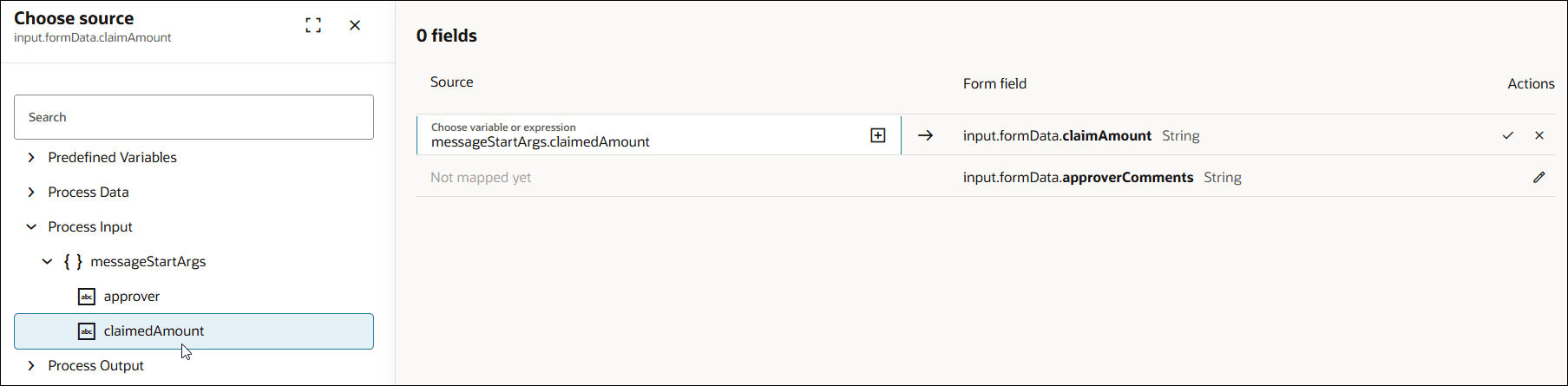

        The image shows the Choose source pane on the left and a mapping table on the right. The left Choose source pane has a searchable tree with sections like Predefined Variables, Process Data, Process Input, and Process Output. Under Process Input > messageStartArgs, two string fields are listed: approver and claimedAmount. claimedAmount is selected. The right mapping table has columns Source, Form fields and Actions. The Source entry contains the expression messageStartArgs.claimedAmount. An arrow after it indicates mapping to the Form field. The Form field shows input.formData.claimAmount (type String).

      3. Click the check mark Checkmark icon to confirm the mapping.

        To cancel a mapping click Cancel mapping icon.

    2. To map data for an end event.
      1. In the left Choose source pane, expand Process Data.
      2. Select the appropriate variable (for example, HumanApprovalTaskOutput) and its child property (for example, HumanApprovalTaskOutput.taskOutcome).

        The selection is automatically inserted into the Source field.

        Optionally, you can use the Search field on the Choose source pane to quickly find a data attribute.
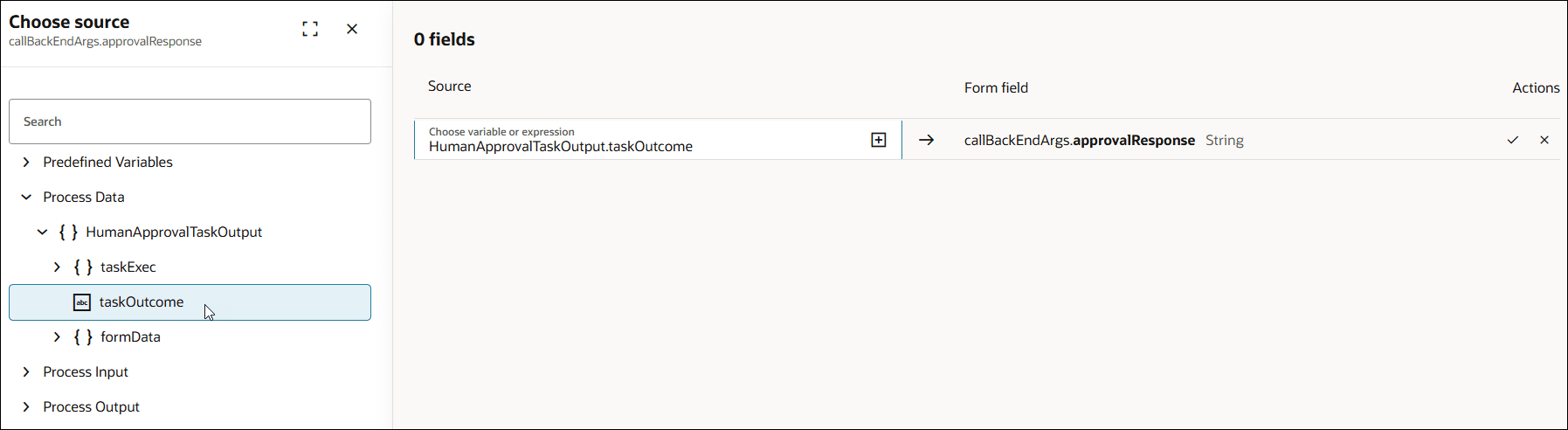

        The image shows the Choose source pane on the left and a mapping table on the right. The left Choose source pane has a searchable tree with sections like Predefined Variables, Process Data, Process Input, and Process Output. Under Process Data > HumanApprovalTaskOutcomes,taskOutcome is selected. The right mapping table has columns Source, Form field and Actions. The Source entry contains the expression HumanApprovalTaskOutput.taskOutcome. An arrow after it indicates mapping to the Form field. The Form field shows callBackEndArgs.approvalResponse (type String).

      3. Click the check mark Checkmark icon to confirm the mapping.
  5. Alternatively, you can map source data by creating an expression.
    1. Click Open Expression Editor icon in the Source field.
      The inline expression editor opens.
    2. Build the expression using available data items and operators in the expression editor. See Work with Expressions.
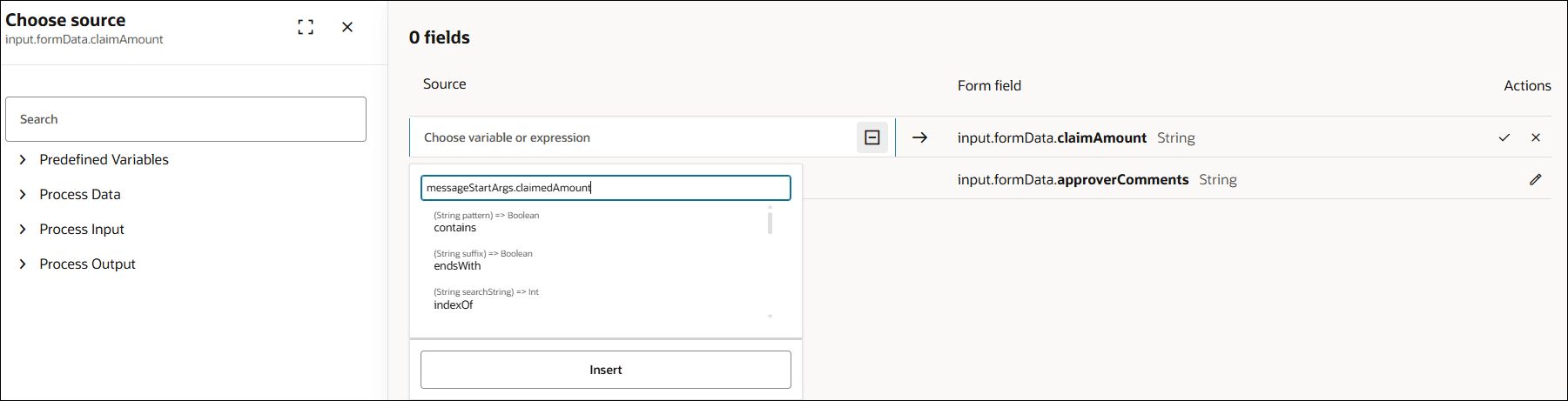

      This image shows the expression editor that opens when you click the + icon in the Source field of the mapping.

    3. Select Insert to insert the expression in the Source field.
    4. Click the check mark Checkmark icon to confirm the mapping.

Note:

Ensure that the source type is compatible with the target form field type (for example, map a String to a String). If there’s a mismatch, an error message will be shown.

Reuse End Event Mappings

Reuse the mappings configured for one end event by copying them into another end event within the same workflow.

  1. Open a workflow that contains multiple end events. A common example is a workflow with an if/else gateway, where each branch ends with a different end event.
  2. Select the end event, click Actions Actions icon and then select Map Data.
  3. In the Map input window, select Copy mappings.
  4. In the Reuse mappings from another end event section, use the Apply from drop-down list to select the end event from which you want to copy the mappings.
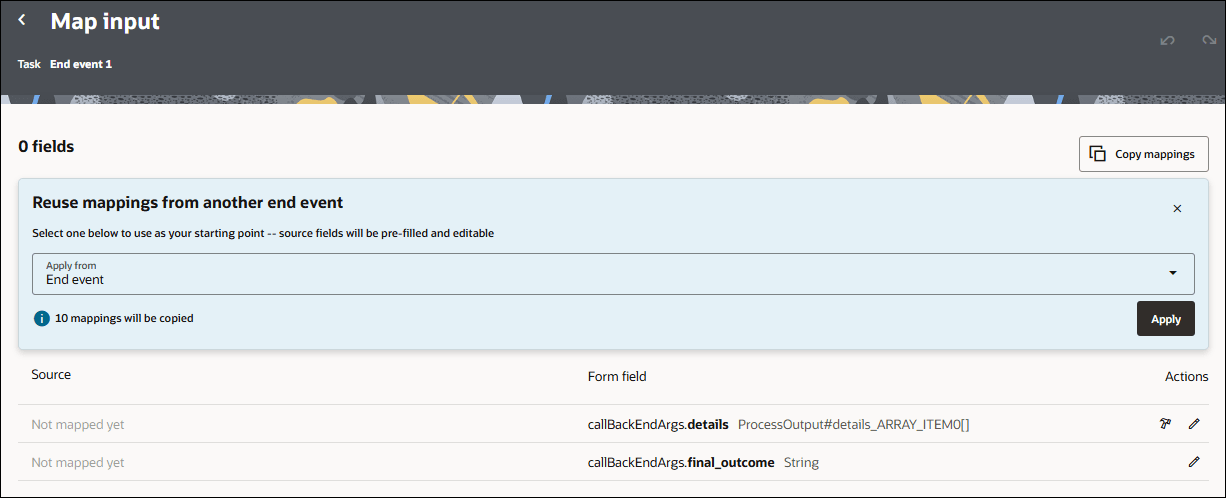
    Map Input page for End event 1 showing the Reuse mappings from another end event feature. A panel contains an Apply from drop-down list with End event selected, a message indicating that 10 mappings will be copied, and an Apply button. Below the panel, a mapping table lists callback arguments such as callBackEndArgs.details and callBackEndArgs.final_outcome, with actions available to edit or map fields. A Copy mappings button appears in the upper-right corner of the page.

  5. Click Apply.
    The mappings from the selected end event gets copied into the Map input window.