Work with Expressions
An expression is a combination of data items and operators that represents a single value.
Create Expressions
You can create expressions while configuring properties for tasks, while mapping data for tasks and end events, and while defining conditions in if/else gateways.
-
To create an expression while configuring a task's properties, click
 in the relevant field. This enables the expression mode and you can use the inline expression editor which gives auto-complete options for you to create and build your expression. You can use an expression to dynamically determine the task title and assignee.
-
To create an expression while mapping input data in tasks and end events, click
in the Source field. This enables the expression mode and you can use the inline expression editor which gives auto-complete options for you to create and build your expression.
-
To create an expression while defining a condition in an if/else gateway, click
in the Condition field. This enables the expression mode and you can use the inline expression editor which gives auto-complete options for you to create and build your expression.
Use the Expression Editor
The expression editor provides a simple way of creating expressions by allowing you to select available data items and operators from a list and insert them into your expression.
-
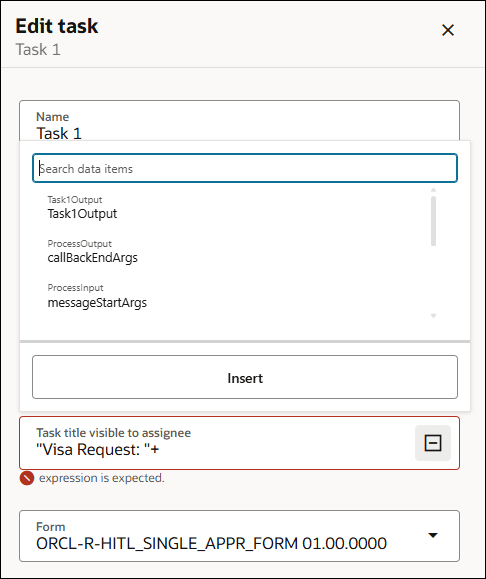
As soon as you put the cursor in the expression field, you get a list of suggested data items using which you can build the expression.
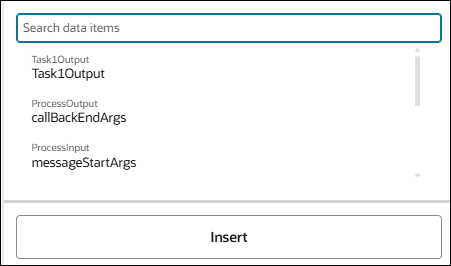
-
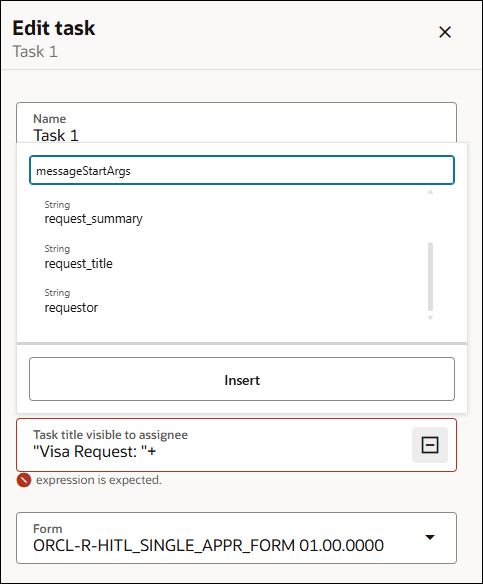
As you choose the item, related suggestions for the next level are displayed below the field. Suggestions are context sensitive, so options for a Title field may differ from those for an Assignee field.
When you select a data item, its available child properties are displayed for further selection.
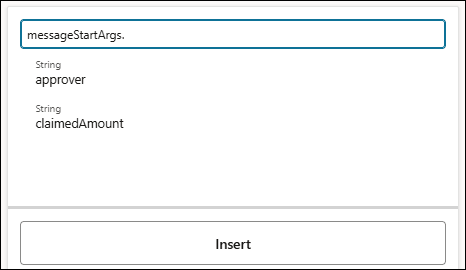
-
When the expression is complete, select Insert to insert the expression in the task field.
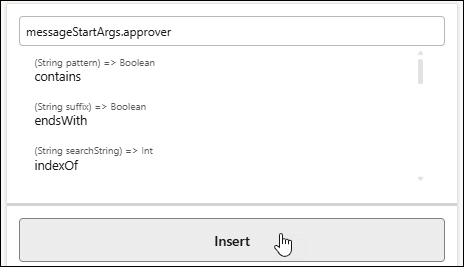
-
If an expression is invalid, for example, if you type a number in a string field, an error message indicating the details of the error is displayed.

Simple Expressions
Simple expressions are defined using a basic expression language and support. Simple expressions perform their calculations based on the data items in your workflow.
Here are some examples of simple expressions using operators:
-
totalAmount - discount -
activationCount > 3 -
unitsSold <= 1200
Operator Precedence
Operator precedence defines the order in which the compiler evaluates operators. You can change operator precedence in an expression by using parentheses.
-
Addition, Subtraction
-
Multiplication, Division, Remainder
-
Plus, Minus
-
Less than, Greater than, Less than or equal to, Greater than or equal to
-
Equals, Not equals
-
Not
-
Conditional And
-
Conditional Or
Operators and Functions
You can use the following operators and functions while building an expressions.
Unary
| Operator | Name | Description |
|---|---|---|
| + | Plus | Has no effect on the value of the numeric operand. Use it to explicitly indicate that a certain value is positive. |
| - | Minus | Negates an arithmetic expression. |
| ! | Not | Logical complement operator. Negates the value of a Boolean expression. |
Equality and Relational
| Operator | Name | Description |
|---|---|---|
| = or == | Equal to | Returns true if the first operand is equal to the second operand |
| != | Not equal to | Returns true if the first operand isn't equal to the second operand |
| > | Greater than | Returns true if the first operand is greater than the second operand |
| >= | Greater than or equal to | Returns true if the first operand is greater than or equal to the second operand |
| < | Less than | Returns true if the first operand is less than the second operand |
| <= | Less than or equal to | Returns true if the first operand is less than or equal to the second operand |
Conditional
| Operator | Name | Description |
|---|---|---|
| and | Conditional And | Returns true if both operands evaluate to true |
| or | Conditional Or | Returns true if either operand evaluates to true |
String
| Function/Operator | Description | Usage Expression | Usage Result |
|---|---|---|---|
| + | String concatenation | “pine” + “apple” | “pineapple” |
| == | Equals | “apples” == “apples” | true |
| != | Not equals | “apples” != “oranges” | true |
| > | Greater than | “word” > “work” | false |
| >= | Greater than or equals | “work” >= “work” | true |
| < | Less than | “word” < “work” | true |
| <= | Less than or equals | “work” <= “work” | true |
| contains | Returns true if the first argument string contains the second argument string; otherwise returns false | “caramel”.contains(“ram”) | true |
| endsWith | Returns true if the first argument string ends with the second argument string; otherwise returns false | “immutable”.endsWith(“table”) | true |
| length | Returns the number of characters in a string | “house”.length() | 5 |
| lowerCase | Returns a string with all the characters in the argument converted to lower-case representation | “Example”.lowerCase() | “example” |
| startsWith | Returns true if the first argument string starts with the second argument string, otherwise returns false | “caramel”.startsWith(“car”) | true |
| substring | Returns the substring of the first argument starting at the position specified in the second argument and continuing to the end of the string | “care”.substring(2) | “are” |
| substring | Returns the substring of the first argument starting at the position specified in the second argument with length specified in the third argument | “care”.substring(1,3) | “car” |
| upperCase | Returns a string with all the characters in the argument converted to upper-case representation | “Example”.upperCase() | "EXAMPLE" |
| replaceAll | Replaces each substring of this string that matches the given pattern with the given replacement. | "care".replaceAll("e", "t") | "cart" |
| indexOf | Returns the index of the first occurrence of the specified substring, or -1 if there is no such occurrence. | "care".indexOf("a") | 2 |
Numeric
The following table includes operators for both Integer and Number.
| Operator | Description | Usage Expression | Usage Result |
|---|---|---|---|
| + | Addition | 2 + 8 | 10 |
| - | Subtraction | 7 – 4 | 3 |
| * | Multiplication | 3 * 4 | 12 |
| / | Division | 3 / 2 | 1.5 |
| % | Remainder | 3 % 2 | 1 |
| == | Equals | 12 == 13 | false |
| != | Not equals | 12 != 13 | true |
| > | Greater than | 15 > 16 | false |
| >= | Greater than or equals | 15 >= 15 | true |
| < | Less than | 12 < 10 | false |
| <= | Less than or equals | 12 <= 12 | true |
| abs | Returns the absolute value of a number | abs(- 6) | 6 |
In addition to the above, the following specific operators are also available for Number.
| Operator | Description | Usage Expression | Usage Result |
|---|---|---|---|
| floor | Returns the largest (closest to positive infinity) number that isn't greater than the argument and is an integer | floor(5.60) | 5 |
| ceil | Returns the smallest (closest to negative infinity) number that isn't less than the argument and is an integer | ceil(5.60) | 6 |
| round | Returns the number that is closest to the argument and is an integer | round(5.60) | 6 |
Date and Time
Date and Time types include Date, Time, and DateTime. All of them have the following operators.
| Operator | Description |
|---|---|
| + | Addition (valid only when the second argument is a duration) |
| - | Subtraction (valid only when the second argument is a duration) |
| == | Equals |
| != | Not equals |
| > | Greater than |
| >= | Greater than or equals |
| < | Less than |
| <= | Less than or equals |
| format | Returns the formatted string of date-time using the provided format picture |
In addition, Date, Time, and DateTime have specific operators as listed under each of them.
Date
| Operator | Description |
|---|---|
| year | Returns a number representing the year component of the date-time argument. |
| month | Returns a number representing the month component of the date-time argument. |
| day | Returns a number representing the day component of the date-time argument. |
Time
| Operator | Description |
|---|---|
| hours | Returns a number between 0 and 23, both inclusive, representing the hours component of the date-time argument |
| minutes | Returns a number between 0 and 59, both inclusive, representing the minutes component of the date-time argument. |
| seconds | Returns a number between 0 and 59, both inclusive, representing the seconds component of the date-time argument. |
DateTime
| Operator | Description |
|---|---|
| year | Returns a number representing the year component of the date-time argument. |
| month | Returns a number representing the month component of the date-time argument. |
| day | Returns a number representing the day component of the date-time argument. |
| hours | Returns a number between 0 and 23, both inclusive, representing the hours component of the date-time argument. |
| minutes | Returns a number between 0 and 59, both inclusive, representing the minutes component of the date-time argument. |
| seconds | Returns a number between 0 and 59, both inclusive, representing the seconds component of the date-time argument. |
| timezone | Returns an interval value, representing the time offset from UTC. |
| toTimezone |
Returns the date-time expressed in the time offset corresponding to the timezone ID provided. You have the following options for specifying a timezone ID:
Note: You must include double quotation marks around the timezone ID value.For more information about timezone IDs, see Class ZoneId in the Java Platform documentation. |
Boolean
| Operator | Description | Usage Expression | Usage Result |
|---|---|---|---|
| == | Equals | true == true | true |
| != | Not Equals | true != false | true |
| and | Conditional — And | true and false | false |
| or | Conditional — Or | true or false | true |
| not | Logical complement operator, inverts the value of a Boolean expression. | not true | false |
Duration
| Operator | Description |
|---|---|
| == | Equals |
| != | Not equals |
| > | Greater than |
| >= | Greater than or equals |
| < | Less than |
| <= | Less than or equals |
Create a Dynamic Task Title Using an Expression
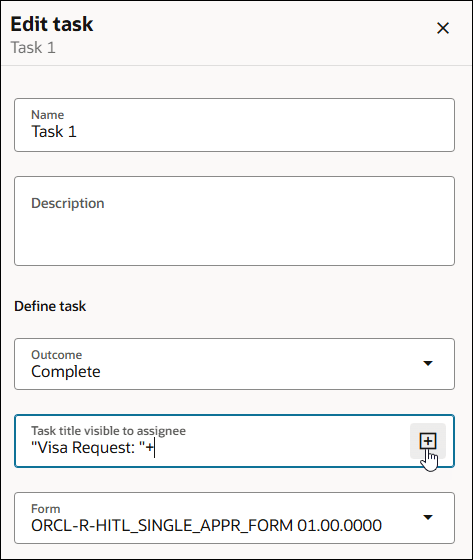
The following example shows how to dynamically generate a task title by using an expression. The expression is built by combining a static string with a value coming from the message start payload when the workflow starts.
- Open the Edit task pane using either of the following options:
- Select the task and click
 on the side of the canvas.
- Select the task, click Actions
 and then select Configure.
The Edit task pane appears.
- Select the task and click
- Enter a string within quotation marks. For example,
"VISA Request: ".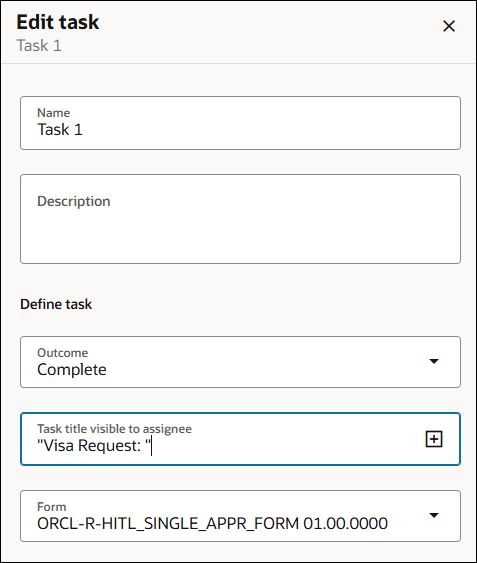
The static string VISA Request: will appear as is in the task title in runtime.
- Position your cursor after + and then select to open the expression editor.
- As soon as you put the cursor in the expression field of the expression editor, you get a list of suggested data items.
- Select a data item. For example,
messageStartArgs.Related suggestions for the next level are displayed below the expression field.
- Select a data item from the list of suggestions. For example,
request_title.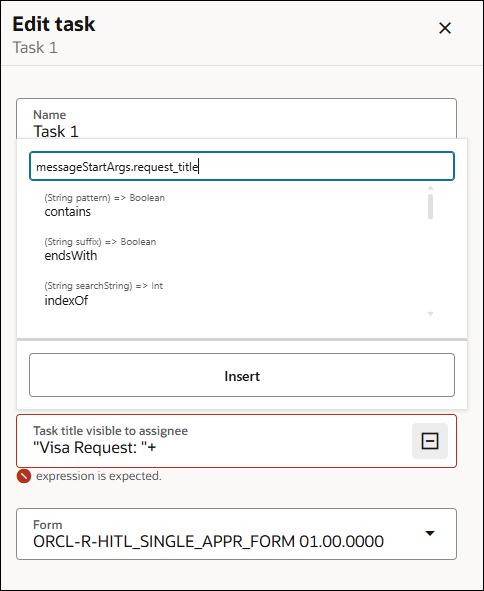
- Click Insert.
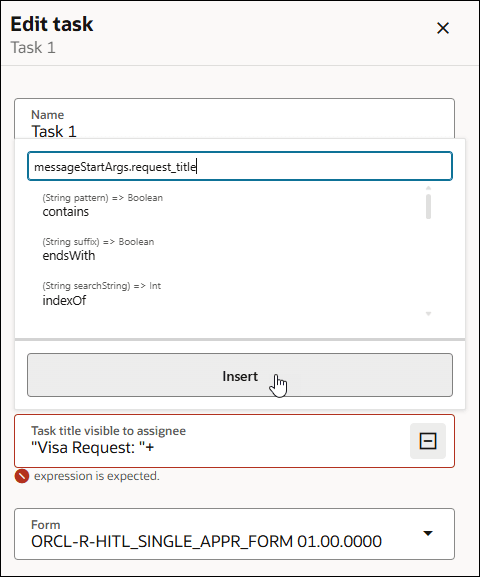
- The expression
messageStartArgs.Request_Titleis added after the operator + in the Task title visible to assignee field.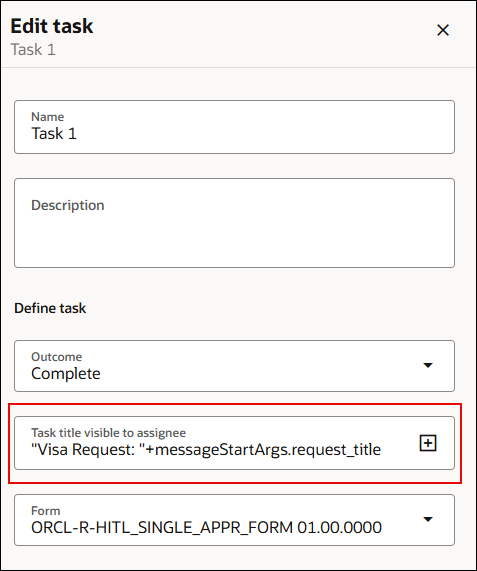
In the expression
"VISA Request: " + messageStartArgs.request_title:"VISA Request: "is a literal text prefix that will always appear as is in the task title in runtime.+is a string concatenation operator that joins two strings together.messageStartArgs.request_titleis a variable populated from the message start argument, that is, the data passed into the workflow when it was started via a message.request_titleis a field in that incoming payload.
In runtime, a dynamic task title will be generated by combining the static string with a value coming from the message start payload when the workflow starts. For example: if messageStartArgs.request_title = "Business travel to US", the task assignee will see VISA Request: Business travel to US as the task title in runtime.