Use the RosettaNet Document Standard
You can create customized document definitions using the RosettaNet document standard or protocol in B2B for Oracle Integration.
Note:
You must first create a RosettaNet schema before you can create a document definition that uses the RosettaNet standard. See Create a New B2B Schema.Create a new B2B document definition using the RosettaNet document standard
- Create a document.
Note:
The RosettaNet document standard is supported in both B2B trading partner mode and B2B standalone mode.- To create a document in a project in B2B trading partner mode.
- In the navigation pane, click Projects.
- Click the project in which to create the document.
- Click B2B
 .
.
- In the Documents section, click Add.
- To create a document in a project in B2B trading partner mode.
- Click Create.
The document details page for your new B2B document using the RosettaNet standard is displayed.
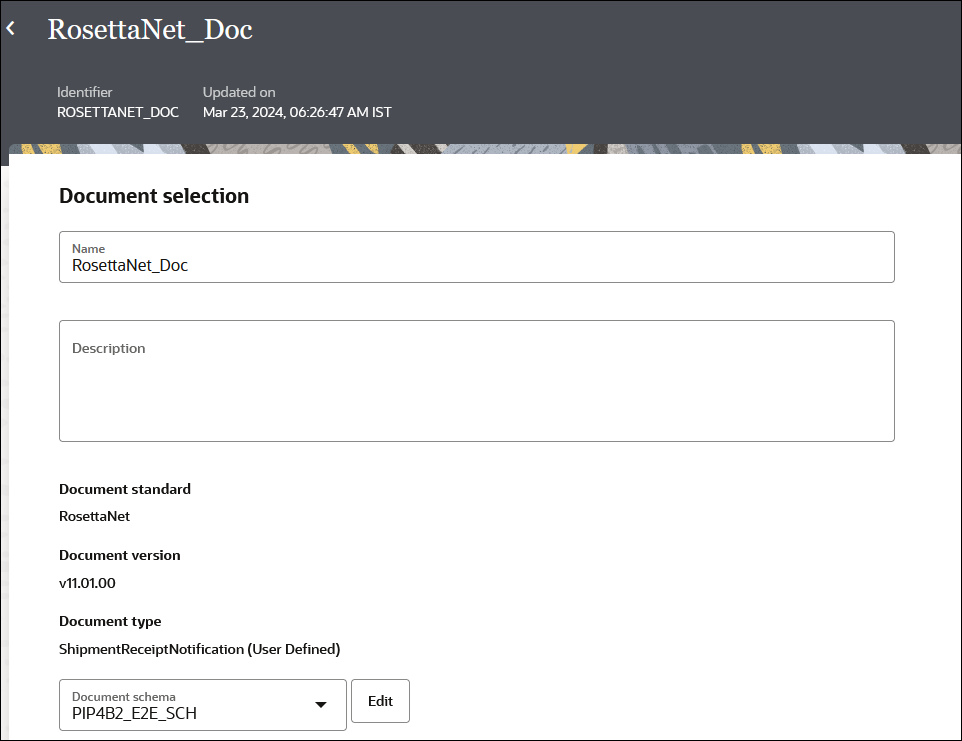
- In the Document property section, define document properties for the schema.
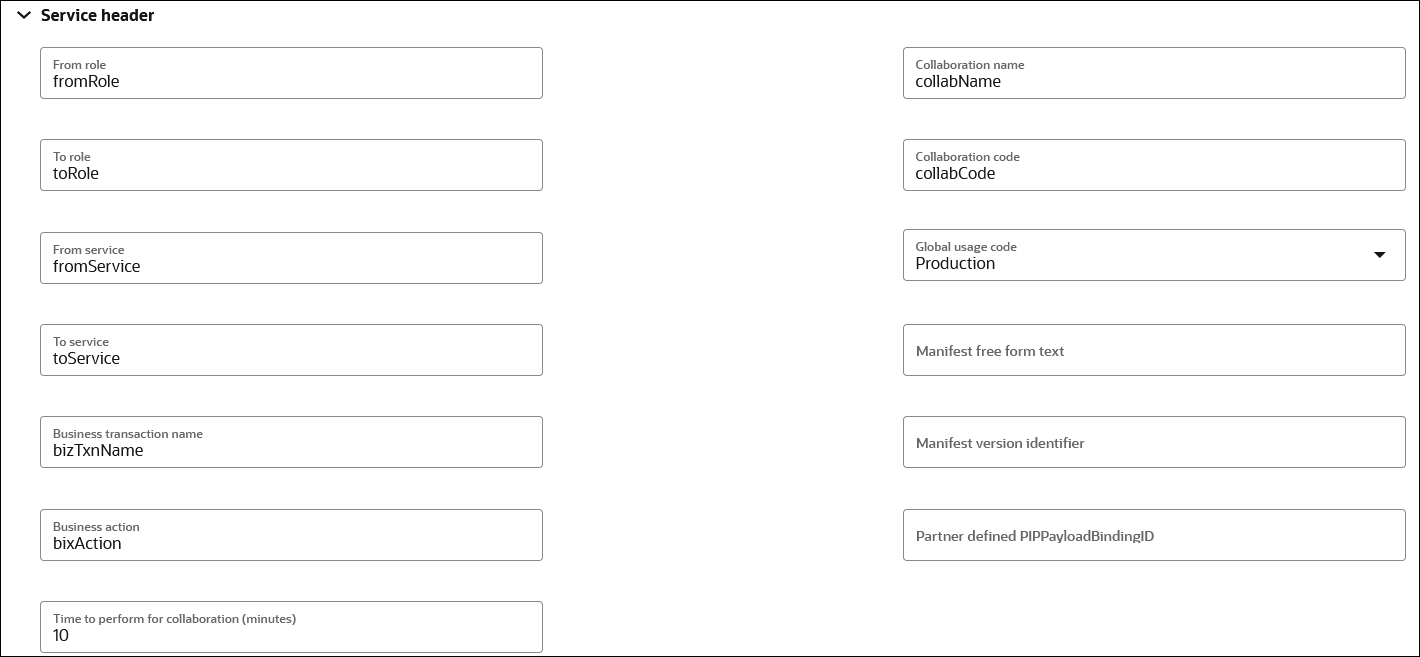
- Expand Service header to view parameters used for validating inbound messages and creating RosettaNet outbound messages.
For this example, the service header parameters provided are for a document configured to use PIP3A4 (Purchase Order Request). The Time to perform for collaboration (minutes) field shows the time window in which the buyer is expecting the purchase order acceptance message from the seller. If the acceptance message does not arrive within this time window, it times out.
- Expand Correlation and Parameters to show additional parameters. You must manually populate these fields. In particular, note the three fields for XPath expressions.
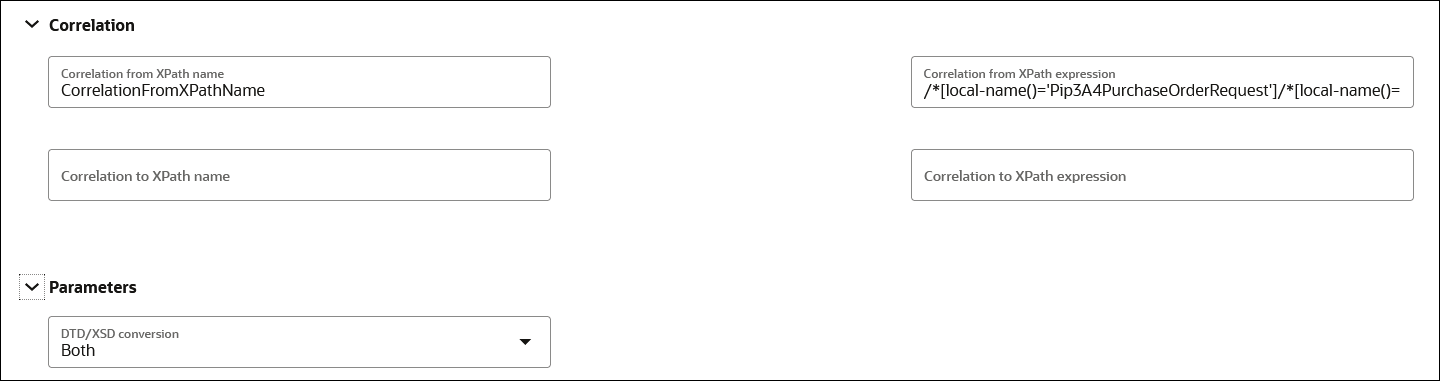 The Correlation from XPath expression field shows the following expression:
/*[local-name()='Pip3A4PurchaseOrderRequest']/*[local-name()='thisDocumentIdentifier']/*[local-name()='ProprietaryDocumentIdentifier']/text()The value for
ProprietaryDocumentIdentifierin the request purchase order from the buyer integration must match with the value in the response purchase order of the seller integration. Whichever fields you configure for correlations to occur, you must supply the value correctly in the request/response payloads to get the relevant messages successfully correlated.For example:- If the seller's
ProprietaryDocumentIdentifierparameter in the request purchase order consists of this value:<thisDocumentIdentifier> <ProprietaryDocumentIdentifier>420002933046</ProprietaryDocumentIdentifier> </thisDocumentIdentifier> - Then the seller's the
ProprietaryDocumentIdentifierparameter in the response purchase order must consist of the same value:<thisDocumentIdentifier> <ProprietaryDocumentIdentifier>420002933046</ProprietaryDocumentIdentifier> </thisDocumentIdentifier>
If your buyer and seller integrations are both REST Adapter-triggered, you can make these edits in the Body section of the Configure and run page. This page appears when you select Run from the Actions
 menu for your integrations. This configuration ensures that message delivery occurs in the correct sequence at runtime.
- If the seller's
- Expand Service header to view parameters used for validating inbound messages and creating RosettaNet outbound messages.