Use the cXML Document Standard

You can create customized document definitions using the cXML document standard or protocol in B2B for Oracle Integration.

Note:

You must first create a cXML schema before you can create a document definition that uses the cXML standard. See Create a New B2B Schema.

Create a new B2B document definition using the cXML document standard

  1. Create a document.

    Note:

    The cXML document standard is supported only in B2B trading partner mode within projects. It is not supported in B2B standalone mode.
    1. In the navigation pane, click Projects.
    2. Click the project in which to create the document.
    3. Click B2B B2B icon.
    4. In the Documents section, click Add.
  2. In the Create document pane, enter the following details.
    Element Description
    Name Enter a document name.
    Identifier This field is automatically populated with the document name. You can manually change this value.
    Description Enter an optional description of the customization details for this document.
    Use a shared document

    Select to use a shared document. Selecting this option enables a Shared document list to be displayed for you to select the shared document to use. Shared documents only available in a different project are displayed. Documents created in a standalone environment (that is, outside a project) are not available for selection.

    After creation, an Override label appears below the document name in the Documents section to indicate that it is shared.

    To understand how shared documents work, see What's Supported in Projects for B2B.

    Available to other projects

    Select to make this document available for use in other projects.

    After creation, a Shared label appears below the document name in the Documents section to indicate that it is available for use in other projects.

    Note:

    Before you make the document available to other projects, ensure that the document uses a shared schema. For details on how to create a shared schema, see Create a New B2B Schema.
    Document standard Select cXML from the drop-down list.
    Document version

    Manually enter a new value or select an existing value from the drop-down list.

    Document type

    Manually enter a new value or select an existing value from the drop-down list.

    Document schema

    Select an existing cXML schema. If a cXML schema does not exist, you cannot create a document definition. See Create a New B2B Schema.

  3. Click Create.

    The document details page for your new B2B document using the cXML standard is displayed.
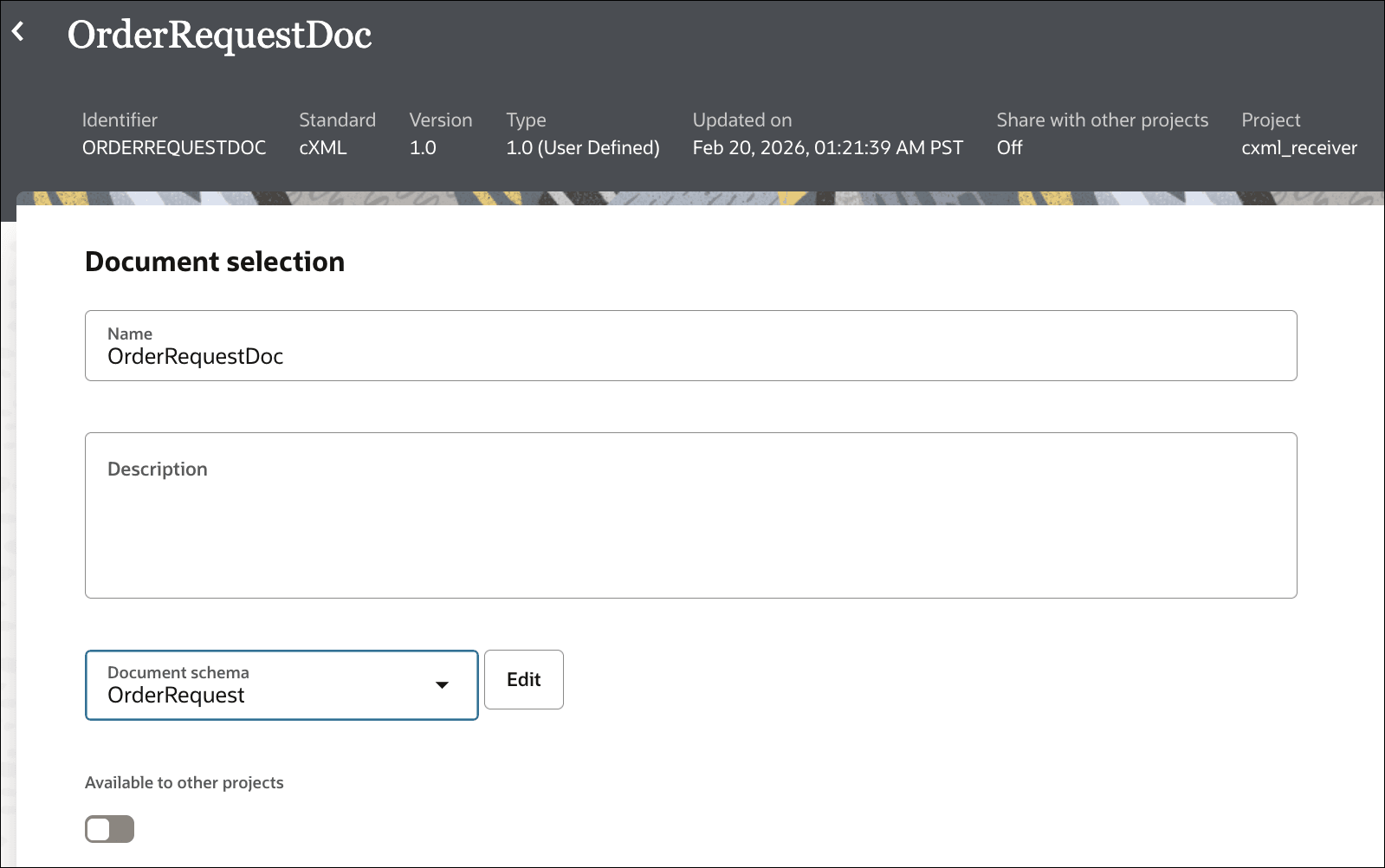

    This shows the document details property page of a cXML document OrderRequestDoc. Fields include Name set to OrderRequestDoc, an empty Description text area, and a Document schema dropdown set to OrderRequest with an Edit button. Top bar shows Identifier: ORDERREQUESTDOC, Standard: cXML, Version: 1.0, Type: 1.0 (User Defined), Updated on date and time stamp, Share with other projects: Off, Project: cxml_receiver. A toggle labeled Available to other projects is off at the bottom.

  4. If you want to use a different document schema, select an existing schema from the Document schema drop-down list or click Edit to upload a new schema file.

    You can also define document properties for the schema.

  5. In the Document property section, define document properties for the schema.
    1. Expand Business identifiers, and add at least one identifier (primary). You can also add a second and third identifier to associate with this document. The business identifier names and expressions enable filtering by the identifiers on the Instances page when this document is sent or received.
    2. In the Expression field, click to select a business identifier expression path.
    3. Expand Identification. Note that the Identification type field is set to XML by default and cannot be changed. Define an XPath expression and optionally a value. This is used to match the incoming payload to the correct document definition and schema.
      • XPath expression only:

        Provide an XPath expression that identifies a unique element in the incoming document.

        For example, if you provide the XPath expression /cXML/Request/*[local-name()='OrderRequest'], an incoming payload is considered a match when it contains an OrderRequest element.

      • XPath expression with a value:

        You can further refine document identification by specifying both an XPath expression and an expected value.

        For example, if you provide the XPath expression /cXML/Request/*[local-name()='OrderRequest']/text() and the value Begin, an incoming payload is considered a match only if it contains an OrderRequest element with a text value Begin.

    4. Expand Correlation, and select either Correlation from or Correlation to from the Correlation type drop-down list. Enter an XPath name, and then enter a XPath expression. These values enable you to correlate related documents in business transactions.

      You can only select one option: Correlation from or Correlation to.

      • The Correlation from XPath retrieves the value from the payload to initiate the correlation.
      • The Correlation to XPath retrieves the value from the payload for correlation.
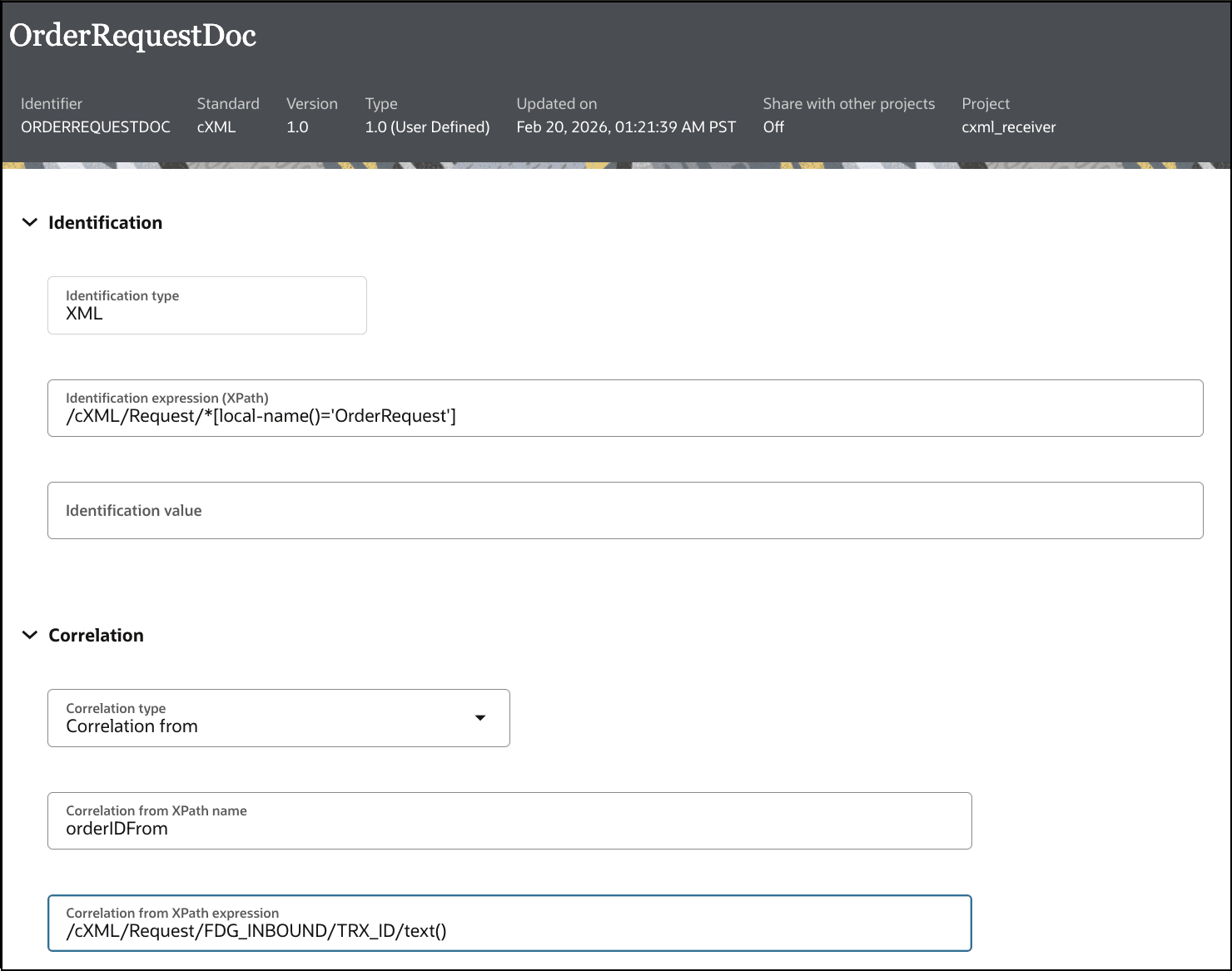

      This image shows the expanded Identification and Correlation sections.

  6. Click Save.

While defining inbound and outbound agreements, you can use a document created with the cXML standard to identify and process inbound and outbound XML payloads.