Specify Custom Response Headers in the OCI Object Storage Action
You can define custom response headers when uploading objects into an object storage bucket in the Oracle Cloud Console. You can then define those same headers with the Download object operation when configuring the OCI Object storage action in the integration canvas.
This capability allows Oracle Integration retrieval-augmented generation (RAG) functionality to retrieve the custom response headers and use that information to provide context.
This section provides a high-level overview of designing and running an integration that uses custom response headers.
- Expand Optional response headers and
metadata to define the custom response
header names and values. For this example, the following
headers are defined:
Header Value opc-meta-customobjectstorageheader1CustomObjectStorageHeader1_Valueopc-meta-customobjectstorageheader2CustomObjectStorageHeader2_Value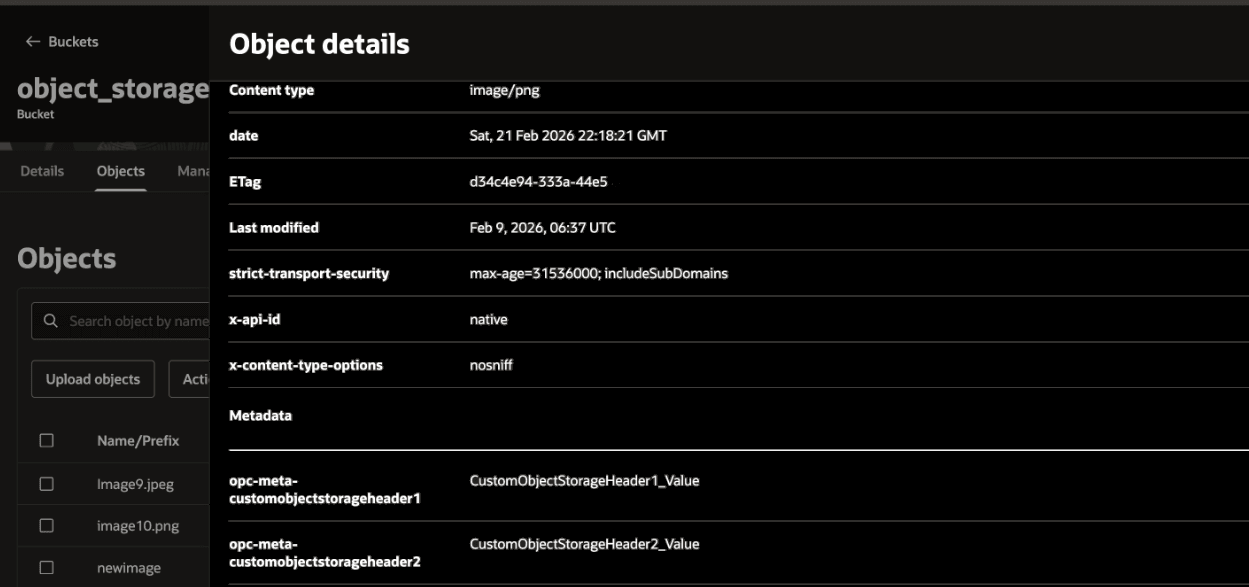
- Configure an OCI Object storage action in the integration
canvas. At a high level, you must:
- Click Custom at the
bottom of the page to add the custom response
headers that you previously defined in your object
storage bucket in the Oracle Cloud Console. The names you specify
must match exactly with those created in the Oracle Cloud Console.
For this example, a special custom response header to return the target endpoint URL to the user (
x-oracle-ics-target-url) is also defined. This URL does not need to be defined in the object storage bucket.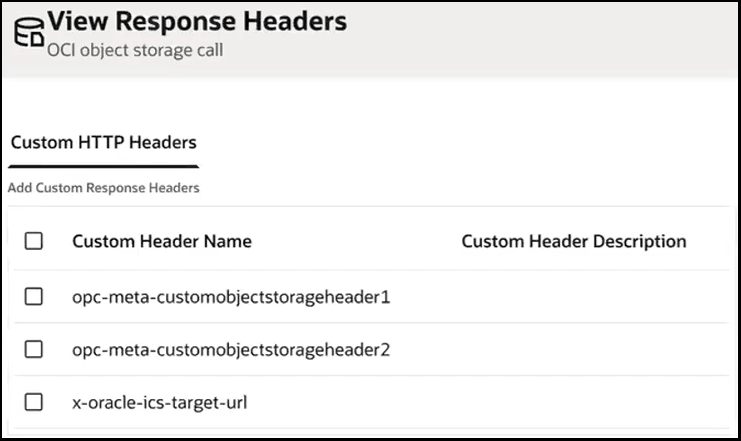
See Invoke Oracle Cloud Infrastructure Object Storage from an Integration with an OCI Object Storage Action for specific steps on configuring this action.
- Click Custom at the
bottom of the page to add the custom response
headers that you previously defined in your object
storage bucket in the Oracle Cloud Console. The names you specify
must match exactly with those created in the Oracle Cloud Console.
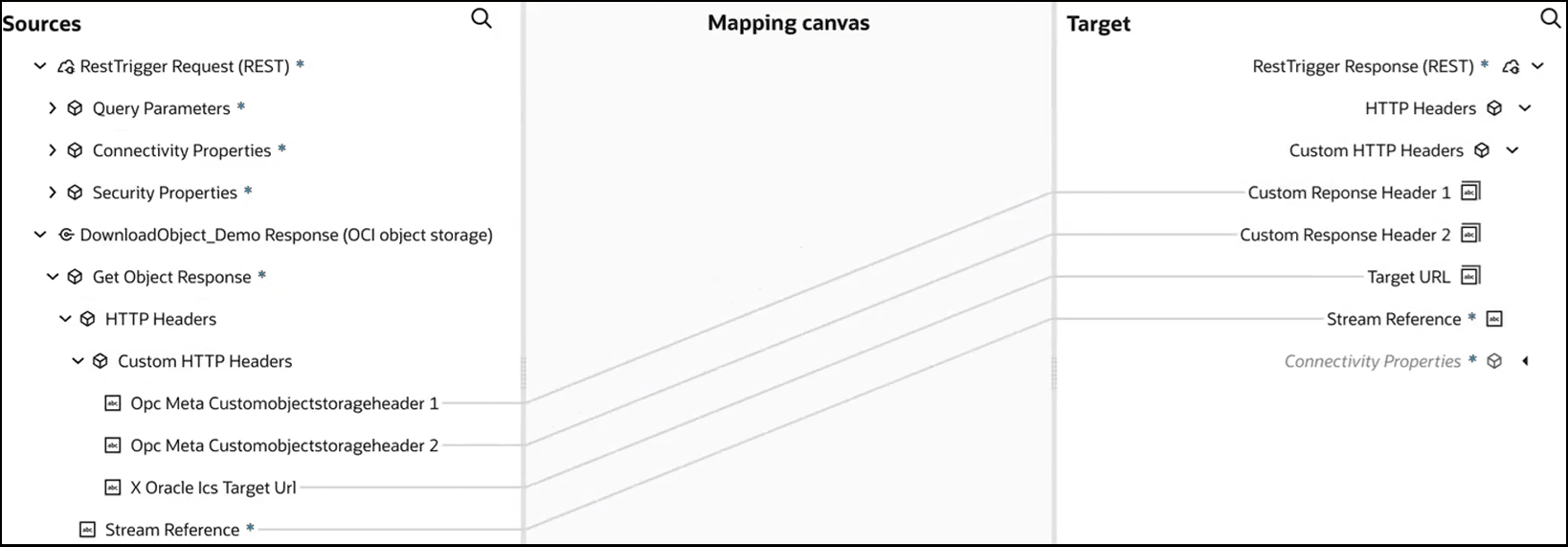
- Map the source header elements you created to the target header
elements.
- From the Configure and run page, click
Run.
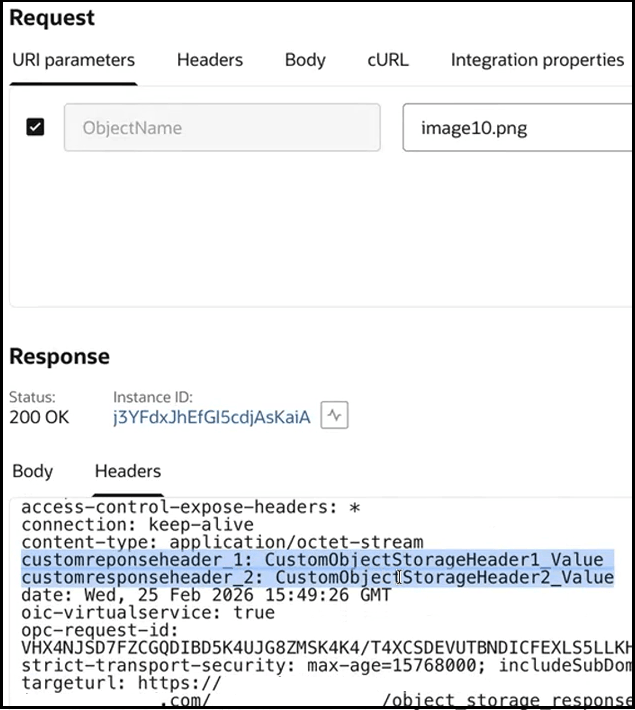
The two custom response header names and values and the target endpoint URL are displayed in the Response section.