Extract Information from a Custom Document with a Document Understanding Action
You can use AI to extract information from a custom document with a document understanding action. This section provides a high-level use case on how to exact information from a custom document (for this example, extract an insurance quote from a JPG file) and convert it to key-pair values in JSON format.
Ensure that you have completed all prerequisites for using the document understanding action. See Extract Document Information with a Document Understanding Action.
- Create an application integration.
- Drag a REST Adapter into the integration canvas.
- Configure the REST Adapter.
- On the Basic Info page, enter a name.
- On the Resource Configuration page, specify the necessary
information. For example:
- Enter a relative resource URL: /test is used for this example.
- Select the POST action.
- Select the following request/response options:
- Configure a request payload for this endpoint
- Configure this endpoint to receive the response
- On the Request page, select Binary as the request payload format.
- On the Response page, select JSON Sample as the
response payload format, and specify the
content:
{ "companyName":"" } - Complete the wizard.
- Click Actions
 and drag the OCI Document Understanding action
into the integration canvas.
and drag the OCI Document Understanding action
into the integration canvas.
- Enter the following information in the wizard.
- Enter a name and optional description.
- From the Select Categories list, select Custom models, then click Continue.
- From the Action list, note that Analyze document is the only option available and cannot be deselected, then click Continue.
- Select the following information, then click
Continue.
Element Description Compartment Select the Oracle Cloud Infrastructure compartment in which Oracle Integration is installed. Model Select the model ID to use that you created in Oracle Cloud Infrastructure. See Custom Models. Input source Select Inline as the location from which to get the input document.
- In the request mapper, expand the source and target sections. The insurance quote custom document must be sent in base-64 format.
- Expand the target Document element.
- Right-click Data, and select Create target node.
- In the target section, click Functions
 .
.
- In the Expression Builder, click Design View
 .
.
- In the Functions section, expand Advanced, and drag encodeReferenceToBase64 into the Expression Builder. This step is required for extracting data from the custom document.
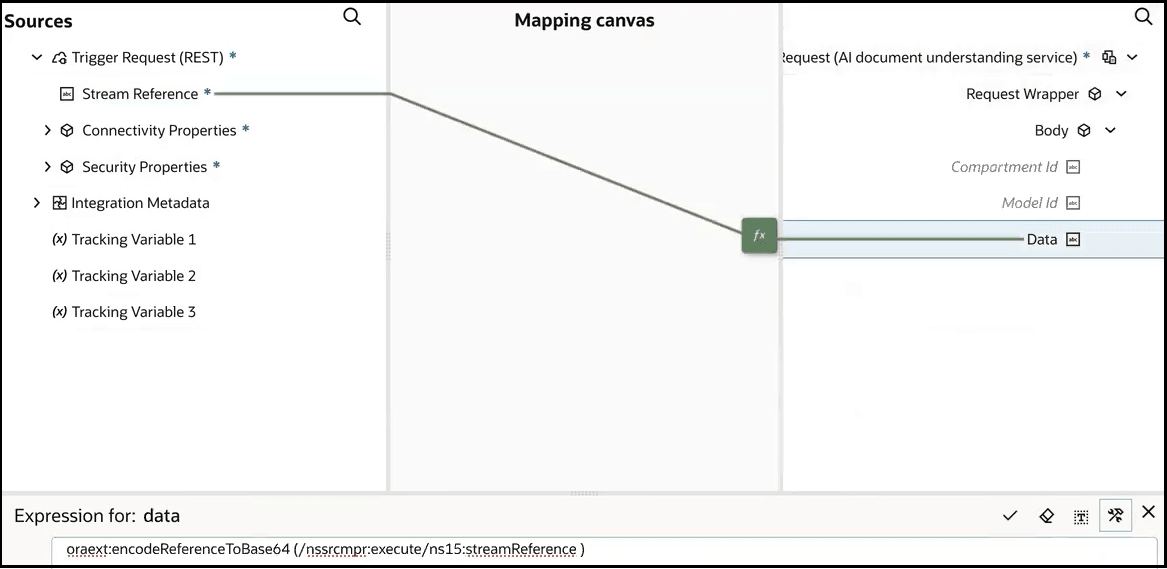
- Map Stream Reference from the
Sources section to the
encodeReferenceToBase64 () function in the Expression
Builder.
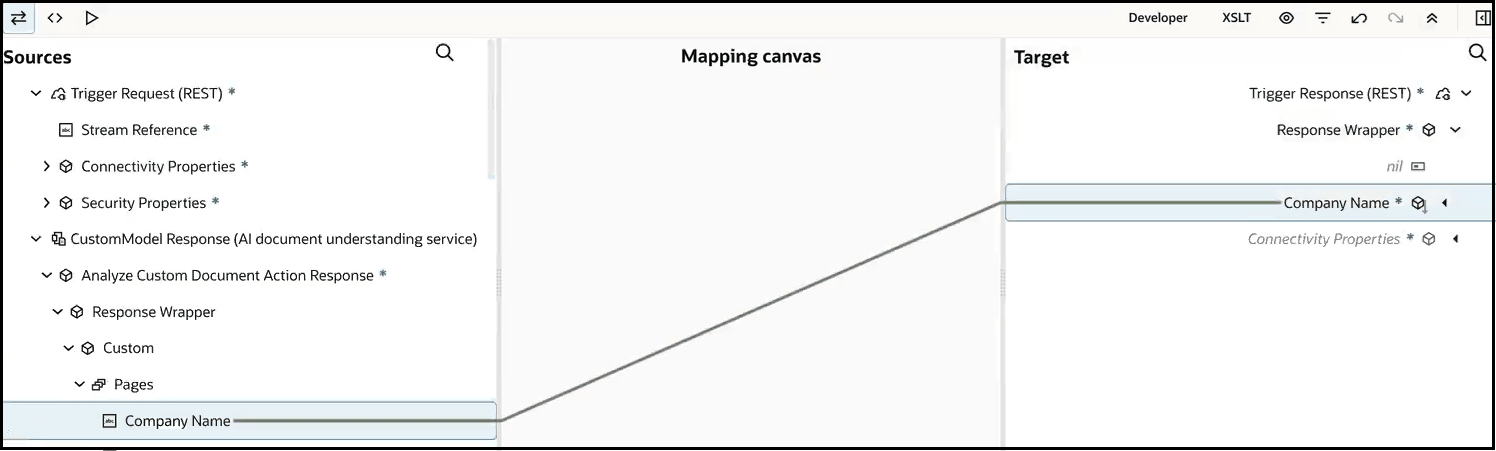
- In the response mapper, expand the source and target sections.
- Map the target Company Name element to the
source Company Name element.
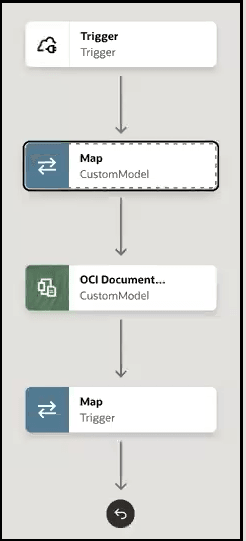
- Return to the integration canvas. This action validates your expression.
- Assign a business identifier.
- Save and activate the integration.
- From the Actions
 menu, select Run.
- In the Body tab of the Request section, click File, then Browse.
- Upload the JPG file that includes the insurance quote.
- Click Run.
- View the
companyNamereturned in the response.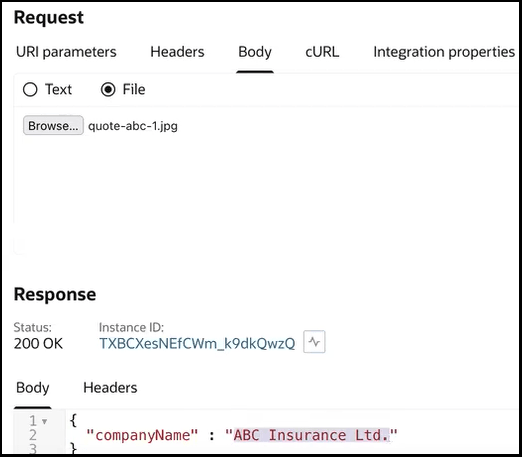
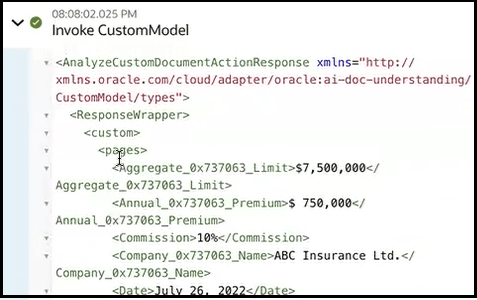
- When processing completes, expand the invoke connection in the activity stream.
- Scroll through the payload and note that the fields from the
insurance quote in the JPG file have been converted to key-pair values. Here is
a partial view of the insurance quote details.