Perform Operations in the OCI Cache Cluster
You can perform multiple operations against the OCI Cache cluster with the OCI Cache Adapter.
Overview
This use case provides an overview of an integration in which you configure multiple OCI Cache Adapter invoke connections to perform the following operations against the OCI Cache cluster.
| Invoke Connection | Data Type | Operation | Description |
|---|---|---|---|
| 1 | String | Check if key exists (EXISTS) | Checks if a specified key is present. |
| 2 | String | Set data into cache | Stores a value under a specified key. |
| 3 | String | Get data from cache | Retrieves the value stored for a specified key. |
| 4 | String | Delete data from cache | Removes a specified key and its associated value from cache. |
| 5 | List | Append value(s) to list (RPUSH) | Appends values to the tail end (right side) of a list. |
| 6 | List | Get list length (LLEN) | Returns the number of elements currently stored in a list. |
| 7 | List | Delete list key | Deletes a specified list and all the elements stored in that list. |
| 8 | List | Get list length (LLEN) | Returns the number of elements currently stored in a list. |
Design Your Connections
For this use case, the following connections are created.
- Create and configure a REST Adapter trigger connection to use the OAuth 2.0 security policy.
- Create and configure an OCI Cache Adapter invoke connection:
- Specify the host for the OCI Cache cluster.
- Select Non-Sharded as the cluster mode.
Design Your Integration
- Create an application integration.
- Drag the REST Adapter into the integration canvas and configure it as follows:
- Set the endpoint relative response URI. For this example,
/operationsis specified. - Select GET as the action to perform on the endpoint.
- Select Configure this endpoint to receive the response.
- Select JSON Sample as the response payload format.
- Specify sample JSON content:
{ "keyExists" : "false", "valueAfterSet" : "test-value", "listLenAfterInsert" : 1, "listLenAfterPop" : 0 } - Select JSON as the media-type of the response body.
- Set the endpoint relative response URI. For this example,
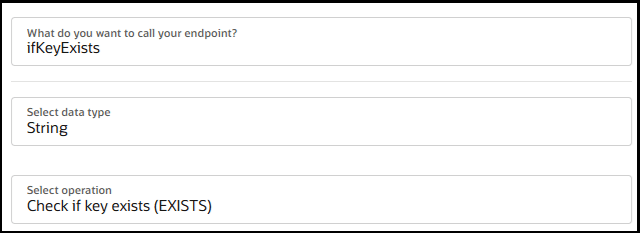
- Drag a first OCI Cache Adapter connection into the integration canvas and define the Configure cache page to check if a specified key is present in the OCI Cache cluster.
- Enter a name.
- From the Select data type list, select String.
- From the Select operation list, select Check if key exists (EXISTS).
- In the map action between the REST Adapter and OCI Cache Adapter, set a value for the target Key element. For this example,
"test-key-string"is the key to check for in the OCI Cache cluster.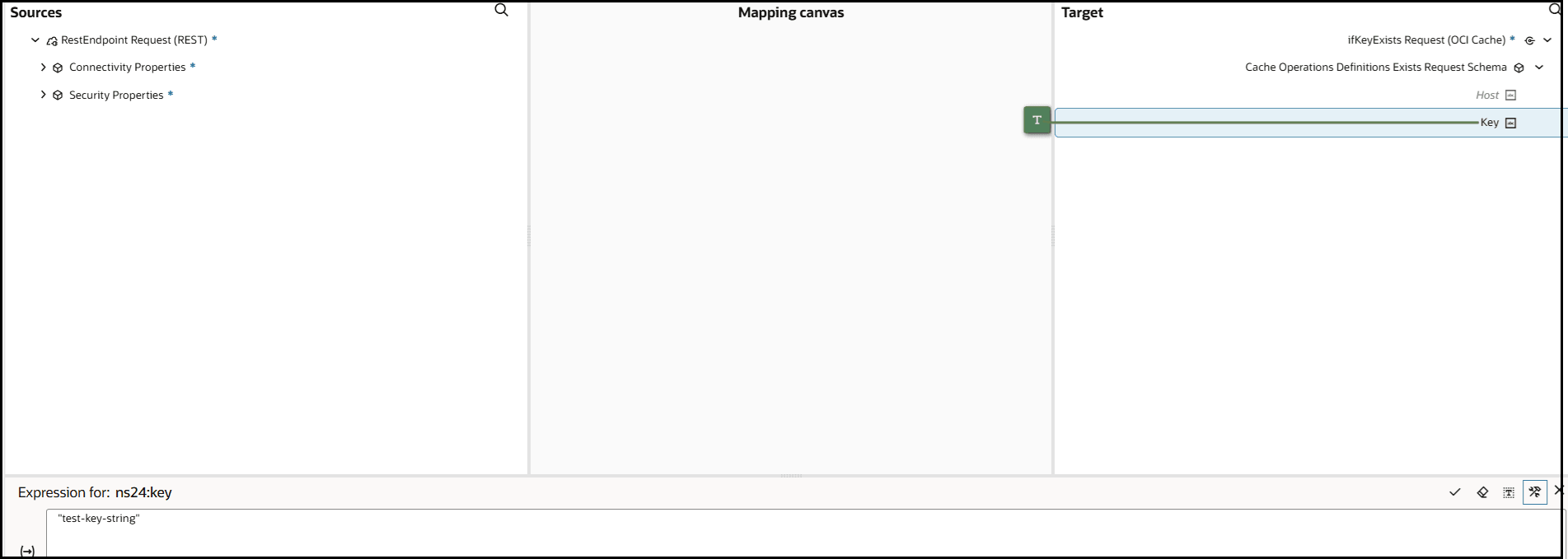
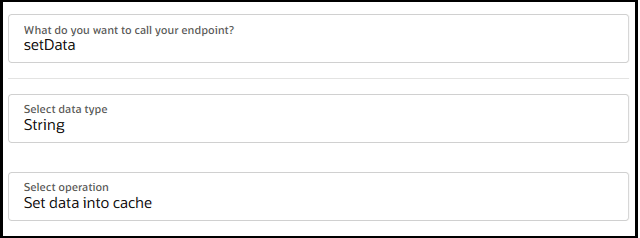
- Drag a second OCI Cache Adapter connection into the integration canvas and define the Configure cache page to set a value under a specified key in the OCI Cache cluster.
- Enter a name.
- From the Select data type list, select String.
- From the Select operation list, select Set data into cache.
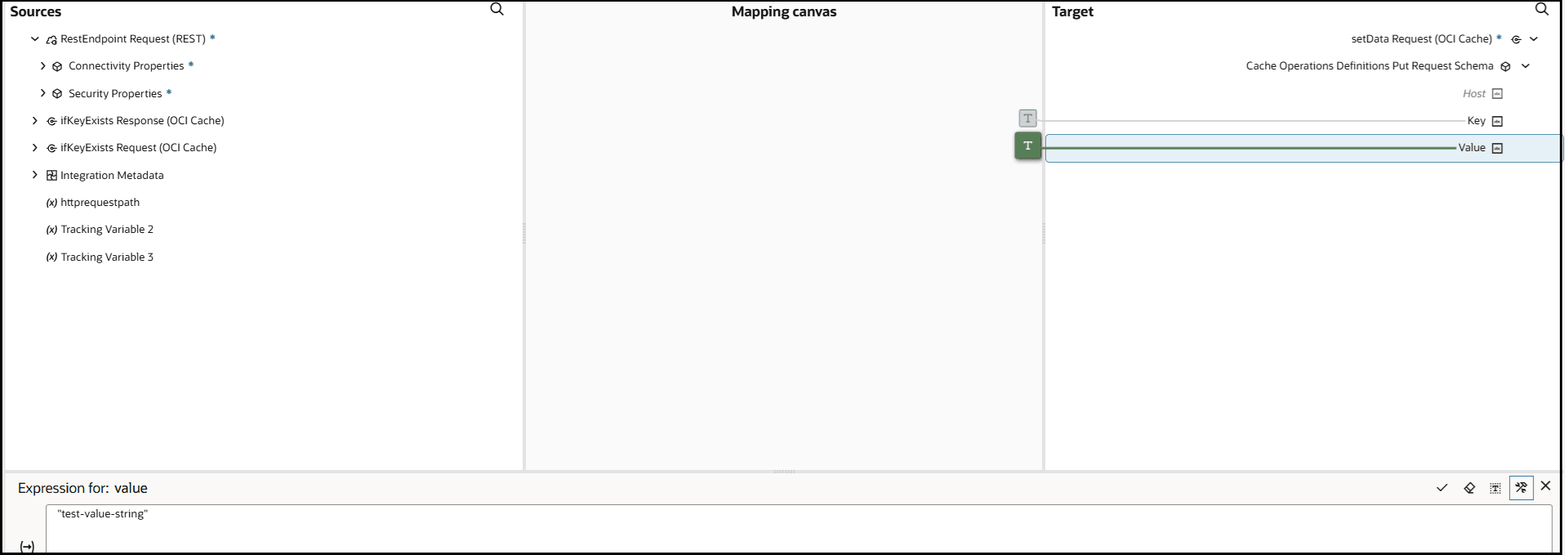
- In the map action, set values for the target Value and Key elements. For this example,
"test-key-string"is the Key and"test-value-string"is the Value to set under the key in the OCI Cache cluster.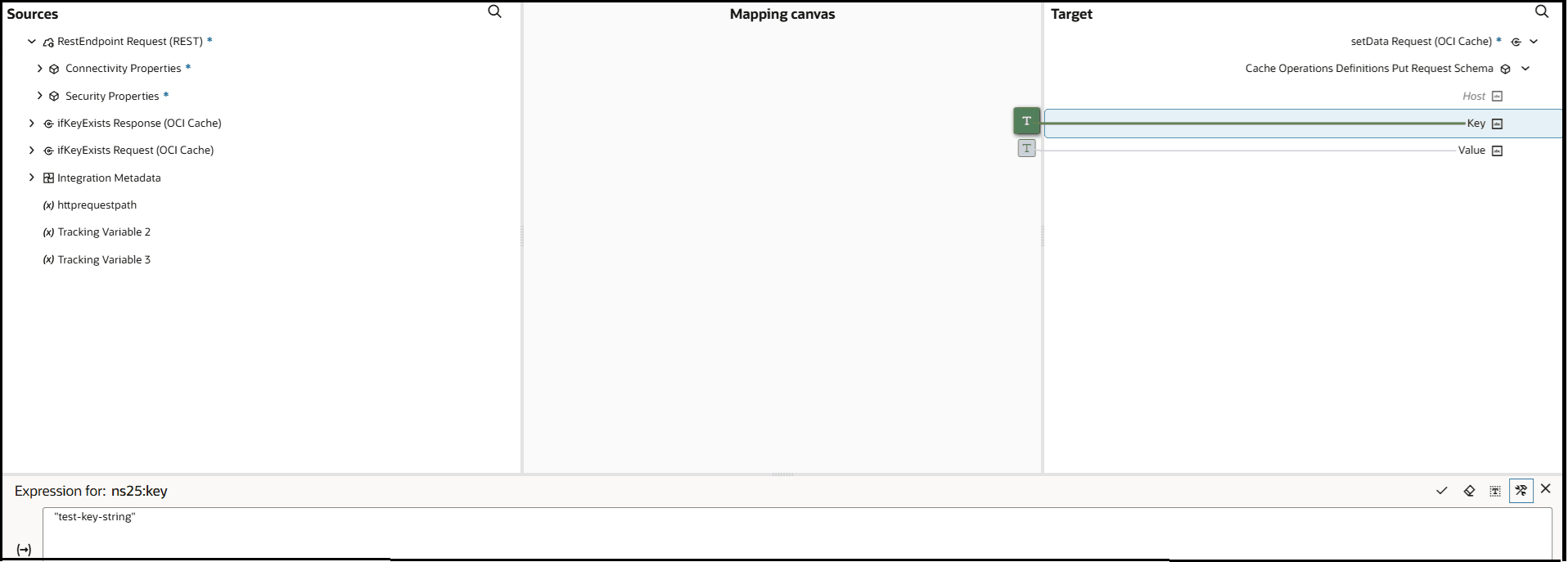
- Drag a third OCI Cache Adapter connection into the integration canvas and define the Configure cache page to retrieve the value stored for the specified key in the OCI Cache cluster.
- Enter a name.
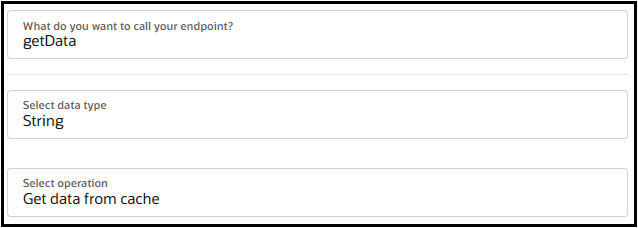
- From the Select data type list, select String.
- From the Select operation list, select Get data from cache.
- In the map action, set a value for the target Key element. For this example,
"test-key-string"is the key (and its value) retrieved from the OCI Cache cluster.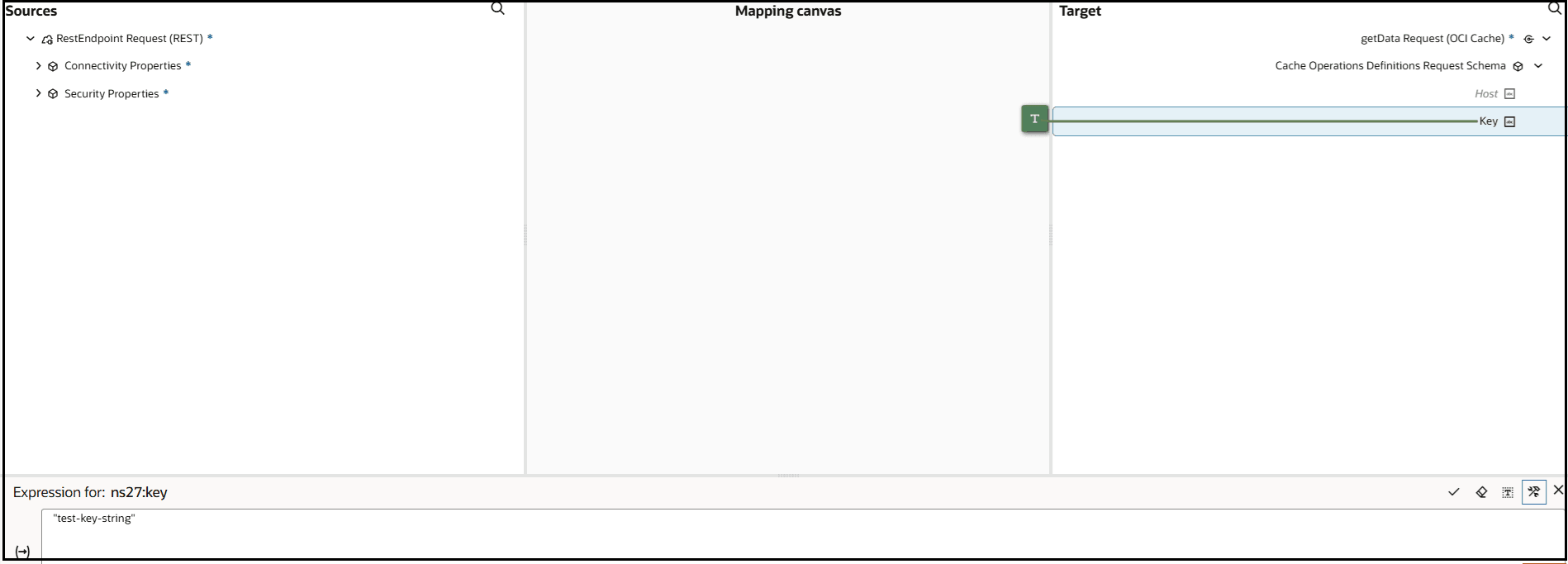
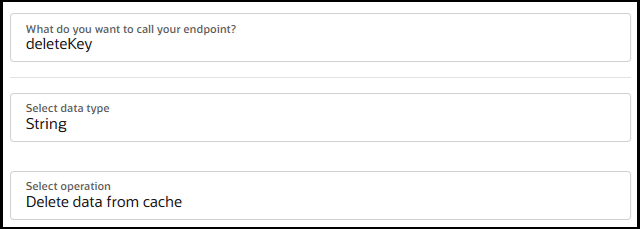
- Drag a fourth OCI Cache Adapter connection into the integration canvas and define the Configure cache page to delete data in the OCI Cache cluster.
- Enter a name.
- From the Select data type list, select String.
- From the Select operation list, select Delete data from cache.
- In the map action, set a value for the target Key element. For this example,
"test-key-string"is the key (and its value) deleted from the OCI Cache cluster.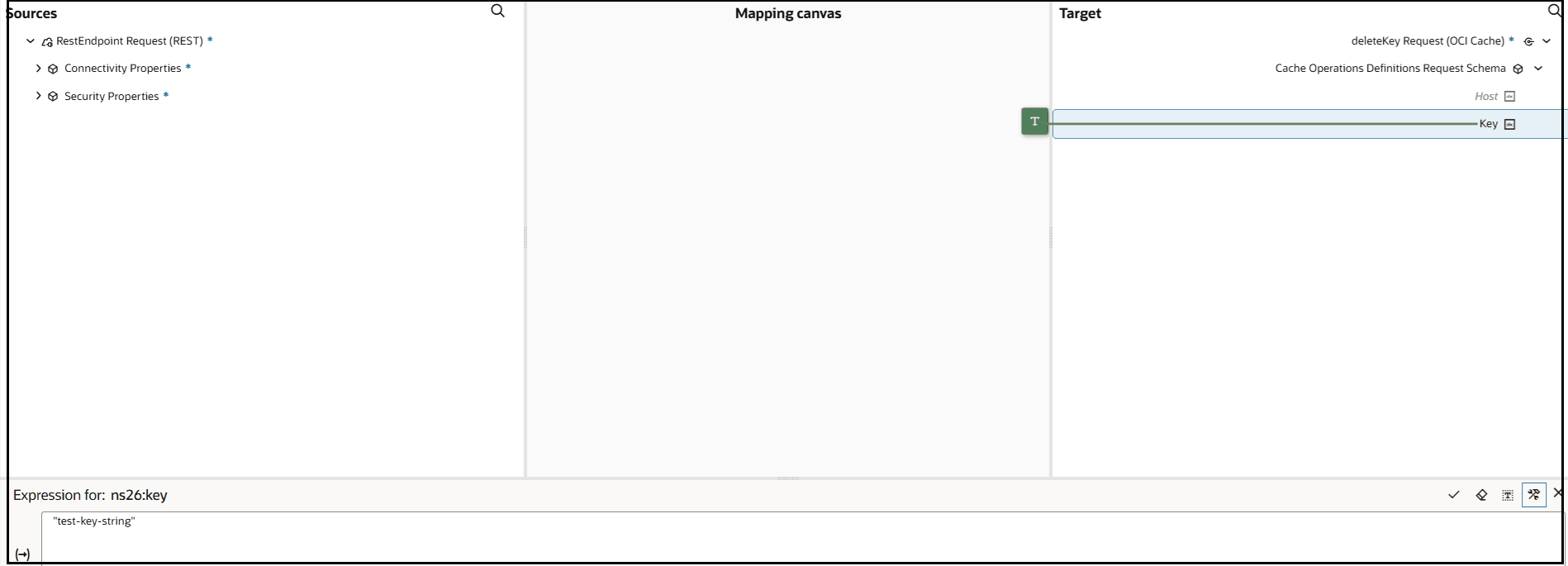
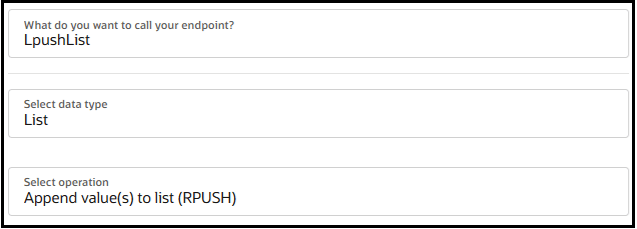
- Drag a fifth OCI Cache Adapter connection into the integration canvas and define the Configure cache page to append values to the tail end (right side) of a list in the OCI Cache cluster.
- Enter a name.
- From the Select data type list, select List.
- From the Select operation list, select Append value(s) to list (RPUSH).
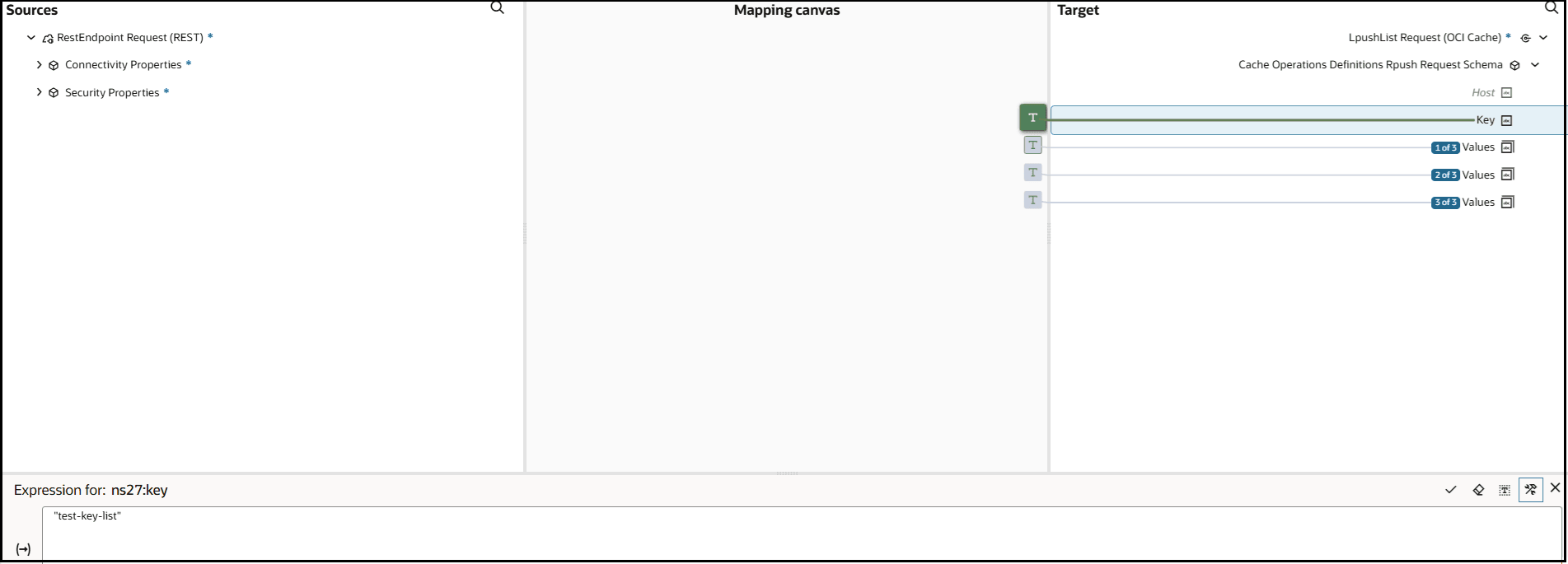
- In the map action, set values for the following target elements to append to the end of a list in the OCI Cache cluster.
- Set Key to
"test-key-list". - Set (1 of 3) Values to
"test-value-list-0". - Set (2 of 3) Values to
"test-value-list-1". - Set (3 of 3) Values to
"test-value-list-2".
- Set Key to
- Drag a sixth OCI Cache Adapter connection into the integration canvas and define the Configure cache page to return the number of elements currently stored in a list in the OCI Cache cluster.
- Enter a name.
- From the Select data type list, select List.
- From the Select operation list, select Get list length (LLEN).
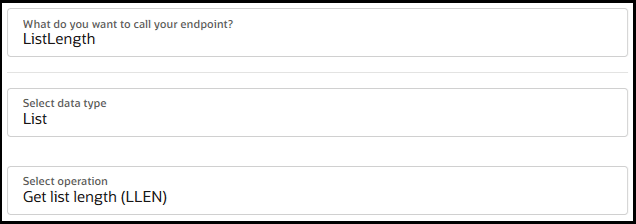
- In the map action, set a value for the target Key element. For this example,
"test-key-list"is the key of the list for which to check the length in the OCI Cache cluster.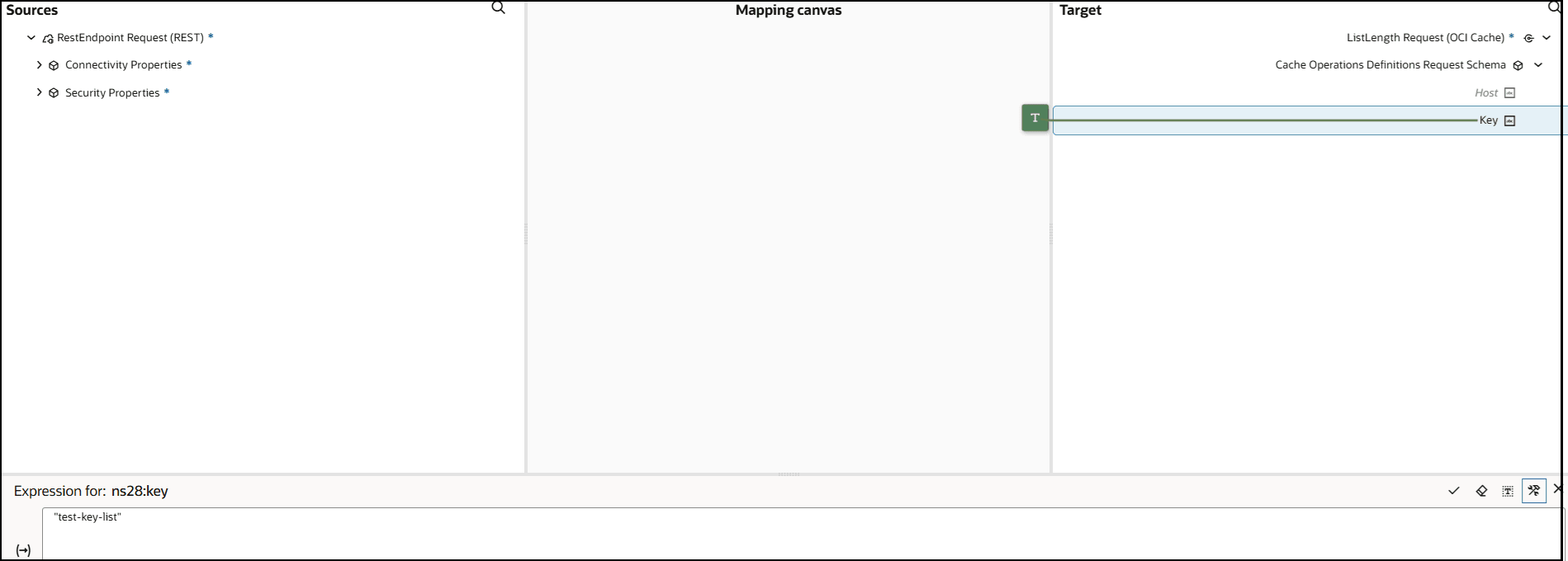
- Drag a seventh OCI Cache Adapter connection into the integration canvas and define the Configure cache page to delete a specified list and all the elements stored in that list in the OCI Cache cluster.
- Enter a name.
- From the Select data type list, select List.
- From the Select operation list, select Delete list key.
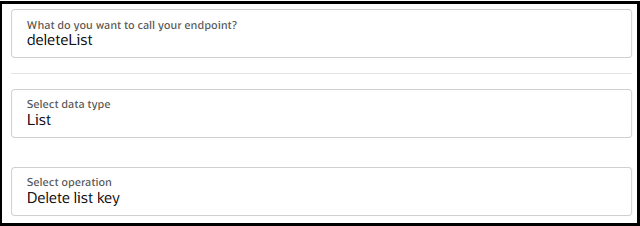
- In the map action, set a value for the target Key element. For this example,
"test-key-list"is the list key to delete in the OCI Cache cluster.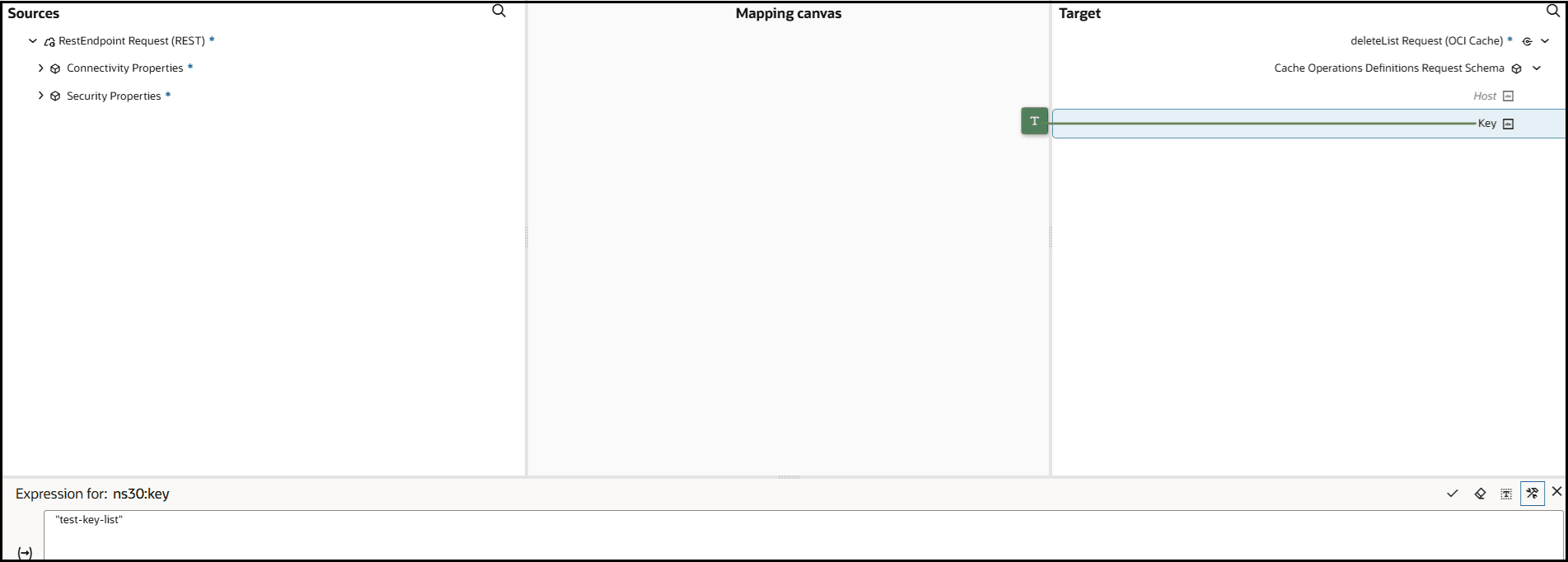
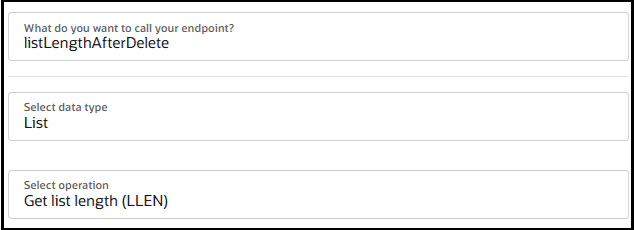
- Drag an eight OCI Cache Adapter connection into the integration canvas and define the Configure cache page to return the number of elements currently stored in a list in the OCI Cache cluster.
- Enter a name.
- From the Select data type list, select List.
- From the Select operation list, select Get list length (LLEN).
- In the map action, set a value for the target Key element. For this example,
"test-key-list"is the key of the list for which to check the length in the OCI Cache cluster.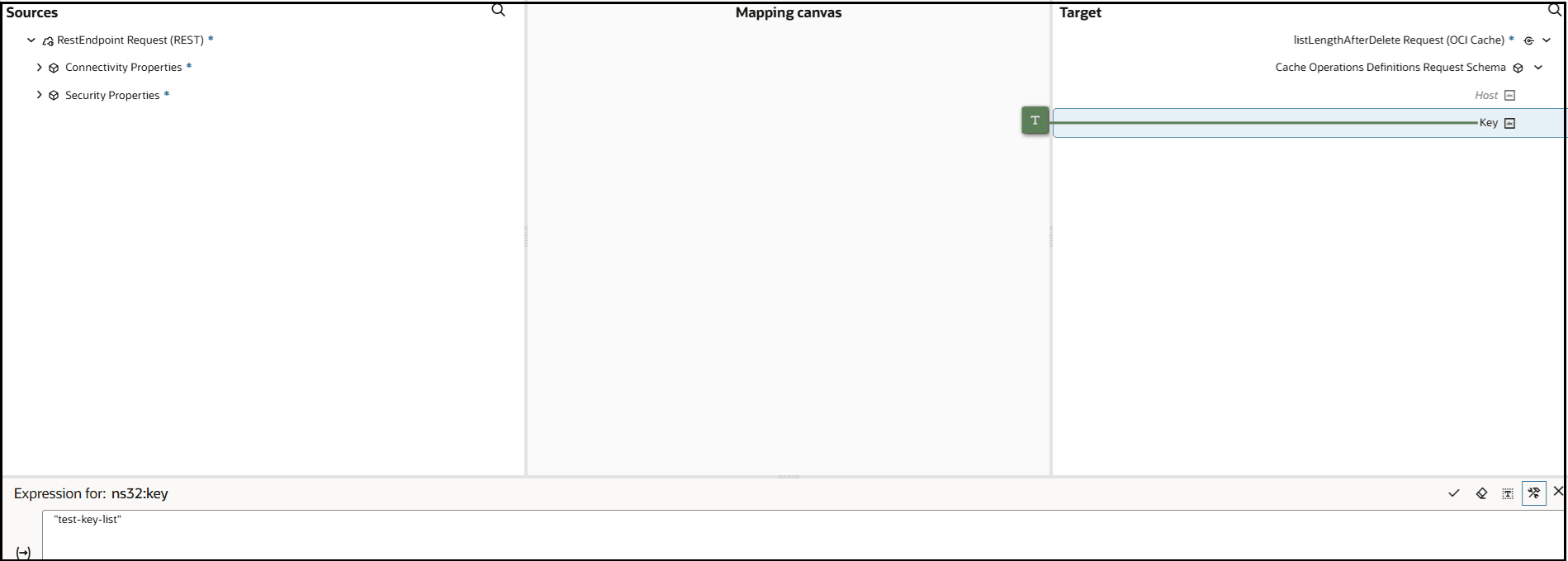
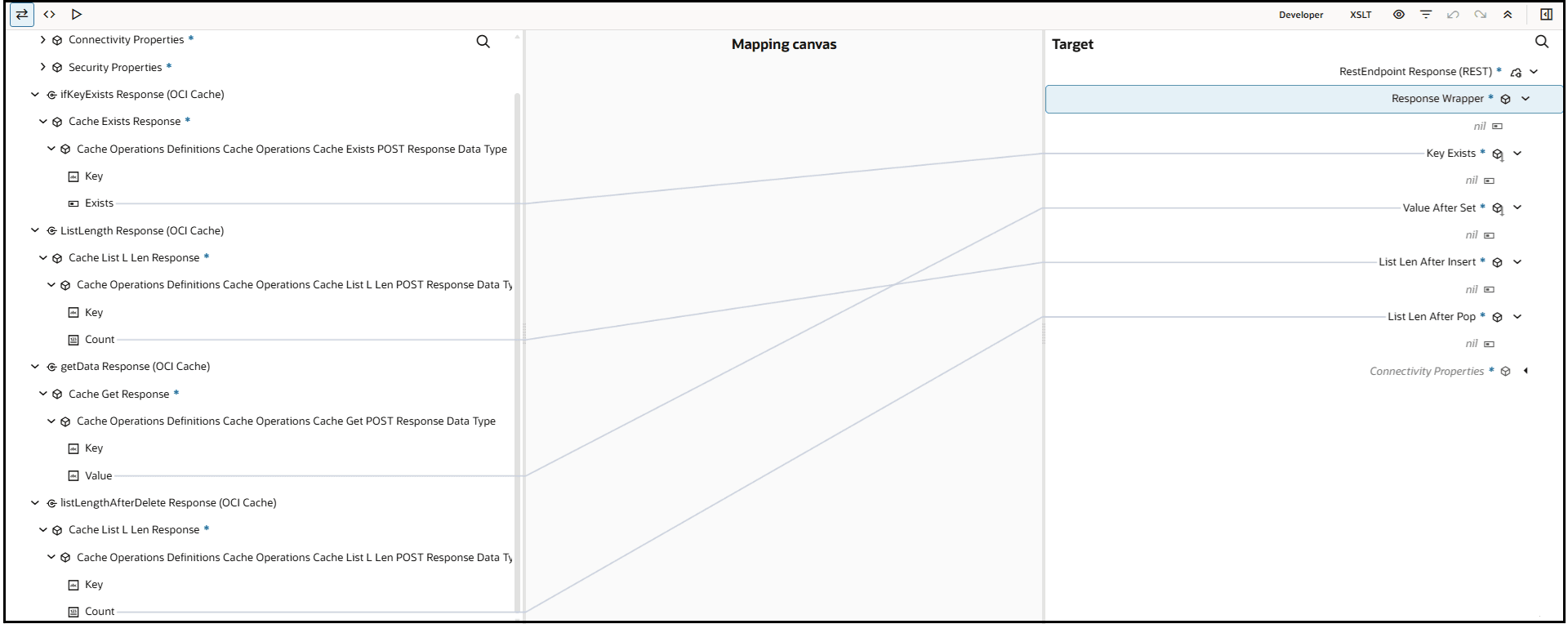
- In the map action at the end of the integration, map the following source elements and target elements.
Activate and Run the Integration
- Assign a business identifier to the integration, then activate it.
- From the Actions
 list for the integration, select Run.
- Click Run.
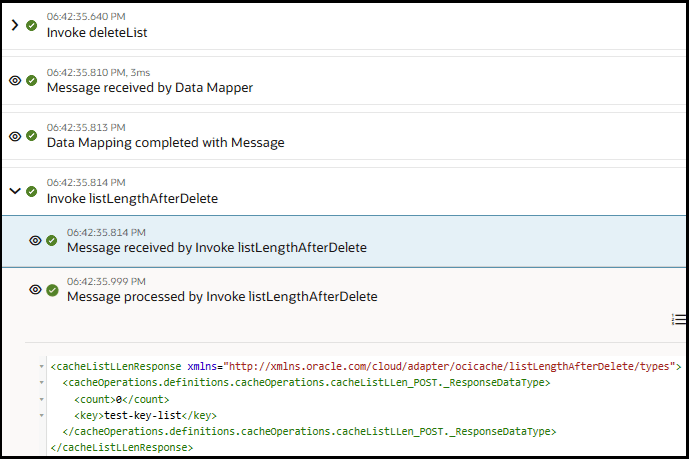
- Expand the activity stream to view key milestones. Several milestones are described below.
- View the key being provided to the OCI Cache cluster (
test-key-string).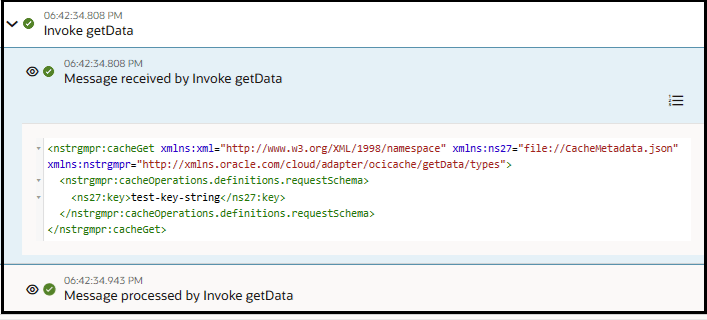
- View the value and key in the response message (
test-value-stringandtest-key-string).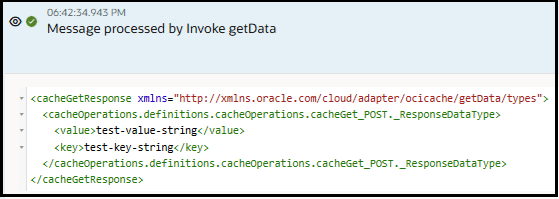
- View the list key received (
test-key-list).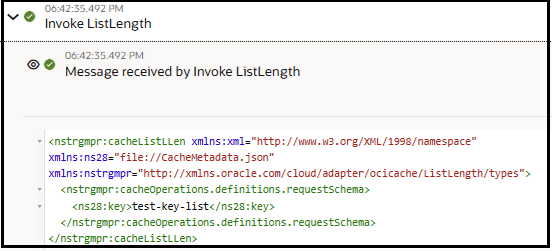
- View the count of elements in the list that is returned.
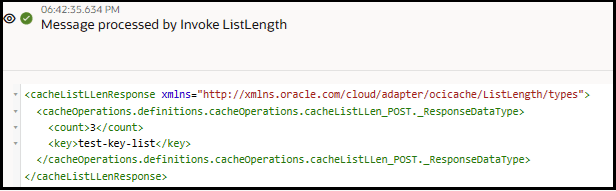
- After the list is deleted, the count returned is zero.