Upload and List a File
This use case demonstrates how to use the OpenAI Adapter to upload a file to an OpenAI account in one integration and list the uploaded file in another integration.
Upload a File
Let's look at how to upload a file in an integration to an OpenAI account using the Upload file API.
- Configure a REST Adapter trigger connection and OpenAI Adapter invoke connection.
- Create an application integration.
- Drag the REST Adapter trigger connection
into the integration canvas for configuration. For this example, the REST Adapter is defined as follows:
- The Resource Configuration page is defined as follows:
- A REST Service URL of
/triggerUploadFileis specified for this example. - A Method of POST is selected.
- The following request and response options are
selected:
- Configure a request payload for this endpoint
- Configure this payload to receive the response
- A REST Service URL of
- The following Request page options are selected:
- Request is multipart with payload
- Multipart request is of type multipart/form-data with HTML form payload
- The sample JSON payload is specified on the Response
page:
{
  "object" : "file",
  "id" : "file-BMhhwR9ip3saFknosY9HWr",
  "purpose" : "fine-tune",
  "filename" : "sample.jsonl",
  "bytes" : 233,
  "created_at" : 1759841814,
  "expires_at" : null,
  "status" : "processed",
  "status_details" : null
}
- The Resource Configuration page is defined as follows:
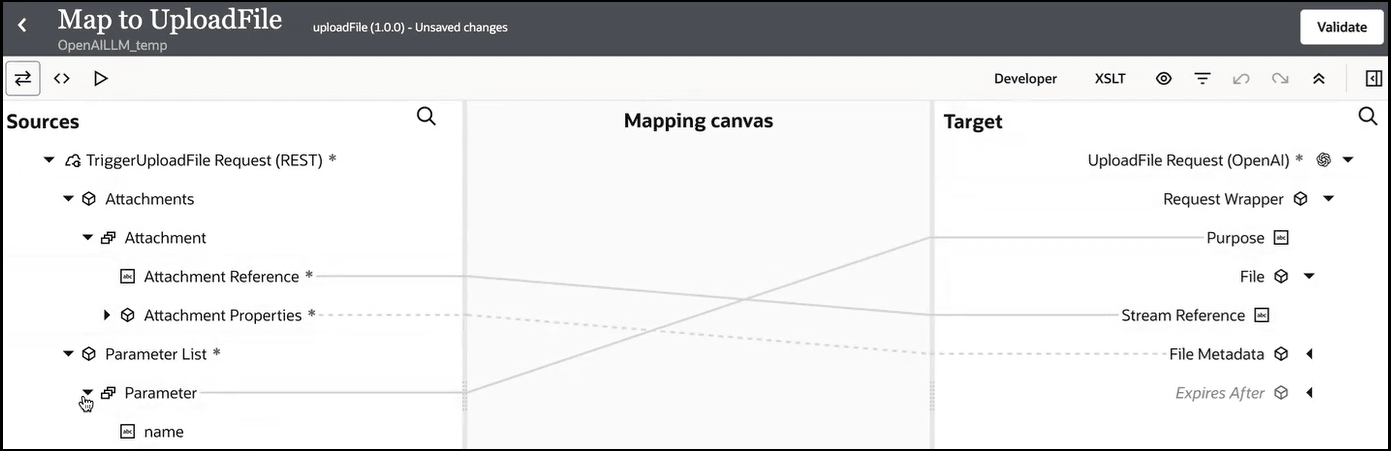
- Open the request mapper, and map the following source elements to
target elements.
- The source Attachment Reference element is mapped to the target Stream Reference element. These elements are displayed because of the multipart selections made on the Request page when defining the REST Adapter trigger connection.
- The source Parameter element is mapped to the target Purpose element. The Purpose element is required. It describes the intended purpose of the uploaded file and is part of the Upload file API. See Upload file.
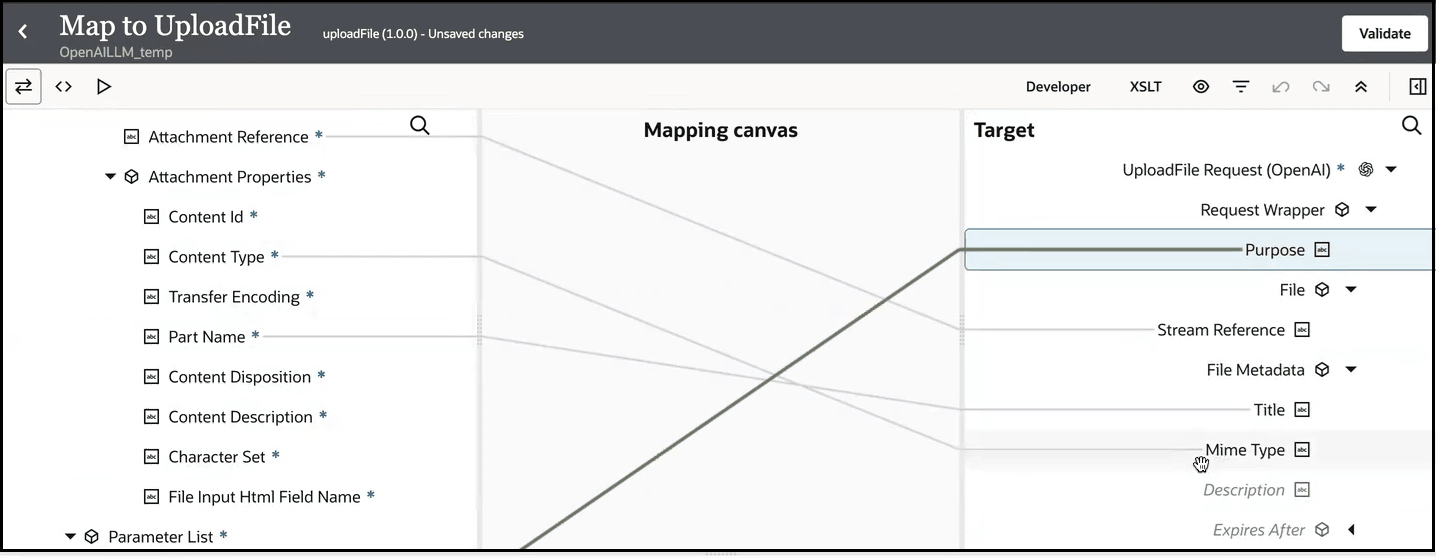
- Expand the source Attachment Properties
element, and map the source Body elements to the target
elements to define file metadata. The Part Name element
mapping is required, but the other elements are optional.
- Drag the OpenAI Adapter invoke connection
into the integration canvas and configure it as follows.
- On the Basic Info page, select Upload file from the Action list.
- On the Summary page, view your selection. No additional configuration in the Adapter Endpoint Configuration Wizard is required.
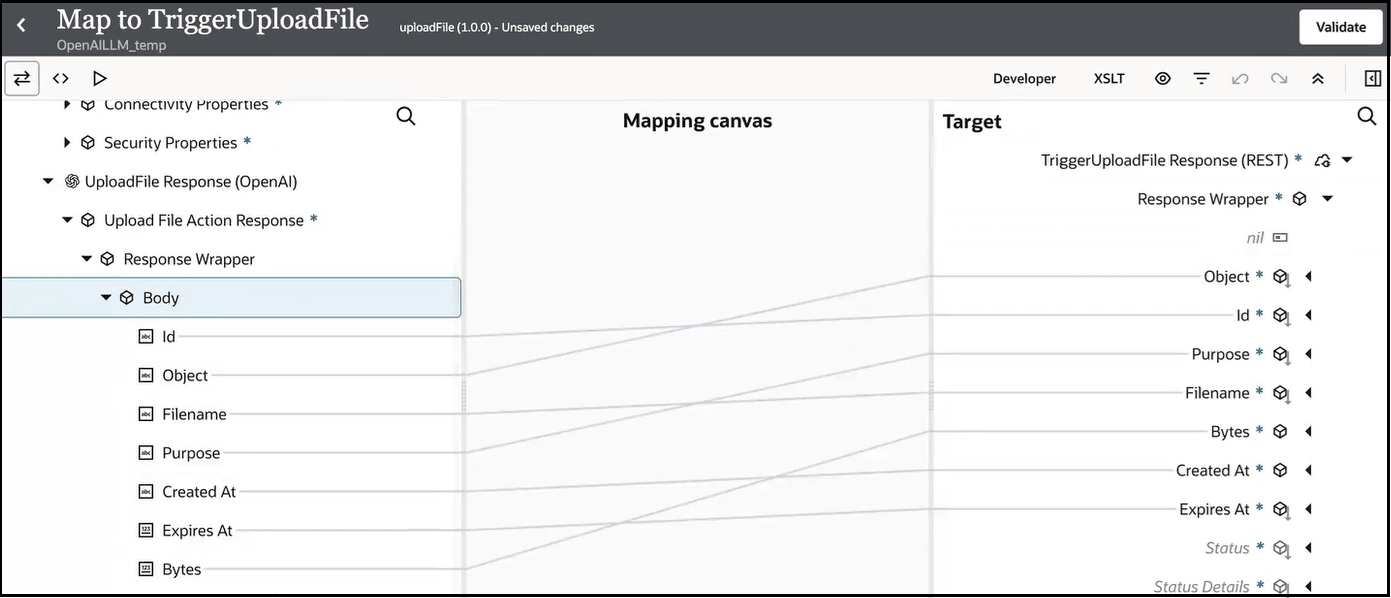
- Open the response mapper.
- Map the source Body elements under
UploadFile Response (OpenAI) to the target
elements.
These elements are the parameters defined in the Upload file API response structure. See Upload file.
- Specify the business identifier and activate the integration.
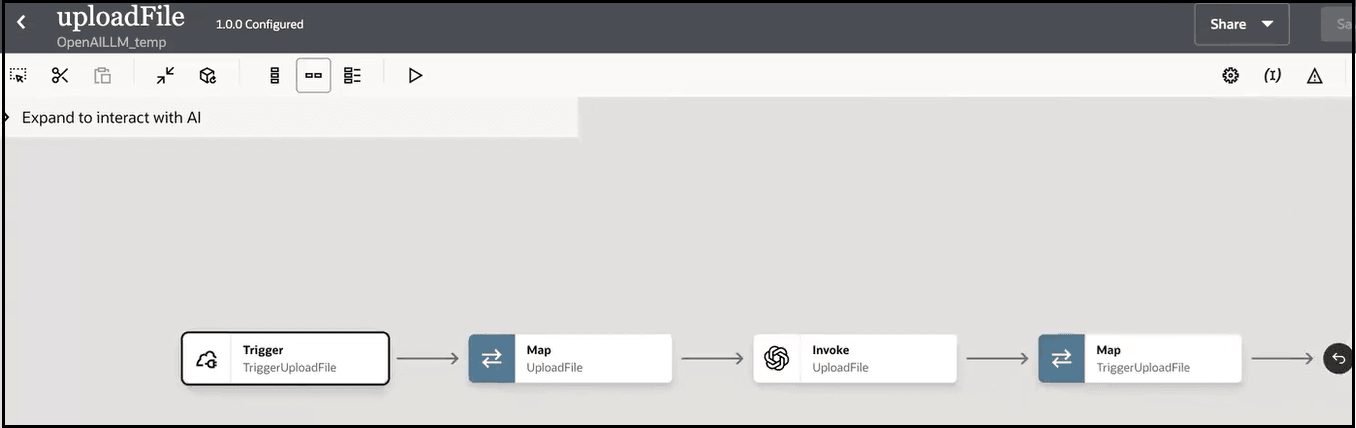
The completed integration looks as follows:
- From the Actions
 menu, select Run.
The Configure and run page appears.
- In the Body field of the
Request section, define the following content, then
click Run.
- Deselect the default files parameter. This action is required because OpenAI expects the parameter name to be file, and not files.
- Add a new parameter named
file, and select File from the list. - Upload the attachment file (for this example,
sample.pdfis selected). - Add a new parameter named
purpose, select Text from the list, and enter an OpenAI-supported value for this parameter (for this example,user_datais entered). For the list of supported values, see Upload file.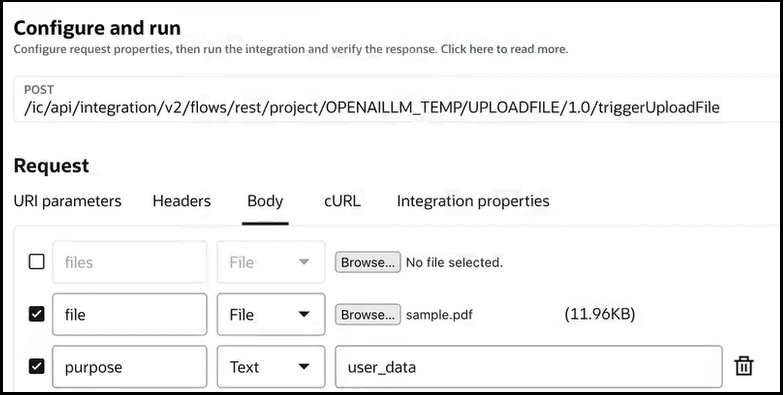
The Body field of the Response section returns the following output. The
idparameter uniquely identifies the value for the uploaded file.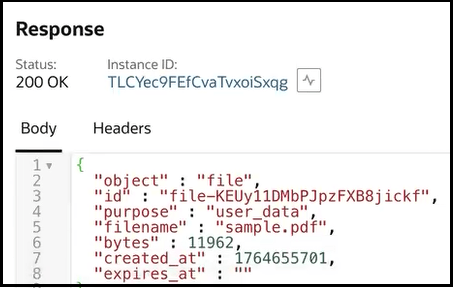
- Expand the activity stream to view additional details.
List the Uploaded File
Let's look at how to list the uploaded file in another integration. The List files API lets you obtain a list of all files you previously uploaded to your OpenAI account.
- Create an application integration.
- Drag the REST Adapter trigger connection
into the integration canvas for configuration. For this example, the REST Adapter is defined as follows:
- The Resource Configuration page is defined as follows:
- A REST Service URL of
/triggerOpenAIListFilesis specified for this example. - A Method of GET is selected.
- The following request and response options are
selected:
- Add and review parameters for this endpoint
- Configure this endpoint to receive the response
- A REST Service URL of
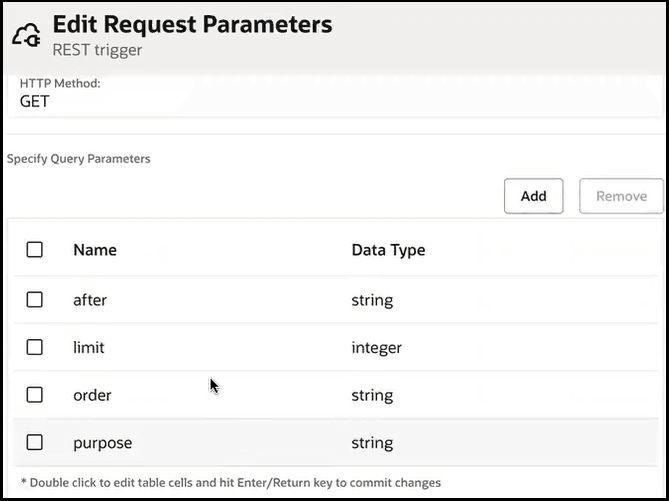
- The Request Parameters page lists the query parameters
defined by the List files API. Select the appropriate parameters to use
based on your requirements. See List files.
- The sample JSON payload is specified on the Response
page:
{
  "object" : "list",
  "data" : [{
   "id" : "file-abc123",
   "object" : "file",
   "bytes" : 175,
   "created_at" : 1613677385,
   "expires_at" : 1677614202,
   "filename" : "salesOverview.pdf",
   "purpose" : "assistants"
  },{
   "id" : "file-abc456",
   "object" : "file",
   "bytes" : 140,
   "created_at" : 1613779121,
   "expires_at" : 1677614202,
   "filename" : "puppy.jsonl",
   "purpose" : "fine-tune"
  }],
   "first_id" : "file-abc123",
   "last_id" : "file-abc456",
   "has_more" : false
}
- The Resource Configuration page is defined as follows:
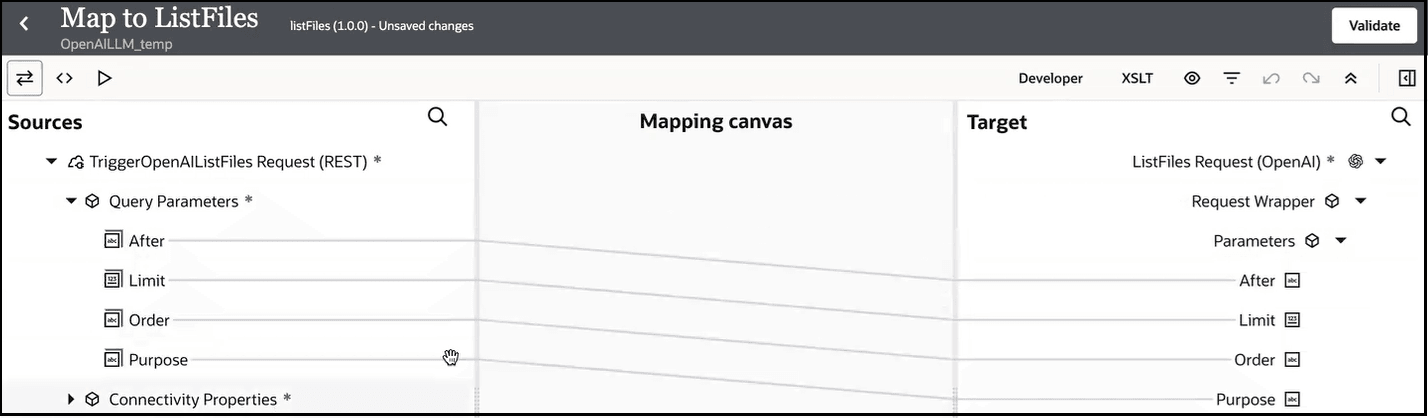
- Open the request mapper.
- Map the query parameters. These are the parameters that where
displayed on the Request Parameters page when you configured the REST Adapter invoke connection. If you do not map any of
these parameters, they are ignored at runtime.
- Drag the OpenAI Adapter invoke connection
into the integration canvas and configure it as follows.
- On the Basic Info page, select List files from the Action list.
- On the Summary page, view your selection. No additional configuration in the Adapter Endpoint Configuration Wizard is required.
- Open the response mapper.
- Map the following source Body elements under
ListFiles Response (OpenAI) to the target elements.
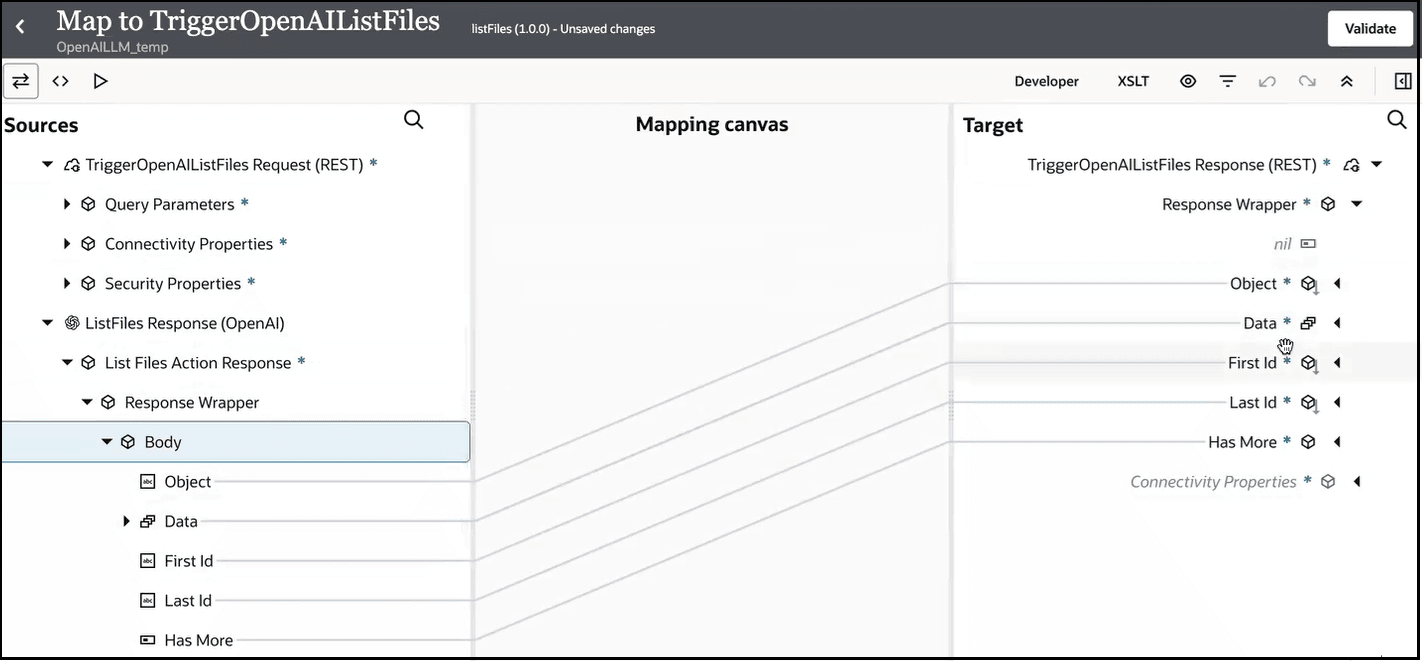
- Expand the target Data element and perform
additional mapping.
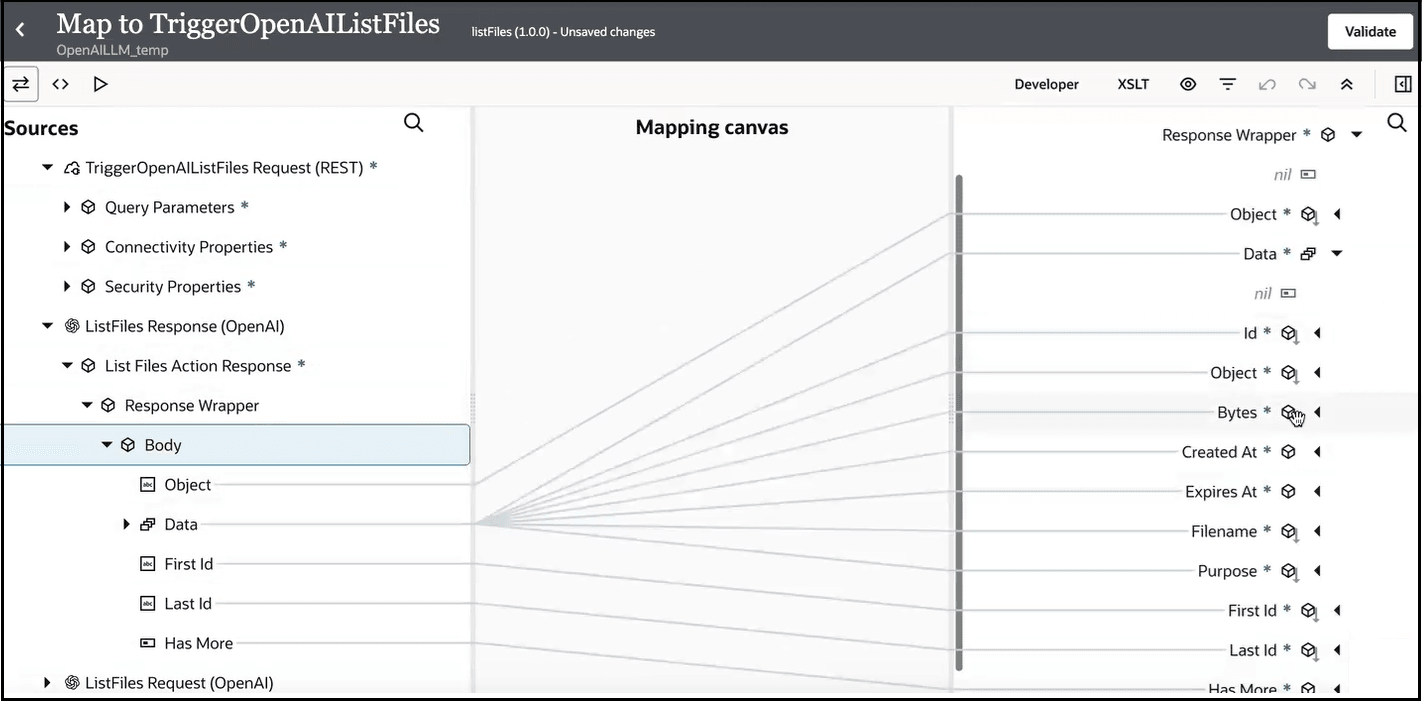
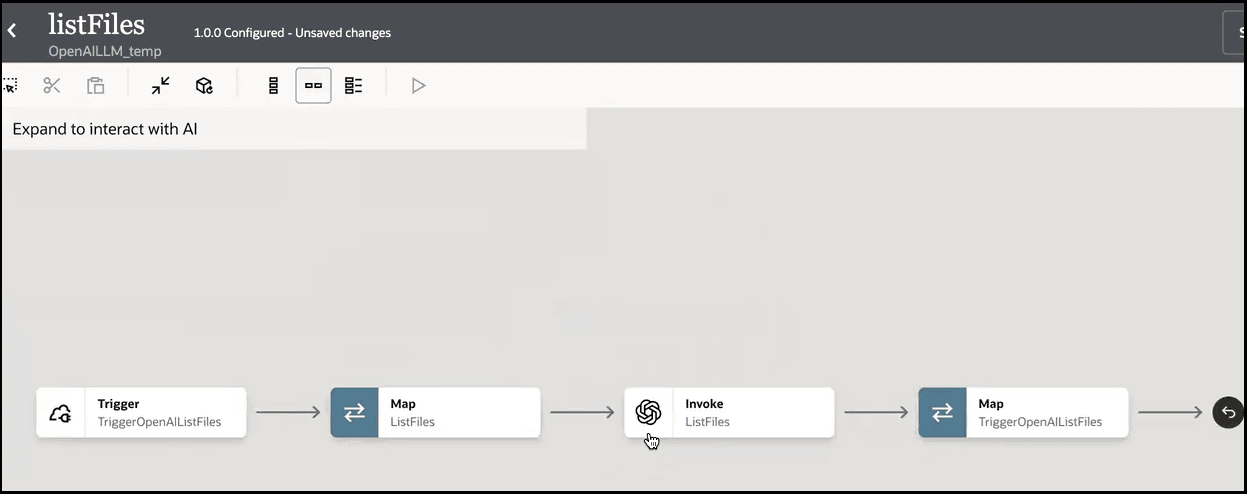
- Specify the business identifier and activate the integration.
The completed integration looks as follows:
- From the Actions
menu, select Run.
The Configure and run page appears.
- In the URI parameters field of the
Request section, select the query parameters to use,
specify values, and click Run. For this example, the
following parameters are defined.
.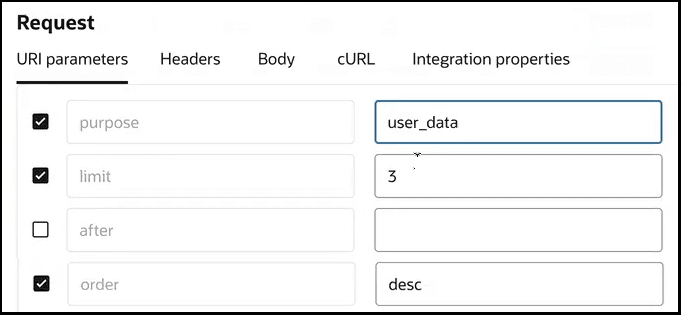
- View your results. Three entries in which
purposeis defined asuser_dataare displayed in descending order in the Response section. Here is a small portion of the output. Note that the original ID of the file uploaded (first_id) in Upload a File is automatically displayed.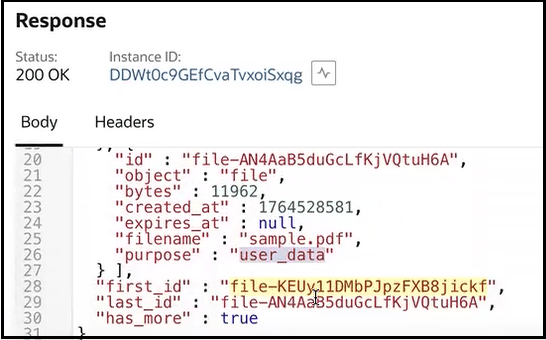
- Expand the activity stream to view additional details.