Monitor Concurrent File Server Connections
Monitor File Server Connections
Oracle Integration provides a variety of metrics charts within the Oracle Cloud Console to help monitor and manage integrations.
To monitor File Server connections, you can use the File Server connections metric.
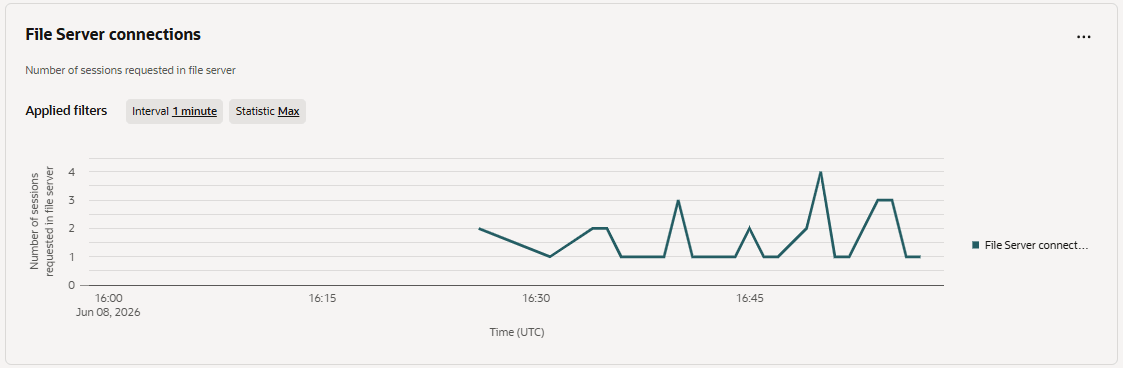
This metric is represented by FileserverInboundConnections, which measures the number of requests currently waiting in the asynchronous processing queue.
For more information about available metrics and chart configuration, see Available Metrics Charts and Oracle Integration Metrics for Custom Charts.
Create an Alarm to Monitor Async Backlog
Create an alarm that notifies you when you have an async backlog on your Oracle Integration instance.
- In the Oracle Cloud Console Metrics Explorer, click Create Alarm.
- Enter a name and description for your alarm. For example:
- Name: Alarm-FileserverInboundConnections
- Summary: Sends an alert when the file server connection count is high
- Create two trigger rules for the alarm:
Trigger rule 1:
- Set Alarm severity to Warning.
- In the Query code editor, add the condition for the alarm to the end of the query. For example, if you want to be notified when your file server connection count goes over 45, add >=45 to the end of the query.
FileserverInboundConnections[1m]{resourceId = "instance-id"}.groupBy(serviceInstanceOcid).max() >= 45 - In Alarm body, enter the message you want to include in the notification. For example:
High concurrent file server connection warning. You are above 45 concurrent connections.
Trigger rule 2:
- Set Alarm severity to Critical.
- In the Query code editor, add the condition for the alarm to the end of the query. For example, if you want to be notified when your file server connection count reaches 50, add >=50 to the end of the query.
FileserverInboundConnections[1m]{resourceId = "instance-id"}.groupBy(serviceInstanceOcid).max() >= 50Note:
Replaceinstance-idwith the Oracle Integration instance OCID value. - In Alarm body, enter the message you want to include in the notification. For example:
High concurrent file server connection critical. You have reached the concurrent connection count limit or 50.
- Under Destination, set up how you want the notification to be sent. For example, if you want to send an email to yourself:
- In the Destination service list, select Notifications.
- Click Create a Topic.
- For Topic name, enter alarmTopic.
- In the Subscription protocol list, leave Email selected.
- In the Subscription Email box, enter your email address, or, preferably, a distribution list.
- Click Create topic and subscription.
- For Notification subject, enter Oracle Integration Service Limit - Concurrent file server connections.
You can leave the remaining settings as is, and click Save alarm.
You'll receive a notification if the requests go above the threshold, with a subject similar to the following:Alarm: OK_TO_FIRING | WARNING | Oracle Integration Service Limit - Concurrent file server connections | 2025-06-25T13:03:00Z Alarm: FIRING_TO_OK | CRITICAL | Oracle Integration Service Limit - Concurrent file server connections __ | 2025-06-25T13:05:00ZYou'll receive another notification when the requests fall back below the threshold, with a subject similar to the following:Alarm: FIRING_TO_OK | CRITICAL | Oracle Integration Service Limit - Concurrent file server connections | 2025-06-25T13:07:00Z Alarm: OK_TO_FIRING | WARNING | Oracle Integration Service Limit - Concurrent file server connections | 2025-06-25T13:08:00Z
For more information on alarms, see Creating a Basic Alarm in the Oracle Cloud Infrastructure documentation.