Prerequisites for Creating a Connection
You must satisfy the following prerequisites to create a connection with the Salesforce Adapter.
- Prerequisites for Oracle Integration Release 20.2.2.0.0 (200524.0200.35760) or Later
- Prerequisite for Oracle Integration Releases Earlier Than 20.2.2.0.0
- Configure Client Credential Flow Security Policies for External Client Apps
- Configure the OAuth – External Client App in Salesforce
- Obtain the Client ID and Client Secret
- Create an External Client App from a Connected App
- Prerequisites to Use Platform Events
- Prerequisite to Use Change Data Capture (CDC) Events
- Prerequisite to Use Outbound Messaging
- Prerequisite to Use Apex Web Services
Prerequisites for Oracle Integration Release 20.2.2.0.0 (200524.0200.35760) or Later
When you create or edit your Salesforce Adapter connection on release 20.2.2.0.0 (200524.0200.35760) or later of Oracle Integration, you must specify the following details on the Connections page. Therefore, you must obtain the following details before creating or editing a connection.
Topics:
- Instance type. See Identify the Instance Type of Your Salesforce Organization.
- Custom domain name (optional). If you are using a Salesforce Government Cloud account, Enterprise or Professional Salesforce account, or a custom domain to log in to your Salesforce account, a custom domain name is required for creating a connection on the Connections page. Additionally, if you are using the OAuth Authorization Code Credentials or Client Credentials security policy, Salesforce recommends using a custom domain for secure connections because Salesforce no longer supports instance URLs, old non-enhanced domains, and redirected legacy host names. See Enhanced Domains Timeline and Obtain the Custom Domain Name.
- API version. See Find Your Current Salesforce API Version.
Identify the Instance Type of Your Salesforce Organization
Follow these methods to identify your instance type:
- If you use the URL https://login.salesforce.com to log in to your Salesforce account, your instance type is Production.
- If you use the URL https://test.salesforce.com to log in to your Salesforce account, your instance type is Sandbox.
Obtain the Custom Domain Name
When you create your Salesforce Adapter connection on the Connections page, you must specify your custom domain name.
Note:
The steps provided here apply to the Salesforce Classic UI. If you are using the Lightning Experience UI on your Salesforce instance, switch to the Salesforce Classic UI. See Toggle or switch between Lightning Experience and Salesforce Classic.To obtain the custom domain name:
Find Your Current Salesforce API Version
You can find your current Salesforce API version in the enterprise WSDL.
Note:
The steps provided here apply to the Salesforce Classic UI. If you're using the Lightning Experience UI on your Salesforce instance, switch to the Salesforce Classic UI. See Toggle or switch between Lightning Experience and Salesforce Classic.To find your current Salesforce API version.
Prerequisite for Oracle Integration Releases Earlier Than 20.2.2.0.0
Perform the following prerequisite for Oracle Integration releases earlier Than 20.2.2.0.0.
Generate the Salesforce Enterprise WSDL
If you edit an existing connection created prior to release 20.2.2.0.0 (200524.0200.35760) of Oracle Integration, you must upload an enterprise WSDL to use in an integration.
You must generate the Salesforce enterprise WSDL, then upload this WSDL on the Connections page when creating a Salesforce Adapter connection.
Note:
The steps provided here apply to the Salesforce Classic UI. If you're using the Lightning Experience UI on your Salesforce instance, switch to the Salesforce Classic UI. See Toggle or switch between Lightning Experience and Salesforce Classic.To generate the Salesforce Adapter enterprise WSDL:
-
Log in to your Enterprise, Unlimited, or Developer Edition Salesforce.com account.
- Click Setup in the header or click your username, then select Setup. See Explore the Salesforce Setup Menu.
- Search for
APIin the Quick Find box, then select API under Develop. -
If the organization has managed packages installed in the organization, click Generate Enterprise WSDL. Salesforce prompts you to select the version of each installed package to include in the generated WSDL or right-click Generate Enterprise WSDL and save it to a local directory.
In the right-click menu, Microsoft Edge/Google Chrome users can select Save link as, while Mozilla Firefox users can select Save Link As to save it to the local directory.
The Save dialog is displayed.
-
Provide a name for the WSDL file and a location to save the file on your file system, and click Save. For information about uploading this WSDL when creating a connection, see Configure Connection Properties.
Configure Client Credential Flow Security Policies for External Client Apps
Configure the Client Credential Flow security policies for external client apps.
- Navigate to the Policies tab of your newly created external client app, expand the OAuth Policies drop-down list, and click Edit.
- Enable Client Credentials Flow. To allow Salesforce to return access tokens. You must select an execution user for the flow. This user must have the API Only User permission.
- Set Run As to select the user to which you want to assign the client credentials flow.
- Click Save.
Configure the OAuth – External Client App in Salesforce
Follow these steps to configure the OAuth - external client app.
- Log in to your Salesforce account (Enterprise, Unlimited, or Developer Edition) and switch to Lightning Experience.
- Click Setup (gear icon in the header).
- In the Quick Find field, search for
External Client App. - Select External Client App Manager.
- Click New External Client App.
- On the New External Client App page, enter the required details under Basic Information, and enable OAuth Settings.
- Configure the OAuth settings.
- Enable Authorization Code and Credentials Flow and Client Credentials Flow.
- Configure the security settings as follows:
- Enable Require secret for Web Server Flow.
- Enable Require secret for Refresh Token Flow.
- Ensure Require Proof Key for Code Exchange (PKCE) extension for Supported Authorization Flows is disabled (unchecked).
- Ensure Enable Refresh Token Rotation is disabled (unchecked).
- Click Save and Continue to save the configuration.
- After saving, configure the Client Credentials flow policies for the external client app.
Obtain the Client ID and Client Secret
Follow these steps to retrieve the client ID (consumer key) and client secret from Salesforce.
Create an External Client App from a Connected App
Use the automated process to create external client apps that replace your existing locally connected apps. After migration, the old, connected app remains as a read-only version in App Manager.
Prerequisites to Use Platform Events
Perform the following prerequisites to use platform events.
Define Your Platform Event
To receive notifications using platform events, you must define the platform
event. The list of platform events you defined in Salesforce.com is
displayed for use on the Streaming API page of the Adapter Endpoint Configuration Wizard
when configuring the Salesforce Adapter as a trigger connection.
Note:
The steps provided here apply to the Salesforce Classic UI. If you are using the Lightning Experience UI on your Salesforce instance, switch to the Salesforce Classic UI. See Toggle or switch between Lightning Experience and Salesforce Classic.Publish Platform Events
After a platform event is defined, you must publish event messages from a Salesforce application.
Note:
See Publishing Platform Events.Prerequisite to Use Change Data Capture (CDC) Events
Perform the following prerequisite to use change data capture (CDC) events.
Select an Entity (Business Object)
To receive notifications using change data capture (CDC) events, you must select the entity/entities. Once selected, these objects are displayed for use on the Operations page of the Adapter Endpoint Configuration Wizard when configuring the Salesforce Adapter as a trigger connection.
Note:
The steps provided here apply to the Salesforce Classic UI. If you are using the Lightning Experience UI on your Salesforce instance, switch to the Salesforce Classic UI. See Toggle or switch between Lightning Experience and Salesforce Classic.- Log in to your Enterprise, Unlimited, or Developer Edition Salesforce.com account.
- Click Setup in the header or click your username, then select Setup. See Explore the Salesforce Setup Menu.
- Search for
Change Data Capturein the Quick Find box, then select Change Data Capture. - Select the required entities (business objects) for which you want to receive change event notifications.
- Click Save.
Prerequisite to Use Outbound Messaging
To use outbound messaging, perform the following prerequisites.
Note:
Salesforce is retiring workflow rules beginning December 31, 2025. Therefore, you cannot create, edit, activate, or deactivate workflows in Salesforce. You are advised to create a new flow or migrate from workflow rules to flows. See Salesforce Workflow Rules & Process Builder End of Support.Use Outbound Messaging with a Flow
To use outbound messaging with a flow, follow these instructions.
Note:
- You must first create an outbound message and then develop a flow.
- These steps apply to the Salesforce Classic UI. If you are using the Lightning Experience UI on your Salesforce instance, switch to the Salesforce Classic UI. See Toggle or switch between Lightning Experience and Salesforce Classic.
Create the Salesforce Outbound Message
- Log in to your Salesforce account.
- Click Setup in the header or click your user name, then select Setup. See Explore the Salesforce Setup Menu.
- Search for
Outbound Messagesin the Quick Find box. - Click Outbound Messages under Workflow & Approvals in the Build section.
- Select an object.
- Enter the required details.
- Click Save.
Develop a Flow in Salesforce
- Log in to your Salesforce account.
- Click Setup in the header or click your user name, then select Setup. See Explore the Salesforce Setup Menu.
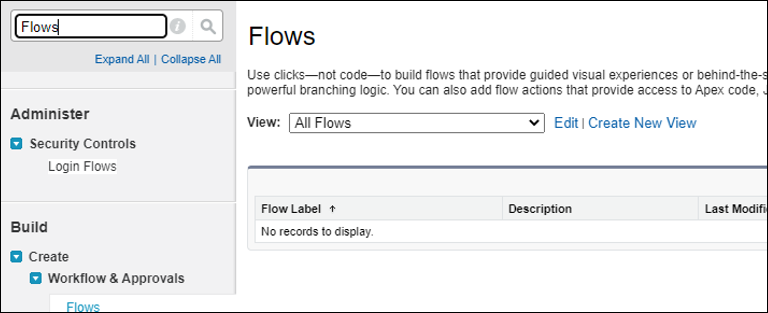
- Search for
Flowsin the Quick Find box. - Select Flows under Workflow &
Approvals in the Build section.
- Click New Flow.
- Select Record-Triggered Flow.
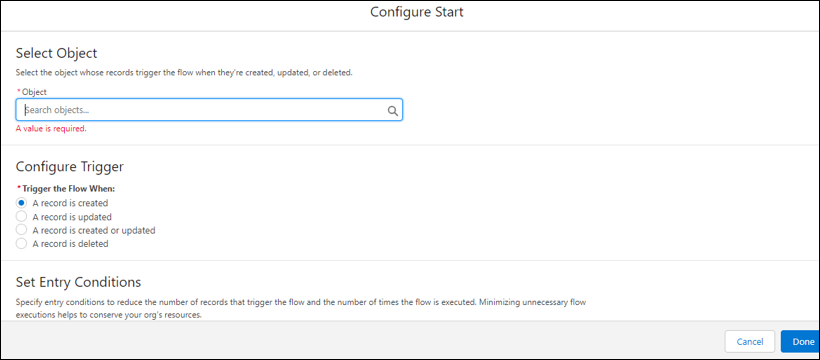
- Click Create. The Configure Start page appears.
- Select an object.
- Set the trigger criteria.
- Select the condition requirement in the Condition
Requirements field. You click add
condition to add an element.
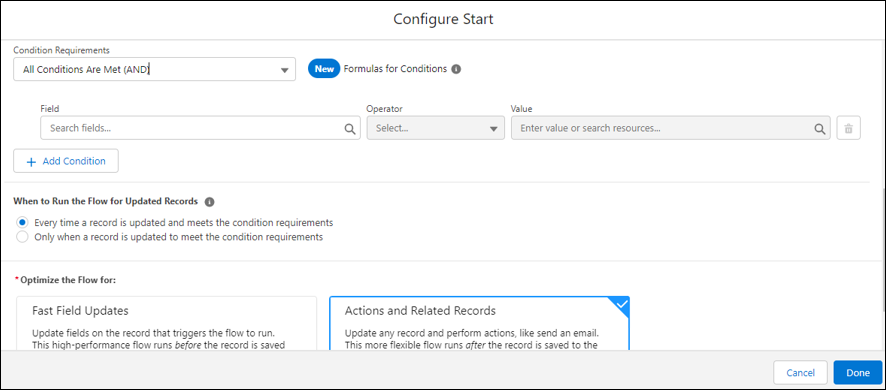
- Select Actions and Related Records.
- Click Done.
- Click the + icon.
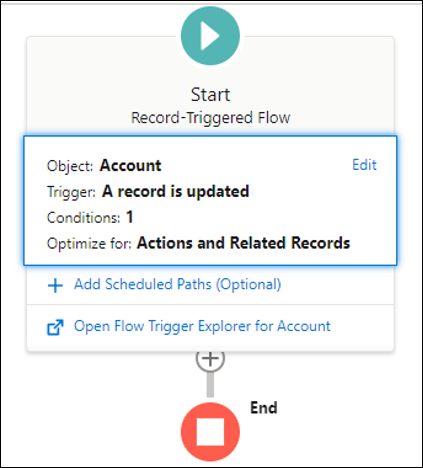
- Select Action from Add
Element.
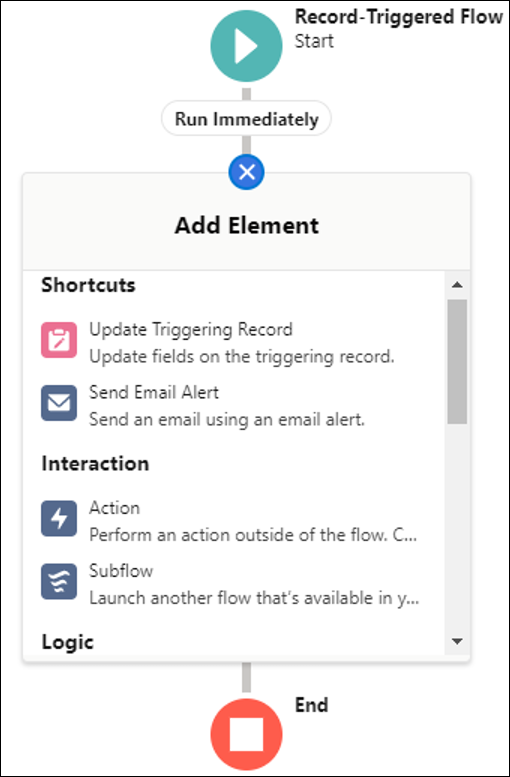
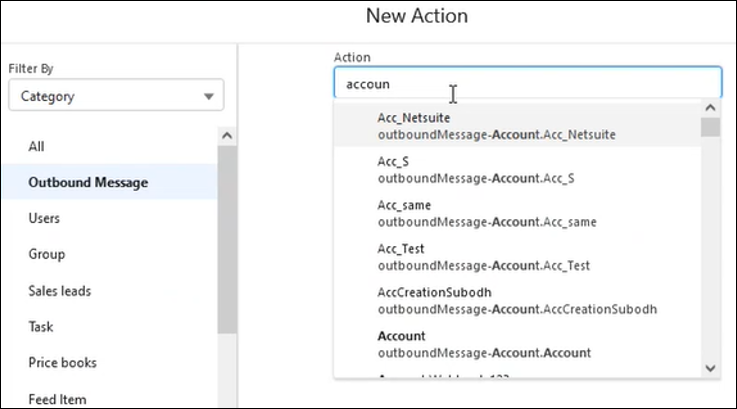
- Click Outbound message.
- Select the outbound message that you created.
- Enter a label name of the outbound message.
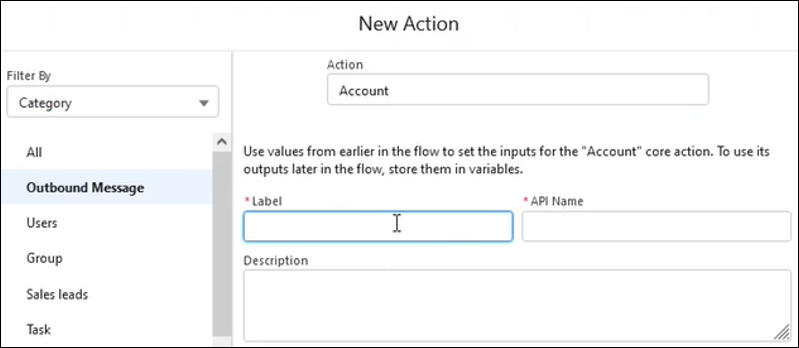
- Click Done and click Save.
- Enter a flow name and click Save.
- Click Save and click Activate.
Migrate an Existing Workflow Rule to a Flow
Perform the following steps to migrate an existing workflow rule to a flow.
-
Log in to your Salesforce account.
- Click Setup in the header or click your user name, then select Setup. See Explore the Salesforce Setup Menu.
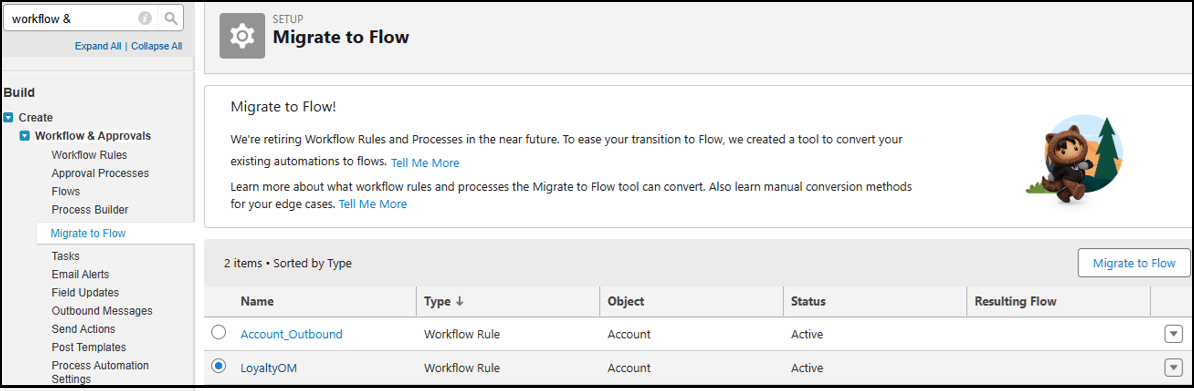
- Search for Workflow & Approvals in the Quick Find box.
- In the Build section, click
Migrate to Flow under
Workflow & Approvals.
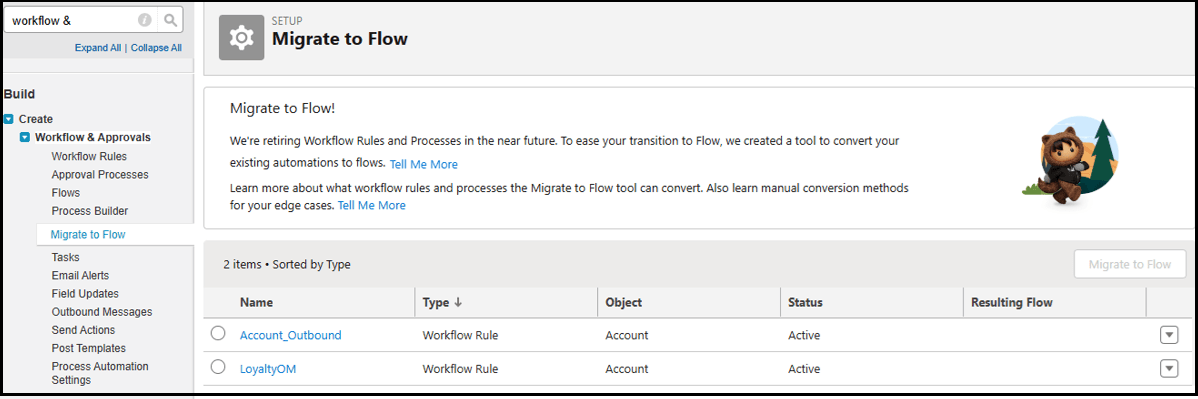
- Select the outbound message to be migrated.
- Click Migrate to Flow.
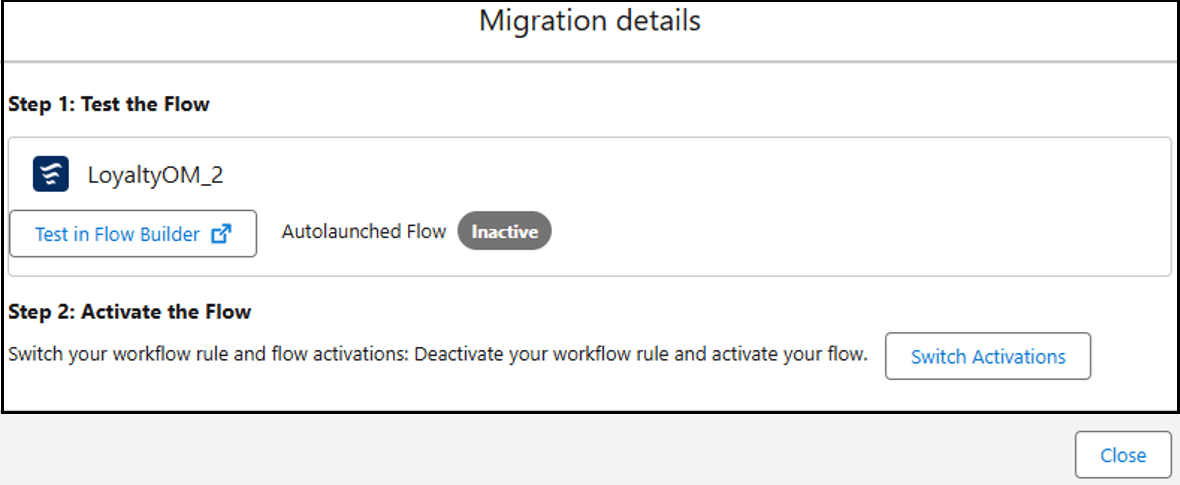
- Once migrated, click Switch
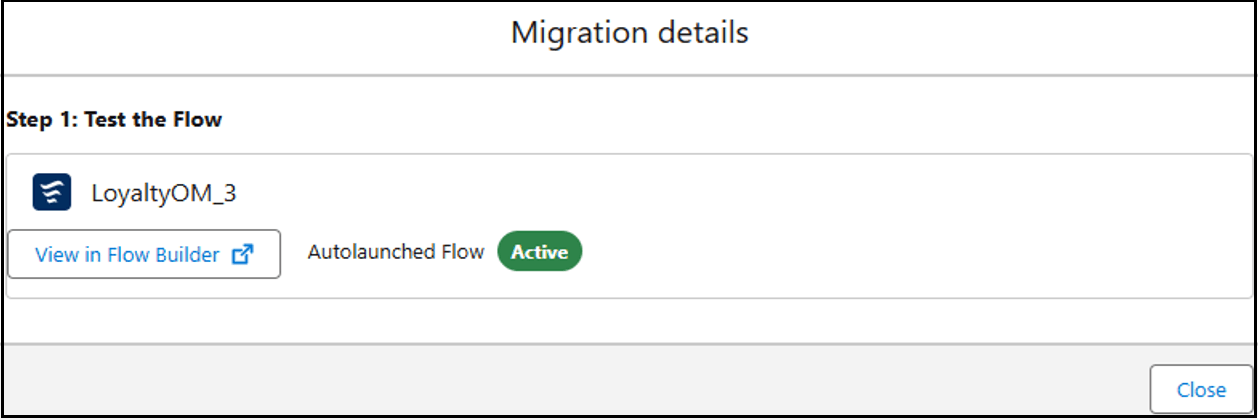
Activations to activate the migrated flow.
Workflow rules have now been migrated to a flow.
Prerequisite to Use Apex Web Services
Perform the following prerequisite to use Apex web services.
Generate the Salesforce Adapter Custom WSDL
You can generate a custom WSDL that includes custom Apex classes written on
force.com and exposed as SOAP web services. This enables external
applications to access your code and application.
You select the custom WSDL for the Invoke Apex Web Services option when configuring the Salesforce Adapter in the invoke direction. See Invoke Apex Operations Page.
For more information about custom WSDLs, see Exposing Apex Methods as SOAP Web Services.