Retrieve the Name and IDs from Account Records with the queryMore Operation
If you need to fetch more than 2000 records from Salesforce.com, use the queryMore operation. If you enter an SOQL query that selects more than two custom fields of type long text and it does not return a required set of records with the query operation, you can use the queryMore operation.
This use case describes how to use the queryMore operation to retrieve the name and IDs for all account records from Salesforce.com. This use case uses the REST Adapter as the trigger to execute the integration.
The queryMore operation retrieves the next set of object records from the query operation.
The query function in SOQL retrieves a set of records and creates a server-side cursor that is represented in the queryLocator element. The queryMore operation processes the subsequent records in chunks and returns a newly-generated queryLocator. You typically call the queryMore operation repeatedly until all records in the result set have been processed.
The following important variables are used:
-
batchSize: A request header that represents the number of records returned for each Salesforce trigger. The default value is 200, the minimum allowed size is 200, and the maximum is 2000.
-
queryLocator: A value which points to the last record retrieved. Initially, it has no value. Therefore, you can initialize the local queryLocator with empty single quotes (‘’).
-
size: A variable that contains the number of records that have been retrieved in the previous iteration.
-
done: A boolean variable that indicates whether the source has more than the records you fetched. Its value is true if there are no records to fetch. Otherwise, it is false.
Note:
-
This application integration shows how to retrieve more than 200 records (when batchSize is set to 200) from Salesforce. You use the data by performing the required operation inside the while action loop. For validating, you can count the number of records returned for every Salesforce trigger.
-
A Salesforce Aggregate query does not support the queryMore operation.
-
While working with nested queries, if you use a queryMore call on a parent object, it invalidates all the child cursors in the previous result.
- Drag an assign action to the workspace below the REST Adapter.This assign action declares and initializes the done and querylocator variables locally.These variables are initialized with false and ‘’ (no value within the single quotes) values for done and querylocator, respectively. The countRecords variable counts the records retrieved and initialized to 0.
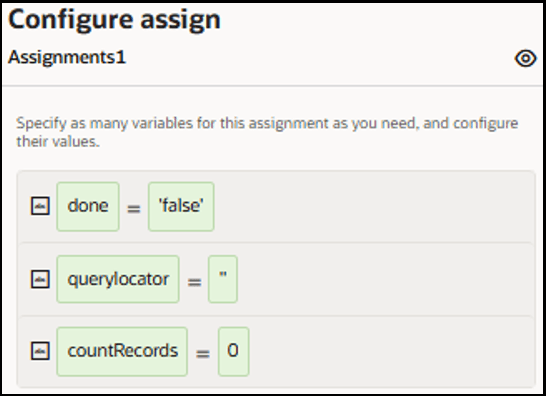
- Drag a while action below the assign action and set the condition to done=
‘false’.
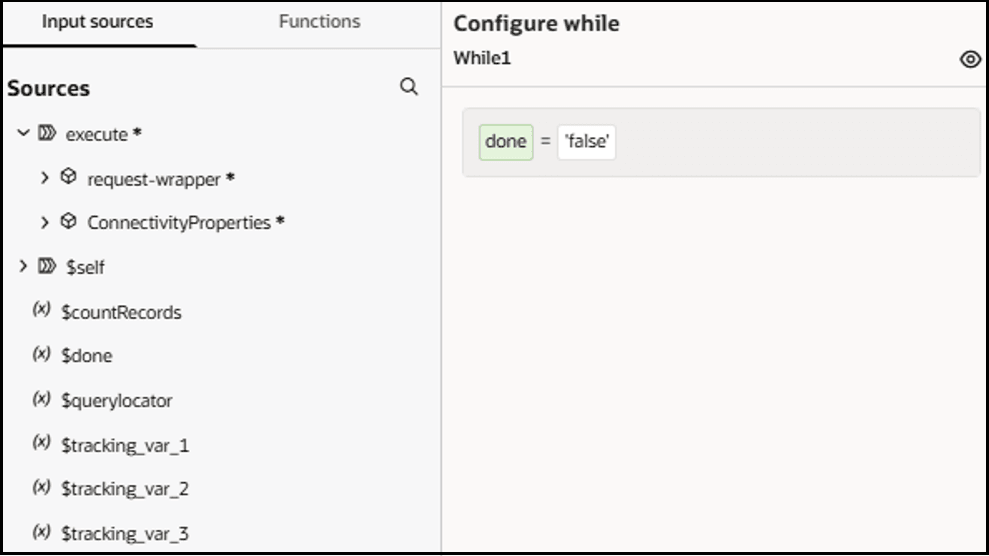 The while action loop iterates if the value of done remains false.
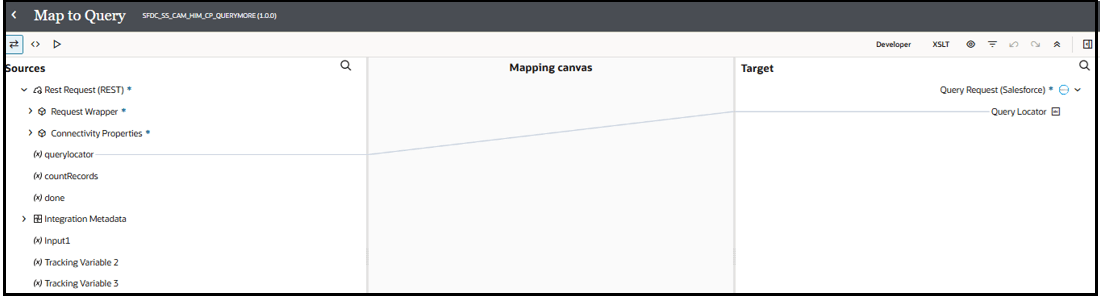
 - In the mapper, map the local source querylocator variable to the target
QueryLocator element of the request mapper. For every
iteration, the input for the Salesforce endpoint is the
queryLocator value, which is initialized with
“” (empty value) in the first configured assign
action. This is further updated dynamically with the Salesforce endpoint
response in the second assign action.
- Drag the assign action below the Salesforce Adapter.
- Update the local variables (done,
querylocator, and
countRecords) with Salesforce output
variables.For the done variable:
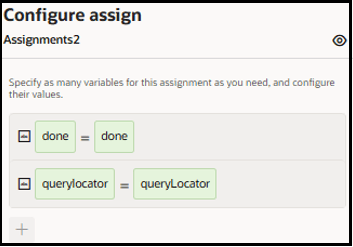
For the querylocator variable:
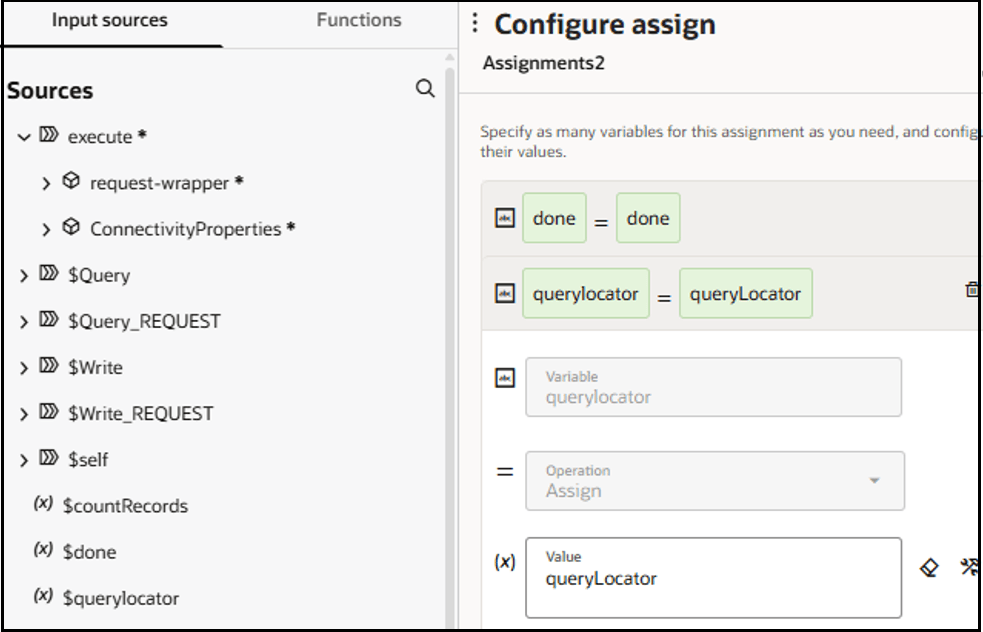
For the countRecords variable:
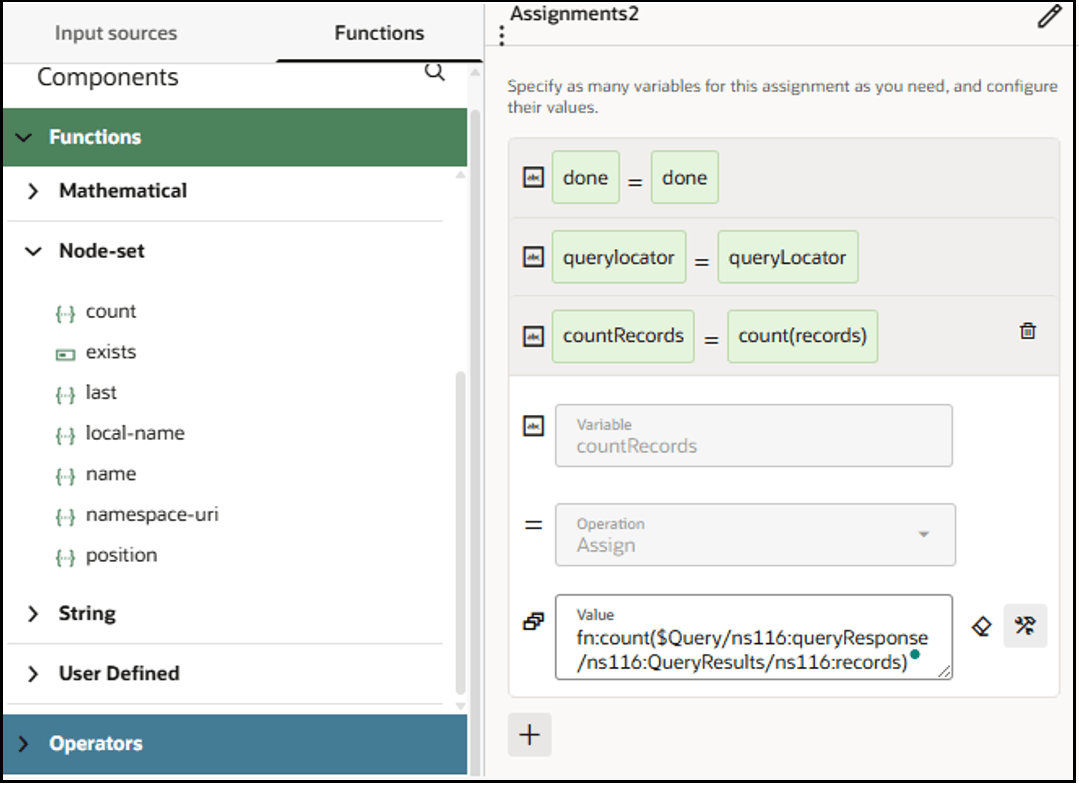
The count() function is available under Functions, categorized in Node-set. This takes Node-set as input and returns the count of nodes available in the Node-set. The record Node-set is passed to the count (). After mapping, the function call looks as follows: count($SFDC_E/nsmpr3:queryResponse/nsmpr3:QueryResults/nsmpr3:records)
- Update the local variables (done,
querylocator, and
countRecords) with Salesforce output
variables.
- In the mapper, map the response. Enter an “
Operation is
                        Successful
” string as the status. The count of records available in the countRecords variable are passed to OutputString1 and OutputString2, respectively.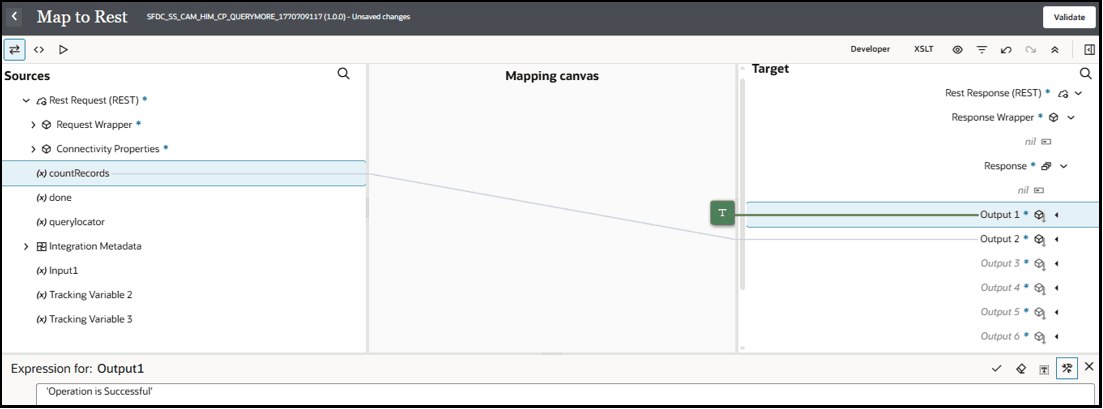
- Update the tracker with any variable for tracking reference.
The completed integration looks as follows.
