Update Network Options to Allow TLS or Require Only Mutual TLS (mTLS) Authentication on Autonomous AI Database
Describes how to update the secure client connection authentication options, Mutual TLS (mTLS) and TLS.
Network Access Prerequisites for TLS Connections
Describes the network access configuration prerequisites for TLS connections.
To allow an Autonomous AI Database instance to use TLS connections, either ACLs must be defined or a private endpoint must be configured:
-
When an Autonomous AI Database instance is configured to operate over the public internet, one or more Access Control Lists (ACLs) must be defined before you use TLS authentication to connect to the database. To validate that ACLs are defined, in the Network area on the Autonomous AI Database Details page view the Access Control List field. This field shows Enabled when ACLs are defined and shows Disabled when ACLs are not defined.
See Configuring Network Access with Access Control Rules (ACLs) for more information.
-
When an Autonomous AI Database instance is configured with a private endpoint you can use TLS authentication to connect to the database. To validate that a private endpoint is defined, in the Network area on the Autonomous AI Database Details page view the Access type field. This field shows Virtual Cloud Network when a private endpoint is defined.
See Configure Network Access with Private Endpoints for more information.
Note: When an Autonomous AI Database instance is configured with the network access type: Secure access from everywhere, you can only use TLS connections to connect to the database if you specify ACLs to restrict access.
Update your Autonomous AI Database Instance to Allow both TLS and mTLS Authentication
If your Autonomous AI Database instance is configured to only allow mTLS connections, you can update the instance to allow both mTLS and TLS connections.
When you update your configuration to allow both mTLS and TLS, you can use both authentication types at the same time and connections are no longer restricted to require mTLS authentication.
You can allow TLS connections when network access is configured as follows:
-
With network access configured with ACLs defined.
-
With network access configured with a private endpoint defined.
Note: When you configure your Autonomous AI Database instance network access with ACLs or a private endpoint, the ACLs or the private endpoint apply for both mTLS and TLS connections.
Perform the network access configuration prerequisites. See Network Access Prerequisites for TLS Connections for more information.
Perform the following steps as necessary:
-
Open the Oracle Cloud Infrastructure Console by clicking the
 next to Cloud.
 -
From the Oracle Cloud Infrastructure left navigation menu click Oracle AI Database and then click Autonomous AI Database.
-
On the Autonomous AI Database page, select your Autonomous AI Database from the links under the Display name column.
To change the Autonomous AI Database instance to allow TLS authentication, do the following:
-
On the Autonomous AI Database Details page, under Network, click Edit in the Mutual TLS (mTLS) Authentication field.
This shows the Edit Mutual TLS Authentication page.
-
To change the value to allow TLS authentication, deselect Require mutual TLS (mTLS) authentication.
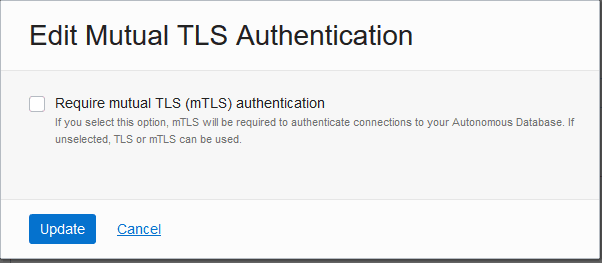
Description of the illustration adb_network_authentication_tls.png
-
Click Update.
The Autonomous AI Database Lifecycle state changes to Updating.
After some time, the Lifecycle state shows Available and the Mutual TLS (mTLS) Authentication field changes to show Not Required.
After you define ACLs or configure a private endpoint and the Mutual TLS (mTLS) Authentication field shows Not Required, the ACLs or the private endpoint you specify apply to all connection types (mTLS and TLS).
Depending on the type of client, TLS connections have the following support with Autonomous AI Database:
-
If the client is connecting with JDBC Thin using TLS authentication, the client can connect without providing a wallet. See Connect with JDBC Thin Driver for more information.
-
If the client is connecting with managed ODP.NET or ODP.NET Core versions 19.13 or 21.4 (or above) using TLS authentication, the client can connect without providing a wallet. See Connect Microsoft .NET, Visual Studio Code, and Visual Studio Without a Wallet for more information.
-
If the client is connecting with SQLNet and Oracle Call Interface (OCI), and for certain other connection types with TLS authentication, the clients must provide the CA certificate in a wallet. See Prepare for Oracle Call Interface, ODBC, and JDBC OCI Connections Using TLS Authentication and Connect SQL*Plus Without a Wallet for more information.
Update your Autonomous AI Database Instance to Require mTLS and Disallow TLS Authentication
If your Autonomous AI Database instance is configured to allow TLS connections, you can update the instance to require mTLS connections and disallow TLS connections.
Note: When you update an Autonomous AI Database instance to require Mutual TLS (mTLS) connections, existing TLS connections are disconnected.
Perform the following steps as necessary:
-
Open the Oracle Cloud Infrastructure Console by clicking the
next to Cloud. -
From the Oracle Cloud Infrastructure left navigation menu click Oracle AI Database and then click Autonomous AI Database.
-
On the Autonomous AI Database page, select your Autonomous AI Database from the links under the Display name column.
To change the Autonomous AI Database instance to require mTLS authentication and to not allow TLS authentication, do the following:
-
On the Autonomous AI Database Details page, under Network, click Edit in the Mutual TLS (mTLS) Authentication field.
This shows the Edit Mutual TLS Authentication page.
-
Select Require mutual TLS (mTLS) authentication.
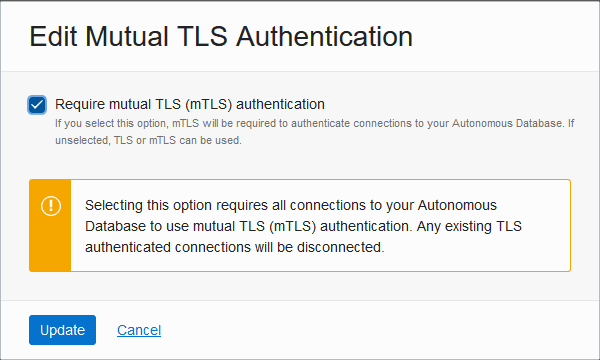
Description of the illustration adb_network_authentication_mtls.png
-
Click Update.
The Autonomous AI Database Lifecycle state changes to Updating.
After some time, the Lifecycle state shows Available and the Mutual TLS (mTLS) Authentication field changes to show Required.