Create a Property Graph from RDF Data
You can create a property graph from either a single RDF graph or an RDF graph collection in Graph Studio.
Perform the following steps to invoke the modeler interface and follow the workflow to create a property graph from RDF data.
-
Navigate to the Graphs page using the Graphs menu link.
-
Click the RDF Graph tab.
The list of RDF graphs and RDF graph collections to which you have access are displayed as shown:
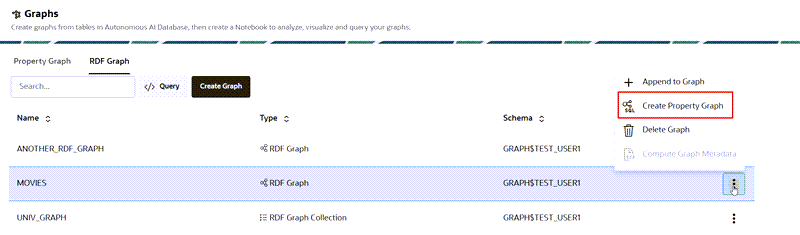
Description of the illustration create_sqlpg_from_rdf_menu.png
-
Select the RDF graph or RDF graph collection from which you want to create a property graph and click open the additional options menu as shown in the preceding figure.
-
Click Create Property Graph in the context menu.
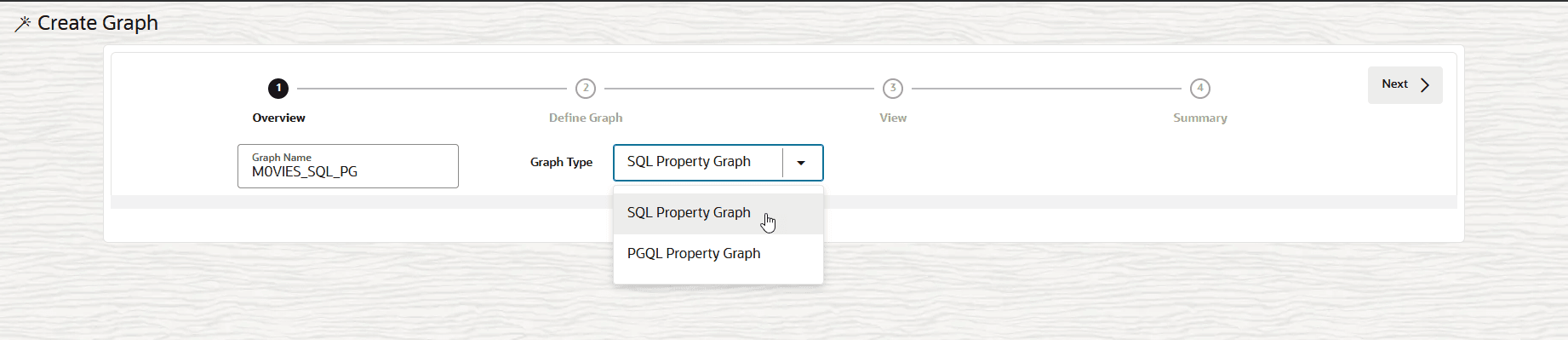
The modeler interface opens and displays the Overview page as shown:
-
Enter the Graph Name.
-
Select the required Graph Type.
The following property graph types are supported:
-
SQL Property Graph: The option to create a SQL property graph is available only if you are using an Autonomous AI Database instance with Oracle AI Database 26ai.
-
PGQL Property Graph: The option to create a PGQL property graph is available on all types of tenancies and supported on all database versions.
-
-
Click Next.
The Define Graph page opens as shown:
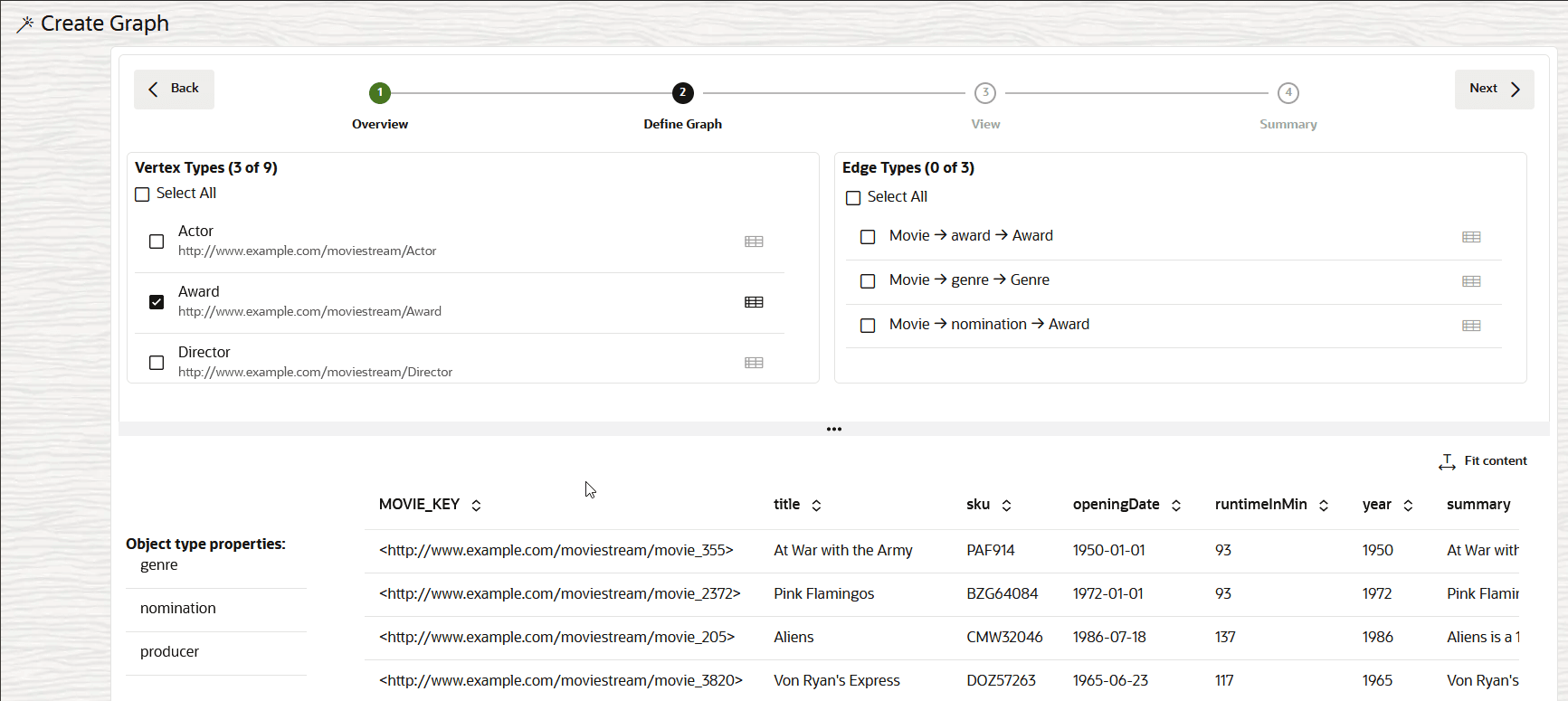
Description of the illustration rdf_sql_pg_define_vertex_types.png
This page displays the list of RDF classes under Vertex Types in the top left panel. You can inspect an RDF class to view the sample data and the corresponding Object type properties in the bottom panel.
-
Select the RDF classes to define the required Vertex Types for the graph.
The modeler interface automatically determines the types of edges that are relevant for the selected vertex types and these are listed under Edge Types in the top right panel. You can inspect an edge type to view detailed information, such as the edge label, the source and destination vertex types, and sample data showing the source and destination vertex keys in the bottom panel.
-
Select the required edge types in the top right Edge Types section.
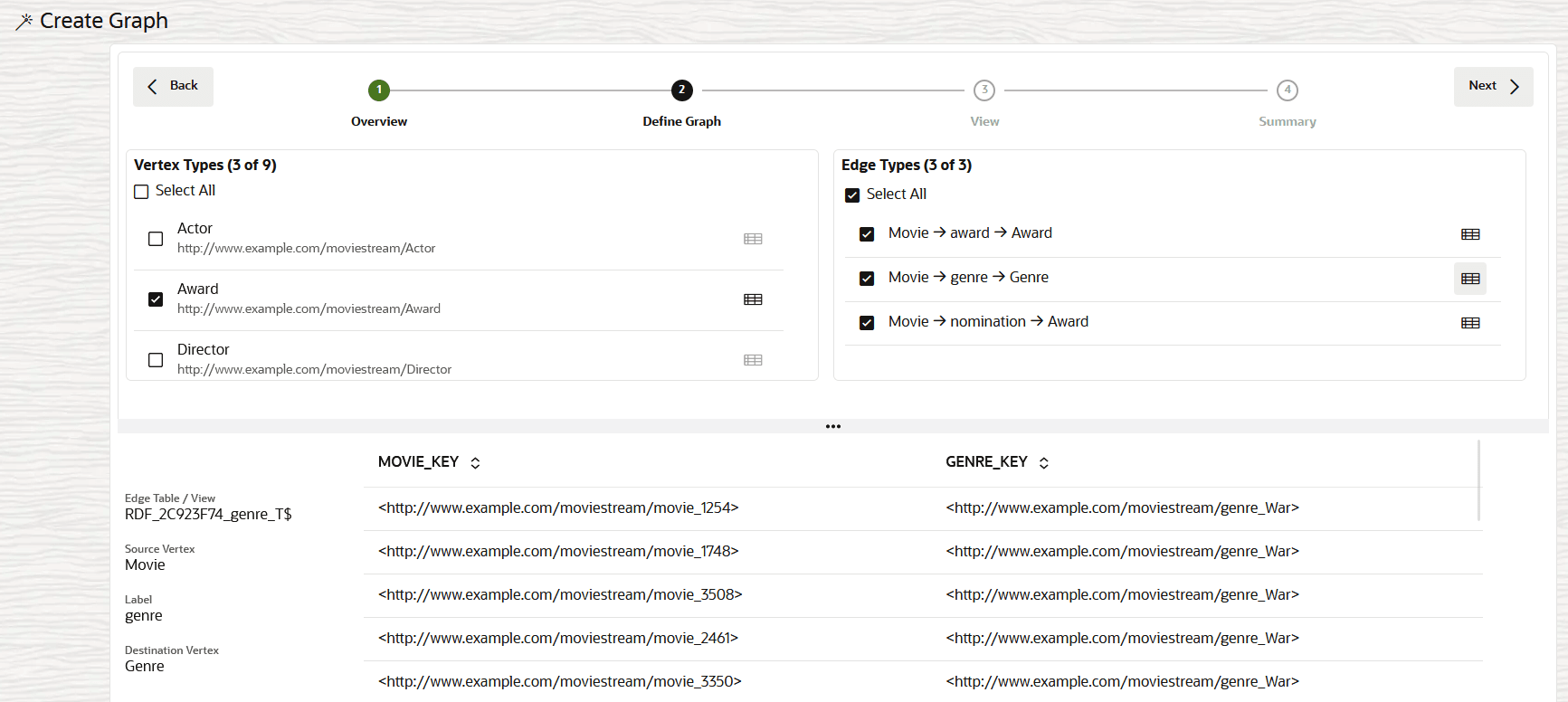
Description of the illustration rdf_sql_pg_define_edge_types.png
-
Click Next to proceed.
The View page of the workflow opens as shown:
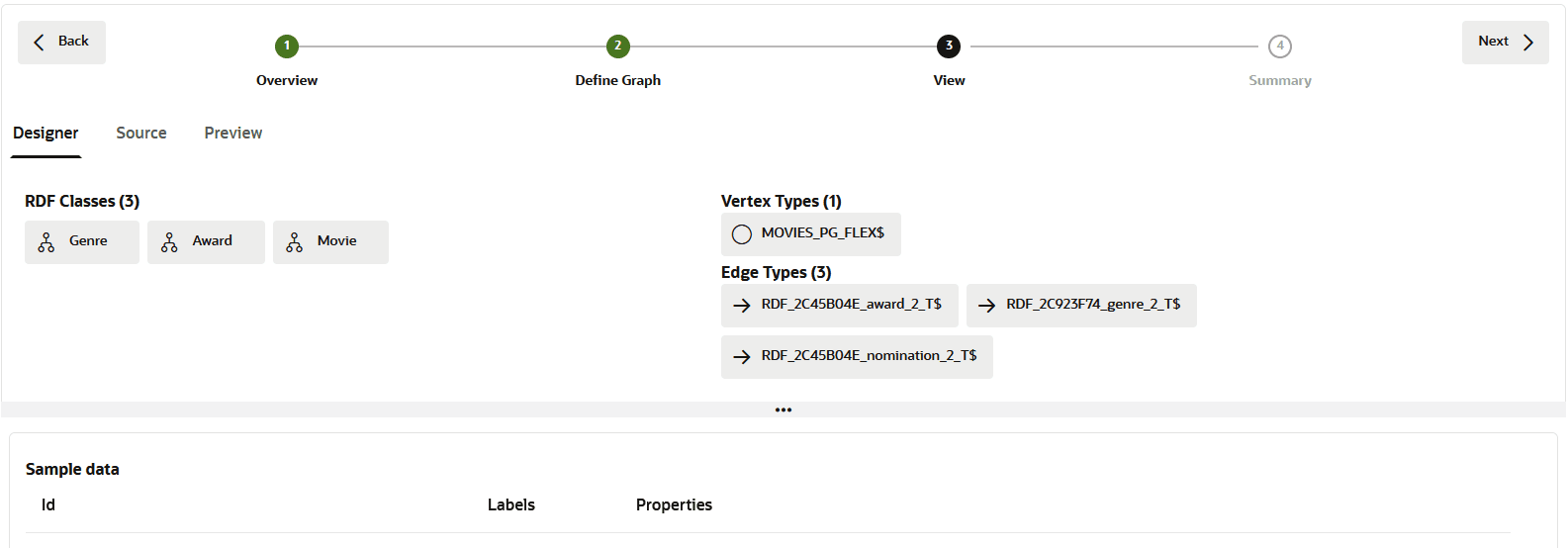
Description of the illustration rdf_sql_pg_model.png
This page comprises the following three tabs:
-
Designer: You can review the selected RDF classes on the left and the corresponding vertex and edges types on the top right panel. Also, note the following:
-
You can click on an RDF class to view a sample of the data in the bottom panel.
-
You can click on the vertex type to view a sample of the resulting vertex table (that follows the format
<graph_name>_FLEX$) in the bottom panel. This table holds data for all the RDF classes that are selected for this graph creation. It gets created with three fixed columns in the following order:-
Id:Key value of an RDF class. -
Labels:Name of an RDF class. -
Properties:Label properties (associated with theId) as key-value pairs in JSON format. Therefore, multiple properties with multiple values are supported.
-
-
You can click on an edge type to view detailed information, such as the edge label, the source and destination vertex types, and a sample data showing the source and destination vertex keys in the bottom panel.
-
-
Source: Displays the
CREATE PROPERTY GRAPHDDL statement that will be executed to create the required type of property graph. -
Preview: Displays a graph visualization of the selected RDF classes and the connecting edges.
-
-
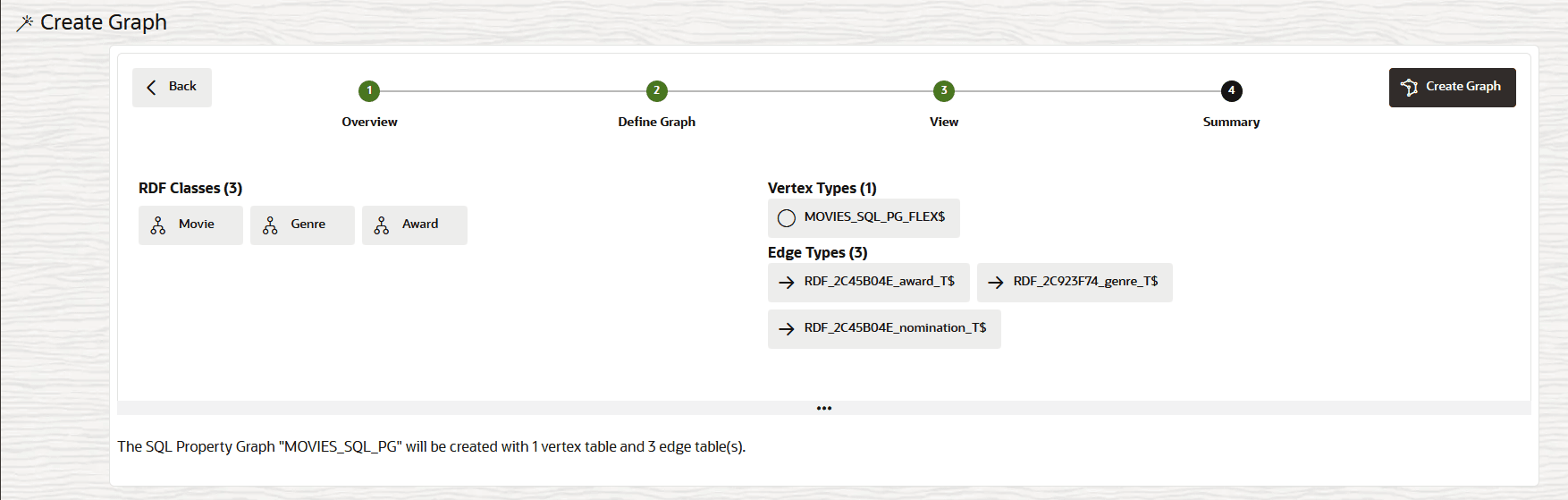
Click Next to view the property graph Summary.
-
Click Create Graph.
The graph creation job is initiated on the Jobs page. The job entails creation of the vertex and edge tables, followed by the creation of the property graph. Once the job completes successfully, you can view the newly created property graph on the Graphs page in the Property Graph tab.
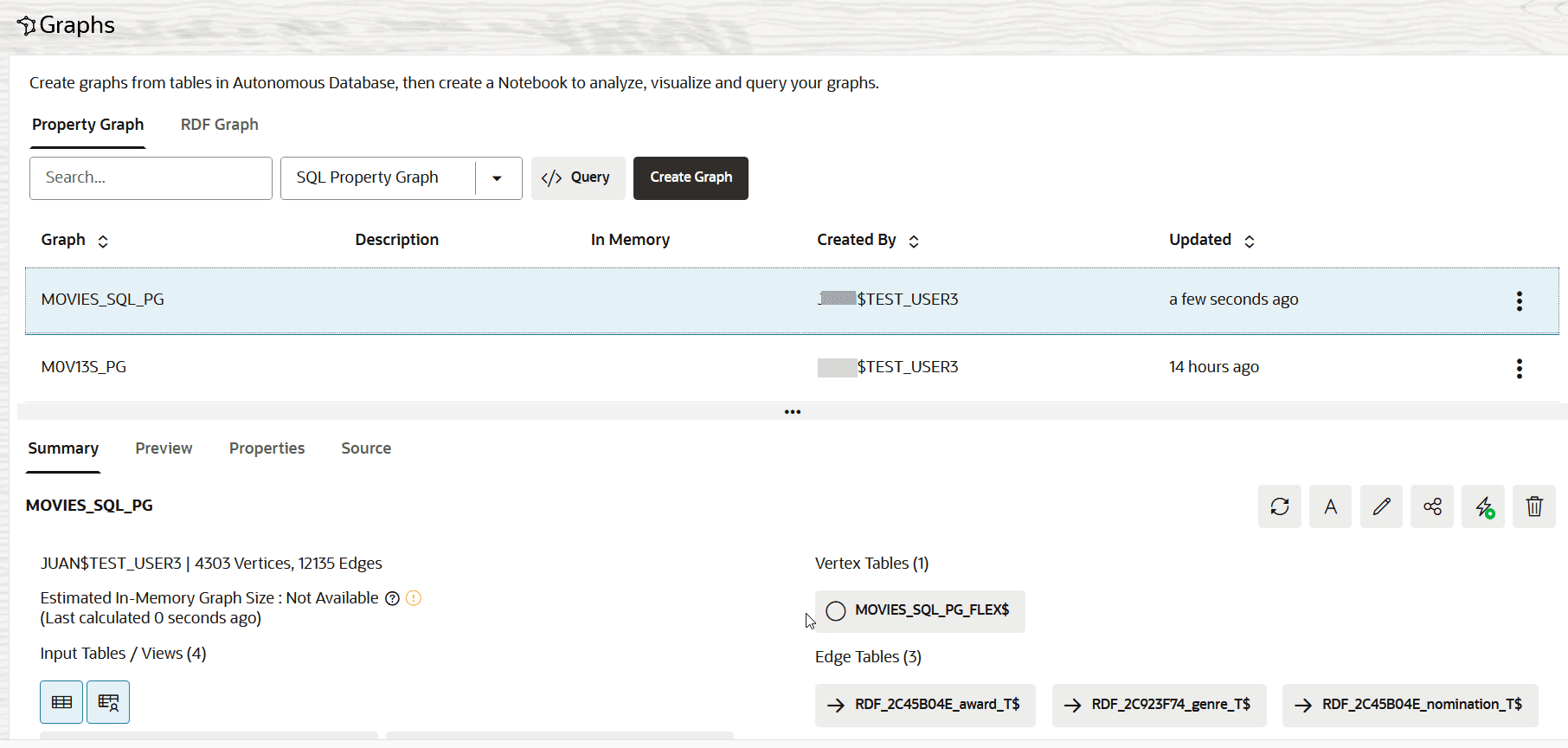
Description of the illustration sql_pg_from_rdf.png
When you select a property graph on the Graphs page, Graph Studio validates the graph and displays a
 (warning) symbol next to the graph if it has any issues. You can click Show Warnings in the graph details panel to know more about the warnings.
You can also run graph queries in the Query Playground page or analyze and visualize the graph using a Notebook.
The following figure shows an example of a SQL graph query that is executed on a SQL property graph in the Query Playground page:
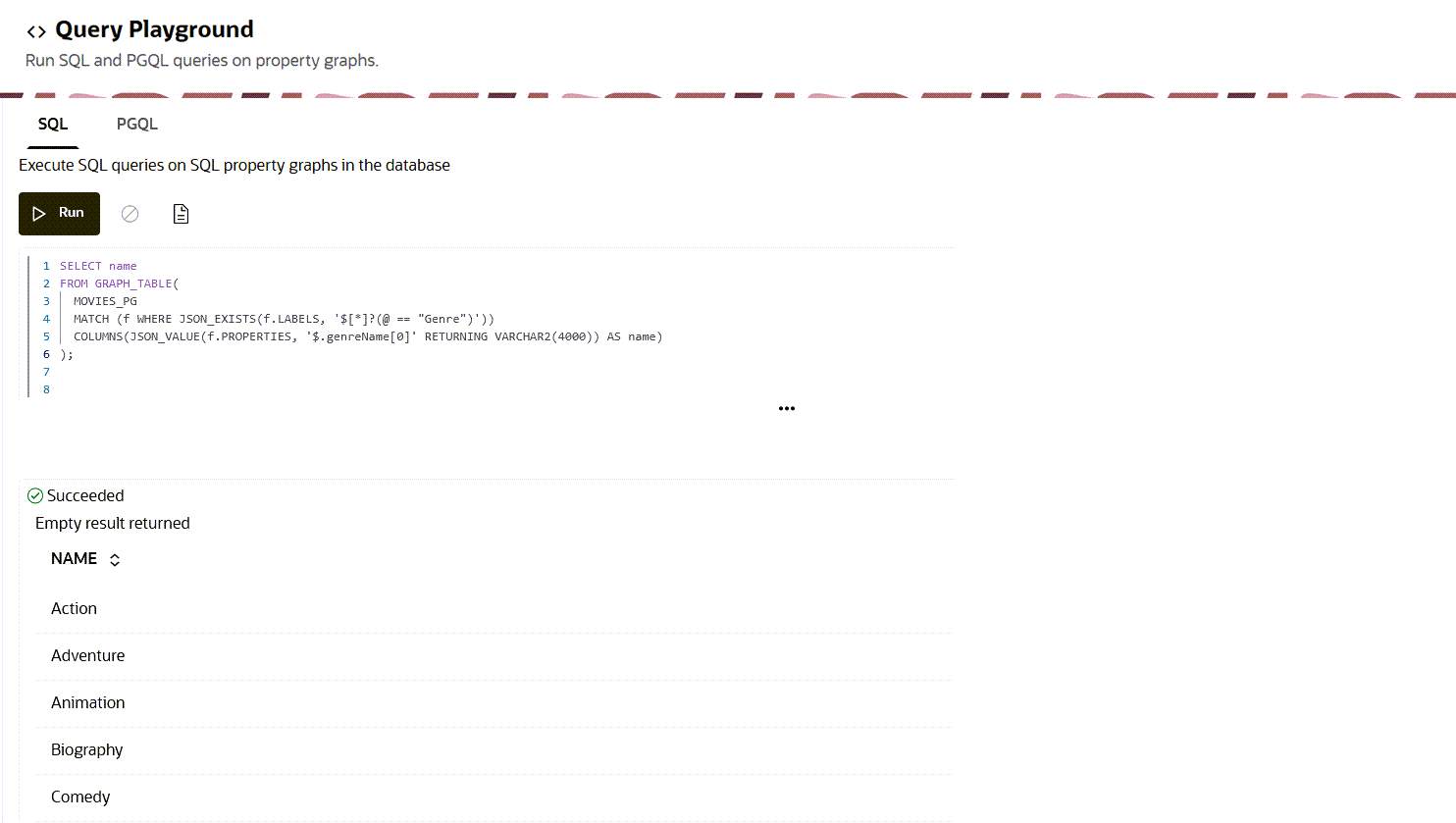
Description of the illustration rdf_sql_pg_query_playground.png