Share a PGQL Property Graph
You can share a PGQL property graph with other database users, granting them read-only access to the graph.
Perform the following steps to share a PGQL property graph:
-
Navigate to the Graphs page using the Graphs menu link.
-
Click the Property Graph tab.
-
Select PGQL Property Graph from the drop-down.
The list of PGQL property graphs to which you have access are displayed.
-
Select the graph that you wish to share and click open the actions menu on the card.
If you are using Table view, then the actions menu is located at the end of the table row.
-
Click Share Graph in the context menu.
The Share Graph with Permissions slider opens as shown:
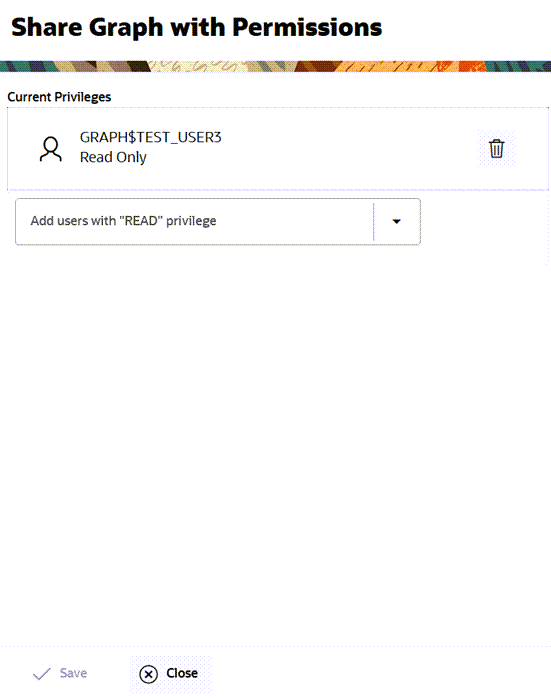
Description of the illustration share_pgql_graph_with-permissions.png
As shown in the preceding figure, all users who have already been granted read-only access to the graph are displayed.
-
Select the user with whom you wish to share the graph from the Add users with “READ” privilege drop-down and click Save.
By default, the user is granted
READ ONLYprivilege on the graph and gets listed as a grantee in the Share Graph with Permissions slider. -
Optionally, you can revoke the existing graph privilege for a user as shown in the following steps:
-
Click the Delete icon against the user.
The Confirm to revoke privilege dialog opens.
-
Click Confirm to revoke the user privilege.
-