Access and Navigate Data Studio
Open Data Studio and explore the capabilities before selecting or connecting to a database or compute resource.
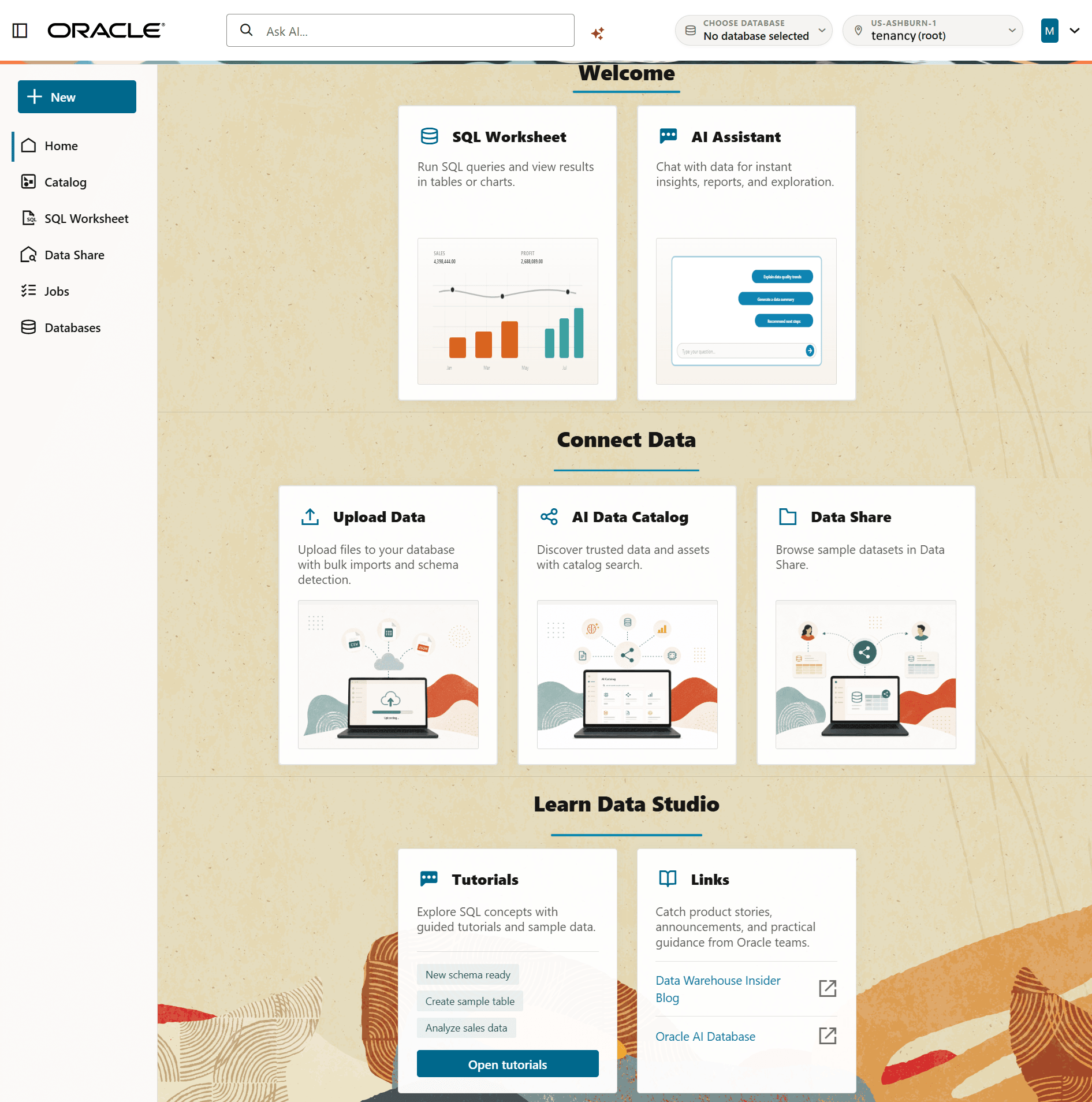
Description of the illustration data-studio-home.png
How to Access Data Studio
You can open Data Studio using either of the following methods:
-
Sign in with Oracle Cloud
Sign in with your Oracle Cloud Infrastructure identity. After authentication, you can select the region, compartment, and database that you want to use.
-
Connect to a Database
Use a Database Actions URL and provide your database user name and password to connect directly to a database without signing in to Oracle Cloud Infrastructure.
Note: If you open Data Studio from an external link, the sign-in page might have a tenancy name, Database Actions URL, or intended destination already filled in.
Sign in with Oracle Cloud
Access Data Studio with your Oracle Cloud Infrastructure identity:
-
Open the Data Studio URL in a web browser.
https://datastudio.oracle.com -
Sign in with your Oracle Cloud Infrastructure identity.
You can explore Data Studio without connecting to a database.
Use Data Studio With or Without a Database
When you sign in with Oracle Cloud, you can open Data Studio without selecting a database. In this state, you can access the home page and database inventory.
When you connect to a database, Data Studio provides only the capabilities supported by that connection. Some actions require Oracle Cloud authentication. If Data Studio indicates that Oracle Cloud authentication is required, select Sign in with Oracle Cloud.
Select a database or compute resource when you begin a task that requires one, such as querying data, loading data, or executing a data flow. When you select a capability that requires a database, Data Studio prompts you to select or connect to one.
After you connect to a database, Data Studio displays the selected database in the header. The database status indicates whether the database is connected, ready for AI workflows, or requires setup. If setup is required, open OCI Permissions to check the required access, or open database settings to complete the required database configuration. See Prepare to Use Data Studio.
You can switch databases when you want to work in a different database environment.
The Home Page
The home page provides a central starting point for Data Studio. Use it to understand the available capabilities and begin a task.
Depending on the capabilities available in your environment, the home page can provide links to relevant resources and workflows.
Start a Task
You can start a common workflow from the home page.
-
Welcome: Click New and select SQL Worksheet or AI Assistant.
-
Connect Data: Access data ingestion, discovery, catalog, and sharing workflows using Upload Data, AI Data Catalog, or Data Share.
-
Learn Data Studio: Explore guided tutorials and sample data.
Navigate Data Studio
Data Studio uses task-oriented navigation to organize common data activities. Use the navigation to switch between working with databases, discovering data, loading or connecting data, querying data, sharing data, and monitoring jobs.
You can open the tools from the left navigation panel:
-
Home: Return to the Data Studio home page.
-
Catalog: Use Catalog Navigator to browse, inspect, query, load, or link database and Object Storage assets. See Catalog Navigator.
-
SQL Worksheet: Write SQL, run queries, view results, and visualize result sets. See Query Data with SQL Worksheet.
-
Data Share: Discover and publish curated data sets. See Share Data.
-
Jobs: Monitor data loads and other workflow jobs. See Monitor and Manage Jobs.
-
Databases: View, create, connect to, and manage Autonomous Databases. See Work with Database Connections and Resources.
Use Tutorials
Data Studio provides guided tutorials in a side panel.
Tutorials can help you work through product tasks, such as creating sample data, joining tables, summarizing rows, filtering data, and visualizing sales trends.
-
On the home page, scroll down to Learn Data Studio.
-
Click Open tutorials.
-
Select a tutorial from the panel.
Follow the tutorial steps and switch to the relevant product area when prompted.