Connect to Autonomous AI Database on Dedicated Exadata Infrastructure with Database Actions
Tip: For a “try it out” alternative that demonstrates these instructions, run Lab 7: Database Actions Console in the Oracle Autonomous AI Database Dedicated Workshop.
Oracle Database Actions, a browser-based application that provides many database development, management and monitoring features is built into Autonomous AI Databases. Therefore, you can use it without downloading or installing additional software on your system. Database Actions was earlier known as SQL Developer Web.
Requirements To be able to sign into Database Actions:
-
The system you are using must have network access to the Autonomous AI Database. This can be achieved using either of the following ways:
-
By setting proper network routes with VPN (Fast connect or VPN as a Service) or any VCN peering if the compute host is in another VCN.
-
You must have an Oracle Cloud user account that permits you to access the database's Details page in the Oracle Cloud console page.
-
If you are an application developer, the ADMIN user must enable your access to Database Actions, as described in Enabling User Access to Database Actions in Using Oracle Database Actions. This is required because only the ADMIN database user has access to Database Actions, by default.
Access Database Actions
To access the Database Actions Sign In page, you copy its URL from the Database Actions dialog found in the Tools tab of the database’s Details page, and then paste the URL into your web browser’s address bar.
-
In your web browser, sign in to Oracle Cloud and navigate to the Details page for the Autonomous AI Database.
For instructions, see View Details of a Dedicated Autonomous AI Database.
Note: For databases that use Autonomous Data Guard, go to the Details page of the primary database. Database Actions can not be launched from a standby database in an Autonomous Data Guard configuration.
-
Click Database Actions.
-
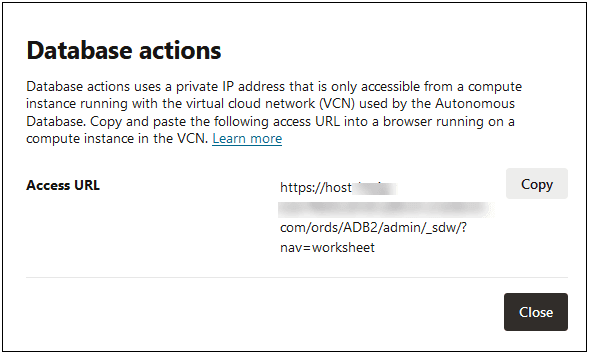
In the Database Actions dialog, click the Copy link in the Access URL field to copy the URL to your clipboard.
-
If you are an application developer, paste the URL into a text editor and then change “admin” to the user name of the database user you are signing in as. Copy the edited URL and paste it into your web browser's address bar.
However, as a database administrator, you can paste the copied URL into your web browser's address bar directly.