Query External Data with Data Catalog
Oracle Cloud Infrastructure Data Catalog is the metadata management service for Oracle Cloud that helps you discover data and support data governance. It provides an inventory of assets, a business glossary, and a common metastore for data lakes.
Autonomous AI Database can leverage this metadata to dramatically simplify management for access to your data lake’s object store. Instead of manually defining external tables to access your data lake, use the external tables that are defined and managed automatically. These tables will be found in Autonomous AI Database protected schemas that are kept up to date with changes in Data Catalog.
About Querying with Data Catalog
By synchronizing with Data Catalog metadata, Autonomous AI Database automatically creates external tables for each logical entity harvested by Data Catalog. These external tables are defined in database schemas that are fully managed by the metadata synchronization process. Users can immediately query data without having to manually derive the schema (columns and data types) for external data sources and manually create external tables.
Synchronization is dynamic, keeping the Autonomous AI Database up-do-date with respect to changes to the underlying data, reducing administration cost as it automatically maintains hundreds to thousands of tables. It also allows multiple Autonomous AI Database instances to share the same Data Catalog, further reducing management costs and providing a common set of business definitions.
The Data Catalog folders/buckets are containers that sync with Autonomous Database schemas. Logical entities within those folders/buckets map to Autonomous Database external tables. These schemas and external tables are automatically generated and maintained through the sync process:
-
Folders/Buckets map to database schemas that are for organizational purposes only.
-
The organization is meant to be consistent with the data lake and minimize confusion when accessing data thru different paths.
-
Data Catalog is the source of truth for the tables contained within schemas. Changes made in the Data Catalog update the schema's tables during a subsequent sync.
To use this capability, a Database Data Catalog Administrator initiates a connection to a Data Catalog instance, selects which data assets and logical entities to synchronize, and runs the sync. The sync process creates schemas and external tables based on the selected Data Catalog harvested data assets and logical entities. As soon as the external tables are created, Data Analysts can start querying their data without having to manually derive the schema for external data sources and create external tables.
Note: The DBMS_DCAT Package is available for performing the tasks required to query Data Catalog object store data assets. See DBMS_DCAT package.
Concepts Related to Querying with Data Catalog
An understanding of the following concepts is necessary for querying with Data Catalog.
Data Catalog: Data Catalog harvests data assets that point to the object store data sources you want to query with Autonomous AI Database. From Data Catalog you can specify how the data is organized during harvesting, supporting different file organization patterns. As part of the Data Catalog harvesting process, you can select the buckets and files you want to manage within the asset. For further information, see Data Catalog Overview.
Object Stores: Object Stores have buckets containing a variety of objects. Some common types of objects found in these buckets include: CSV, parquet, avro, json, and ORC files. Buckets generally have a structure or a design pattern to the objects they contain. There are many different ways to structure data and many different ways of interpreting these patterns.
For example, a typical design pattern uses top-level folders that represent tables. Files within a given folder share the same schema and contain data for that table. Subfolders are often used to represent table partitions (for example, a subfolder for each day). Data Catalog refers to each top-level folder as a logical entity, and this logical entity maps to an Autonomous AI Database external table.
Connection: A connection is an Autonomous AI Database connection to a Data Catalog instance. For each Autonomous AI Database instance there can be connections to multiple Data Catalog instances. The Autonomous AI Database credential must have rights to access Data Catalog assets that have been harvested from object storage.
Harvest: A Data Catalog process that scans object storage and generates the logical entities from your data sets.
Data Asset: A data asset in Data Catalog represents a data source, which includes databases, Oracle Object Storage, Kafka, and more. Autonomous AI Database leverages Oracle Object Storage assets for metadata synchronization.
Data Entity: A data entity in Data Catalog is a collection of data such as a database table or view, or a single file and normally has many attributes that describe its data.
Logical Entity: In Data Lakes, numerous files typically comprise a single logical entity. For example, you may have daily clickstream files, and these files share the same schema and file type.
A Data Catalog logical entity is a group of Object Storage files that are derived during harvesting by applying filename patterns that have been created and assigned to a data asset.
Data Object: A data object in Data Catalog refers to data assets and data entities.
Filename Pattern: In a data lake, data may be organized in different ways. Typically, folders capture files of the same schema and type. You must register to Data Catalog how your data is organized. Filename patterns are used to identify how your data is organized. In Data Catalog, you can define filename patterns using regular expressions. When Data Catalog harvests a data asset with an assigned filename pattern, logical entities are created based on the filename pattern. By defining and assigning these patterns to data assets, multiple files can be grouped as logical entities based on the filename pattern.
Synchronize (Sync): Autonomous AI Database performs synchronizations with Data Catalog to automatically keep its database up-to-date with respect to changes to the underlying data. Synchronization can be performed manually, or on a schedule.
The sync process creates schemas and external tables based on the Data Catalog data assets and logical entities. These schemas are protected, which means their metadata is managed by Data Catalog. If you want to alter the metadata, you must make the changes in Data Catalog. The Autonomous AI Database schemas will reflect any changes after the next sync is run. For further details, see Synchronization Mapping.
Synchronization Mapping
The synchronization process creates and updates Autonomous AI Database schemas and external tables based on Data Catalog data assets, folders, logical entities, attributes and relevant custom overrides.
| Data Catalog | Autonomous AI Database | Mapping Description |
|---|---|---|
| Data asset and folder (object storage bucket) | Schema name | Default values: By default, the generated schema name in Autonomous AI Database has the following format:
Customizations: The defaultdata-asset-name and folder-name can be customized by defining custom properties, business names and display names to override these default names.
Examples:
|
| Logical entity | External table | Logical entities are mapped to external tables. If the logical entity has a partitioned attribute, it is mapped to a partitioned external table. The external table name is derived from the corresponding logical entity's Display Name, or Business Name. If For example, if |
| Logical entity’s attributes | External table columns | Column names: The external table column names are derived from the corresponding logical entity's attribute display names, or business names. For logical entities derived from Parquet, Avro, and ORC files, the column name is always the display name of the attribute as it represents the field name derived from the source files. For attributes corresponding to a logical entity derived from CSV files, the following attribute fields are used in order of precedence for generating the column name:
Column type: The For attributes corresponding to a logical entity derived from Avro files with Column length: The Column precision: The For attributes corresponding to a logical entity derived from Avro files with Column scale: The |
Typical Workflow with Data Catalog
There is a typical workflow of actions performed by users who want to query with Data Catalog.
The Database Data Catalog Admin creates a connection between the Autonomous AI Database instance and a Data Catalog instance, then configures and runs a synchronization (sync) between the Data Catalog and Autonomous AI Database. The sync creates external tables and schemas in the Autonomous AI Database instance based on the synced Data Catalog contents.
The Database Data Catalog Query Admin or Database Admin grants READ access to the generated external tables so that Data Analysts and other database users can browse and query the external tables.
The table below describes each action in detail. For a description of the different user types included in this table, see Data Catalog Users and Roles.
Note: The DBMS_DCAT Package is available for performing the tasks required to query Data Catalog object store data assets. See DBMS_DCAT Package.
| Action | Who is the user | Description |
|---|---|---|
| Create policies | Database Data Catalog Administrator | The Autonomous AI Database user credential must have the appropriate permissions to manage Data Catalog and to read from object storage. More information: Required Credentials and IAM Policies. |
| Create credentials | Database Data Catalog Administrator | Ensure database credentials are in place to access Data Catalog and to query object store. The user calls More information: DBMS_CLOUD CREATE_CREDENTIAL Procedure. |
| Create connections to Data Catalog | Database Data Catalog Administrator | To initiate a connection between an Autonomous AI Database instance and a Data Catalog instance the user calls The connection to the Data Catalog instance must use a user credential with sufficient Oracle Cloud Infrastructure (OCI) privileges. Once the connection has been made, the Data Catalog instance is updated with the More information: SET_DATA_CATALOG_CONN Procedure, UNSET_DATA_CATALOG_CONN Procedure. |
| Create a selective sync | Database Data Catalog Administrator | Create a sync job by selecting the Data Catalog objects to sync. The user can:
More information: See CREATE_SYNC_JOB Procedure, DROP_SYNC_JOB Procedure, Synchronization Mapping |
| Sync with Data Catalog | Database Data Catalog Administrator | The user initiates a sync operation. The sync is initiated manually through the The sync operation creates, modifies and drops external tables and schemas according to the Data Catalog contents and sync selections. Manual configuration is applied using Data Catalog Custom Properties. More information: See DBMS_DCAT RUN_SYNC Procedure, CREATE_SYNC_JOB Procedure, Synchronization Mapping |
| Monitor sync and view logs | Database Data Catalog Administrator | The user can view the sync status by querying the USER_LOAD_OPERATIONS view. After the sync process has completed, the user can view a log of the sync results, including details about the mappings of logical entities to external tables. |
| Grant privileges | Database Data Catalog Query Administrator, Database Administrator | The database Data Catalog Query Administrator or database Administrator must grant READ on generated external tables to data analyst users. This allows the data analysts to query the generated external tables. |
| Browse and query external tables | Data Analyst | Data analysts are able to query the external tables through any tool or application that supports Oracle SQL. Data Analysts can review the synced schemas and tables in the DCAT$\* schemas, and query the tables using Oracle SQL. More information: Synchronization Mapping |
| Terminate connections to Data Catalog | Database Data Catalog Administrator | To remove an existing Data Catalog association, the user calls the This action is only done when you no longer plan on using Data Catalog and the external tables that are derived from the catalog. This action deletes Data Catalog metadata, and drops synced external tables from the Autonomous AI Database instance. The custom properties on Data Catalog and OCI policies are not affected. More information: UNSET_DATA_CATALOG_CONN Procedure |
Example: MovieStream Scenario
In this scenario, Moviestream is capturing data in a landing zone on object storage. Much of this data, but not necessarily all, is then used to feed an Autonomous AI Database. Prior to feeding Autonomous AI Database, the data is transformed, cleansed and subsequently stored in the “gold” area.
Data Catalog is used to harvest these sources and then provide a business context to the data. Data Catalog metadata is shared with Autonomous AI Database, allowing Autonomous AI Database users to query those data sources using Oracle SQL. This data may be loaded into Autonomous AI Database or queried dynamically using external tables.
For more information on using Data Catalog, see Data Catalog Documentation.
-
Object Store - Review buckets, folders and files
-
Review the buckets in your object store.
For example, below are the landing (
moviestream_landing) and gold zone (moviestream_gold) buckets in object storage: -
Review the folders and files in the object store buckets.
For example, below are the folders in the landing bucket (
moviestream_landing) in object storage:
-
-
Data Catalog - Create filename patterns
-
Inform Data Catalog how your data is organized using filename patterns. These are regular expressions used to categorize files. The filename patterns are used by the Data Catalog harvester to derive logical entities. The following two filename patterns are used to harvest the buckets in the MovieStream example. See Harvesting Object Storage Files as Logical Data Entities for further details on creating filename patterns.
Hive-style Folder-style {bucketName:.*}/{logicalEntity:[^/]+}.db/{logicalEntity:[^/]+}/.*{bucketName:[\w]+}/{logicalEntity:[^/]+}(?<!.db)/.*$- Creates logical entities for sources that contain ".db" as the first part of the object name.
- To ensure uniqueness within the bucket, the resulting name is (db-name).(folder name)
- Creates a logical entity based on the folder name off of the root
- To prevent duplication with Hive, object names that have ".db" in them are skipped.
-
To create filename patterns, go to the Filename Patterns tab for your Data Catalog and click Create Filename Pattern. For example, the following is the Create Filename Pattern tab for the
moviestreamData Catalog:
-
-
Data Catalog - Data Asset Creation
-
Create a data asset that is used to harvest data from your object store.
For example, a data asset named
phoenixObjStoreis created in themoviestreamData Catalog: -
Add a connection to your data asset.
In this example, the data asset connects to the compartment for the
moviestreamobject storage resource. -
Now, associate your filename patterns with your data asset. Select Assign Filename Patterns, check the patterns you want and click Assign.
For example, here are the patterns assigned to the
phoenixObjStoredata asset: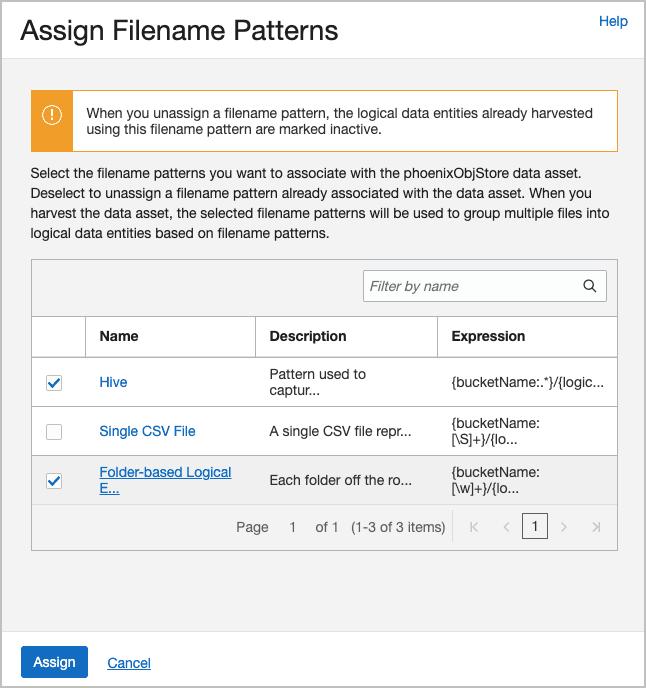
Description of the illustration assign_filename_patterns_v1.png
-
Data Catalog - Harvest data from object store
a. Harvest the Data Catalog data asset. Select the object store buckets containing the source data.
In this example, the
moviestream_goldand ` moviestream_landing` buckets from object store are selected for harvesting.b. After running the job, you see the logical entities. Use the Browse Data Assets to review them.
In this example, you are looking at the
customer-extensionlogical entity and its attributes.If you have a glossary, Data Catalog recommends categories and terms to associate with the entity and its attributes. This provides a business context for the items. Schemas, tables and columns are oftentimes not self-explanatory.
In our example, we want to differentiate between the different types of buckets and the meaning of their content:
-
what is a landing zone?
-
how accurate is the data?
-
when was it last updated?
-
what is the definition of a logical entity or its attribute
-
-
Autonomous AI Database - Connect to Data Catalog
Connect Autonomous AI Database to Data Catalog. You need to ensure that the credential used to make that connection is using an OCI principal that is authorized to access the Data Catalog asset. For further information, see Data Catalog Policies.
a. Connect to Data Catalog
BEGIN
  DBMS_CLOUD.CREATE_CREDENTIAL (
     credential_name => 'OCI_NATIVE_CRED',
     user_ocid              => 'ocid1.user.oc1..aaaaaaaatfn77fe3fxux3o5lego7glqjejrzjsqsrs64f4jsjrhbsk5qzndq',
     tenancy_ocid           => 'ocid1.tenancy.oc1..aaaaaaaapwkfqz3upqklvmelbm3j77nn3y7uqmlsod75rea5zmtmbl574ve6a',
     private_key            => 'MIIEogIBAAKCAQEA...t9SH7Zx7a5iV7QZJS5WeFLMUEv+YbYAjnXK+dOnPQtkhOblQwCEY3Hsblj7Xz7o=',
     fingerprint            => '4f:0c:d6:b7:f2:43:3c:08:df:62:e3:b2:27:2e:3c:7a');
END;

-- Variables are used to simplify usage later
define oci_credential = 'OCI_NATIVE_CRED'
define dcat_ocid = 'ocid1.datacatalog.oc1.iad.aaaaaaaardp66bg....twiq'
define dcat_region='us-ashburn-1'
define uri_root =    'https://objectstorage.us-ashburn-1.oraclecloud.com/n/mytenancy/b/landing/o'
define uri_private = 'https://objectstorage.us-ashburn-1.oraclecloud.com/n/mytenancy/b/private_data/o'

-- Query a private bucket to test the privileges.
select *
  from dbms_cloud.list_objects('&oci_credential', '&uri_private/');

--------

-- Set the credentials to use for object store and data catalog

-- Connect to Data Catalog

-- Review connection

---------

-- Set credentials
exec dbms_dcat.set_data_catalog_credential(credential_name => '&oci_credential');
exec dbms_dcat.set_object_store_credential(credential_name => '&oci_credential');


-- Connect to Data Catalog
begin
  dbms_dcat.set_data_catalog_conn (
     region => '&dcat_region',
     catalog_id => '&dcat_ocid');
end;
/

-- Review the connection
select * from all_dcat_connections;
b. Sync Data Catalog with Autonomous AI Database. Here, we'll sync all the object storage assets:
-- Sync Data Catalog with Autonomous Database

---- Let's sync all of the assets.
begin
  dbms_dcat.run_sync('{"asset_list":["*"]}');
end;
/

-- View log
select type, start_time, status, logfile_table from user_load_operations;  -- Logfile_Table will have the name of the table containing the full log.
select * from dbms_dcat$1_log;

-- View the new external tables
select * from dcat_entities;
select * from dcat_attributes;
c. Autonomous AI Database - Now start running queries against object store.
-- Query the Data ! select *from dcat$phoenixobjstore_moviestream_gold.genre; -
Change schemas for objects
The default schema names are rather complicated. Let's simplify them by specifying both the asset and the folder's
Oracle-Db-Schemacustom attribute in Data Catalog. Change the data asset toPHXand the folders tolandingandgoldrespectively. The schema is a concatenation of the two.a. From Data Catalog, navigate to the
moviestream_landingbucket and change the asset tolandingandgoldrespectively.Before change:
After change:
b. Run another sync.
-
Example: Partitioned Data Scenario
This scenario illustrates how to create external tables in Autonomous AI Database that are based on Data Catalog logical entities harvested from partitioned data in Object Store.
The following example is based on Example: MovieStream Scenario and has been adapted to demonstrate integrating with partitioned data. Data Catalog is used to harvest these sources and then provide a business context to the data. For further details about this example, see Example: MovieStream Scenario.
For more information on using Data Catalog, see Data Catalog Documentation.
-
Object Store - Review buckets, folders and files
-
Review the buckets in your object store.
For example, below are the landing (
moviestream_landing) and gold zone (moviestream_gold) buckets in object storage: -
Review the folders and files in the object store buckets.
For example, below are the folders in the landing bucket (
moviestream_landing) in object storage:
-
-
Data Catalog - Create filename patterns
-
Inform Data Catalog how your data is organized using filename patterns. These are folder prefixes or regular expressions used to categorize files. The filename patterns are used by the Data Catalog harvester to derive logical entities. When a folder prefix is specified, the Data Catalog automatically generates logical entities from the specified folder prefix in the object store. The following filename pattern is used to harvest the buckets in the MovieStream example. See Harvesting Object Storage Files as Logical Data Entities for further details on creating filename patterns.
Folder prefix Description workshop.db/Creates logical entities for sources that contain “workshop.db” path in the object store. -
To create filename patterns, go to the Filename Patterns tab for your Data Catalog and click Create Filename Pattern. For example, the following is the Create Filename Pattern tab for the
moviestreamData Catalog:
-
-
Data Catalog - Data Asset Creation
-
Create a data asset that is used to harvest data from your object store.
For example, a data asset named
amsterdamObjStoreis created in themoviestreamData Catalog: -
Add a connection to your data asset.
In this example, the data asset connects to the compartment for the
moviestreamobject storage resource. -
Now, associate your filename patterns with your data asset. Select Assign Filename Patterns, check the patterns you want and click Assign.
For example, here are the patterns assigned to the
amsterdamObjStoredata asset:
-
-
Data Catalog - Harvest data from object store
-
Harvest the Data Catalog data asset. Select the object store buckets containing the source data.
In this example, the
moviestream_goldand ` moviestream_landing` buckets from object store are selected for harvesting. -
After running the job, you see the logical entities. Use the Browse Data Assets to review them.
In this example, you are looking at the
sales_sample_parquetlogical entity and its attributes. Note that Data Catalog has identified themonthattribute as partitioned.
-
-
Autonomous AI Database - Connect to Data Catalog
Connect Autonomous AI Database to Data Catalog. You need to ensure that the credential used to make that connection is using an OCI principal that is authorized to access the Data Catalog asset. For further information, see Data Catalog Policies .
-
Connect to Data Catalog
BEGIN DBMS_CLOUD.CREATE_CREDENTIAL ( credential_name => 'OCI_NATIVE_CRED', user_ocid => 'ocid1.user.oc1..aaaaaaaatfn77fe3fxux3o5lego7glqjejrzjsqsrs64f4jsjrhbsk5qzndq', tenancy_ocid => 'ocid1.tenancy.oc1..aaaaaaaapwkfqz3upqklvmelbm3j77nn3y7uqmlsod75rea5zmtmbl574ve6a', private_key => 'MIIEogIBAAKCAQEA...t9SH7Zx7a5iV7QZJS5WeFLMUEv+YbYAjnXK+dOnPQtkhOblQwCEY3Hsblj7Xz7o=', fingerprint => '4f:0c:d6:b7:f2:43:3c:08:df:62:e3:b2:27:2e:3c:7a'); END; -- Variables are used to simplify usage later define oci_credential = 'OCI_NATIVE_CRED' define dcat_ocid = 'ocid1.datacatalog.oc1.eu-amsterdam-1....leguurn3dmqa' define dcat_region='eu-amsterdam-1' define uri_root = 'https://objectstorage.us-ashburn-1.oraclecloud.com/n/mytenancy/b/landing/o' define uri_private = 'https://objectstorage.us-ashburn-1.oraclecloud.com/n/mytenancy/b/private_data/o' -- Query a private bucket to test the privileges. select * from dbms_cloud.list_objects('&oci_credential', '&uri_private/'); -------- -- Set the credentials to use for object store and data catalog -- Connect to Data Catalog -- Review connection --------- -- Set credentials exec dbms_dcat.set_data_catalog_credential(credential_name => '&oci_credential'); exec dbms_dcat.set_object_store_credential(credential_name => '&oci_credential'); -- Connect to Data Catalog begin dbms_dcat.set_data_catalog_conn ( region => '&dcat_region', catalog_id => '&dcat_ocid'); end; / -- Review the connection select * from all_dcat_connections; -
Sync Data Catalog with Autonomous AI Database. Here, we'll sync all the object storage assets:
-- Sync Data Catalog with Autonomous Database ---- Let's sync all of the assets. begin dbms_dcat.run_sync('{"asset_list":["*"]}'); end; / -- View log select type, start_time, status, logfile_table from user_load_operations; -- Logfile_Table will have the name of the table containing the full log. select * from dbms_dcat$1_log; -- View the new external tables select * from dcat_entities; select * from dcat_attributes; -
Autonomous AI Database - Now start running queries against object store.
-- Query the Data !
select count(*) from DCAT$AMSTERDAMOBJSTORE_MOVIESTREAM_LANDING.SALES_SAMPLE_PARQUET;


-- Examine the generated partitioned table
select dbms_metadata.get_ddl('TABLE','SALES_SAMPLE_PARQUET','DCAT$AMSTERDAMOBJSTORE_MOVIESTREAM_LANDING') from dual;

CREATE TABLE "DCAT$AMSTERDAMOBJSTORE_MOVIESTREAM_LANDING"."SALES_SAMPLE_PARQUET"
(    "MONTH" VARCHAR2(4000) COLLATE "USING_NLS_COMP",

     "DAY_ID" TIMESTAMP (6),
     "GENRE_ID" NUMBER(20,0),
     "MOVIE_ID" NUMBER(20,0),
     "CUST_ID" NUMBER(20,0),
...
)  DEFAULT COLLATION "USING_NLS_COMP"
ORGANIZATION EXTERNAL
 ( TYPE ORACLE_BIGDATA
   ACCESS PARAMETERS
   ( com.oracle.bigdata.fileformat=parquet
     com.oracle.bigdata.filename.columns=["MONTH"]
     com.oracle.bigdata.file_uri_list="https://swiftobjectstorage.eu-amsterdam-1.oraclecloud.com/v1/tenancy/moviestream_landing/workshop.db/sales_sample_parquet/*"
...
   )
 )
REJECT LIMIT 0
PARTITION BY LIST ("MONTH")
(PARTITION "P1"  VALUES (('2019-01'))
   LOCATION ( 'https://swiftobjectstorage.eu-amsterdam-1.oraclecloud.com/v1/tenancy/moviestream_landing/workshop.db/sales_sample_parquet/month=2019-01/*'),
PARTITION "P2"  VALUES (('2019-02'))
   LOCATION ( 'https://swiftobjectstorage.eu-amsterdam-1.oraclecloud.com/v1/tenancy/moviestream_landing/workshop.db/sales_sample_parquet/month=2019-02/*'),
...PARTITION "P24"  VALUES (('2020-12'))
   LOCATION ( 'https://swiftobjectstorage.eu-amsterdam-1.oraclecloud.com/v1/tenancy/moviestream_landing/workshop.db/sales_sample_parquet/month=2020-12/*'))
PARALLEL
-
-
Change schemas for objects
The default schema names are rather complicated. Let's simplify them by specifying both the asset and the folder's
Oracle-Db-Schemacustom attribute in Data Catalog. Change the data asset toPHXand the folders tolandingandgoldrespectively. The schema is a concatenation of the two.-
From Data Catalog, navigate to the
moviestream_landingbucket and change the asset tolandingandgoldrespectively.Before change:
After change:
-
Run another sync.
-